The Admin Membership Access feature allows administrators to toggle their view of the site as if they had different membership levels. This feature is integrated into the WordPress admin bar, enabling quick changes without navigating away from the current page.
Functionality
The pmpro_admin_membership_access_menu_bar function adds a new menu item to the admin bar. This menu item allows administrators to switch between viewing the site with no membership access, with their current membership level access, or as if they had full membership access.
Video: View As Feature Demo
Conditions for Display
- The menu is only available on the front end of the site, not in the WordPress admin.
- It’s hidden if the site is configured to hide it via the
pmpro_hide_admin_membership_access_toolbarfilter. - Visible only to users with the
manage_optionscapability or, thepmpro_view_ascapability, and if the admin bar is showing.
Changing View Access
The view access can be changed via a dropdown in the admin bar. The available options are:
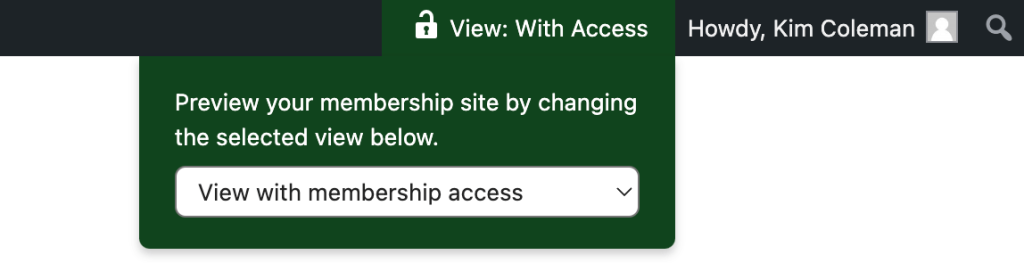
- View with membership access: Mimics full membership access.
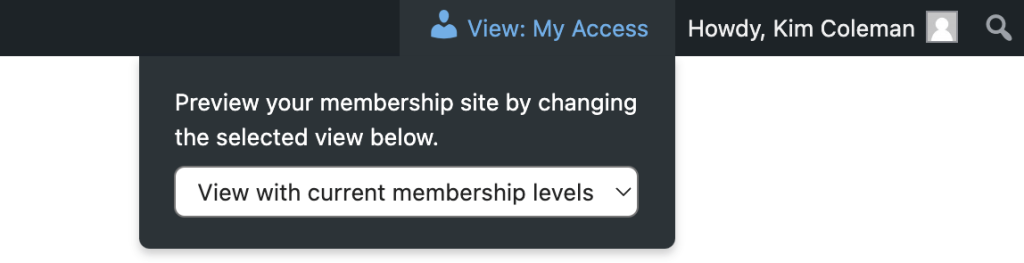
- View with current membership levels: Maintains the user’s current access based on their membership level. This is the default option.
- View without membership access: Simulates a non-member or visitor access.
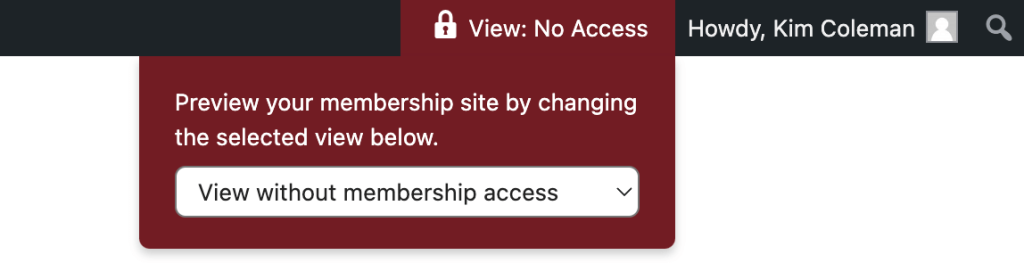
Upon selection, the site refreshes to reflect the chosen access level.
Granting Access to the View As Menu
The View As menu also appears for any user with the pmpro_view_as capability. Use it to give the menu to roles that should not have manage_options, such as a support or QA role. Administrators already see the menu.
For example, this code adds the capability to the Editor role. Run it once, because WordPress stores role capabilities in the database.
$role = get_role( 'editor' );
if ( $role ) {
	$role->add_cap( 'pmpro_view_as' );
}
Users with the capability can change their view the same way administrators do, and the selected view applies to what they see on the front end of the site.
Customization
- Filter:
pmpro_hide_admin_membership_access_toolbarallows hiding the menu. Returning true hides the menu.
add_filter( 'pmpro_hide_admin_membership_access_toolbar', '__return_true');
- User Meta: The function uses the
pmpro_admin_membership_accessuser meta key to store the selected access level.
Usage
After integration, the Admin Membership Access menu appears in the WordPress admin bar on the front end. Administrators can select their desired membership view access from the dropdown.
This feature enhances site management by allowing quick switches between different membership views without the need for multiple test accounts or manual adjustments.
Get Support From Our Team of Experts
Have a question about how to use this feature? Our Support Page outlines three ways to get support.
Our Max plans include hands-on help customizing your membership site and implementing new features. Upgrade to PMPro Max now »
Last updated on October 30, 2026