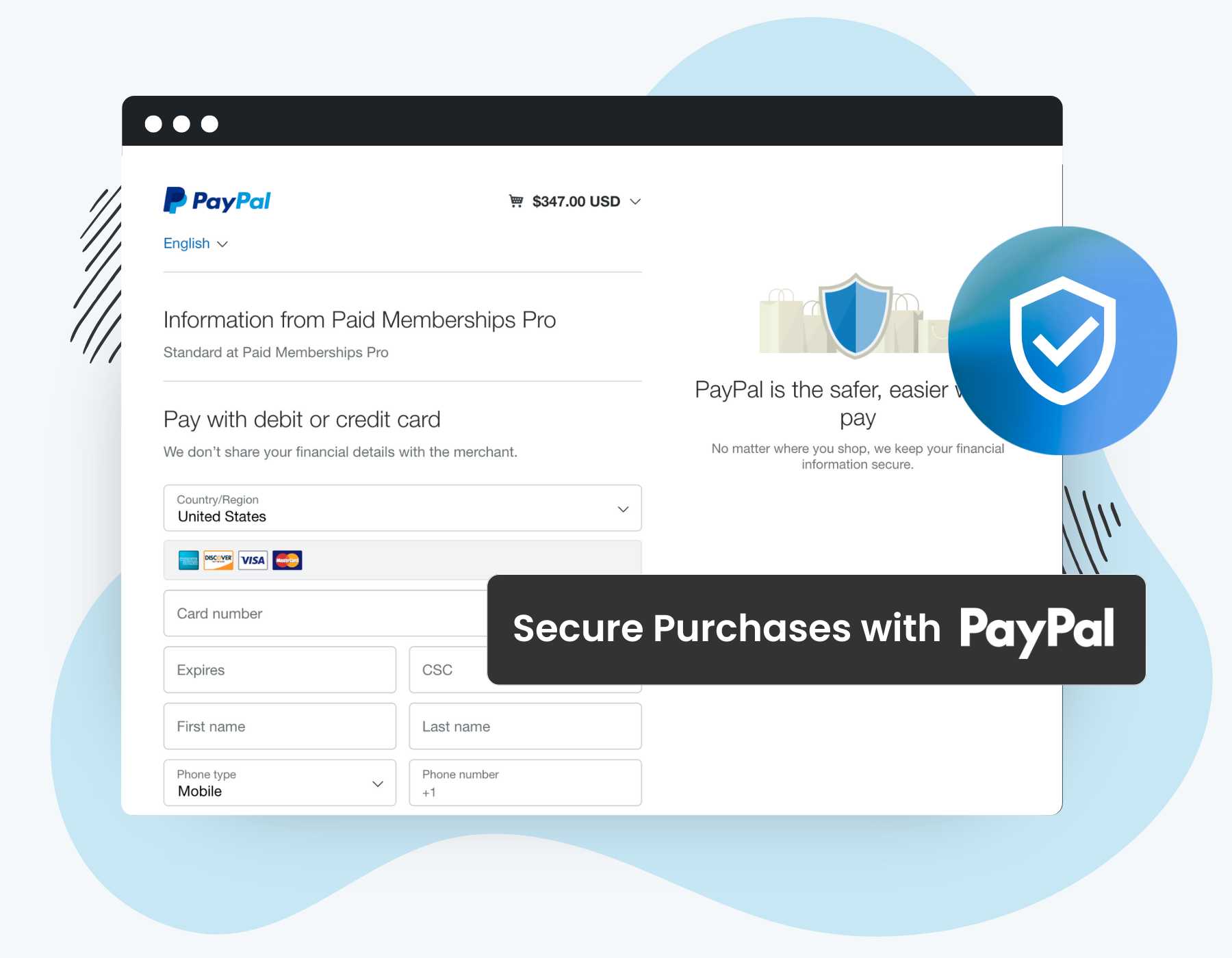
PayPal is one of the most recognized payment brands in the world. Millions of buyers actively look for PayPal at checkout. With this Add On, your members can pay with their PayPal account, a credit or debit card, or guest checkout with no PayPal account required.
- Accept PayPal account payments, guest credit/debit card payments, and Pay in 4 for eligible one-time purchases
- Offer one-time purchases or automatically recurring gateway-managed subscriptions
- Webhook registers automatically: no manual setup in the PayPal dashboard
- Manage live and sandbox credentials from a single settings screen
- Issue refunds for one-time and subscription payments directly from PMPro admin
- Subscription status, next payment date, and billing cycle sync directly from PayPal
Installation
You must have the Paid Memberships Pro plugin installed and activated to use this Add On.
- Navigate to Memberships > Add Ons in the WordPress admin.
- Locate the Add On and click “Install Now“.
- Or, to install this plugin manually, download the .zip file above.
- Upload the compressed directory (.zip) via the Plugins > Add New > Upload Plugin screen in the WordPress admin.
- Activate the plugin through the Plugins screen in the WordPress admin.
How to Set Up the PayPal Gateway
Note: This Add On requires Paid Memberships Pro 3.7.1 or later, a PayPal Business account, and HTTPS on your site.
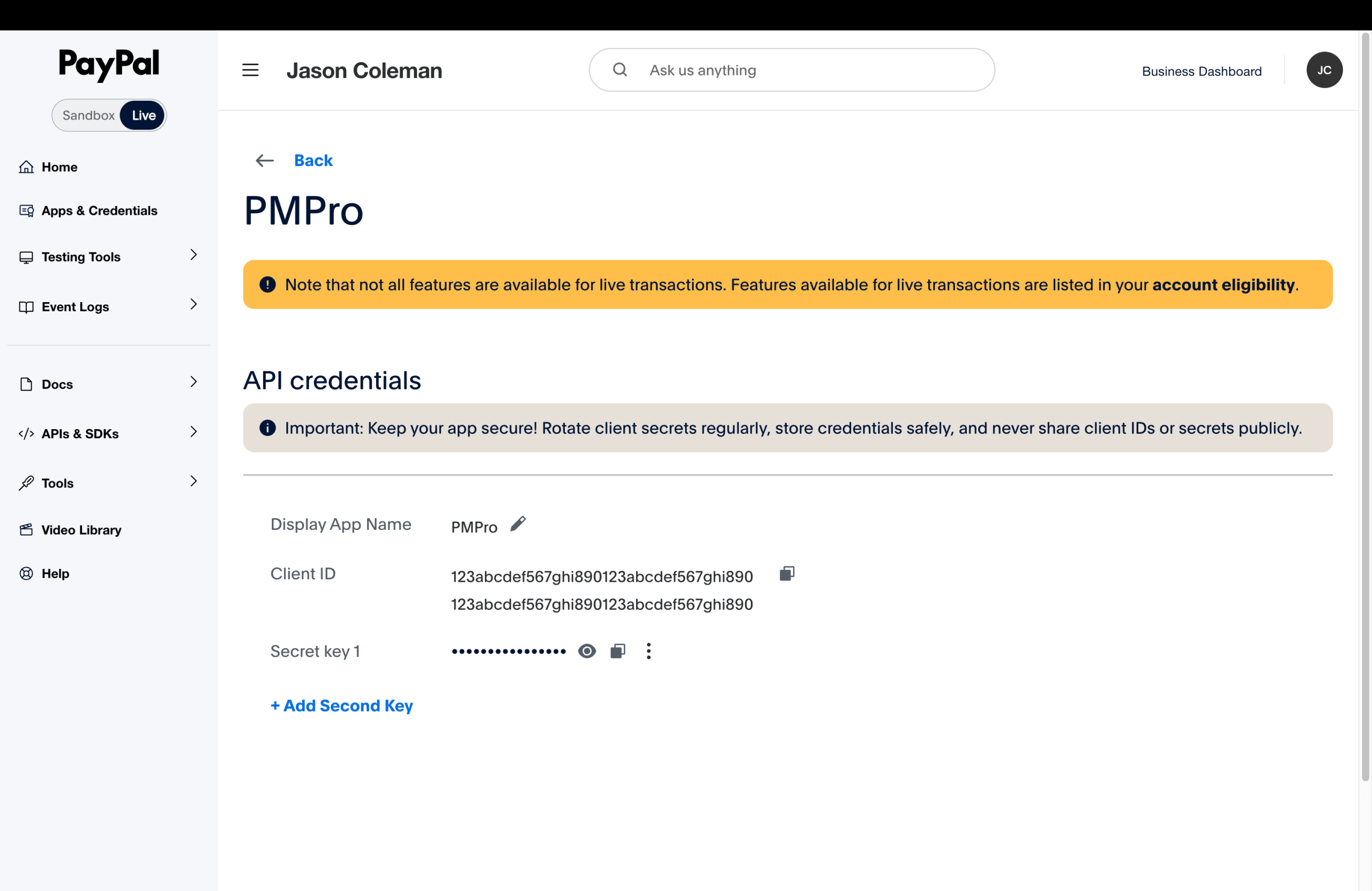
Step 1: Get Your PayPal API Credentials
You’ll need a Client ID and Client Secret from the PayPal Developer Dashboard. Get sandbox credentials first for testing, then repeat the steps for your live environment when you’re ready to go live.
For Sandbox Testing
- Go to developer.paypal.com and log in with your PayPal account.
- Open the Developer Dashboard. Toggle the environment to Sandbox in the top left.
- Select “Apps & Credentials” from the left sidebar menu.
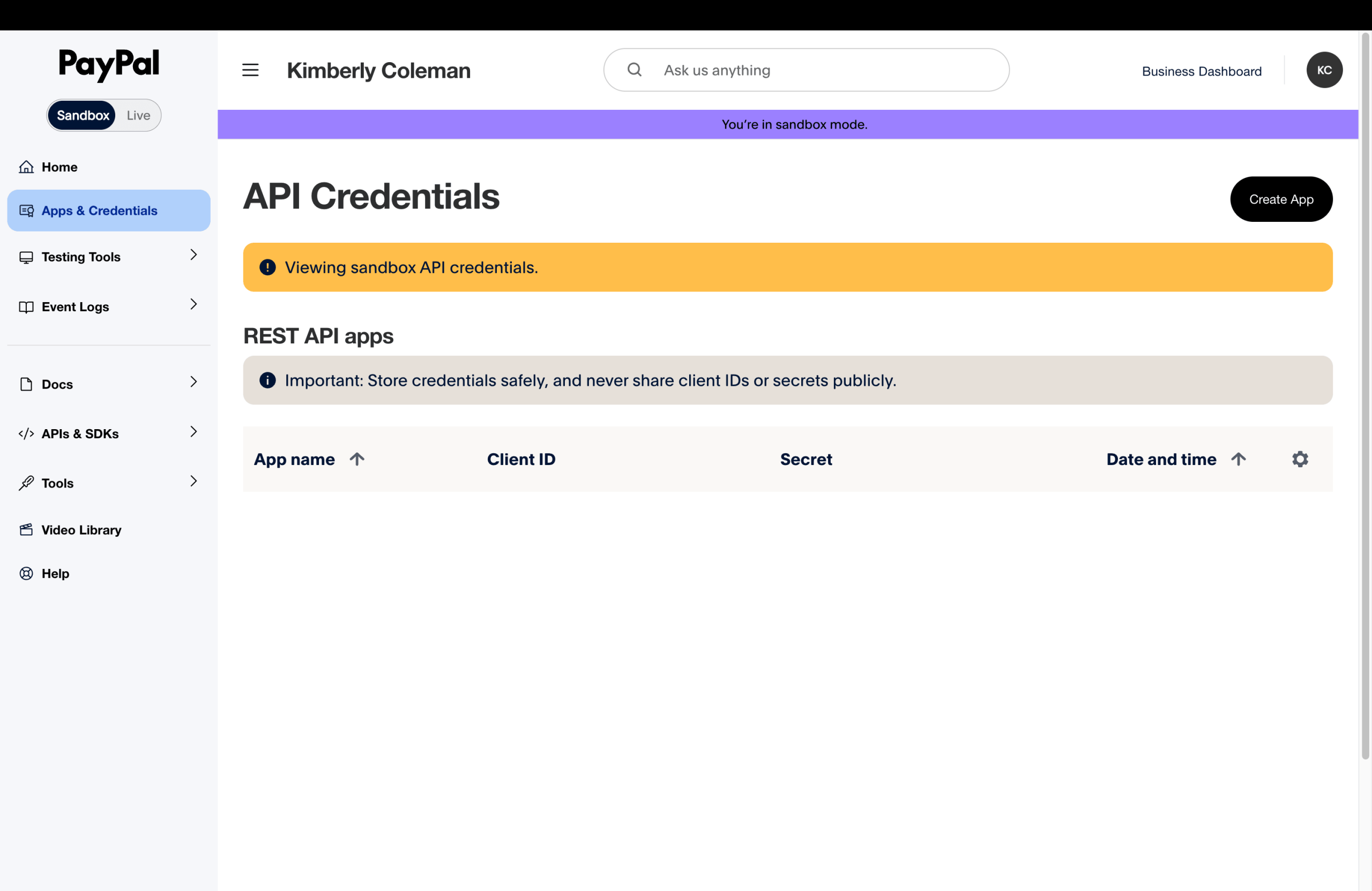
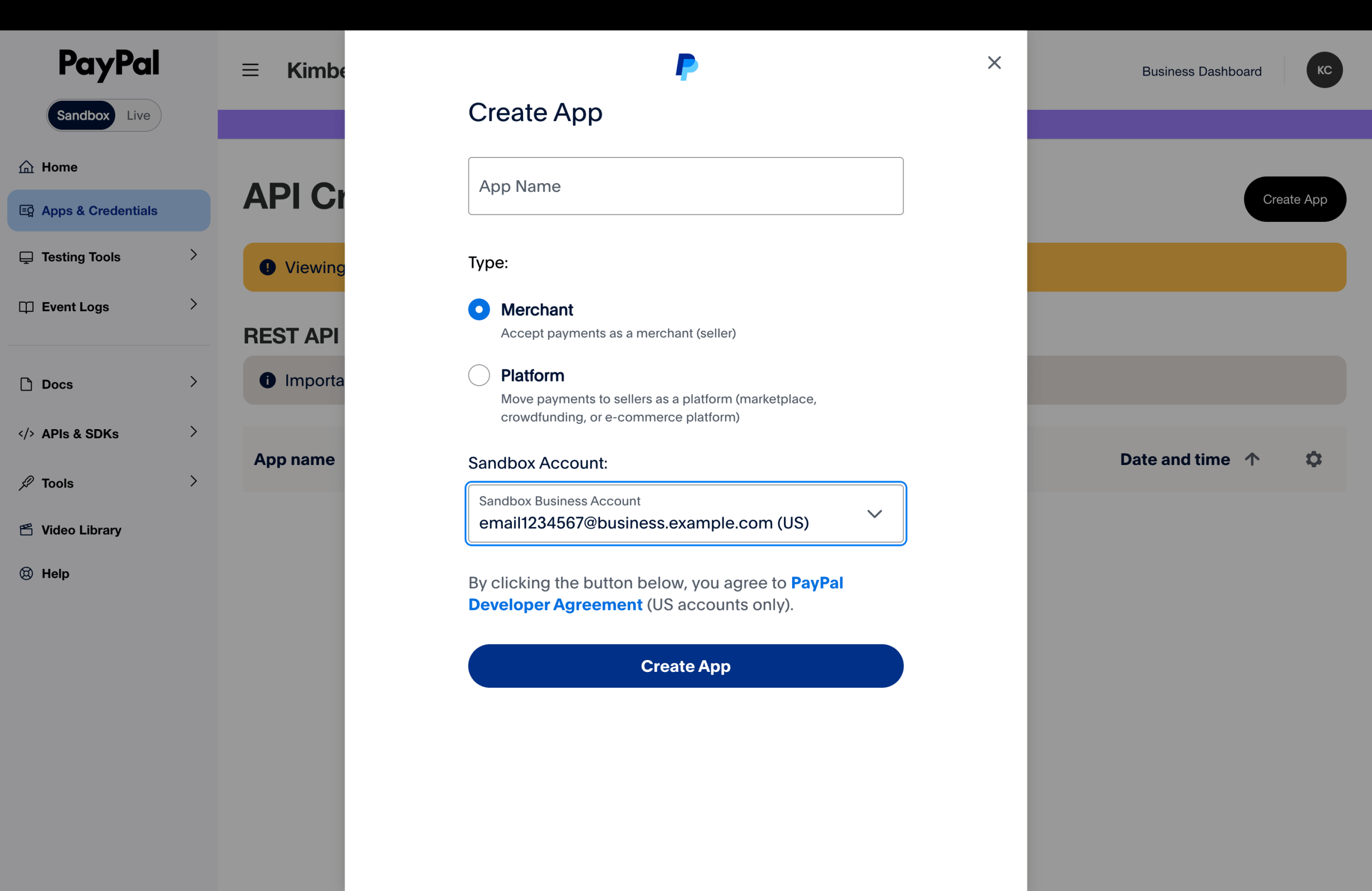
- Click Create App or use the Default Application if one already exists. Give it a name like “PMPro” and click Create App.
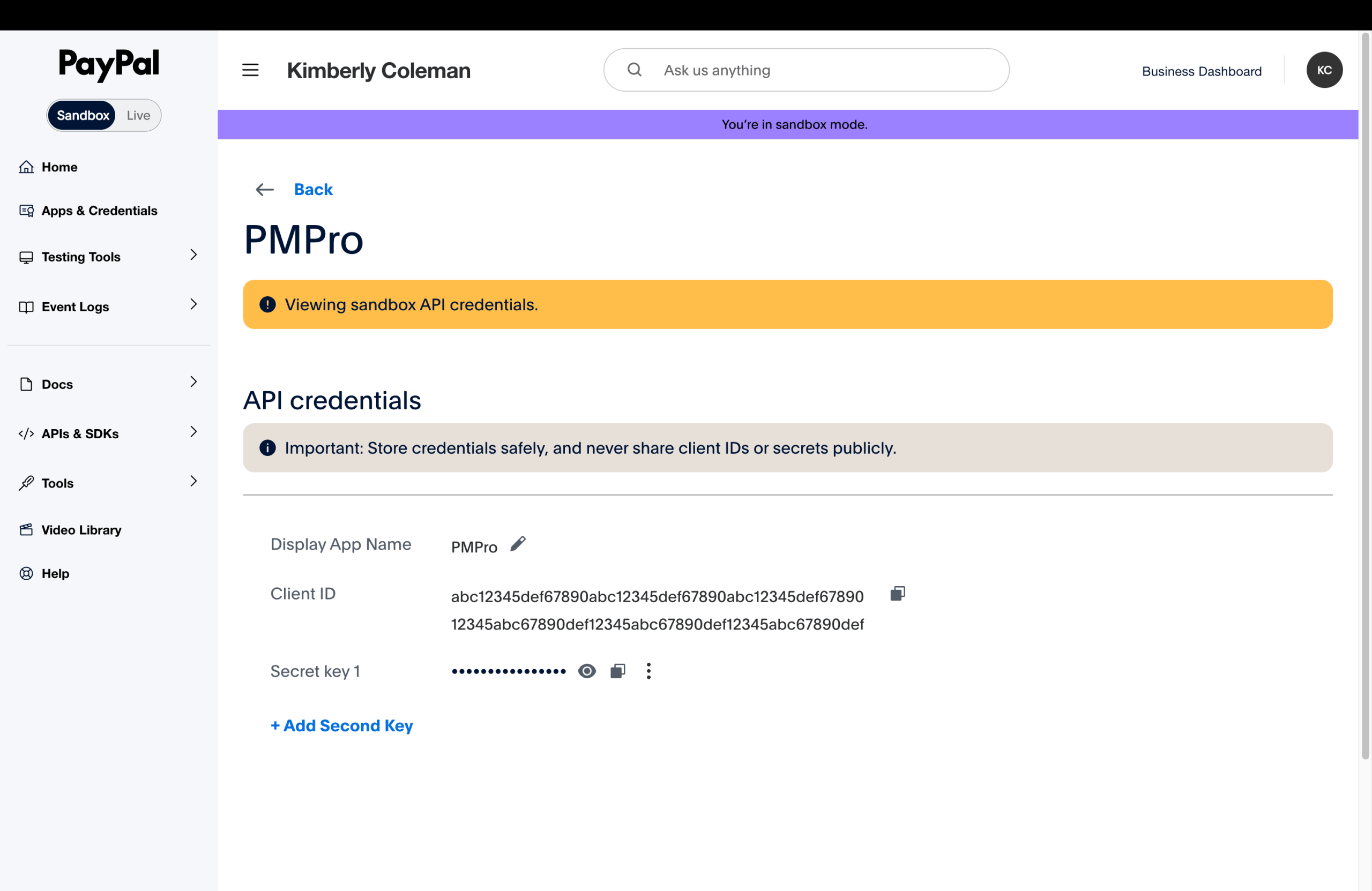
- On the app detail page, copy the Client ID (shown in full) and the Client Secret. Click Show to reveal the secret.
For Live (Production)
Toggle to Live at the top of the Apps & Credentials page, then follow the same steps to create an app and copy your live Client ID and Client Secret.
Step 2: Configure the Plugin
- Install and activate the PayPal Add On if you haven’t already.
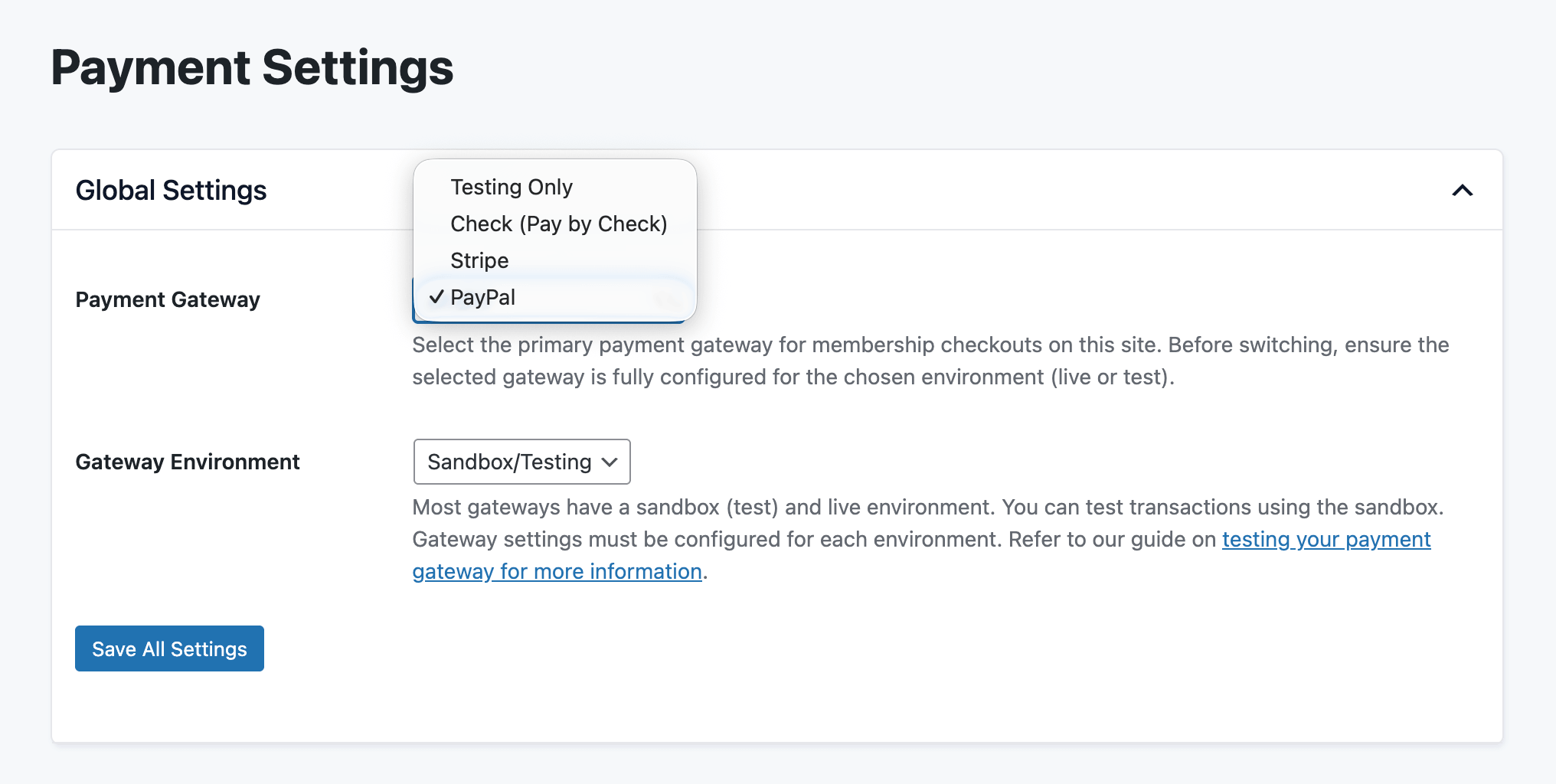
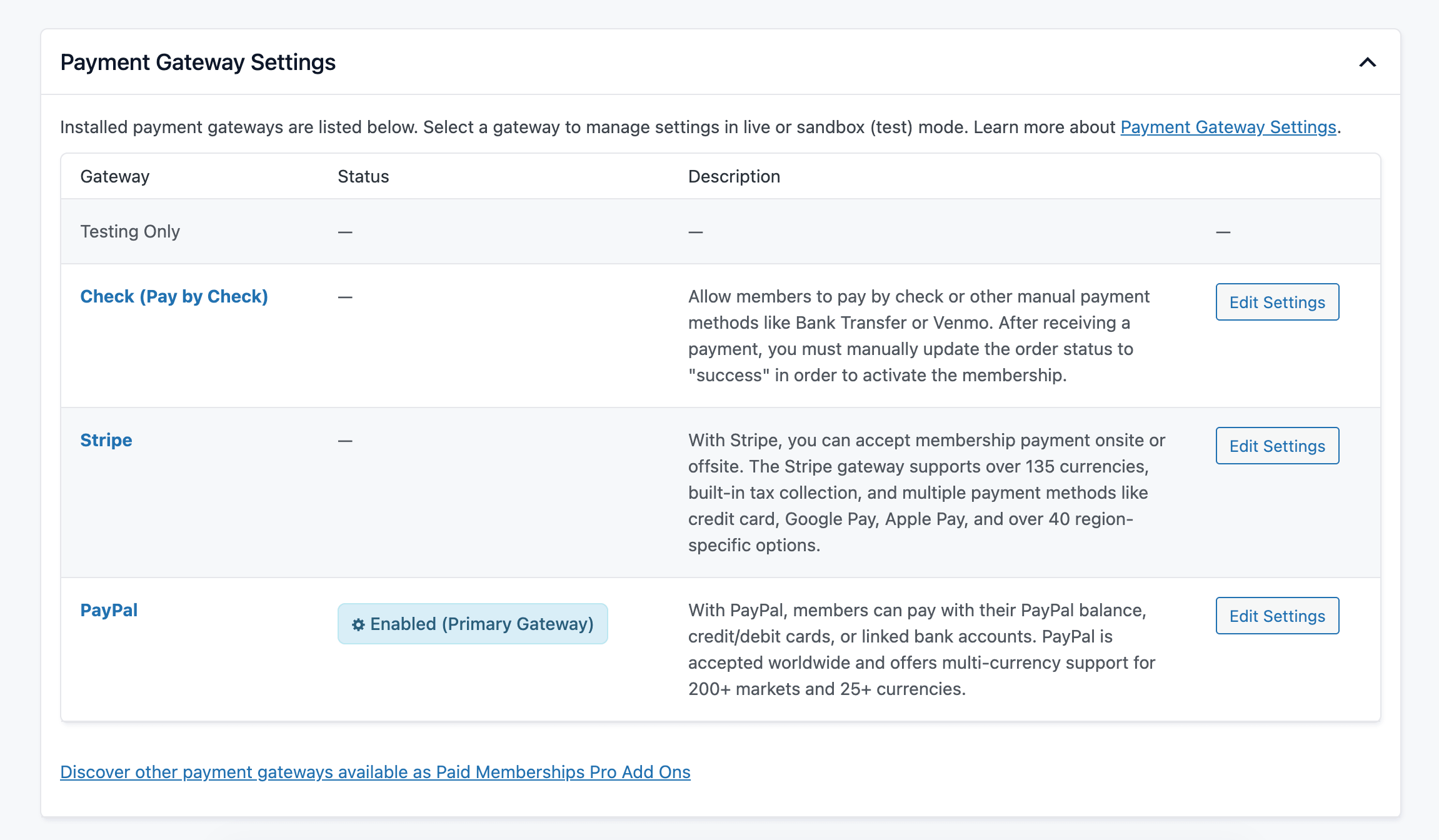
- Go to Memberships > Settings > Payments.
- Select PayPal from the Payment Gateway dropdown. Set the Payment Gateway Environment to Sandbox or Live.
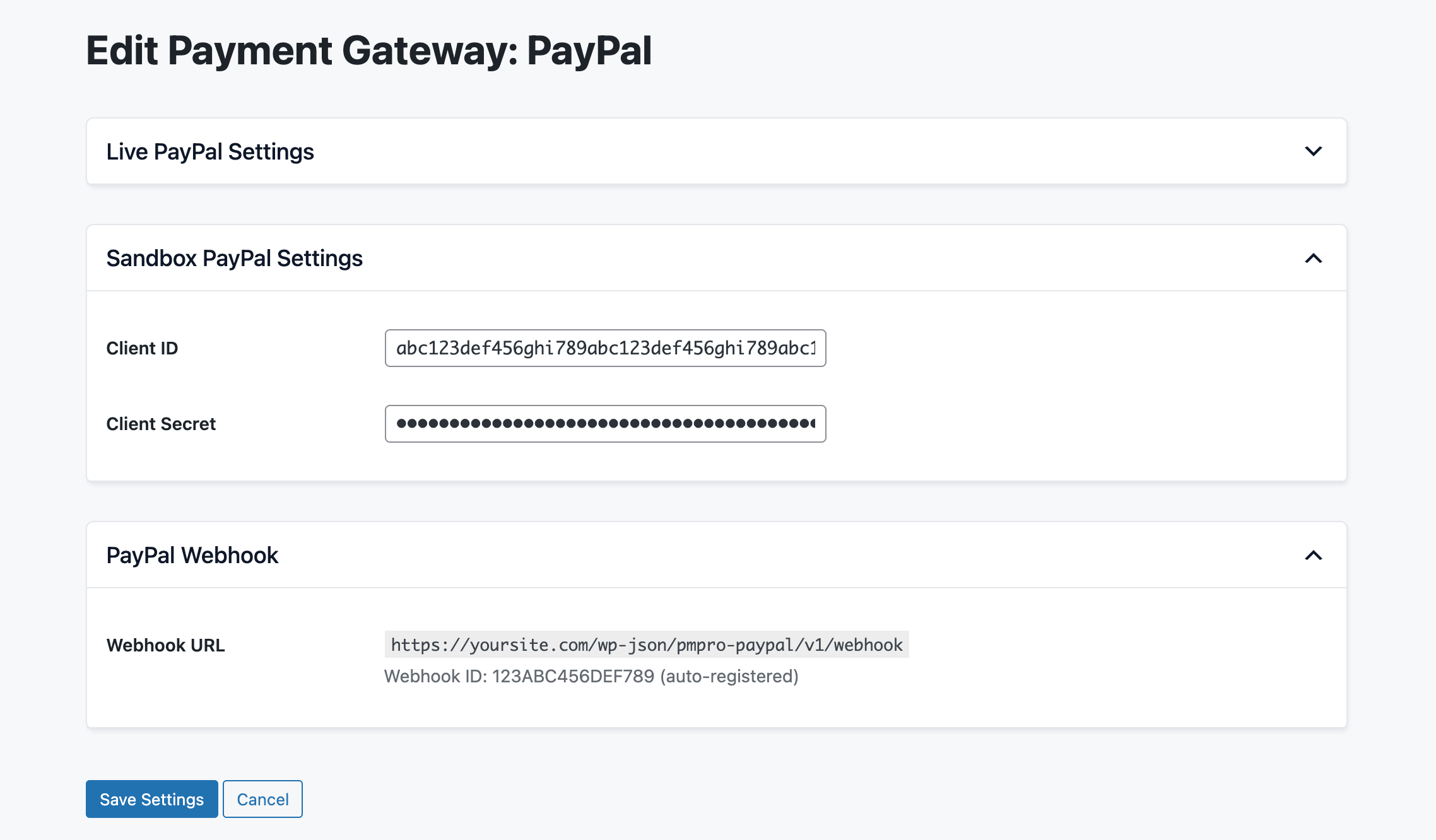
- Click Edit Settings for PayPal.
- Enter your Client ID and Client Secret in the corresponding fields for your Sandbox and Live environments.
- Click Save Settings.
Step 3: Webhook (Automatic)
There’s nothing to configure here. The webhook registers itself. When you save valid credentials, the Add On calls the PayPal API and registers your webhook automatically. You don’t need to enter a webhook URL in the PayPal dashboard.
After saving, your settings page will display a Webhook ID confirming successful registration. The webhook URL is your site’s REST API endpoint:
https://yoursite.com/wp-json/pmpro-paypal/v1/webhook
How Checkout Works
This Add On handles checkout offsite, redirecting members to a PayPal-hosted payment page to complete their purchase before returning them to your confirmation page. There is no onsite card form.
- Member fills out the PMPro checkout form and clicks Check Out with PayPal.
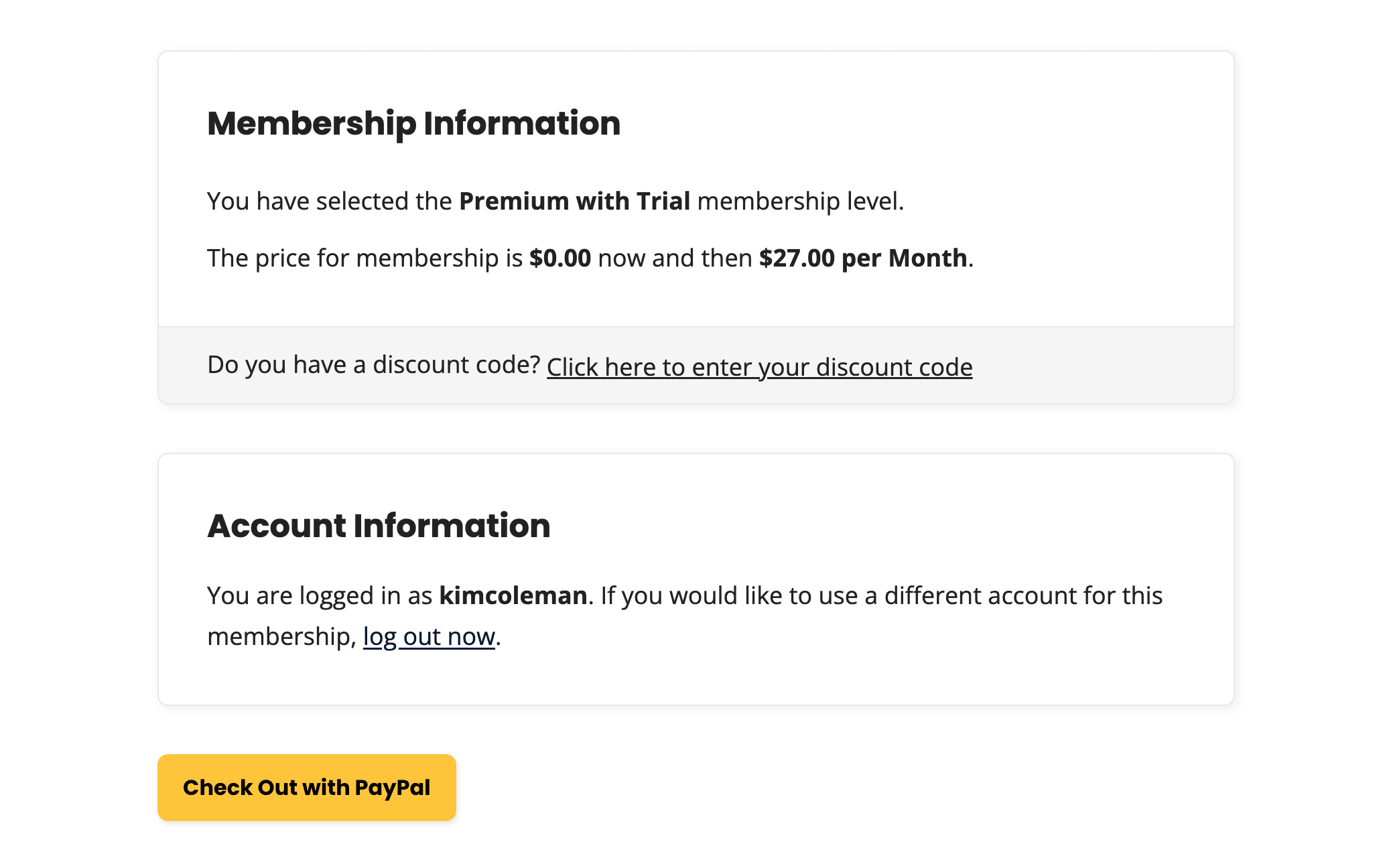
- PMPro creates the user account and order. Discount codes, tax calculations, and custom profile start dates all apply normally.
- PayPal redirects the member to complete payment. They can pay with their PayPal account, a credit or debit card, or guest checkout: no PayPal account required.
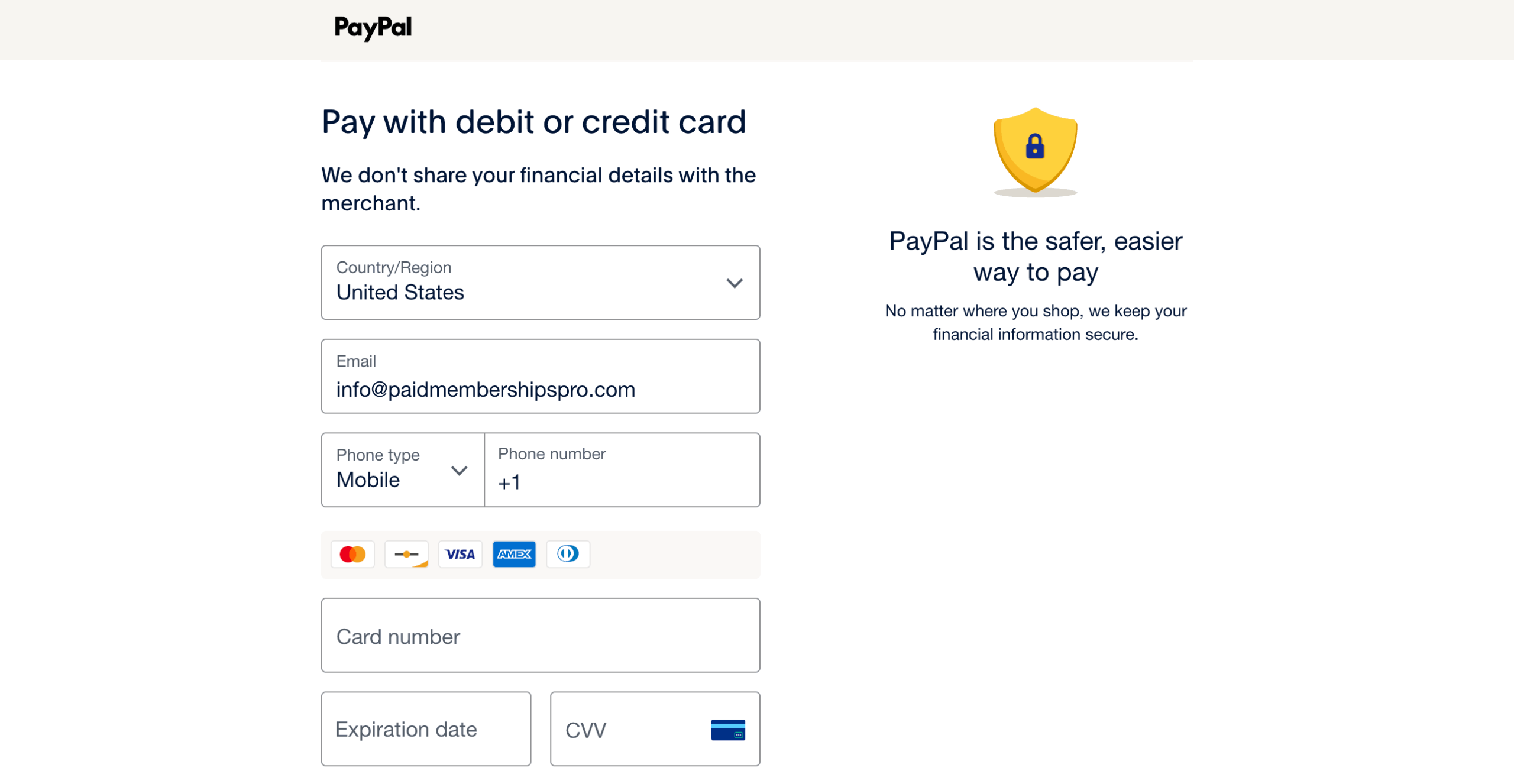
- After approval, the member is redirected back to your site. PayPal confirms the payment via webhook and completes checkout.
Payment Methods Available to Members
- PayPal account: balance, linked cards, linked bank accounts
- Guest checkout: credit or debit card with no PayPal account required
- Pay in 4: available for eligible one-time payments for logged-in PayPal users (not available for subscriptions)
Testing in Sandbox
Before going live, test your integration using PayPal’s sandbox environment. Set the Payment Gateway Environment to Sandbox in PMPro settings and use your sandbox Client ID and Client Secret.
- Generate test credit card numbers at PayPal’s Card Testing tool.
- Create sandbox buyer accounts at developer.paypal.com > Sandbox > Accounts.
- Webhooks require HTTPS and a publicly accessible URL. Sandbox webhooks will not fire on localhost.
Debug Logging
Add one of the following constants to your wp-config.php to enable webhook debug logging. Keep this off in
production unless you are actively troubleshooting.
Log to Email
// Send to a specific email address:
define( 'PMPRO_PAYPAL_WEBHOOK_DEBUG', 'you@example.com' );

// Send to the site admin email:
define( 'PMPRO_PAYPAL_WEBHOOK_DEBUG', true );
Log to File
To log webhook activity to a file instead of sending an email for each event, use:
define( 'PMPRO_PAYPAL_WEBHOOK_DEBUG', 'log' );
This writes to a log file in your site’s access-protected Restricted
Files location, inside a logs/ subdirectory under your WordPress uploads folder:
/wp-content/uploads/pmpro-xxxxxxxxxx/logs/paypal-webhook.txt
How to Download the Log File
There are two ways to access the log file:
- Via SSH, SFTP, or FTP: navigate to the restricted files folder on your server, open the
logs/subdirectory, and downloadpaypal-webhook.txt. - From the browser: if you are logged in as a WordPress administrator, you can download the file directly at:
yourdomain.com/?pmpro_restricted_file_dir=logs&pmpro_restricted_file=paypal-webhook.txt
Migrating from PayPal Express
PayPal Express was deprecated in PMPro 3.7.1. If your site has active PayPal Express subscriptions, those will continue to bill through PayPal until they are cancelled or expire naturally. They cannot be migrated.
Once you activate and configure this new PayPal Gateway Add On, all new checkouts will use the new PayPal integration.
Existing subscribers may eventually need to re-subscribe through the new checkout flow. This will happen naturally when their current subscription ends or if they need to update payment details. PayPal does not provide a way to move active subscriptions between API integrations.
Frequently Asked Questions
No. Members can complete checkout with a credit or debit card without logging in to or creating a PayPal account (somtimes called guest checkout).
Yes. The Add On supports both one-time payments and subscriptions. Subscription status, next payment date, and billing cycle data sync directly from PayPal.
No. The Add On automatically registers your webhook via the PayPal API when you save valid credentials. The Webhook ID will appear in your PMPro settings confirming registration. You do not need to enter a webhook URL anywhere in PayPal.
Membership access activates once PayPal confirms the payment, not immediately after the member is redirected back to your site. This typically takes a few seconds but can take up to a couple of minutes depending on PayPal’s webhook delivery. If the membership doesn’t activate after several minutes, check your debug log for webhook events.
Not in this version. A standard initial payment followed by a recurring amount is supported, but advanced multi-period trials are not. A simple initial payment amount that differs from the recurring amount (e.g., a discounted first payment) is supported through PMPro’s standard checkout options.
This Add On sets PayPal as the primary gateway for your site and cannot be used alongside another gateway.
No. This Add On does not currently support Venmo.
Webhooks require HTTPS and a publicly accessible URL. They will not fire on localhost. Reach out to our support team for further assistance.
PayPal charges subscriptions at the same UTC time each cycle. Depending on your site’s timezone, the displayed next payment date may appear to differ from PayPal’s date by one day. This is a display difference only. PayPal determines the actual charge date.
Screenshots
This is a Free Add On.
Create a free account or log in to gain access to downloads and documentation.

