The Memberships > Settings > Security admin page is a central hub for all security-related settings in PMPro. Use this screen to have better control and visibility over your membership site’s security measures, such as:
- Be sure you are using one or more recommended anti-spam methods, including reCAPTCHA, the Akismet Integration, throttling checkout submissions to prevent spam, and more.
- Reflect whether your have an active DNS firewall in place. This screen validates if Cloudflare’s free DNS Firewall service is present. We strongly recommend this for all membership sites.
- Confirm if your site is using one of our recommended WordPress security plugins. If none are installed, we show a notice to install the free and open source MalCare plugin.
From the dashboard, go to Memberships > Settings and select Security. Below is a list of the settings on this screen:
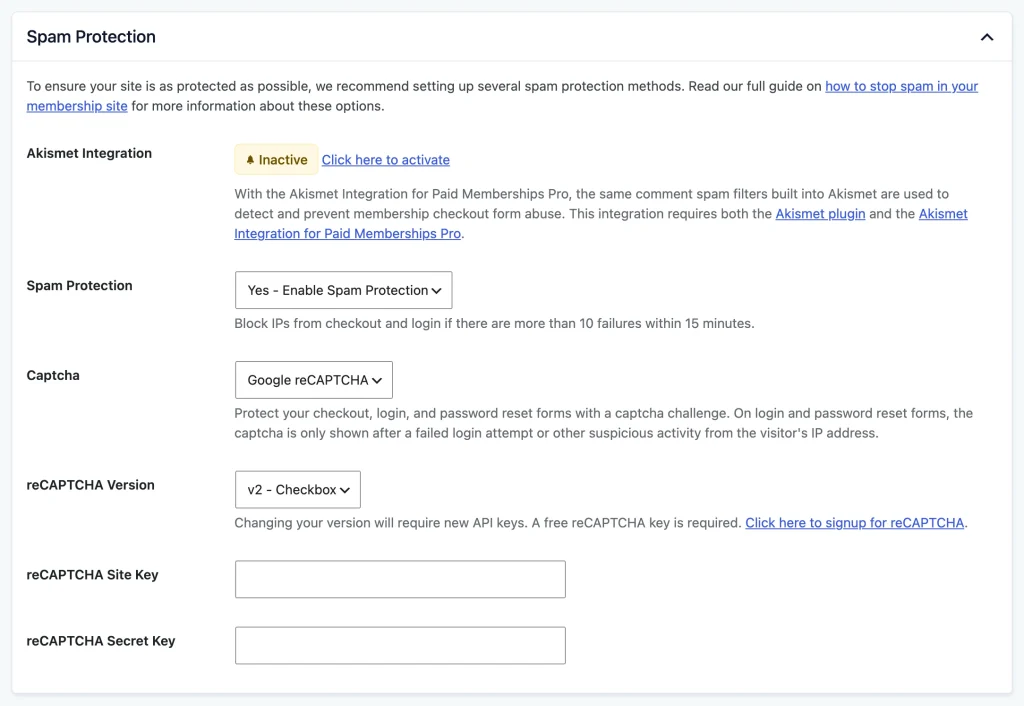
Spam Protection
To protect your site from spam, it’s recommended to set up several spam protection methods. Below are the options you can configure:
- Akismet Integration: The Akismet Integration for Paid Memberships Pro uses the same spam filters as the Akismet plugin to prevent membership checkout form abuse. This requires both the Akismet plugin and the Akismet Integration for PMPro.
- Spam Protection: Choose whether to enable spam protection.
- With this setting enabled, the plugin blocks checkout and login attempts from any IP address with more than 10 failures within 15 minutes. Click here for more support combating checkout spam.
- Captcha: Choose the captcha service that protects your checkout, login, and password reset forms: No, Google reCAPTCHA, or Cloudflare Turnstile. Learn more about the Captcha setting.
Captcha
ReCAPTCHA and Cloudflare Turnstile settings are combined into one Captcha setting, so only one captcha runs at a time. Your existing settings carry over when you update. If your site had both enabled, it now uses reCAPTCHA.
Choose one of the following options:
- No: No captcha is used.
- Google reCAPTCHA: Choose a reCAPTCHA Version (v2 – Checkbox or v3 – Invisible), then enter your reCAPTCHA Site Key and reCAPTCHA Secret Key. A free reCAPTCHA key is required, and changing the version requires new API keys. Read our guide to protecting your site with reCAPTCHA.
- Cloudflare Turnstile: Enter your Turnstile Site Key and Turnstile Secret Key. A free Turnstile account is required. Read our guide to protecting your site with Cloudflare Turnstile.
The key fields appear after you select a captcha service. Developers can add other captcha services to this list with the pmpro_captcha_services filter.
Where the captcha appears
- Checkout and Update Billing pages: The captcha is shown above the submit button. After a failed payment on either page, the member must complete a new captcha check before the next attempt.
- Login and lost password forms: The captcha is added to the PMPro Log In form and lost password form, and to the WordPress login screen at
wp-login.php. It is only shown after a failed login or other suspicious activity from the visitor’s IP address in the last 15 minutes. If Spam Protection is also enabled, failed checkouts and invalid discount codes count as suspicious activity too. The captcha is not shown on these forms until the site key and secret key are saved.
While a captcha is enabled, PMPro asks caching plugins not to cache your Log In page. The captcha only appears for some visitors, so a cached copy could show a form without it.
Restricted Files
Paid Memberships Pro is capable of storing sensitive or private files in a special directory on your site. This folder is for files that are not intended for public access and must be protected at the server level to keep your membership site data and content secure.
By default, restricted files are placed in a subdirectory under your WordPress uploads folder, similar to:
/wp-content/uploads/pmpro-xxxxxxxxxx/
The exact directory name is unique to your site and can be found in the “Restricted Files” section of the Memberships > Settings > Security screen in the WordPress admin.
- This folder is automatically secured for sites running on an Apache server.
- If your site is running on an NGINX server, you’ll need to manually block access to the restricted directory. Refer to the Security Settings screen in your site’s WordPress admin for the exact lines of code to use for your NGINIX configuration file.
You must use the pmpro_can_access_restricted_file filter to define the access permissions and either the file directory or single file to protect. Core Paid Memberships Pro uses this filter to protect gateway debug log files, if enabled, for Stripe Webooks or PayPal IPN.
HTTPS Settings
Ensure that your site uses HTTPS to secure communication:
- Force SSL: Decide whether to force SSL across your site. This is recommended to ensure all communications are encrypted.
- If your site URL starts with
https://, this option ensures your entire site is served over HTTPS. If your site experiences redirect loops, you can enable JavaScript redirects.
- If your site URL starts with
- Extra HTTPS URL Filter: Pass all generated HTML through a URL filter to add HTTPS to URLs used on secure pages.
- Enable this if you’re using SSL and encountering warnings on checkout pages.
DNS Firewall
DNS firewalls like Cloudflare provide distributed denial of service (DDoS) protection, improve page speed by delivering content via a global CDN, and include a web application firewall to block malicious traffic and vulnerabilities.
- Cloudflare: Shows whether the free Cloudflare DNS firewall is active or not detected.
WordPress Security Plugins
Security plugins are designed to protect additional layers of protection for your WordPress site.
This section detects whether your site is using one of our recommended WordPress Security plugins. If your site is running multiple security plugins, please consider deactivating one to avoid conflicts and improve site performance.
- MalCare: Our most recommended security plugin. MalCare offers real-time threat detection, firewalls, and performance optimization. If not installed, you can click to install it.
- Other Security Plugins: This page also detects if you are using other security plugins including Wordfence and Solid Security.
Get Support From Our Team of Experts
Have a question about how to use this feature? Our Support Page outlines three ways to get support.
Our Max plans include hands-on help customizing your membership site and implementing new features. Upgrade to PMPro Max now »
Last updated on October 30, 2026

