
Cloudflare Turnstile is a free, privacy-friendly alternative to traditional CAPTCHAs. With Paid Memberships Pro, you can integrate Turnstile directly into your membership checkout. No third-party plugin required.
This post covers when and why to use Turnstile, how to create your Cloudflare account, and how to configure it for your membership site.

Table of contents
- When and Why to Use Cloudflare Turnstile
- More About Payment Gateway Fraud Detection
- Is This Happening to Me?
- How Cloudflare Turnstile Works
- How to Sign Up for Cloudflare Turnstile
- How to Set Up Turnstile on Your Paid Memberships Pro Site
- How to Test Your New Checkout with Turnstile
- Better Safe Than Sorry
- Frequently Asked Questions
When and Why to Use Cloudflare Turnstile
You may already be familiar with CAPTCHAs (those “I’m not a robot” checkboxes or image puzzles that ask you to identify crosswalks or fire hydrants). Cloudflare Turnstile takes a different approach: it validates users silently in the background, with no puzzles or friction for legitimate visitors.
By default, Paid Memberships Pro uses a “honeypot” technique to catch most automated spammers. This method uses a hidden form field that valid visitors cannot see, but an automated bot will attempt to populate. For most sites, this is sufficient. But if you’re seeing fraudulent checkout attempts or a high volume of failed charges in your payment gateway, Turnstile adds a strong additional layer of protection.
We recommend activating Turnstile for all of your membership levels, not just the free ones. Spammers sometimes use membership checkout forms to validate stolen credit cards. They’ll run automated attempts with different card numbers, names, and billing details until they find a working combination. Then they use that card for fraudulent purchases elsewhere. Turnstile stops those bots before they ever reach your payment gateway.
More About Payment Gateway Fraud Detection
Your payment gateway has built-in fraud detection that monitors repeated signup attempts using similar data. However, no fraud detection process is 100% perfect. Some charges will get through. While money coming into your account may look appealing, fraudulent charges will inevitably be refunded or charged back.
Related: Payment Gateway Comparison
Stripe allows you to customize fraud detection settings via custom risk evaluation rules in your Stripe dashboard.
Turnstile automatically filters out malicious bot traffic before it ever reaches your payment gateway. This protects your site’s resources and keeps your checkout conversion rates clean.
Is This Happening to Me?
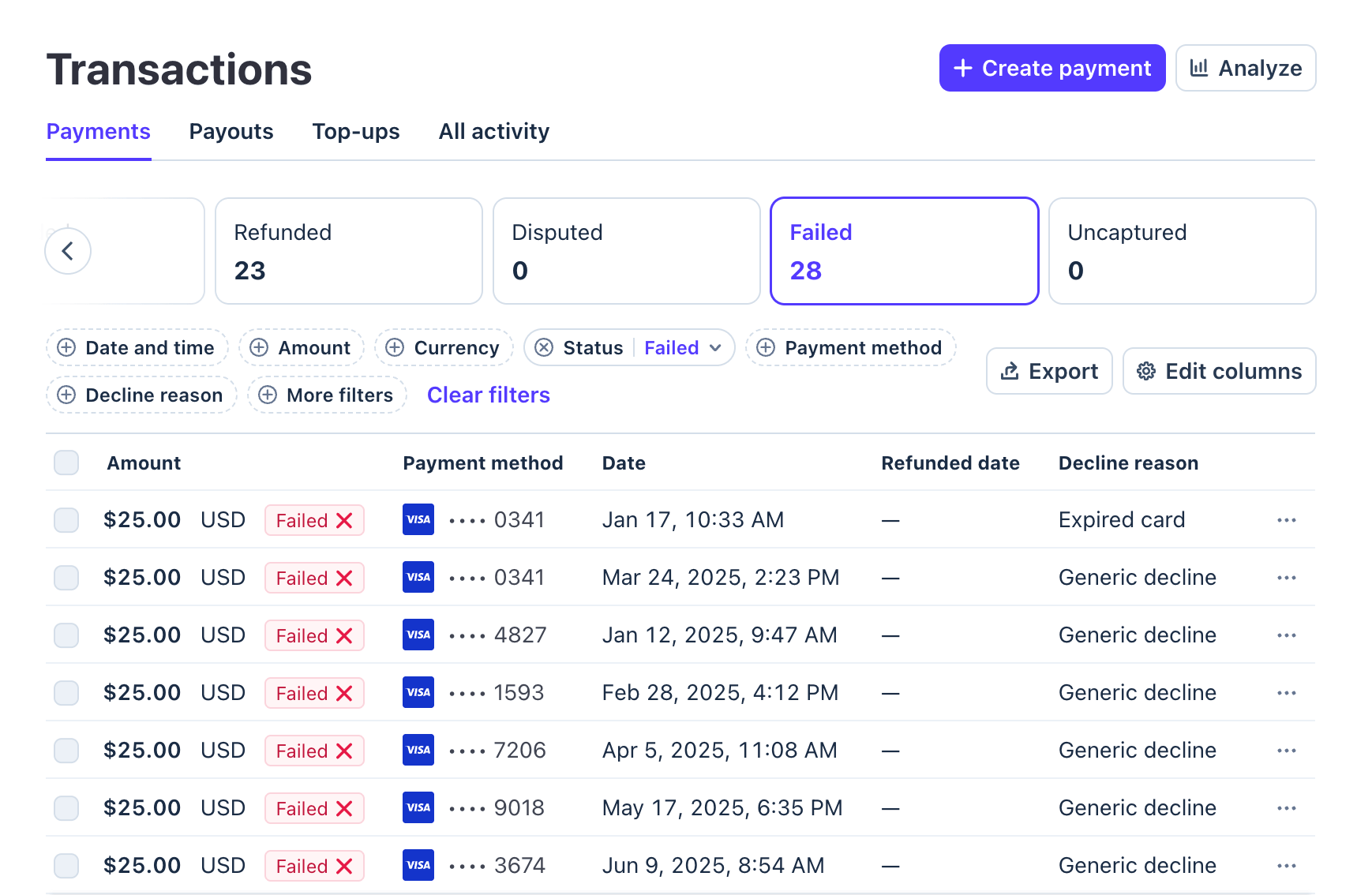
The easiest way to confirm if your membership checkout form is being used for fraudulent attempts is via your payment gateway’s charges dashboard. For example, if you are using Stripe, your “Payments” dashboard shows all attempted charges. A large number of charges labeled “failed” — especially with varied card numbers and similar billing data — is a strong signal that bots are targeting your checkout.
We advise turning on Turnstile for all memberships in this case.
How Cloudflare Turnstile Works
Turnstile is a CAPTCHA replacement that runs silently in the background. Instead of asking users to solve puzzles, it evaluates signals like browser environment, interaction patterns, and Cloudflare’s threat intelligence to determine whether the visitor is likely human.
For legitimate users, the experience is completely frictionless. Bots cannot pass the challenge and are blocked before the form is submitted.
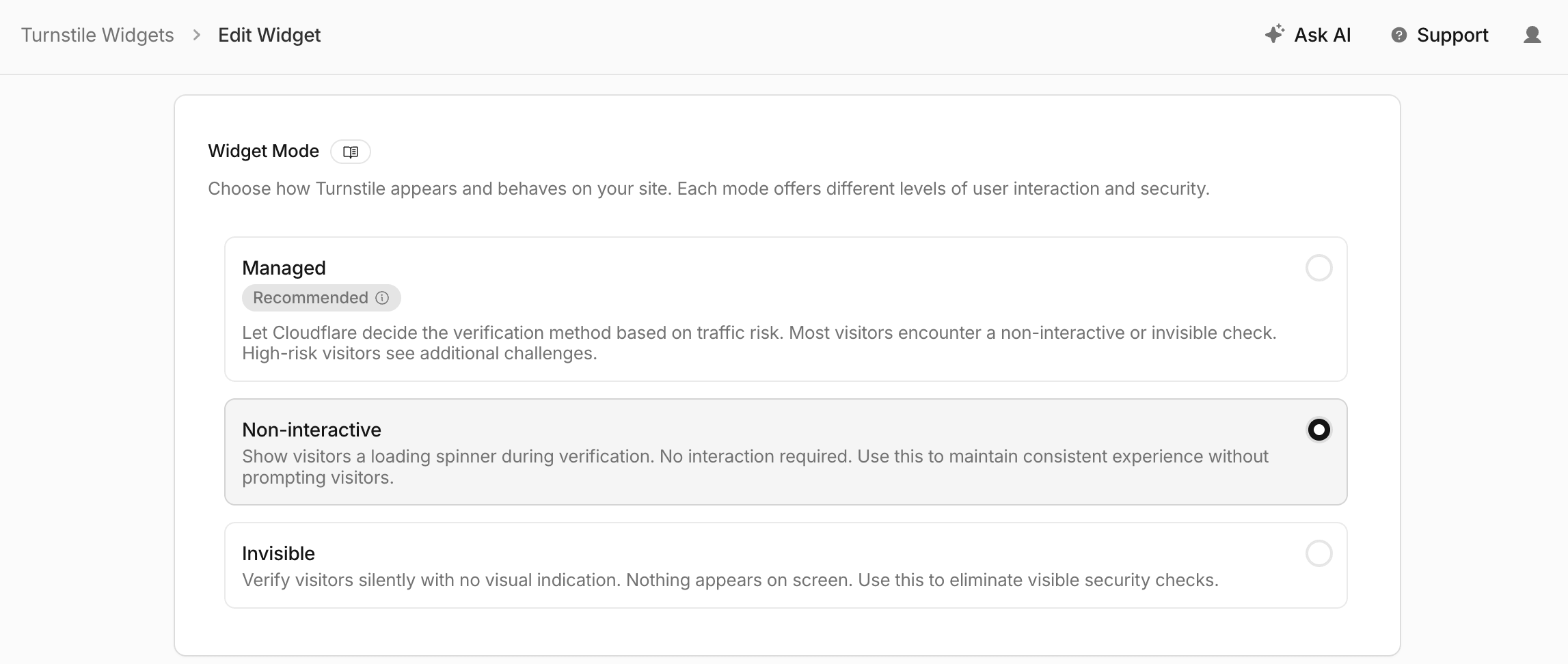
There are three Turnstile widget modes:
- Managed — Cloudflare decides whether to show a visual challenge based on risk signals. Most users pass automatically.
- Non-interactive — No visual challenge is ever shown; the check runs entirely in the background.
- Invisible — Similar to non-interactive, but the widget is fully hidden from view.
PMPro’s Turnstile integration uses the Managed mode by default, which gives you the best balance of security and user experience.
How to Sign Up for Cloudflare Turnstile
- Go to dash.cloudflare.com and sign in or create a free Cloudflare account.
- In the left sidebar, navigate to Turnstile.
- Click Add widget.
- Give your widget a name (e.g., your site name — this is just for your reference).
- Under Hostname Management, add your domain. Include both the
wwwand non-wwwversions if applicable. - Choose a Widget Mode. We recommend Managed for most membership sites.
- Click Create.
Site Key and Secret Key
After creating your widget, Cloudflare will display your Site Key and Secret Key. Keep this page open — you’ll need both keys in the next step.
You do not need to install any Cloudflare JavaScript manually. PMPro handles the integration automatically once you enter your keys.
How to Set Up Turnstile on Your Paid Memberships Pro Site
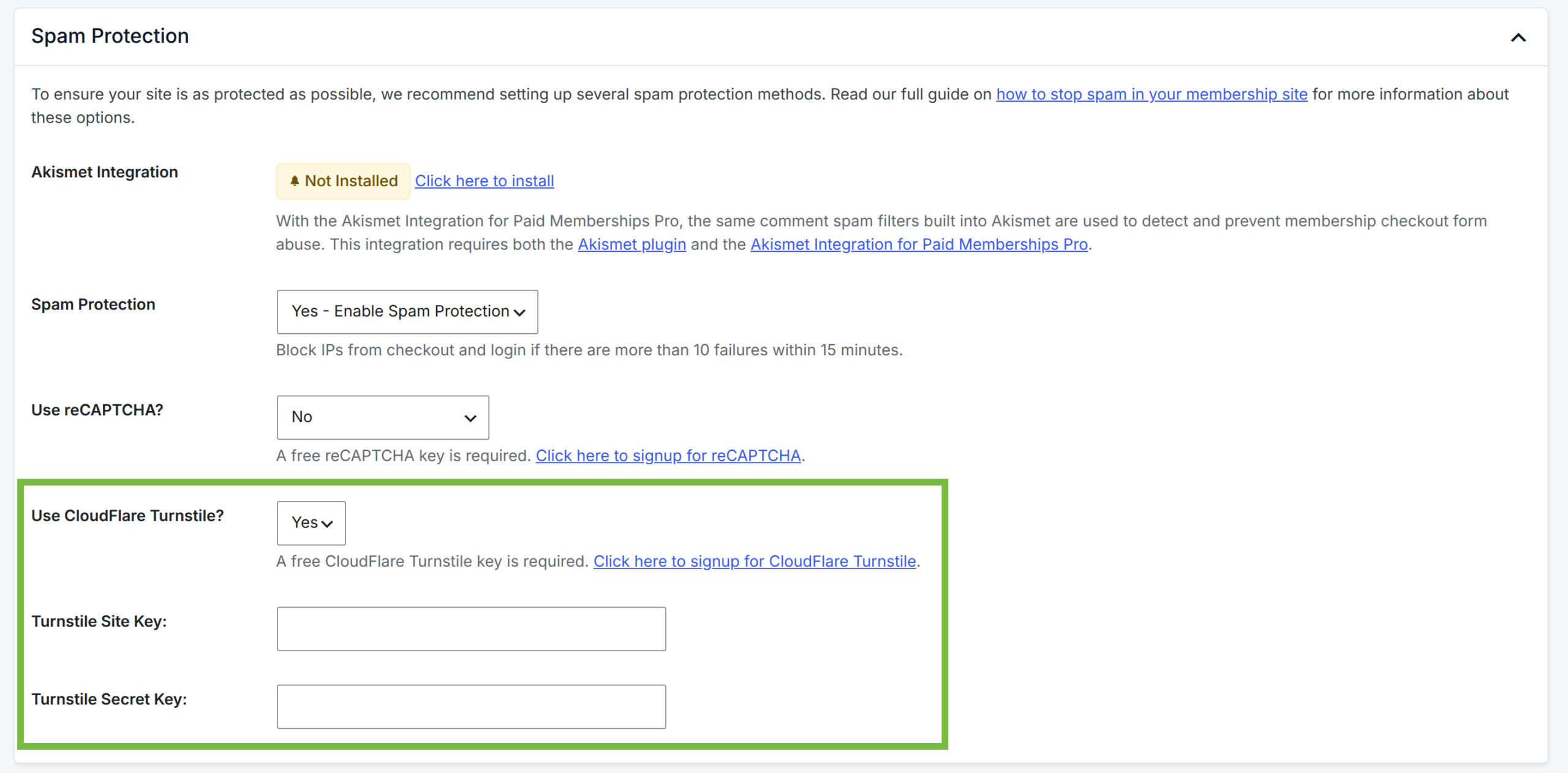
- In your WordPress admin dashboard, go to Memberships > Settings.
- Click the Security tab.
- Scroll down to the Checkout Settings section.
- Where it says Use Turnstile?, select Yes — All memberships.
- Enter your Site Key in the Turnstile Site Key field.
- Enter your Secret Key in the Turnstile Secret Key field.
- Click Save Settings.
That’s it. Turnstile is now active on your membership checkout page.
How to Test Your New Checkout with Turnstile
- Put your membership gateway in test mode if you do not want to use a real credit card.
- Visit your checkout page, select a membership level, and complete a test checkout.
- The form should submit successfully without any puzzle or extra challenge.
- To verify Turnstile is running, open your browser’s developer tools and check the Network tab for a request to
challenges.cloudflare.com— this confirms the widget is active.
We always recommend testing your membership checkout process after making any changes to your Paid Memberships Pro settings, even if it is just a free membership level signup or a discount code to make your paid level free.
Better Safe Than Sorry
If you believe your membership checkout has been used fraudulently, process a refund immediately to avoid chargebacks. If you see fraudulent charges from the same email domain, search your Members list (and All Users list) for that @domain.com to isolate affected accounts.
See How to Process a Refund in Paid Memberships Pro for more guidance.
Frequently Asked Questions
Cloudflare Turnstile is a free, privacy-friendly CAPTCHA alternative that validates users silently in the background. No puzzles, no “I’m not a robot” checkboxes.
No. Turnstile support is built into Paid Memberships Pro. Just enter your Site Key and Secret Key under Memberships > Settings > Security.
Yes. Turnstile is free for all Cloudflare accounts, including the free tier. There are no usage limits for standard sites.
Turnstile is more privacy-friendly (no Google dependency), has no visual puzzles that frustrate real users, and is free without usage tiers. PMPro recommends it as the default option.
Yes. PMPro also supports reCAPTCHA v3 and hCaptcha for WP as alternative options. See Protect Your Membership Site from Spam and Abuse Using reCAPTCHA or the hCaptcha for WP plugin page for setup instructions. Navigate to Memberships > Settings > Security to configure your preferred provider.
This is rare with Managed mode. If you see complaints, try switching your Cloudflare widget mode to Non-interactive in your Cloudflare dashboard. No PMPro settings change is needed — the widget mode is controlled on the Cloudflare side.
After setup, complete a test checkout on your site. The form should submit without any visual challenge. You can also check your Cloudflare Turnstile dashboard to see challenge analytics and pass/fail rates.

Free Download: The AI-Powered Membership Site Blueprint
Download the free guide: Learn how to plan, build, and grow a membership site using AI as your strategic partner: from buyer persona to launch and beyond.