Stripe webhooks are essential for keeping Paid Memberships Pro synchronized with your Stripe account by enabling Stripe to notify your site when specific events happen. Without properly configured webhooks, critical issues can occur. For example, users may not receive a membership level after checkout, or memberships may not be removed after failed payments. These issues are important to address promptly to ensure a positive user experience and avoid confusion for your customers.
What Is a Webhook?
A webhook is a way for one system to send real-time information to another system.
When an event occurs in Stripe, Stripe uses a webhook to send the details of that event to other platforms, such as PMPro. When webhooks are then received by PMPro, that information is used to update the membership records on your website to reflect the event that occurred in Stripe. This ensures that data is always synchronized between Stripe and your website.
Although there are many event types in Stripe that can trigger webhooks to be sent, the most common types of events that PMPro uses to update membership data include:
| Event Type | Trigger in Stripe | Response in PMPro |
checkout.session.completed | The payment for a checkout session has been successfully collected. | Complete the checkout and assign the purchased membership level. |
invoice.payment_succeeded | A recurring payment has been successfully collected. | Create an order in PMPro to reflect the payment. |
customer.subscription.deleted | A subscription has been cancelled in Stripe, potentially due to failed payment. | Remove the corresponding membership level in PMPro. |
charge.failed | A payment has failed to be collected. | Notify the user via email that a payment has failed and prompt them to update their payment information. |
charge.refunded | A charge has been refunded in Stripe. | Mark the corresponding order in PMPro as “refunded”. |
Identifying Webhook Issues
Although a user not receiving a “failed payment” email may not seem like a major issue, other outcomes, such as a user not receiving a membership level after checkout, are much more critical. For this reason, it is essential to periodically check that webhooks are working as expected.
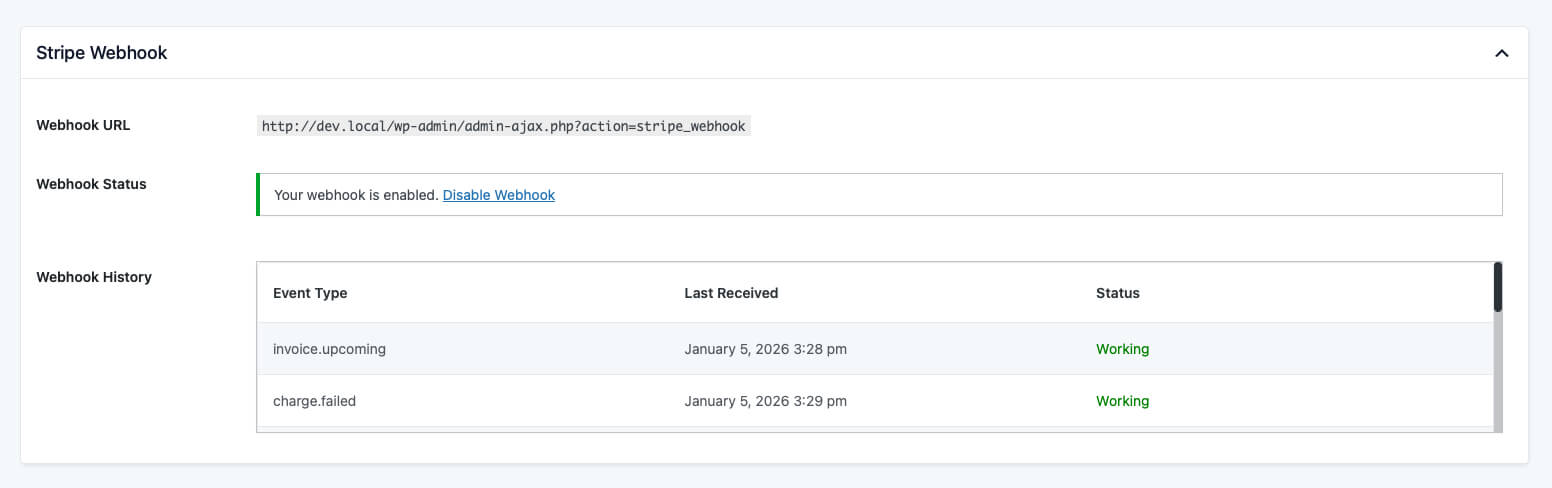
Most issues can be identified by navigating to the Memberships > Settings > Payment > Stripe settings page on your website and scrolling down to the “Stripe Webhook” panel.
Webhook Status
This row can be used to check whether a webhook is correctly configured in Stripe. If everything is set up correctly, a message stating “Your webhook is enabled” will be shown. This means that there is a webhook enabled in Stripe that has the correct webhook URL and all required event types for this website.
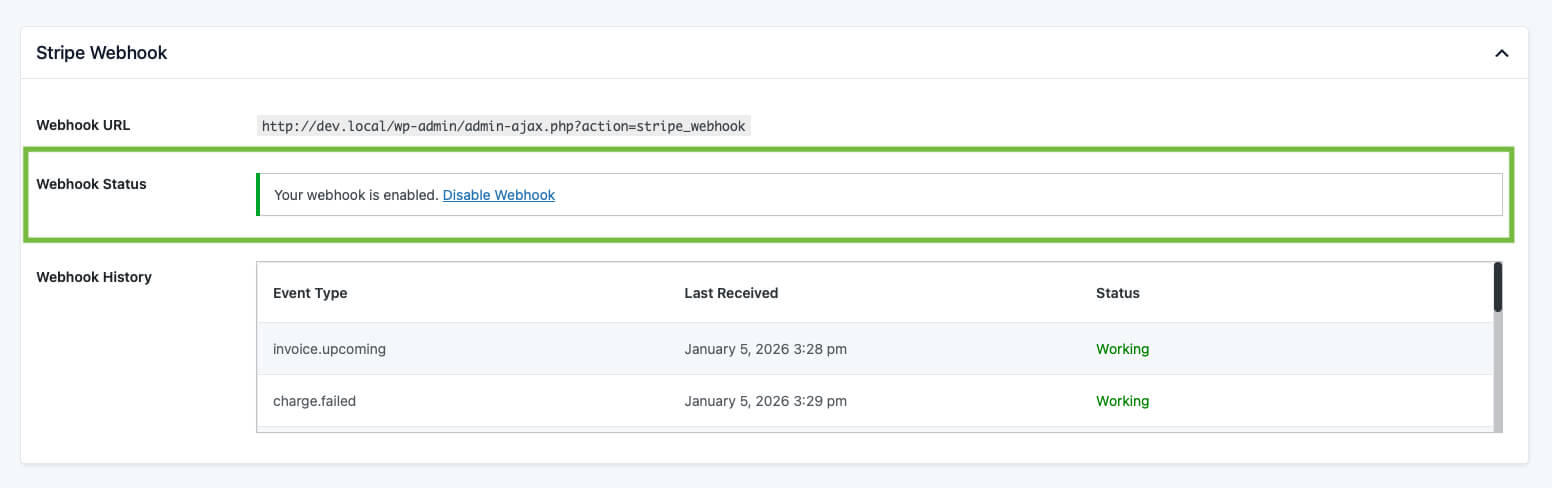
If there is not a webhook correctly configured in Stripe, a button to either “Create Webhook” or “Rebuild Webhook” will be shown. Clicking this button will remove any existing webhook for this website and create a new one with the correct settings.
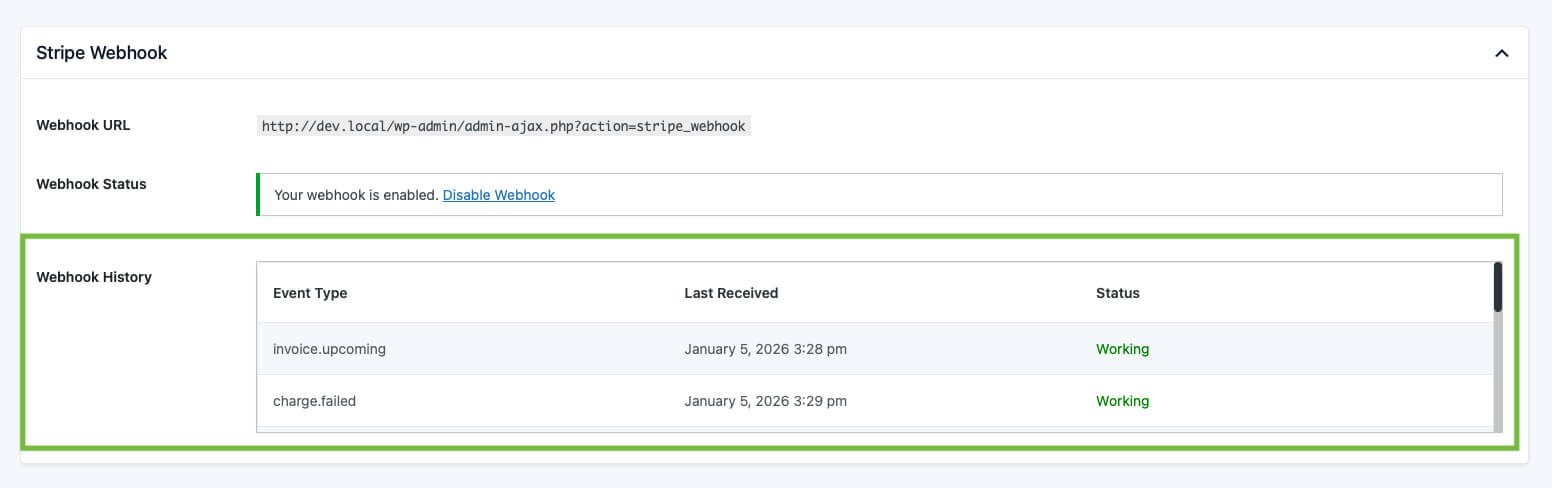
Webhook History
This table contains a row for each of the event types that is processed by PMPro, the most recent date that each webhook event was received, and a “status” that checks whether the date that the event was last received lines up with the date that Stripe last tried to send that event type.
The statuses that can be shown include:
- Working: This status is used when the last webhook event of this type was successfully received by your website.
- Last sent [date]: This status shows the date Stripe last attempted to send this event type, but the event was not received by your website.
- N/A: This status shows when the event type has not been sent by Stripe. This is normal as some event types are not applicable for all websites.
- Error: This status shows when there was an error communicating with the Stripe API and will contain an error message for further troubleshooting.
Troubleshooting “Last sent” Statuses in the Webhook History
As described earlier, the “Last sent” status appears when Stripe sends an event, but PMPro does not receive it.
Before proceeding to troubleshooting steps, it is important to clarify that fixing the issue causing webhooks not to be received will not automatically remove this “last sent” status. This status will only be removed once this event occurs again in Stripe and the corresponding event is successfully received by PMPro.
For example, if the charge.failed event was in “Last sent” status and it was because there was not a webhook set up, clicking the “Create Webhook” button will not immediately cause the status to then be “Working”. This status will only be changed once another payment fails and that event is successfully processed by PMPro.
Checking That the Stripe Webhook Is Set Up Properly
As described above, these kinds of issues can be identified and fixed by navigating to the “Webhook Status” row on the Memberships > Settings > Payment > Stripe settings page of your website.
Checking That the Webhook URL Is Accessible
The Webhook URL on your website is the page that Stripe sends webhooks to so that they can be processed by PMPro. Some plugins have security features that prevent the Webhook URL for the website from being accessible which can lead to webhooks not being processed by PMPro.
To check whether this is the case, you can navigate to the Memberships > Settings > Payment > Stripe settings page of your website, scroll down to the “Stripe Webhook” panel, copy the “Webhook URL” shown, and paste the URL into a new browser window. The expected content on this page is a single line on an otherwise blank page that reads something like:
Logged On: 01/01/2026 12:00:00 No event ID given. -------------
If this is not the content that you see, then another plugin is likely blocking webhooks from being received from PMPro. Fixing this issue involves identifying the plugin that is blocking access to the Webhook URL and either disabling the plugin or adjusting settings to allow access to that page.
Checking Stripe Webhook Logs
If PMPro is showing that the webhook is set up correctly and you have checked that the Webhook URL is accessible, the next step is to look for error messages in the Stripe webhook logs. You can view these logs in the Stripe Dashboard by navigating to Developers > Webhooks and selecting the webhook that corresponds to your site webhook URL.
These logs show all webhook delivery attempts from Stripe. They include the most recent delivery date and any error messages when delivery fails. These error messages can be used by developers or by the PMPro support team to provide further information on why webhooks may be failing and how to proceed with troubleshooting.
Resending Webhooks From Stripe
Once webhook issues are resolved, it is common to want to go back and resend old webhook events that were missed in order to bring PMPro up to date with Stripe. Webhooks can be resent from the Stripe Dashboard by navigating to Developers > Webhooks, selecting the webhook that corresponds to your site webhook URL, identifying the event that you would like to resend, and selecting the “resend” action.
It is important to note that if a webhook was not set up when the event occurred, the option to resend that event will not be present. Stripe also limits the timeframe for when events are able to be resent, so it may not be possible to resend older webhook events to your website. In this case, any updates to your website will need to be made manually to update your site data to match Stripe.
Next Steps
Making sure your Stripe webhooks are set up correctly is one of the most important steps in keeping Paid Memberships Pro and Stripe working together without interruption. When webhooks fail or go missing, it often results in frustrated members, extra manual work, and lost revenue. By understanding how webhooks function, knowing where to check their status, and following the troubleshooting steps outlined in this guide, you can quickly identify and resolve most issues.
If you’ve worked through the steps here and are still seeing errors, it may be time to reach out for additional support. The PMPro team can help review your configuration and pinpoint problems that may not be immediately visible from your Stripe dashboard. With the right setup in place, your site will automatically stay in sync with Stripe—ensuring memberships are updated accurately, payments are tracked, and your business runs smoothly.
Get Support From Our Team of Experts
For more help with this PMPro feature, check out our Support Page with three ways to get support as a free or premium member.

Free Course: Membership Site Development—The Basics
Develop a deeper understanding of membership site development in this beginner-level course. Learn how to make your site work better, save yourself time and money, and improve your site's performance.