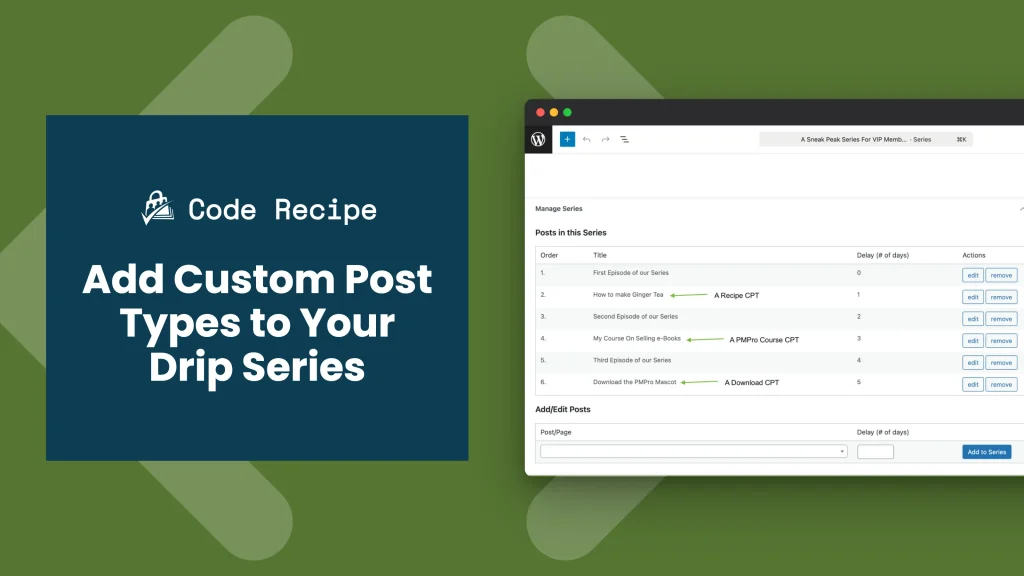
If you use the Series: Drip-Feed Content Add On for Paid Memberships Pro to release content to members over time, you may have noticed that it works with standard WordPress posts by default. This code recipe extends that list to include any Custom Post Type (CPT) you choose: courses, downloads, recipes, resources, or any other content format your membership site uses.
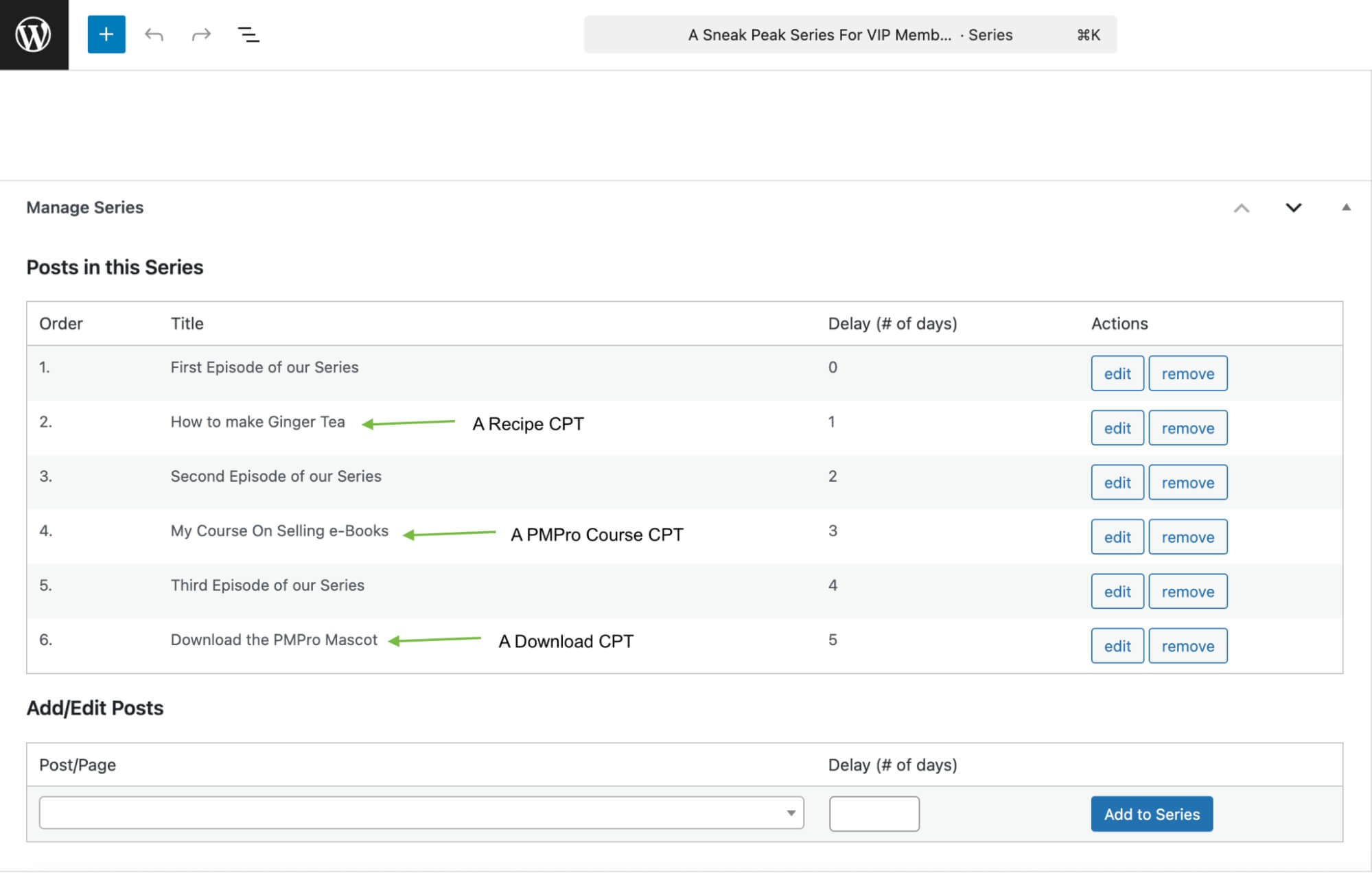
Once in place, your chosen CPT will appear as selectable content when you create or edit a drip series, so you can build a timed content schedule that delivers the right format at the right time.
About the Code Recipe
The Series: Drip-Feed Content Add On determines which post types can be included in a drip schedule by reading an internal list. By default, that list includes standard WordPress posts and pages. The pmpros_post_types filter gives you a way to add your own CPTs to that list.
When you add a CPT slug to this filter, the Series editor will show that post type alongside standard posts and pages when building your series. Members who meet the release schedule will gain access to that content exactly as they would for any other post in the series.
Best Practices and Considerations
Before adding this recipe, confirm the following:
- The Series: Drip-Feed Content Add On is active. This filter is part of the Series Add On and will have no effect without it.
- Your CPT supports post meta. The Series Add On uses post meta to track drip scheduling. Most CPTs support post meta by default, but if a CPT was registered without it, this recipe will not function as expected.
- You know your CPT slug. The CPT slug is the internal identifier a plugin uses, not its display name. For example, the Download Monitor plugin registers posts under the slug
dlm_download. Check the plugin’s documentation or look at thepost_typeparameter in the WordPress admin edit URL for a post of that type.
The Code Recipe
How to Customize This Code Recipe
Replace my_cpt_name on line 11 with the slug of your Custom Post Type. To find the slug:
- Check the plugin’s documentation. Most plugins list the CPT slug in their developer or integration docs.
- Look at the URL when editing a post of that type in the WordPress admin. The CPT slug typically appears as the
post_typeparameter in the URL (for example,post_type=dlm_download).
For example, to add content from the Download Monitor plugin, replace my_cpt_name with dlm_download. To use the Courses Add On, replace it with pmpro_course.
To include more than one CPT in your drip series, push each slug into the array at once:
$post_types = array_merge( $post_types, array( 'pmpro_course', 'dlm_download' ) );
Replace the example slugs with the actual slugs for your installed CPT plugins.
Adding the Recipe to Your Website
You can add this recipe to your site by creating a custom plugin or using the Code Snippets plugin available for free in the WordPress repository. Read this companion article for step-by-step directions on either method.
Related Resources

Free Course: Membership Site Development—The Basics
Develop a deeper understanding of membership site development in this beginner-level course. Learn how to make your site work better, save yourself time and money, and improve your site's performance.