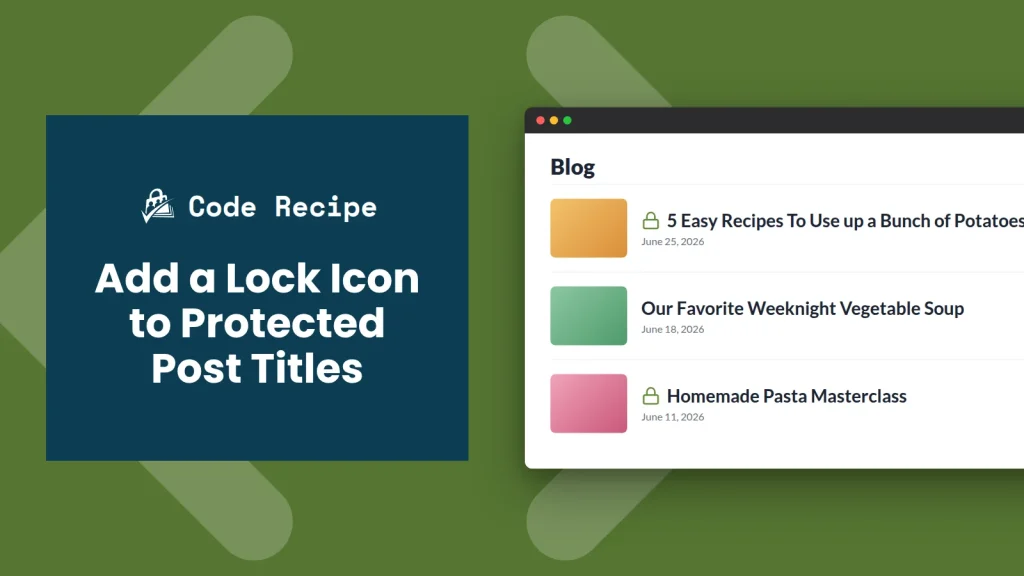
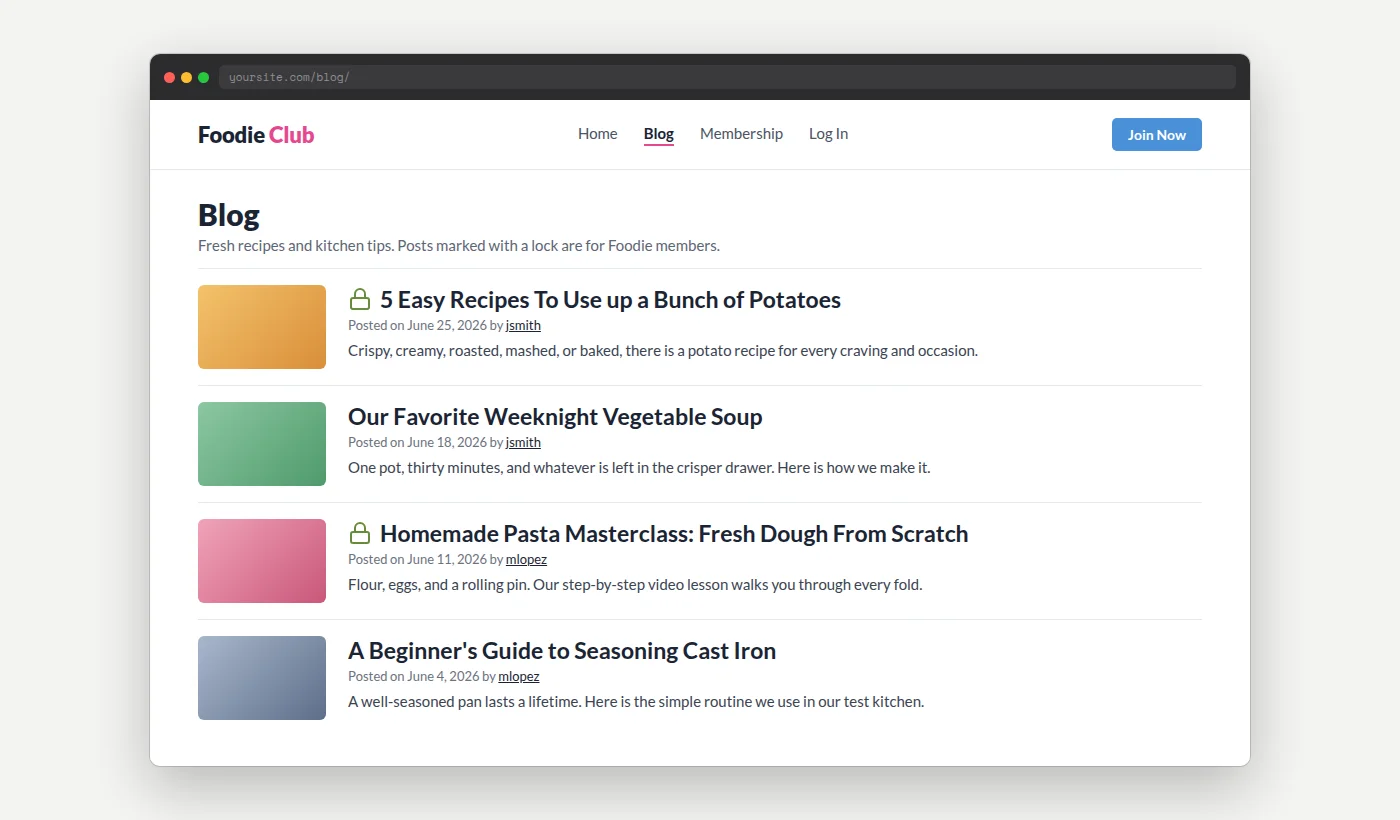
Paid Memberships Pro protects members-only posts, but on your blog or category pages, those titles look the same as free posts. Visitors may only find out a post is restricted after they click.
This recipe adds a small lock icon before any title the current visitor cannot access. Members with access see a normal title. Public posts never get the icon.
Do You Need This Recipe?
This recipe is a good fit if:
- You publish free and members-only posts side by side in the same blog or category, and you want non-members to see which is which before they click.
- You want a visible “members content” marker on protected posts without renaming or tagging each one by hand.
- Your site uses any theme other than Memberlite.
Best Practices and Considerations
Who sees the icon: The lock appears only for people who cannot read the post. This includes logged-out visitors and logged-in users who don’t have a level with access. Members who can read the post see the normal title, and posts that don’t require a membership never show the icon. The check uses the same rules PMPro uses to protect the post, so posts restricted by level or by category are both covered.
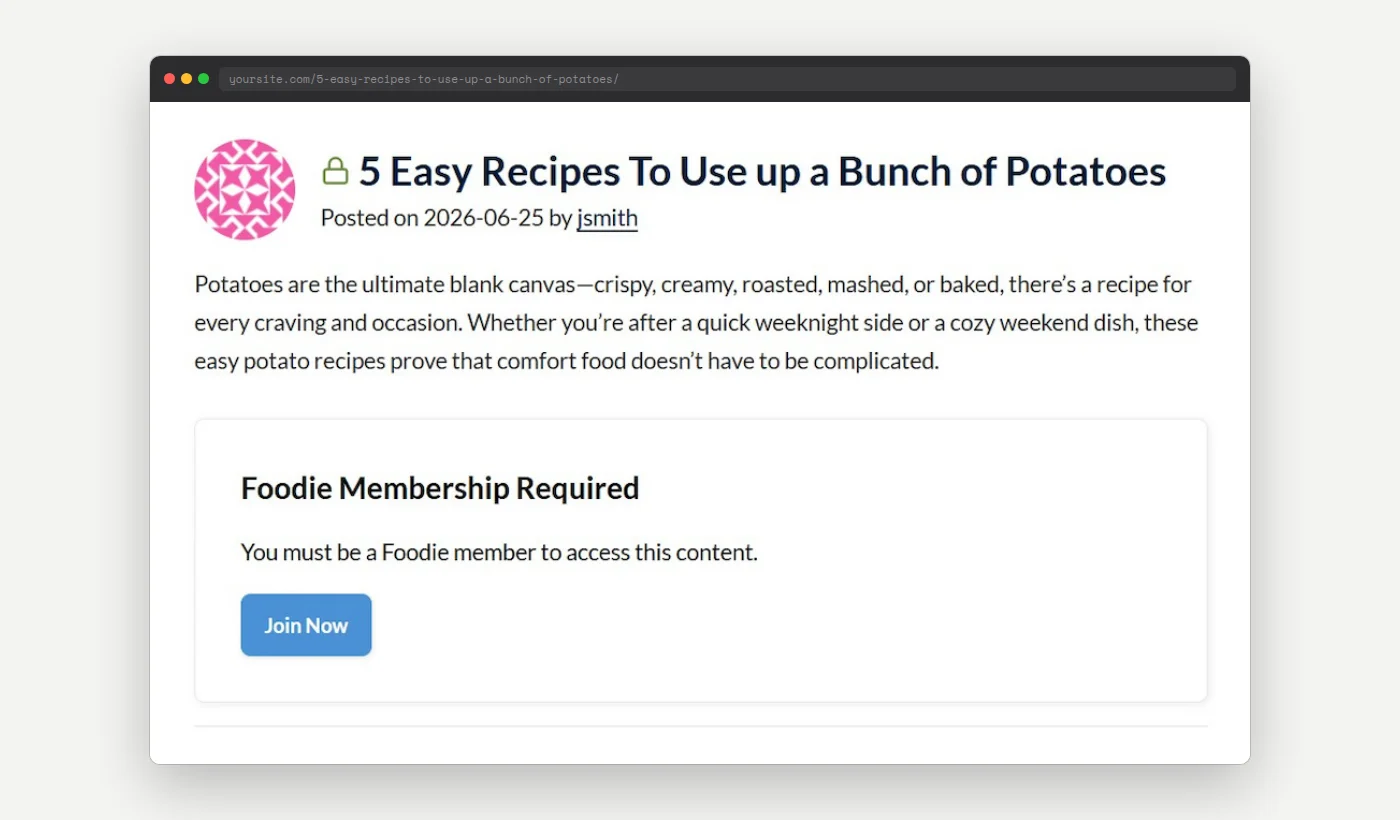
The icon also appears on the title of the protected post itself, right above your protected content message:
Pro Tip: A few themes escape post titles before displaying them. If you see code like <img class="my-pmpro-lock-icon" in front of your titles instead of an icon, your theme is doing this, and the snippet will not work with that theme as written.
About the Code Recipe
This recipe uses the WordPress the_title filter, which runs every time your theme displays a post title. For each title, the snippet checks the following before it adds anything:
- The page is not in the WordPress admin or an RSS feed, and the title belongs to a real post.
- The title is being displayed inside The Loop.
- Paid Memberships Pro is active.
- The
pmpro_has_membership_access()function reports that the post requires a membership level and the current user does not have access.
When every check passes, the snippet places PMPro’s own lock icon (the lock.svg file that ships in the plugin’s images folder) in front of the title. The icon is 24 by 24 pixels, carries the CSS class my-pmpro-lock-icon, and has the alt text “Members only” so screen readers announce it along with the title. No Add Ons are required.
The Code Recipe
Adding the Recipe to Your Website
You can add this recipe to your site by creating a custom plugin or using the Code Snippets plugin available for free in the WordPress repository. Read this companion article for step-by-step directions on either method.
How to Customize This Code Recipe
Most changes to the icon’s look can be made with CSS, so you do not need to edit the snippet. Add these rules in your theme’s Additional CSS area (Appearance > Customize > Additional CSS in most classic themes).
Change the icon size and spacing: Target the my-pmpro-lock-icon class. This example makes the icon smaller and adds a little space before the title text:
.my-pmpro-lock-icon {
	width: 18px;
	height: 18px;
	margin-right: 4px;
}
Show the icon in lists only: WordPress adds a single class to the page when someone views one post. To hide the lock on the protected post itself and keep it on your blog and archive pages, use:
.single .my-pmpro-lock-icon {
	display: none;
}
The same approach works for search results. Replace .single with .search-results.
Use your own icon (line 47): PMPro’s lock is green. To use a different icon or color, upload your image to the Media Library, copy its file URL, and replace PMPRO_URL . '/images/lock.svg' with that URL in single quotes, for example 'https://yoursite.com/wp-content/uploads/2026/10/my-lock.png'. WordPress blocks SVG uploads by default, so a PNG is the easiest choice.
Change the default size in the code (line 46): Update the width="24" and height="24" values if you would rather set the size in the snippet than in CSS.
Change the alt text (line 48): Replace Members only with wording that matches your site, such as “Premium content” or the name of your membership.

Get Support From Our Team of Experts
Have a question about how to use this feature? Our Support Page outlines three ways to get support.
Our Max plans include hands-on help customizing your membership site and implementing new features. Upgrade to PMPro Max now »