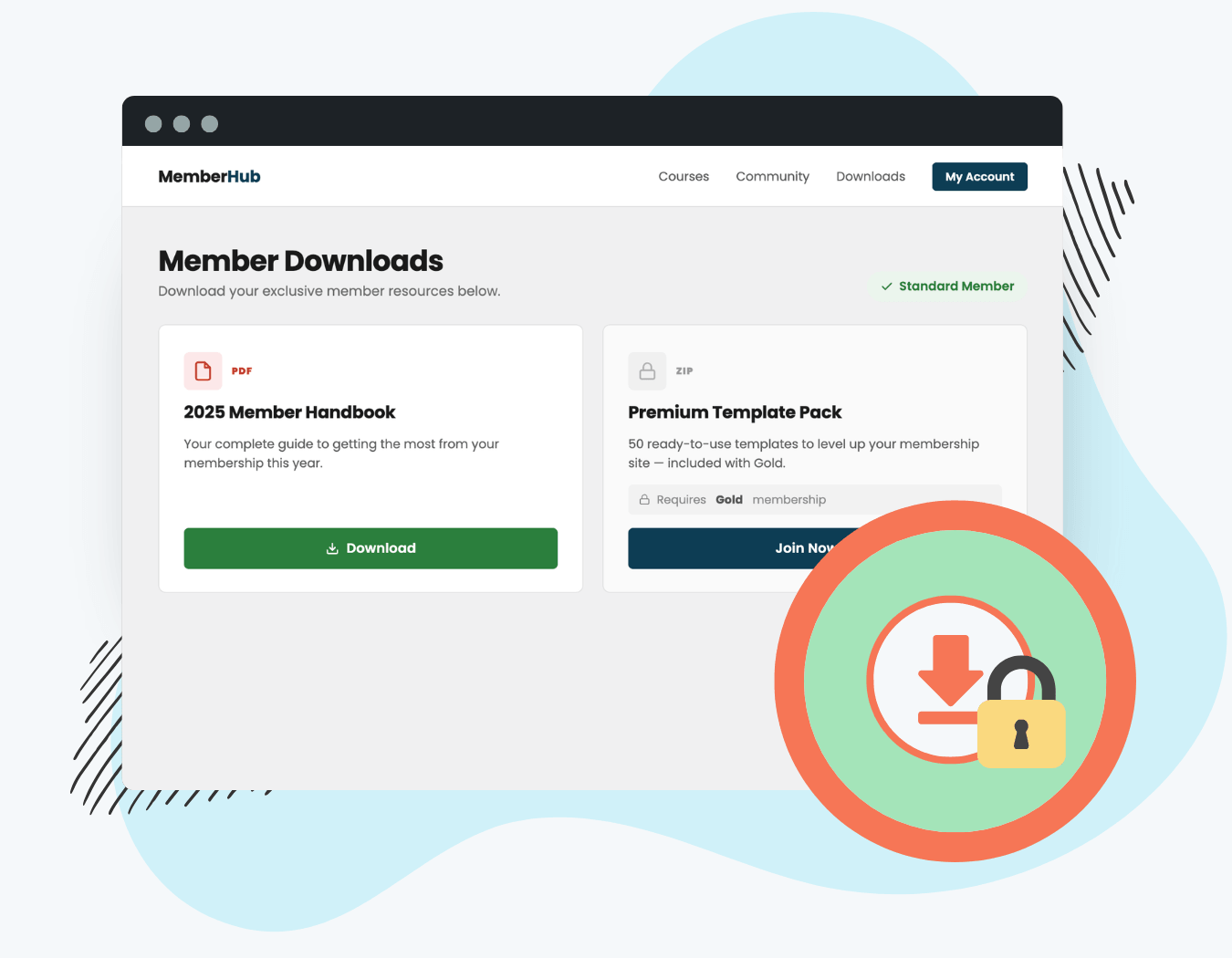
The PMPro Downloads Add On registers a Downloads content type in your WordPress admin. Each Download post holds a single protected file. Members with the required membership level can download the file. Everyone else sees a locked state with a call-to-action to join or upgrade.
Primary Features Include:
- Upload any file type directly from the WordPress block editor
- Files are stored in PMPro’s protected directory, inaccessible via direct URL
- Members with the required level get instant access; everyone else sees a locked state with a CTA
- Display individual downloads or a full library: as a link, button, or card
- Works with PMPro’s standard content restriction and protected files system. No custom code required
Installation
You must have the Paid Memberships Pro plugin installed and activated with a valid license type to use this Add On.
- Navigate to Memberships > Add Ons in the WordPress admin.
- Locate the Add On and click Install Now.
- To install this plugin manually, download the .zip file above, then upload the compressed directory via the Plugins > Add New > Upload Plugin screen in the WordPress admin.
- Activate the plugin through the Plugins screen in the WordPress admin.
Creating a Download
- Navigate to Downloads in the WordPress admin.
- Click Add New Download.
- Enter a Download Name in the title field. This is what members see as the download label by default.
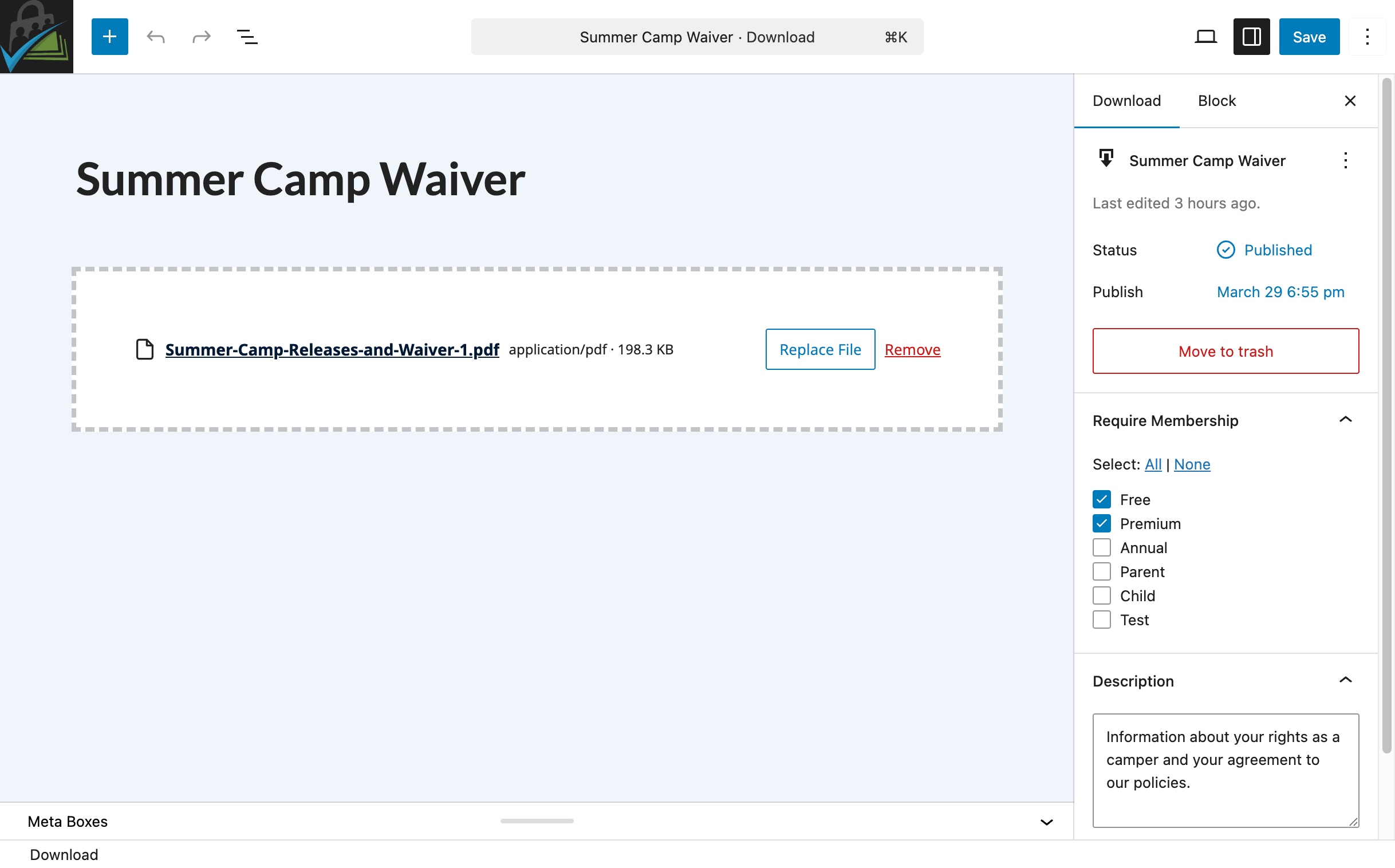
- In the Download File block on the editor canvas, click Upload File and select the file from your computer. The file is stored in PMPro’s protected uploads directory.
- Optionally, add a Description using the Description panel in the right sidebar. The description appears alongside the download in the Card template.
- Set the membership level restriction (see below), then Publish the post.
Managing the Attached File
- Replace File: Upload a new file. The previous file is deleted from the server after the new one uploads successfully.
- Remove: Deletes the file from the server and clears the file metadata. Members will no longer see a download link until a new file is uploaded.
Restricting a Download to Membership Levels
Downloads use PMPro’s standard content restriction system.
- Open a Download in the block editor.
- In the Require Membership section of the right sidebar, select the membership levels that should have access.
- If no levels are selected, the file is accessible to all logged-in users.
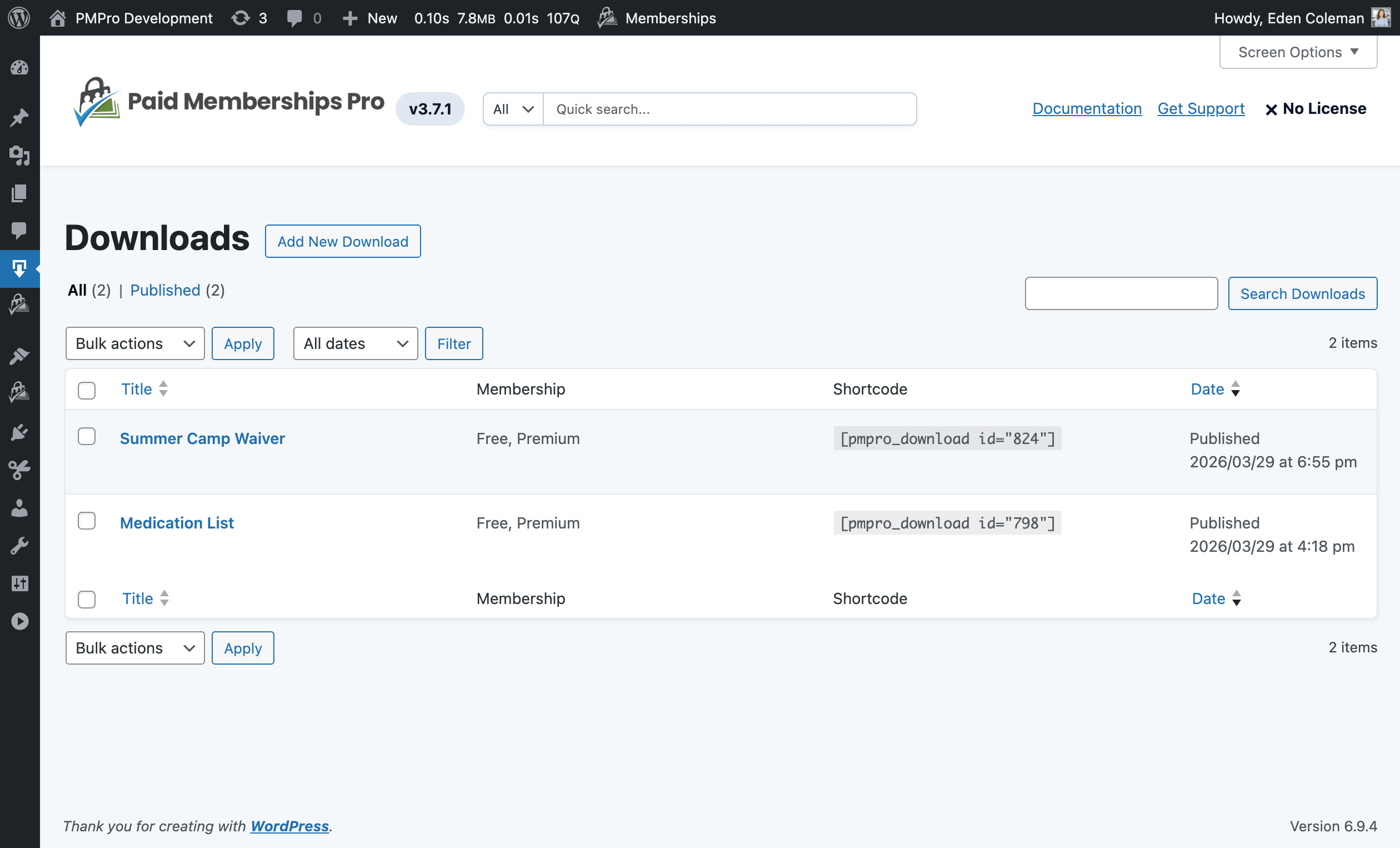
The Membership column on the Downloads list table shows the levels assigned to each download at a glance.
Displaying Downloads on the Frontend
There are three ways to display a download on any page, post, or widget area.
Block Editor
Two blocks are available in the block inserter under the PMPro category:
- PMPro Download: displays a single download by ID.
- PMPro Download Library: displays all published downloads in a list or grid.
Shortcodes
Single Download
[pmpro_download id="123"]
| Attribute | Default | Description |
|---|---|---|
id | (required) | The post ID of the Download. Visible in the Shortcode column of the Downloads list. |
template | link | Display template: link, card, or button. |
label | title | Download name to display: title (the post title) or filename (the uploaded filename). |
Download Library
[pmpro_download_library]
| Attribute | Default | Description |
|---|---|---|
template | link | Display template: link, card, or button. |
layout | list | Layout style: list or grid. |
columns | 2 | Number of columns when layout="grid". Accepts 2 or 3. |
label | title | Download name label: title or filename. |
limit | -1 | Maximum downloads to show. -1 shows all. |
orderby | title | Sort field: title or date. |
order | asc | Sort direction: asc or desc. |
Download Templates
Each display method supports three templates that control how a download appears to members and non-members.
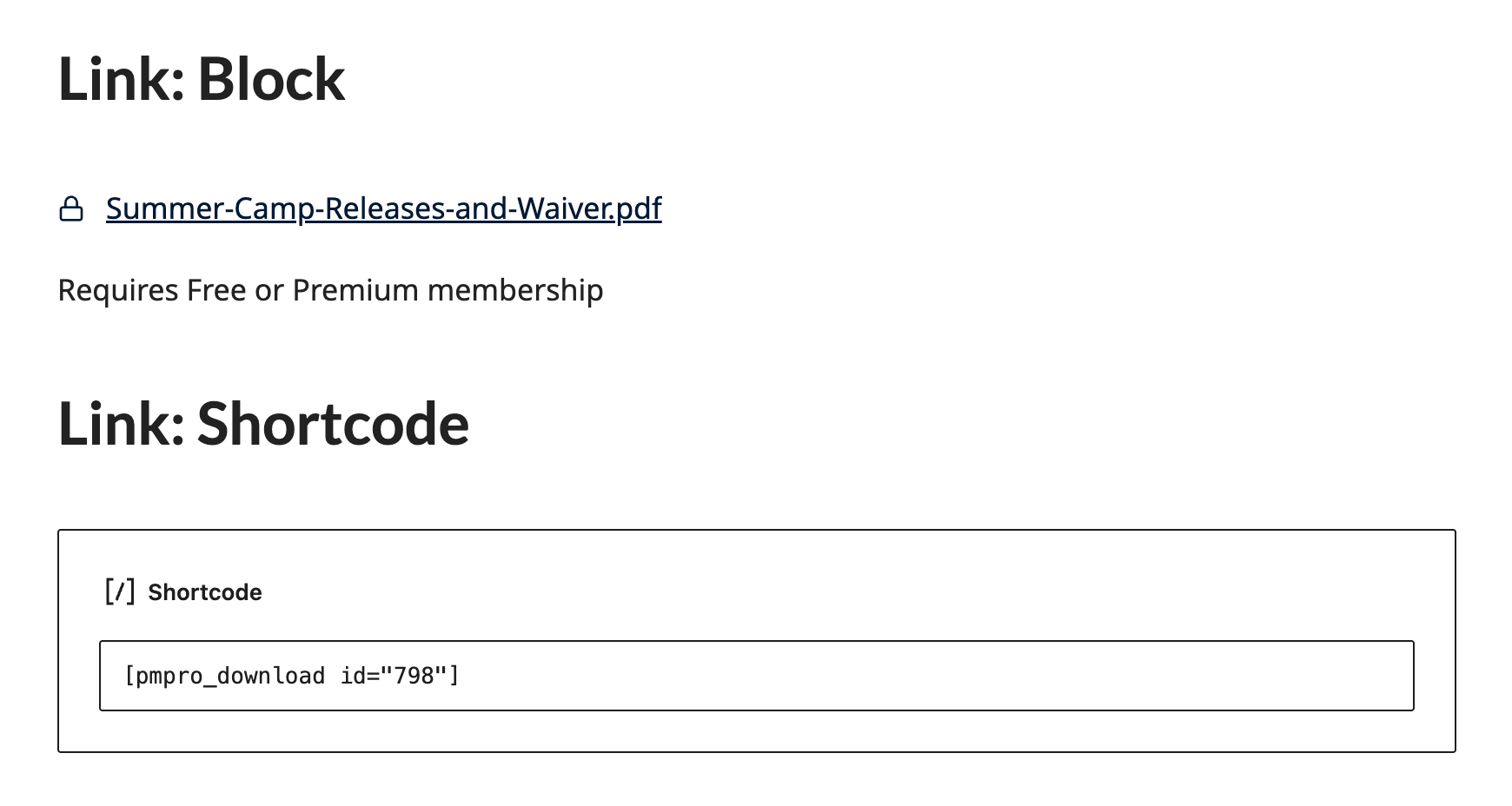
Link (template="link")
A compact inline text link with a file-type icon. Locked downloads show a lock icon and “Requires {level name} membership” note.
Best for embedding individual downloads inline within post content.
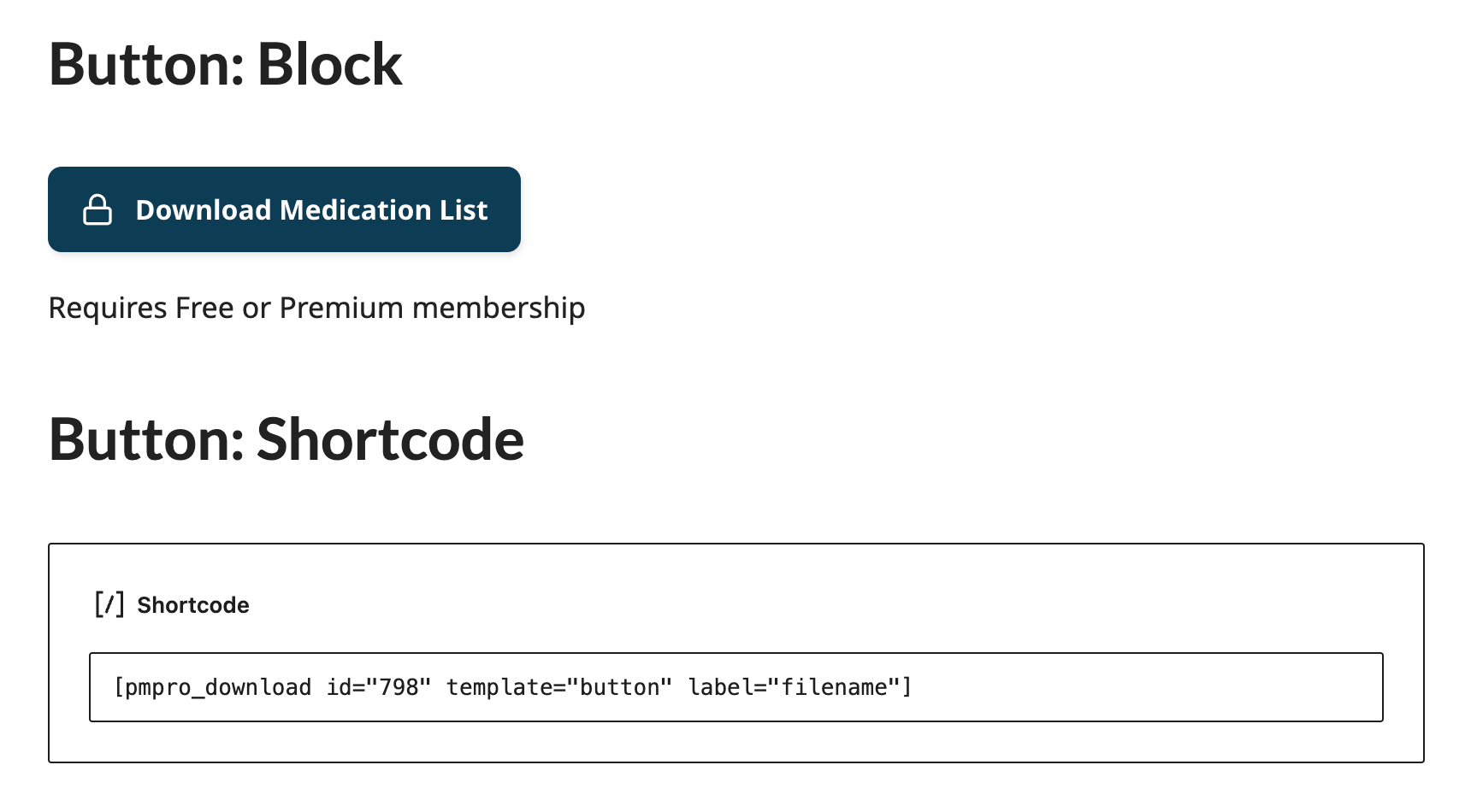
Button (template="button")
A prominent CTA button with a download icon, file name, and “Download” label. Locked downloads show a “Requires [level] membership” button linking to checkout or the membership levels page.
Best for highlighting a single high-value download on a landing page or in a sidebar.
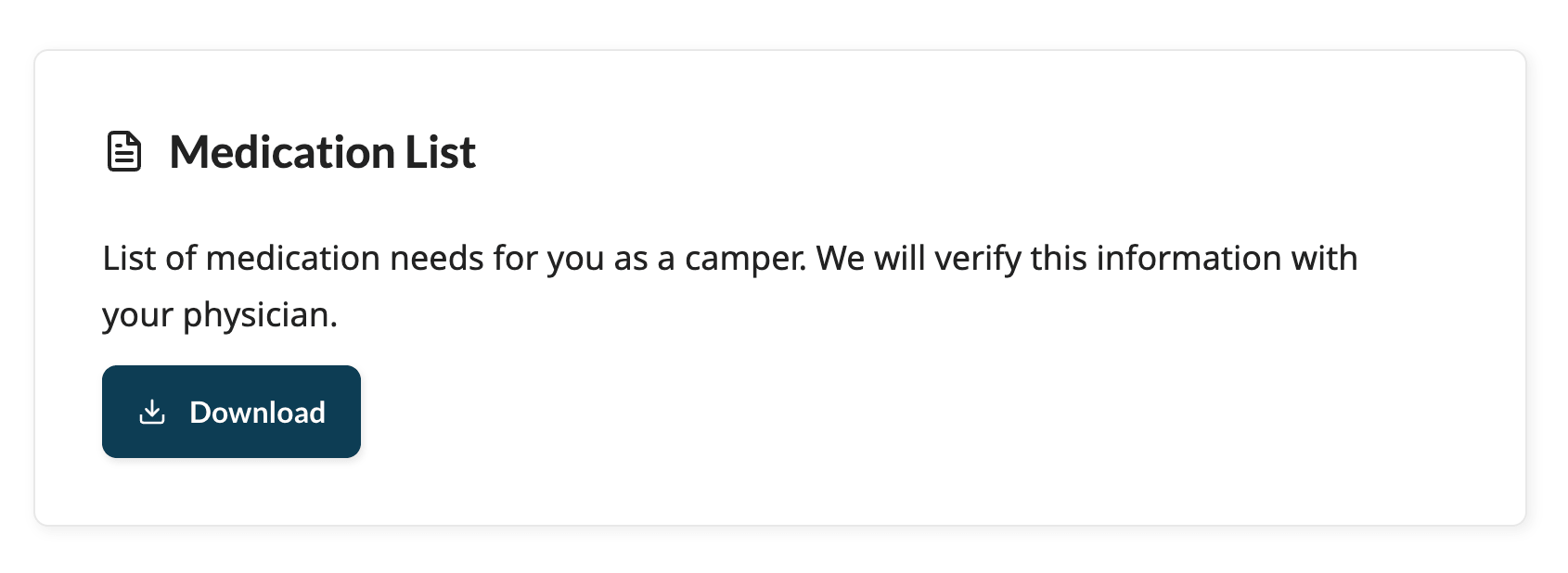
Card (template="card")
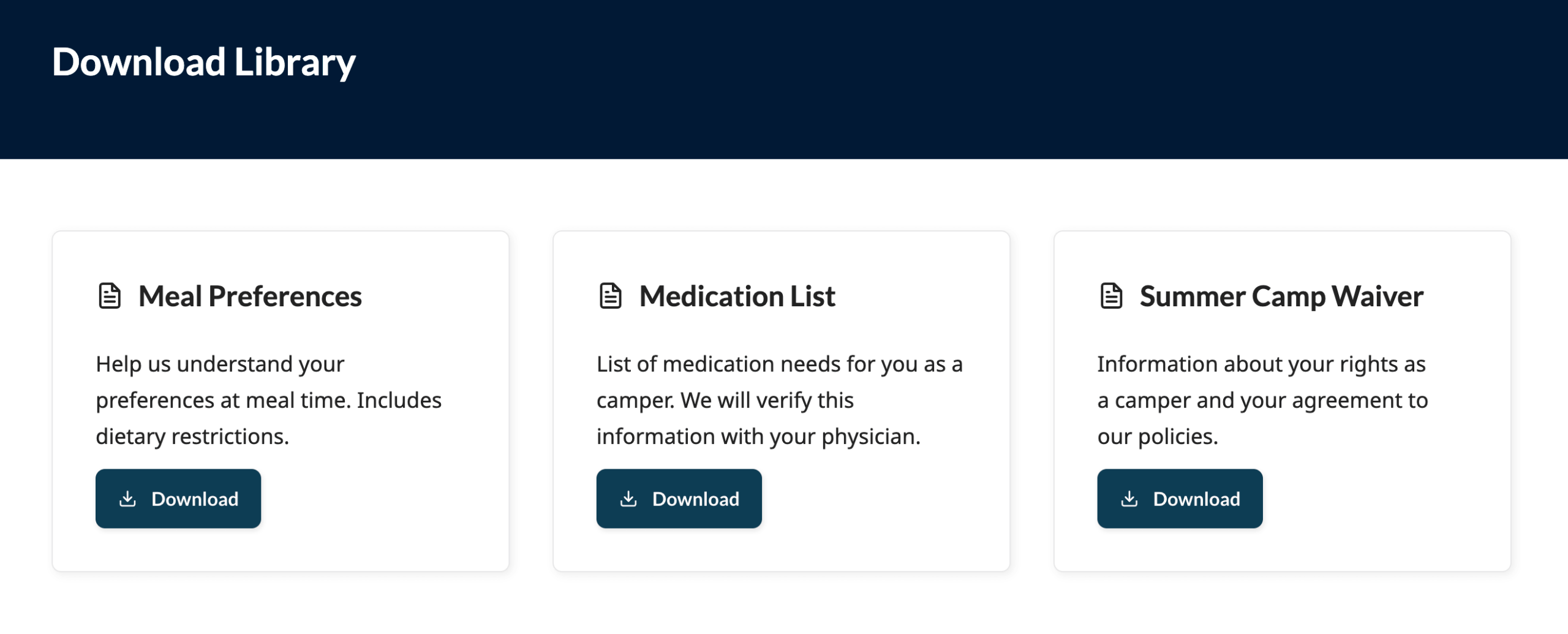
A PMPro-styled card with the download title, optional description, and an action button. Locked downloads show the description (if set), the membership requirement, and a “Join Now” or “View Membership Options” button.
Best for a download library page or anywhere you want to showcase multiple downloads with context.
Non-Member CTA
When a download is locked, the CTA button links to:
- The checkout page for that level, if only one level has access.
- The membership levels page, if multiple levels have access.
Download Library
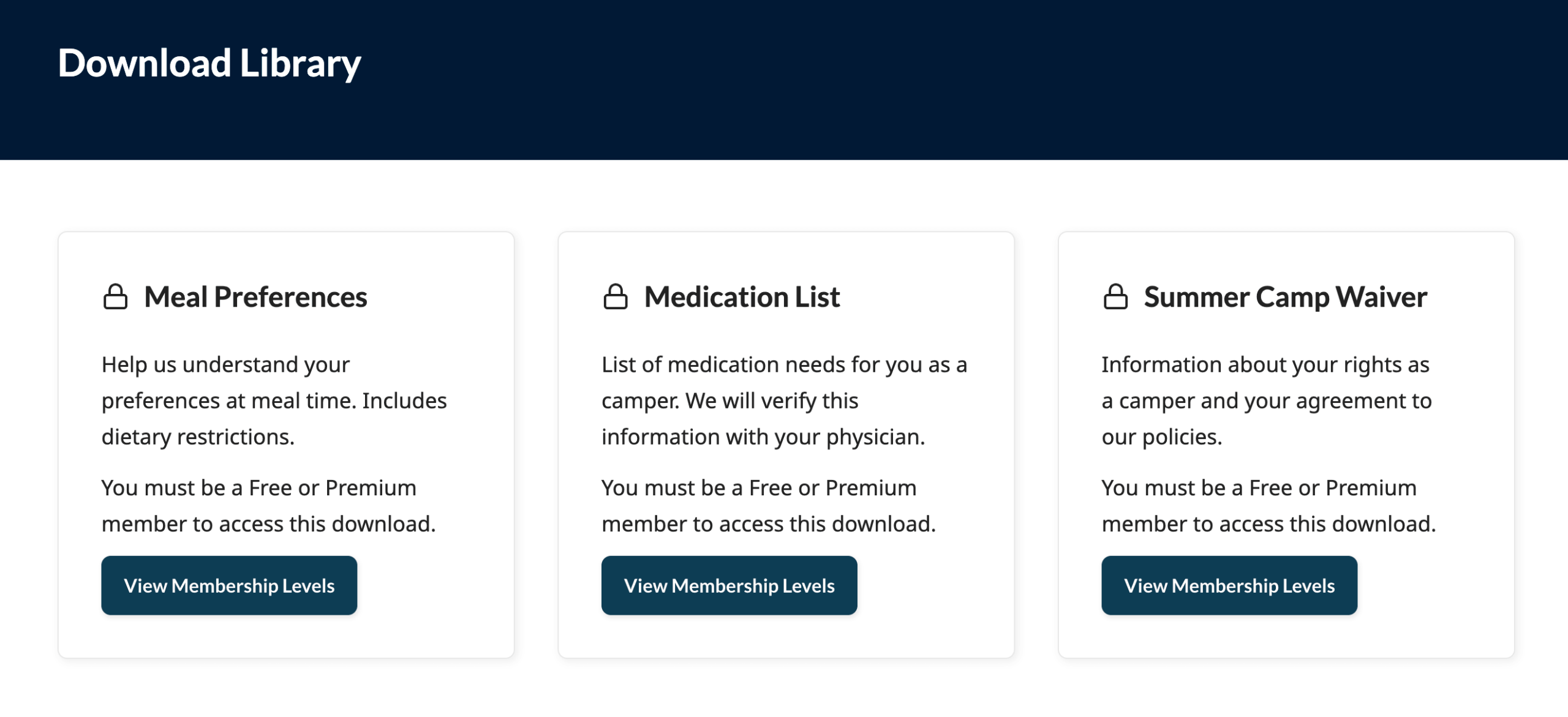
The [pmpro_download_library] shortcode and PMPro Download Library block display all published Downloads in one place.
- Members see a download link, button, or card for every file they can access.
- Choose whether non-members see a locked version of each download with the membership requirement, or hide members-only downloads entirely.
- Downloads without an attached file do not appear in the library.
Action and Filter Hooks
This Add On does not currently expose public action or filter hooks. PMPro’s core restricted file system handles file delivery.
The following PMPro core filters apply to this Add On:
Frequently Asked Questions
Files are stored in PMPro’s restricted uploads directory, which lives outside the standard wp-content/uploads folder and is protected from direct browser access. PMPro’s authenticated download handler securely serves the files.
Any file type WordPress permits on your site. The allowed types are controlled by WordPress’s standard upload_mimes filter, which site administrators can customize.
Yes. There is no per-user download limit in this version. Members with the correct level can download as many times as they like.
The physical file is permanently deleted from the server when you permanently delete the post (not just move it to Trash). If you want to preserve the file, replace it or move it before deleting the post.
The add on deletes the old file from the server only after the new file uploads successfully. If the upload fails, your original file is preserved.
Yes. Use [pmpro_download_library] to show all downloads at once, or place multiple [pmpro_download id="..."] shortcodes on the same page.
The Shortcode column on the Downloads list table shows the ready-to-copy shortcode for each download, including its ID. You can also find the ID in the URL when editing a download post (post=123 in the URL).
Screenshots
This is a Standard Add On.
Standard membership includes all Standard Add Ons, unlimited premium support, automatic updates, and additional benefits.

