Paid Memberships Pro lets you protect entire categories of content with a single setting. Mark a category as members-only and every post inside it inherits the rule. That works well for most cases, but it leaves no room for exceptions.
There are situations where a single post in a protected category should stay open: a free preview, an evergreen overview, a public announcement, or a sales asset you want to share widely.
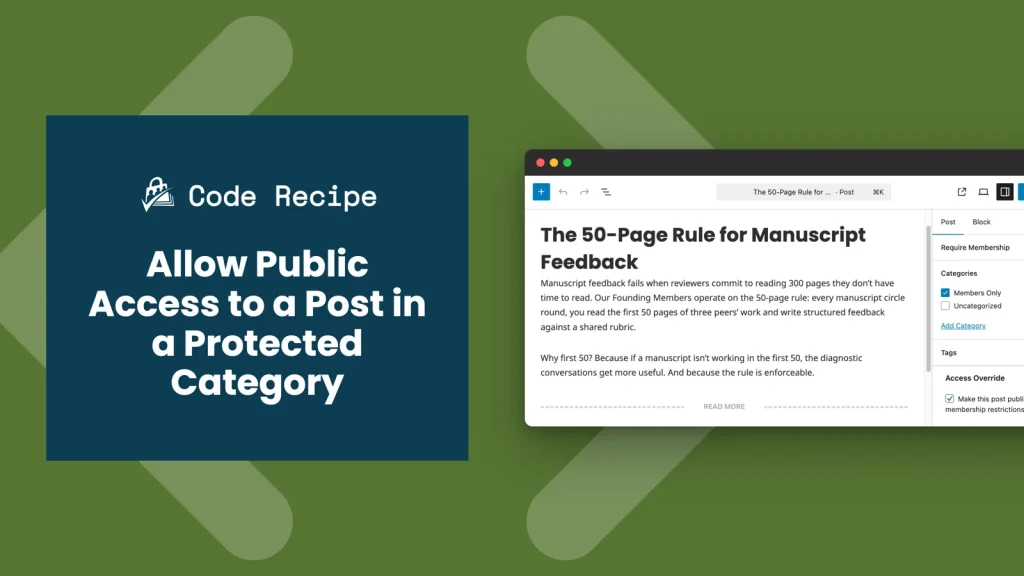
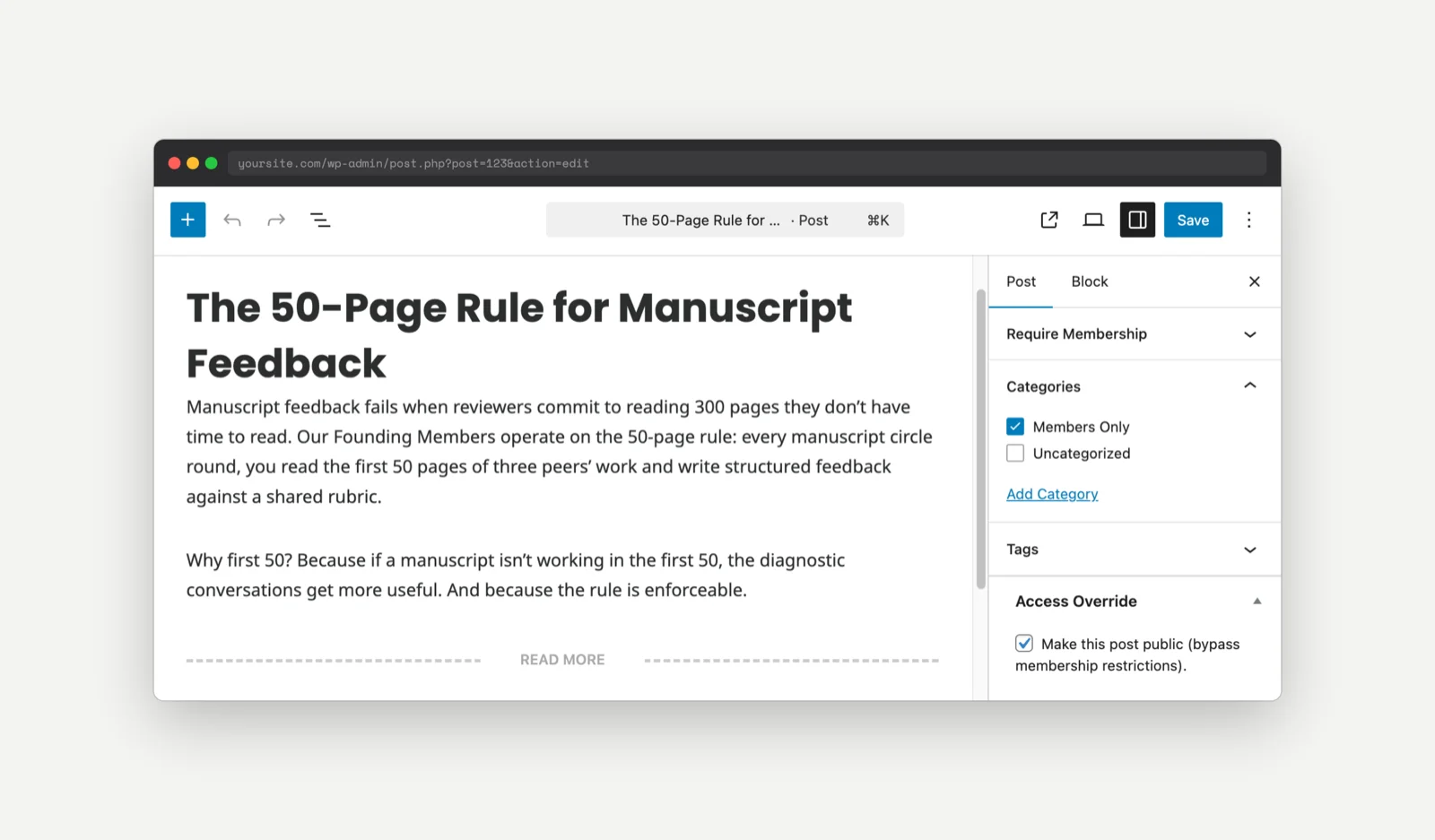
This recipe adds an Access Override meta box to the WordPress post editor with a single checkbox: “Make this post public (bypass membership restrictions).”
When you check it, that one post becomes publicly accessible regardless of whether its category is membership-protected. Uncheck it and the post falls back to the category’s protection rules. The override hooks into PMPro’s pmpro_has_membership_access_filter so it integrates cleanly with PMPro’s existing access logic.
Do You Need This Recipe?
This recipe is a good fit if:
- You restrict whole categories to members but occasionally want to share a single post from that category with non-members.
- You write free preview or sample posts that should appear in a members-only archive but remain readable by everyone.
- You publish announcements, release notes, or onboarding content inside a protected category and want non-members to be able to read them.
- You want to give your editorial team a per-post escape hatch without touching category-level protection.
If your category protection rules are uniform and you do not need exceptions, no recipe is needed. PMPro’s category restrictions cover that case directly.
Understanding the pmpro_has_membership_access_filter Filter
The pmpro_has_membership_access_filter is the central filter PMPro runs whenever it decides whether a user should see a piece of content. It receives the current access decision plus details about the post and the user, and it lets you override the result.
The filter passes four arguments to your callback:
$hasaccess(bool): PMPro’s current access decision for this post and user.truemeans the user can see the content;falsemeans access is denied.$mypost(WP_Post): The post object being evaluated.$myuser(WP_User): The user requesting access, or the current visitor.$post_membership_levels(array): The membership levels that have been assigned access to the post.
Returning true from the filter grants access regardless of category, level, or any other rule. Returning false denies it. Whatever you return becomes PMPro’s final answer for that request.
About the Code Recipe
The recipe wires three pieces together to deliver the override:
- A meta box on the post editor. A new “Access Override” panel appears in the sidebar of the WordPress post editor. It contains a single checkbox: “Make this post public (bypass membership restrictions).”
- A save handler. When you save the post, the checkbox state is written to a custom post meta field named
_pmpro_override_access. - A filter callback. Whenever PMPro checks access for a post that has the override flag set, the filter returns
trueand grants access.
The filter runs at priority 99, after PMPro’s default access logic has already decided. That ordering is intentional. If a user already has access because of their membership level, the filter passes the existing decision through unchanged. The override only kicks in to flip a denial into an approval.
How to Use This Recipe
Once the snippet is active on your site, the workflow is the same for any post you want to make public:
- Go to Posts > All Posts and open the post you want to share.
- In the editor sidebar, find the Access Override panel. (If you do not see it, click the three-dot menu in the top-right of the editor, choose Preferences > Panels, and confirm that Access Override is enabled.)
- Check the box labeled “Make this post public (bypass membership restrictions).”
- Click Update to save the post.
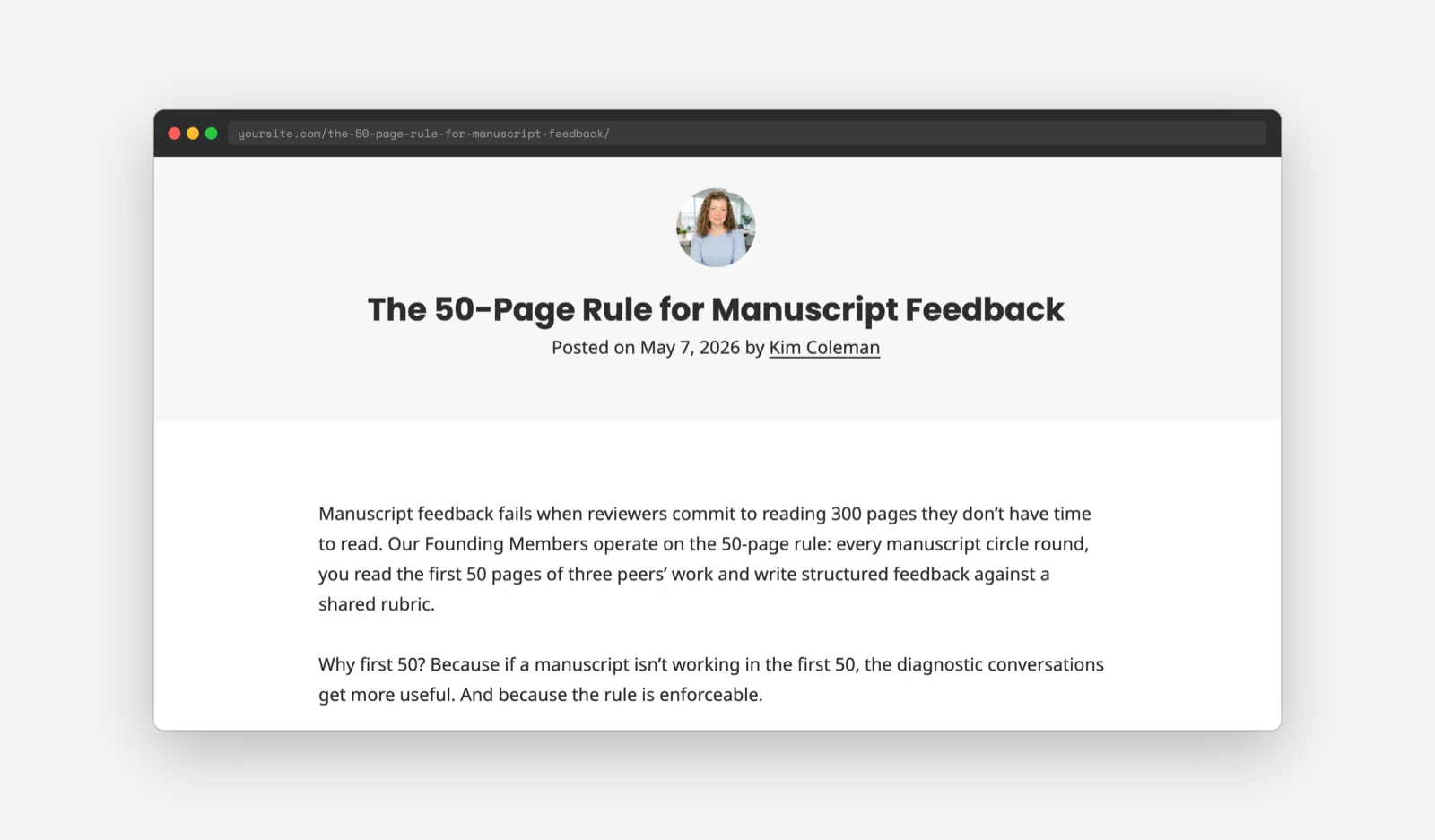
The post is now accessible to everyone, even if its category is members-only. To revert, uncheck the box and update the post.
The Code Recipe
Adding the Recipe to Your Website
You can add this recipe to your site by creating a custom plugin or using the Code Snippets plugin available for free in the WordPress repository. Read this companion article for step-by-step directions on either method.
How to Customize This Code Recipe
Restrict the Override to Admins Only
By default, any user with the edit_post capability for a given post can toggle the override. That includes the post’s own author. If you want only administrators and editors to mark a post as publicly accessible, change the capability check on lines 45 and 71 of the snippet from edit_post to edit_others_posts. The latter capability is granted to administrators and editors but not to regular authors.
Apply the Override to Custom Post Types (CPTs)
The meta box is registered for the post post type only. To enable it on a custom post type, add another add_meta_box() call inside my_pmpro_override_meta_box() and add a matching save_post_[post_type] action that calls the same save function.
For example, to extend the override to your CPT, add this inside my_pmpro_override_meta_box():
add_meta_box(
    'pmpro_override_access',
    'Access Override',
    'my_pmpro_override_meta_box_html',
    'my_private_recipes',
    'side',
    'default'
);
And register the matching save action alongside the existing one:
add_action( 'save_post_my_private_recipes', 'my_pmpro_override_save_meta' );

Get Support From Our Team of Experts
Have a question about how to use this feature? Our Support Page outlines three ways to get support.
Our Max plans include hands-on help customizing your membership site and implementing new features. Upgrade to PMPro Max now »