If your email provider, domain registrar, or DNS host has started nagging you to set up SPF, DKIM, and DMARC, this isn’t busywork. These three DNS records are how the rest of the internet decides whether your email is real or a scam. As of 2024, the major mailbox providers stopped being polite about it.
For a membership site, the stakes are higher than they look. If a member doesn’t get their welcome email, password reset, checkout receipt, or renewal notice, your support inbox fills up overnight. If a scammer can fake email from your domain, your brand takes the hit and your real email gets even less trusted.
In this guide, we walk through what SPF, DKIM, and DMARC actually do, why your membership site needs all three, what the setup process looks like at a high level, and how to get PMPro Max help if you’d rather not spend your afternoon in DNS panels.
Why You’re Suddenly Hearing About This
Email authentication has been around for years, but the major providers used to treat it as a “nice to have.” That changed in 2024, when Google and Yahoo formally started requiring SPF, DKIM, and DMARC for bulk senders to their users. The formal threshold is 5,000+ messages a day, but the practical effect goes well below that. Mailbox providers across the board now treat unauthenticated email with more suspicion, and a growing share of legitimate transactional email gets quietly downgraded if it isn’t authenticated.
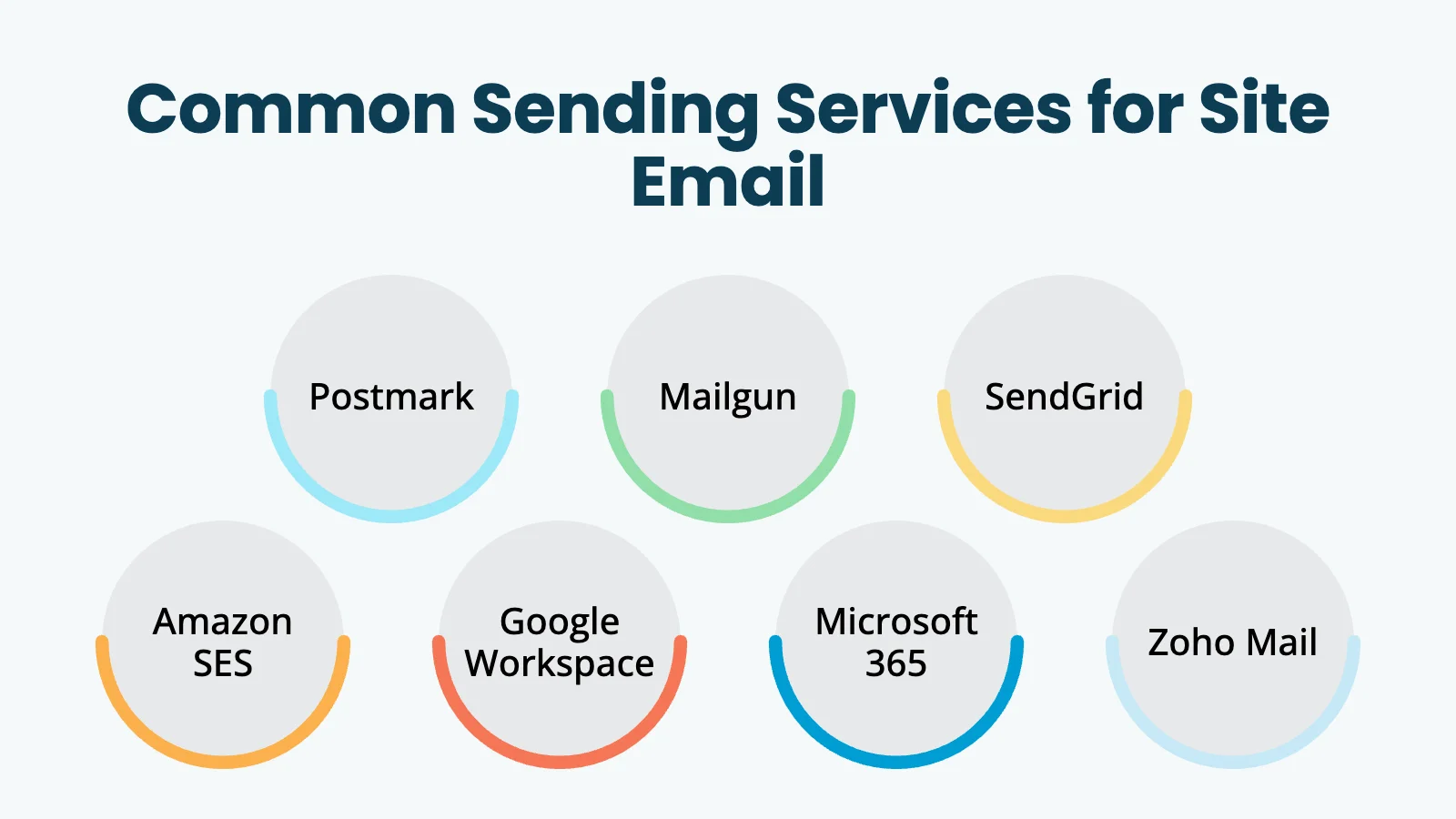
Now your email service (Postmark, Mailgun, SendGrid, Amazon SES, Google Workspace, whatever you use) shows you stern verification warnings until you add the records. Your DNS host may flag missing records too. You may have already noticed customer emails ending up in spam.
If you’re using WordPress with Paid Memberships Pro, this typically comes up when you start caring about delivery for:
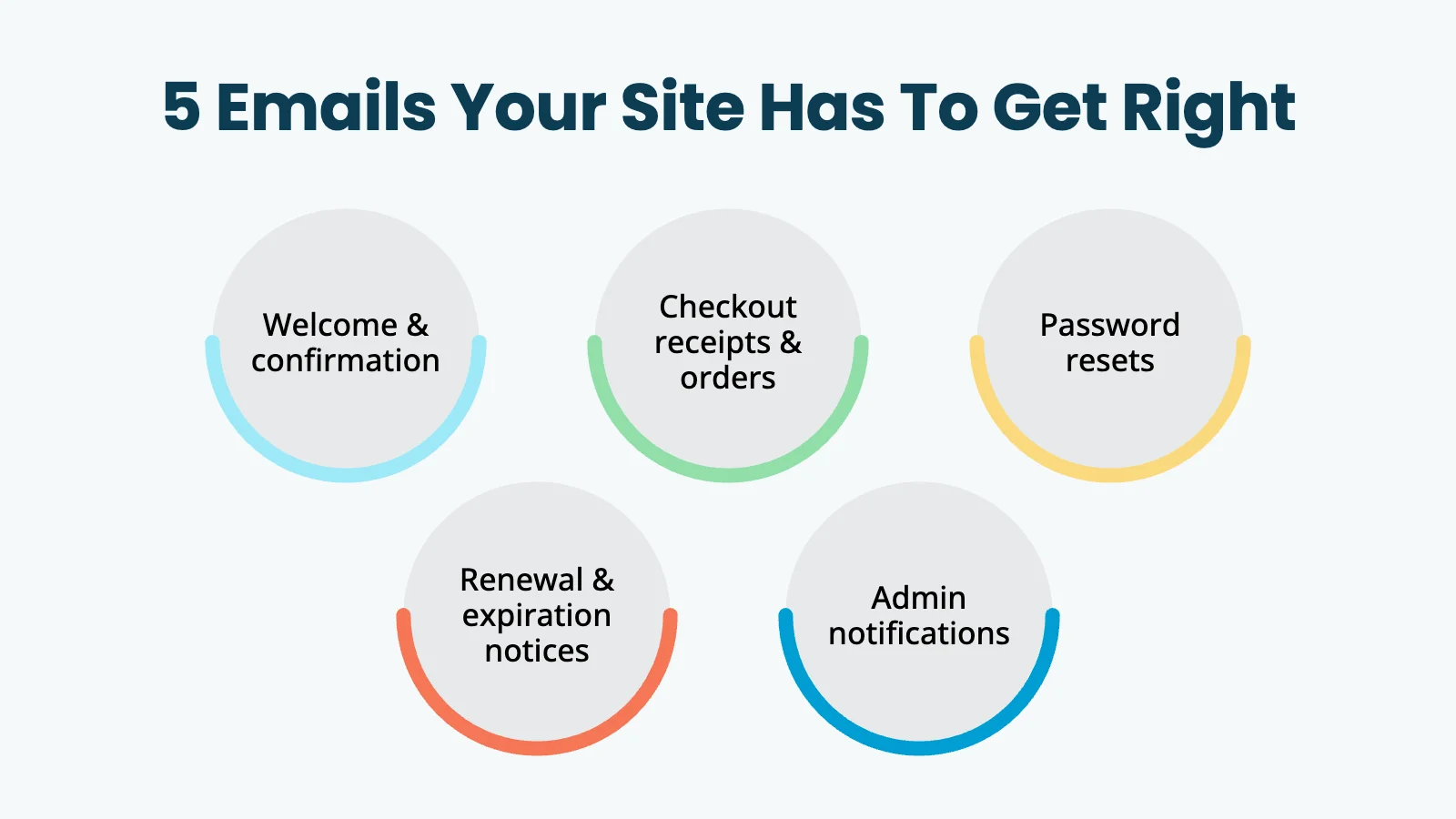
- Membership confirmation emails
- Invoice and receipt emails
- Password reset emails
- Membership expiration and renewal reminders
- Admin notifications from your site
These are the emails that are not optional. When they don’t land, your members can’t log in, can’t pay, and can’t see what they paid for. That’s the reason this matters now in a way it didn’t five years ago.
The Three Records, in Plain English
Here’s the easiest way to think about how SPF, DKIM, and DMARC fit together:
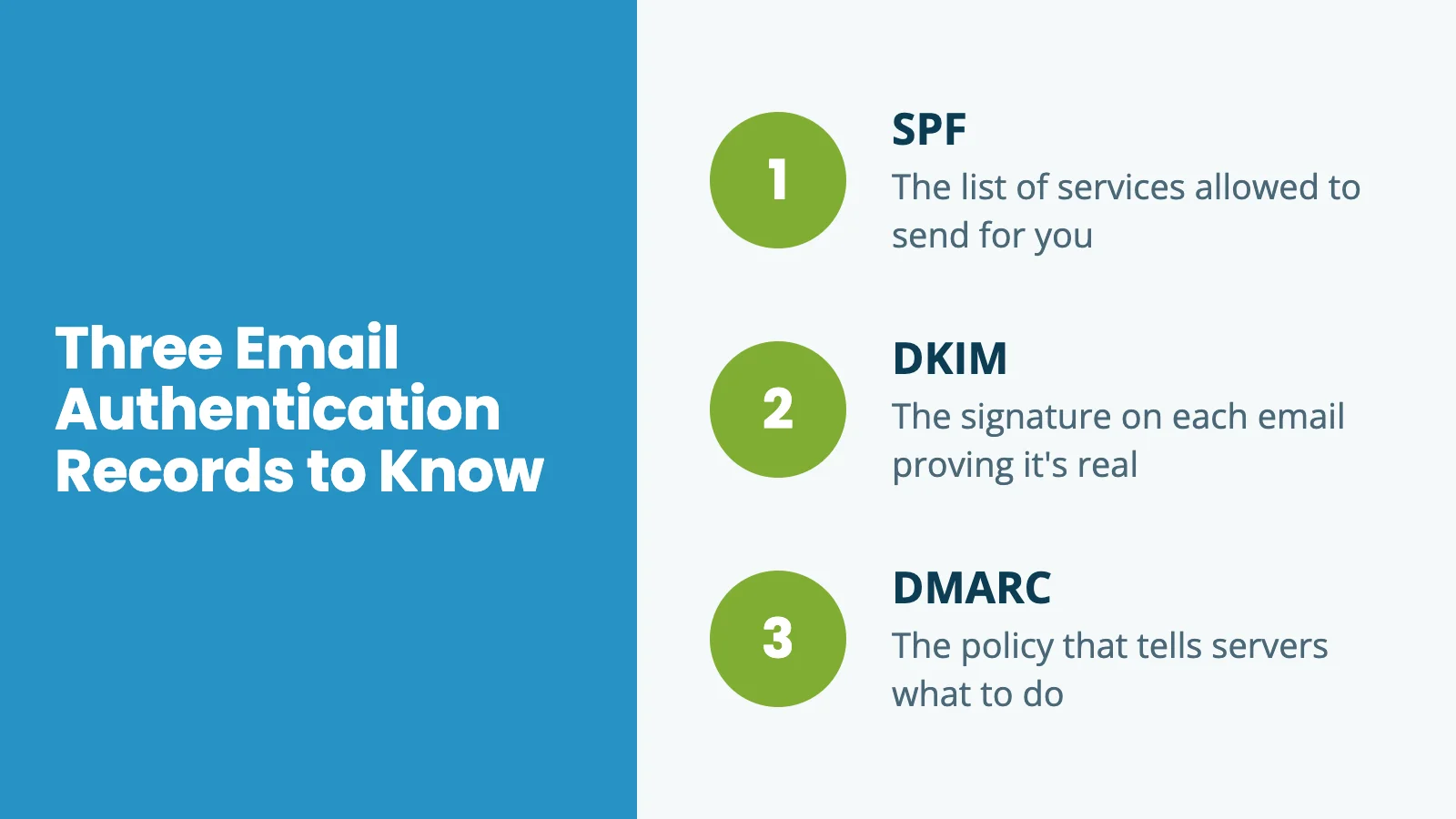
- SPF is the list of services allowed to send email for your domain.
- DKIM is the signature on each email proving it really came through one of those services.
- DMARC is the policy that tells receiving servers what to do if a message fails the first two checks.
You need all three. Each one answers a different question, and modern mail providers want answers to all of them before they’ll trust your email.
SPF: The list of services allowed to send for you
SPF stands for Sender Policy Framework. It’s a single TXT record in your domain’s DNS that lists every service authorized to send email on your behalf.
When a mail server receives an email claiming to be from you@yourdomain.com, it looks up your SPF record and checks whether the sending server is on the list. If yes, the message passes the SPF check. If not, it fails. Depending on your DMARC policy, that might be the end of it.
A typical SPF record for a membership site looks like this:
v=spf1 include:_spf.google.com include:spf.mtasv.net ~all
That record says: “Email from Google Workspace and Postmark is allowed to send for me. Anything else is suspicious.”
DKIM: The signature on each email
DKIM stands for DomainKeys Identified Mail. Where SPF says “this server is allowed to send for me,” DKIM goes further: it cryptographically signs each individual message.
When your email service sends a message, it adds a signature to the email’s headers. The receiving mail server looks up your DKIM record (a TXT or CNAME record at a specific subdomain) and verifies the signature against your public key. If the signature matches, two things are true:
- The email really did come through an approved service.
- The message hasn’t been tampered with in transit.
You don’t need to understand the cryptography to use DKIM. Your email provider hands you one or more DNS records to add, and adding them turns on the verification. That’s it.
Most modern email services (Postmark, Mailgun, SendGrid, Google Workspace, etc.) make DKIM setup a copy-paste exercise. You add the records they give you, click “verify,” and you’re done.
DMARC: The policy that ties it together
DMARC stands for Domain-based Message Authentication, Reporting & Conformance. It’s the policy layer on top of SPF and DKIM.
DMARC answers this question: if a message claims to come from your domain and fails SPF and DKIM checks, what should the receiving server do?
There are three answers you can give:
- None: Monitor only. Don’t take any special action; just send me reports about what happened. (Good for the first few weeks while you confirm everything is set up correctly.)
- Quarantine: Treat suspicious messages as suspicious. Usually means sending them to spam.
- Reject: Refuse the message outright. The most aggressive option, and the one mailbox providers most respect.
A basic DMARC record looks like this:
v=DMARC1; p=none; rua=mailto:dmarc@yourdomain.com
That record says: “Don’t act on messages that fail authentication yet. Just email me reports about who’s sending mail claiming to be from my domain.”
Starting at p=none lets you watch the reports and confirm your real email is passing before you tighten to p=quarantine, and eventually p=reject.
DMARC reports give you visibility into every service sending email from your domain, including any you’d forgotten about, or any an attacker is trying to spoof. You don’t need to read the raw reports yourself (they’re noisy and cryptic). They’re mainly useful when you’re troubleshooting deliverability issues or investigating suspicious activity. A free service like Postmark’s DMARC monitoring tool can summarize them for you.
Why This Matters Especially for Membership Sites
A blog can survive a few emails landing in spam. A membership site can’t.
Membership sites depend on email for the most basic mechanics of being a member. If someone signs up and the welcome email never arrives, they don’t know how to log in. When password reset emails go to spam, they can’t recover their account. Worse yet, if a renewal notice doesn’t make it through, you get an unexpected cancellation. Every one of those becomes a support ticket. Or worse, a refund request and a cancellation.
This isn’t just about marketing campaigns. It’s about the routine, transactional messages your site has to send every day. Good authentication helps with:
- Better inbox placement for transactional email
- Fewer spoofing risks for your brand
- More reliable delivery for password resets, receipts, and renewals
- More trust in your domain over time as authentication signals accumulate
Authentication isn’t a magic fix for every deliverability issue. Your sending IP reputation and the actual content of your emails still matter. But SPF, DKIM, and DMARC are now the table stakes. Without them, you’re playing a different game from everyone else, and losing.
The High-Level Setup Process
The exact steps depend on your email service and your DNS host, but the process generally looks like this:
- Pick the service that will send email for your site. This might be Postmark, Mailgun, SendGrid, Amazon SES, Google Workspace, or another provider. If you’re using PMPro Hosting, transactional email is already handled for you through
pmpromailer.com. - Add your domain to that email service. Most providers walk you through a verification flow.
- Copy the DNS records the provider gives you. Usually one or more TXT or CNAME records for DKIM, plus SPF guidance and a TXT record for DMARC.
- Log in to wherever your DNS is managed. This might be Cloudflare, your registrar (GoDaddy, Namecheap, etc.), your web host, or Google Workspace’s DNS panel.
- Add the records exactly as provided. Watch for trailing dots, smart quotes, and copy-paste artifacts (any of those will silently break the record).
- Wait for DNS to propagate. Usually minutes, sometimes hours.
- Return to your email provider and confirm verification. Most show a green check or “verified” status when the records are detected.
- Test your real site email flow. Trigger a checkout, a password reset, and a renewal notice. Confirm they arrive in a real inbox (not just your spam folder).
That’s the whole process. The hard part isn’t the number of steps. It’s knowing where your DNS is managed, which records already exist, and whether the values were pasted correctly.
What Usually Goes Wrong
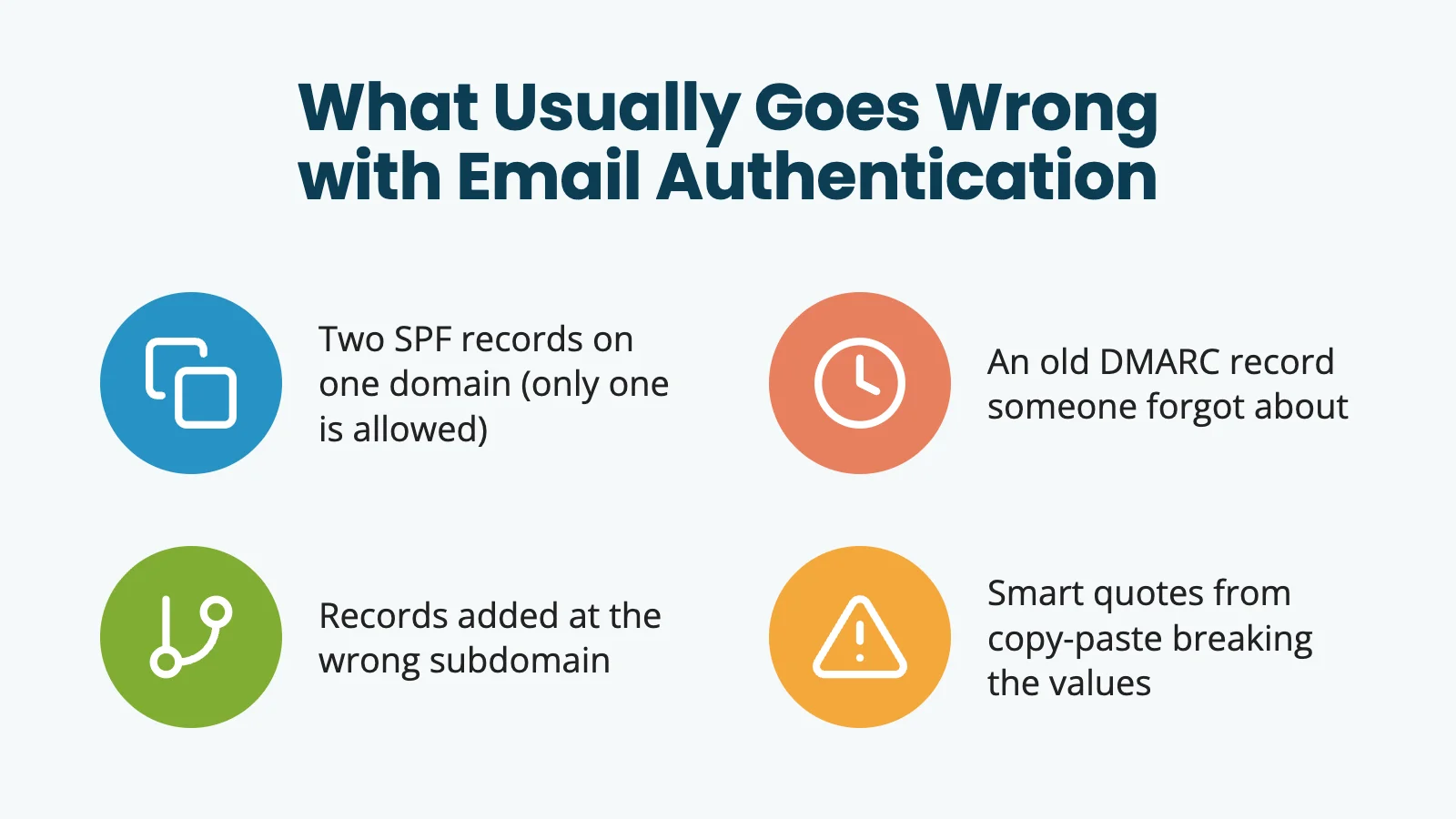
In almost every setup we’ve watched, the same handful of things trip people up:
- Two SPF records on the same domain. SPF only allows one. Adding a second silently breaks both.
- An old DMARC record someone forgot about. Often set to
p=rejectyears ago when nothing was authenticated, which means everything was being rejected. - Records added at the wrong subdomain. DKIM records often go at a specific selector subdomain like
s1._domainkey.yourdomain.com. Adding them at the root won’t work. - DNS managed somewhere unexpected. People often assume their DNS lives at their domain registrar, but it’s actually at Cloudflare, their host, or Google Workspace. Records added at the registrar do nothing.
- Smart quotes from copy-paste. Pasting from a doc or a chat sometimes converts straight quotes into curly quotes, and DNS providers reject the value silently.
- Not waiting long enough before testing. DNS changes can take a few minutes to propagate. Verifying immediately after adding records sometimes shows a false negative.
If any of these sound like you, you’re in good company. None of them are dumb mistakes. They’re the kind of things that happen because email authentication is the kind of thing you set up once and never look at again.
How PMPro Max Can Help
If you’re a PMPro Max customer, we can handle this setup with you.
This is useful if you know you need SPF, DKIM, and DMARC, but you don’t want to spend your afternoon sorting through DNS panels, email provider dashboards, and record formatting. In a typical engagement, we can:
- Review the email service you’re using for your site
- Confirm exactly which DNS records are needed
- Help you identify where your DNS is actually managed
- Add or guide the addition of SPF, DKIM, and DMARC records
- Verify that the records are recognized by your sending service
- Test that your Paid Memberships Pro emails are arriving correctly
The exact scope depends on the access available, but the goal is straightforward: get your domain authenticated correctly so your transactional email has the best possible chance of reaching members.
What to Send Us, What We’ll Send Back
If you want PMPro Max help with this, the fastest way to get moving is to send us the right details up front.
What’s helpful for you to send us
- Your domain name: the domain used to send email, like
yourdomain.com. - Your sending service: the platform sending your website email (Postmark, Mailgun, SendGrid, Amazon SES, Google Workspace, etc.).
- Your “from” email address: the address your site uses for outgoing mail, like
support@yourdomain.com. - Your DNS host: where your DNS records are managed (Cloudflare, GoDaddy, Namecheap, Google Workspace, your web host, etc.).
- Access details or your preferred contact path: whether you want us to make changes directly, or whether you’d rather we provide records for you or your IT person to add.
- Any existing DNS warnings or screenshots: if your email provider is showing verification errors, screenshots help us pinpoint what’s missing.
What we’ll send back
- The exact DNS records to add: usually TXT or CNAME records for SPF, DKIM, and DMARC.
- The host/name and value for each record: copy-paste ready, so nothing has to be guessed.
- Notes about existing records: for example, if a DMARC or SPF record already exists and shouldn’t be duplicated.
- Confirmation steps: how to verify the setup once records are in place.
- Follow-up test results: whether the sending service verifies the domain and whether site email tests look correct.
If we don’t have direct DNS access, we can still help by giving you a clear copy-paste list to send to your host, registrar, or IT person.
Frequently Asked Questions
For reliable inbox placement, yes. Google and Yahoo formally require all three for bulk senders (defined as 5,000+ messages a day to their users), and mailbox providers in general now treat unauthenticated email with much more suspicion than they used to. SPF without DKIM, or either without DMARC, leaves gaps that mail providers can interpret as suspicious.
Not if they’re added correctly. Adding additional SPF or DMARC records on a domain that already has them can break delivery. That’s why it’s worth checking what already exists before adding anything new.
Once you have the right details (sending service, DNS host, “from” address), the actual DNS changes take a few minutes. Verification can take from a few minutes to a few hours as DNS propagates.
PMPro Hosting handles transactional email through pmpromailer.com, which is already authenticated. You may still want SPF, DKIM, and DMARC on your own domain for any non-transactional email you send (for example, from a Google Workspace or a marketing service), but the site’s transactional flow is covered.
Start with our guide on Troubleshooting Email Issues: Not Sending, Sent to Spam, Delivery Delays. For setup help, Max customers can request a hands-on walkthrough.
Authentication helps, but it’s not the only factor. Your sending IP reputation, the content of your emails, and how recipients have engaged with past messages all play a role. If you’re still seeing issues after authentication is in place, contact support and we can help you diagnose further.
Wrap Up
If your membership site depends on email (and every membership site does), this is worth getting right. A little setup now means fewer support headaches later, and a smoother experience for the members you’ve worked hard to earn.
You don’t need to become an email expert. You just need to know what service is sending your email, where your DNS lives, and whether you want to handle the change yourself or have someone help.
If you want help, contact us and we’ll take it from here. If you’d rather DIY, your email provider’s documentation is the right place to start, and our support team is here if you get stuck.
Related Resources

Free Download: The AI-Powered Membership Site Blueprint
Download the free guide: Learn how to plan, build, and grow a membership site using AI as your strategic partner: from buyer persona to launch and beyond.