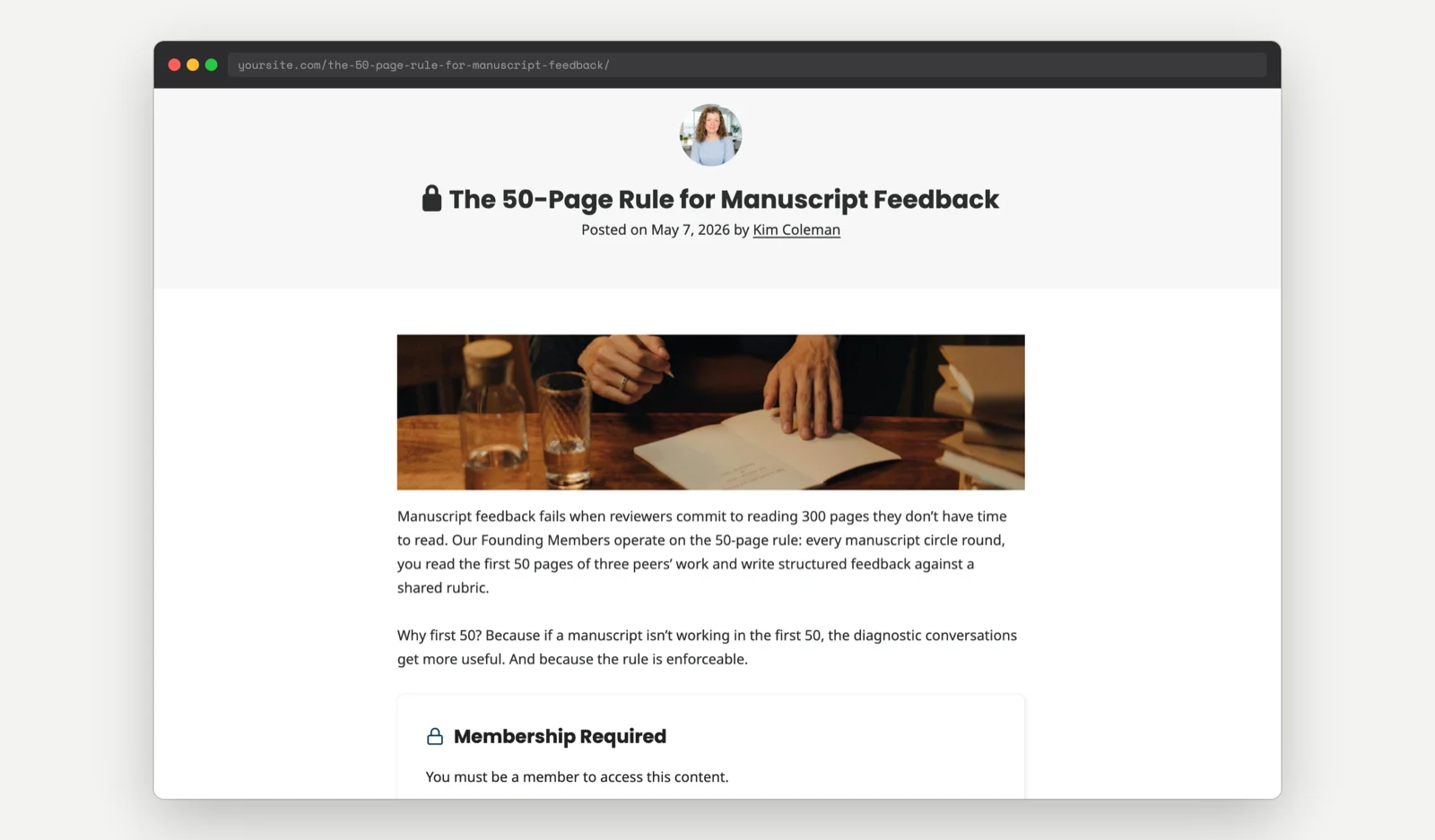
Featured images serve two purposes on a membership site: they drive clicks in archives and search results, and they set the visual tone for protected content. If your featured images are high-value, original photography, custom illustrations, or data visualizations, you may want to restrict them to members only. Non-members can still see the post title and excerpt, giving them enough context to understand what they are missing.
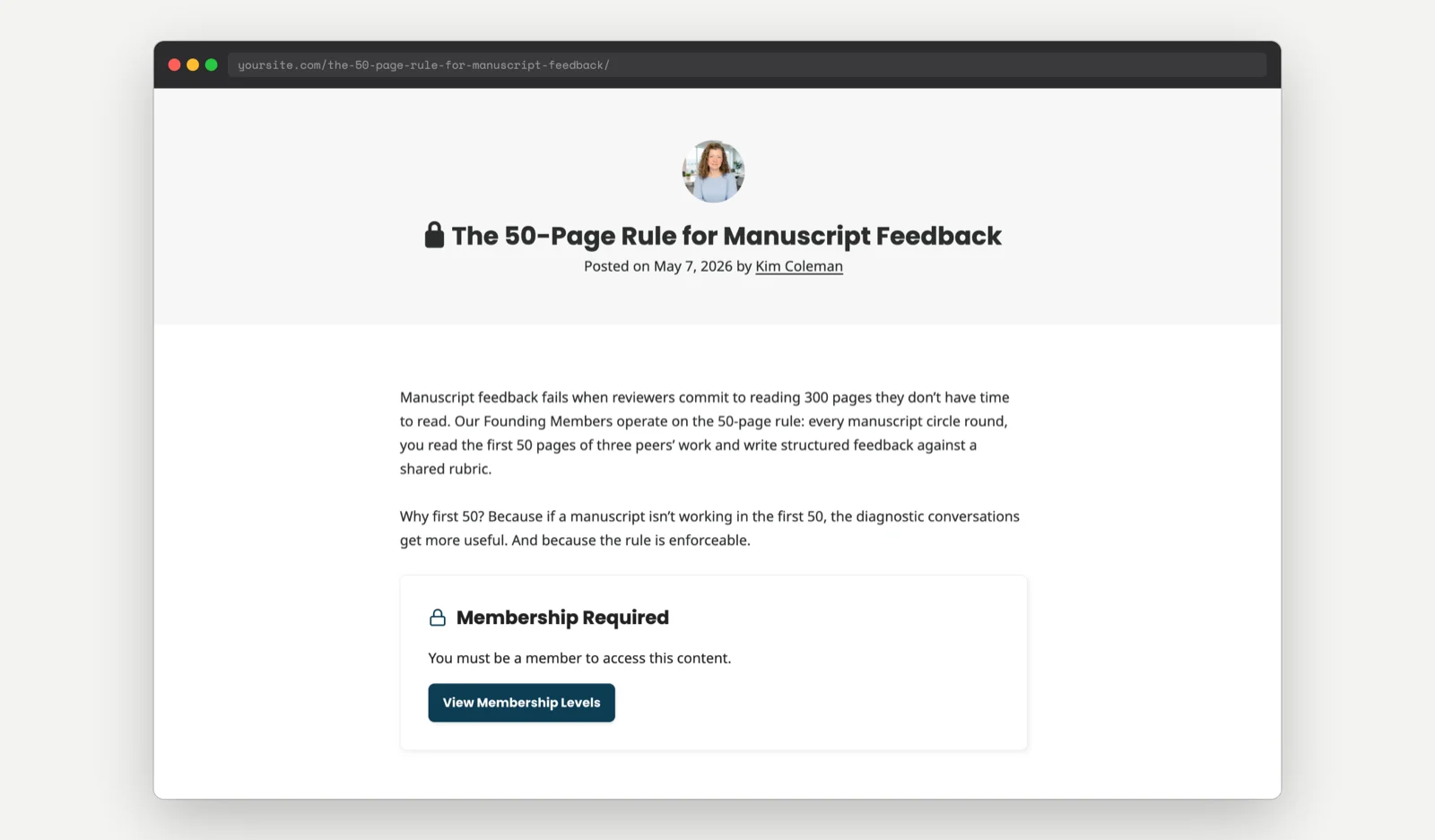
This recipe filters the output of WordPress’s featured image function and returns an empty string for any user who does not have membership access to the post. Members see the featured image as normal. Non-members see no image at all. The recipe uses the post_thumbnail_html filter to conditionally suppress the featured image output based on the current user’s membership access.
Do You Need This Recipe?
Use this recipe if you want to hide featured images on membership-protected posts from non-members:
- Your featured images are original photography or premium graphics that are part of what members pay for.
- You want non-members to see post titles and excerpts in archives but not the visual content.
- You are using featured images as preview thumbnails in a course or content library and want to gate the visuals along with the content.
- You want a consistent “locked” appearance for restricted content across your archive pages.
Before using this recipe, consider whether hiding featured images actually helps your conversion rate. A compelling featured image visible to non-members can be more persuasive than a blank space. If your goal is to drive signups, visible preview images often outperform hidden ones.
About the Code Recipe
The post_thumbnail_html filter fires whenever WordPress renders a featured image via get_the_post_thumbnail() or the_post_thumbnail(). Most well-coded themes and page builders use these functions, which means this filter intercepts featured images in archive pages, search results, widgets, and single post views.
The recipe calls pmpro_has_membership_access() with the current post ID to check whether the current user can access that post. If they cannot, meaning they are either not logged in or do not hold a qualifying membership level, the filter returns an empty string instead of the image HTML. Members and visitors with access see the featured image as normal.
The Code Recipe
Adding the Recipe to Your Website
You can add this recipe to your site by creating a custom plugin or using the Code Snippets plugin available for free in the WordPress repository. Read this companion article for step-by-step directions on either method.
How to Customize This Code Recipe
Show a Placeholder Image Instead of Hiding It
If you would rather show a “members only” placeholder image than nothing at all, change line 23 of the snippet, where $html is set to an empty string, to return the HTML for your placeholder image instead. For example:
$html = '<img src="' . esc_url( get_template_directory_uri() . '/images/members-only-placeholder.jpg' ) . '" alt="Members only content" class="attachment-post-thumbnail" />';
This signals visually that restricted content exists, rather than removing the image silently.
Video: Coding with Sam Walkthrough

Get Support From Our Team of Experts
Have a question about how to use this feature? Our Support Page outlines three ways to get support.
Our Max plans include hands-on help customizing your membership site and implementing new features. Upgrade to PMPro Max now »