Connect your membership site to your AWeber account with an authorization code, then choose the AWeber lists for non-members and for each membership level.
Connect Your AWeber Account
The Add On connects to AWeber through an authorization code that you copy from AWeber into WordPress. You need an AWeber account and at least one list. If you don’t have an account yet, sign up for AWeber.
- Navigate to Settings > PMPro AWeber in the WordPress admin.
- Under AWeber Authorization Code, click Click here to authorize this site to access your AWeber account. AWeber’s authorization page opens in a new tab.
- Log in to AWeber and allow access. AWeber then shows you an authorization code.
- Copy the full authorization code and paste it into the AWeber Authorization Code field in WordPress.
- Click Save Settings.
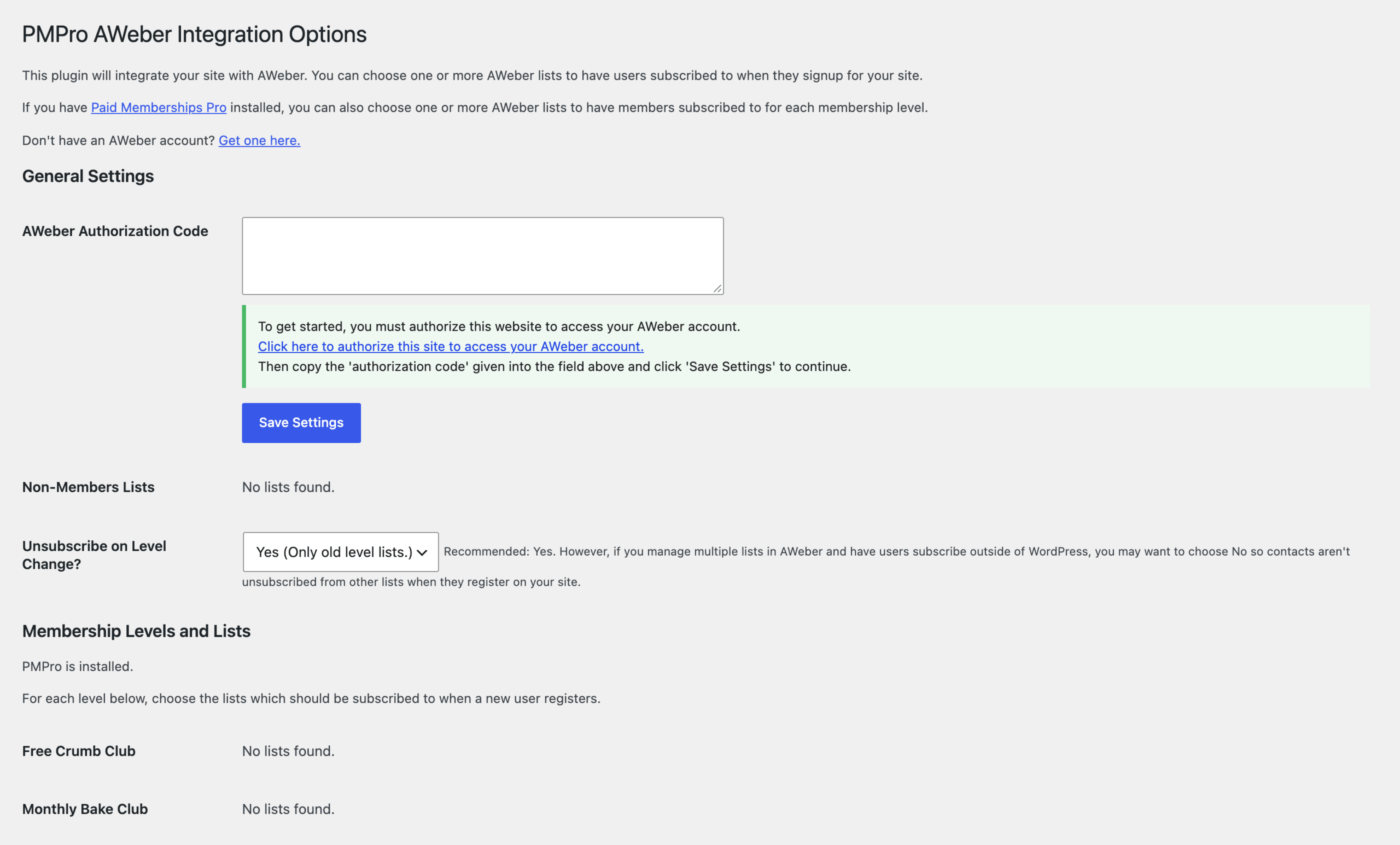
When the page reloads, the Add On swaps the authorization code for the access keys it needs and loads the lists from your AWeber account. The list settings show a selection box instead of “No lists found.” The access keys are saved for you in hidden fields, so there’s nothing else to copy.
General Settings
After you connect, choose the lists for people without a membership and decide what happens to old lists when a member’s level changes.
- Non-Members Lists: The AWeber lists for users who don’t have a membership level. New users are added to every list you select here when they register, and members are moved back to these lists if they lose all of their membership levels. Leave it empty if you only want people with a membership level in AWeber.
- Unsubscribe on Level Change?: Choose whether to unsubscribe members from their old lists when their membership changes. The default is Yes (Only old level lists.).
- No: Members are added to their new lists and stay on every list they were already on.
- Yes (Only old level lists.): Members are unsubscribed from the lists assigned to their previous level (or the Non-Members Lists, if they didn’t have a level) that aren’t also assigned to a level they have now. Lists that aren’t set up in this Add On aren’t touched.
- Yes (All other lists.): In the current version, this option works the same as Yes (Only old level lists.). Members aren’t unsubscribed from AWeber lists that aren’t assigned in this Add On.
Choose No if your AWeber lists also collect subscribers from outside WordPress and you never want the Add On to unsubscribe anyone.
Membership Levels and Lists
This section lists every membership level on your site, including levels that don’t allow new signups. For each level, select the AWeber lists that members of that level should be added to. Leave a level empty if you don’t want its members added to any list.
To select more than one list for a level or for Non-Members Lists, hold the Ctrl key (or the ⌘ Command key on a Mac) and click each list.
Click Save Settings.
Your lists only apply to signups and membership changes from now on. Existing members aren’t added in bulk when you save. To learn exactly when the Add On adds or removes someone, see How Members Sync to AWeber.
Reconnect or Change AWeber Accounts
If AWeber stops accepting the connection, the settings page shows “You must reauthorize the PMPro AWeber App at AWeber.” along with the error details from AWeber. To reconnect, or to switch to a different AWeber account:
- Click Click here to authorize this site to access your AWeber account. and get a new authorization code from AWeber.
- Replace the old code in the AWeber Authorization Code field with the new one.
- Click Save Settings.
Saving a new code clears the old access keys and connects again. Your list selections for non-members and each level are kept. If you switched to a different AWeber account, review every list setting, since the lists you chose before belong to the old account.
Get Support From Our Team of Experts
Have a question about how to use this feature? Our Support Page outlines three ways to get support.
Our Max plans include hands-on help customizing your membership site and implementing new features. Upgrade to PMPro Max now »
Last updated on November 19, 2026