Member sites follow membership status. Learn how sites are deactivated and reactivated when a membership changes, how to adjust one member’s site credits, and where to find member sites in the Network Admin.
What Happens When a Membership Changes
Every time a member’s membership changes (a new checkout, an upgrade or downgrade, a level change made by an admin, a cancellation, or an expiration), the Add On recalculates the member’s site credits and updates the status of each of their sites.
- Sites are checked in the order the member created them.
- Sites within the member’s credit limit are activated. Sites beyond the limit are deactivated.
- When a membership is cancelled or expires, the member has 0 credits, so all of their sites are deactivated.
For example, a member who owns 3 sites and moves to a level with 1 site credit keeps their first site active. Their second and third sites are deactivated. If they upgrade again to a level with 3 or more credits, all 3 sites are reactivated.
What a Deactivated Site Looks Like
The Add On uses the standard WordPress multisite “Deactivate” status. The site’s content, users, and settings are kept. Visitors to a deactivated site see the WordPress message “This site is no longer available.” Super Admins can still view the site. The site appears as deactivated on the member’s Manage Sites page and in the Network Admin.
Edit a Member’s Site Credits
You can change one member’s site credits without changing their membership level. Use this to give a member an extra site, or to apply a new Number of Sites value to a member who already held the level when you changed it.
- On the main site of your network, navigate to Memberships > Members and click the member’s name to open the Edit Member screen.
- Open the Site Credits panel.
- Enter the new number in the Site Credits field. The text below the field shows how many sites the member is currently using.
- Click Update.
Below the field, a Sites table lists each of the member’s sites with its title, address, registration date, and links to Visit the site or open its Dashboard.
Find Member Sites in the Network Admin
Member sites are regular sites on your network. You’ll find them with all your other sites under My Sites > Network Admin > Sites, where you can edit, deactivate, or delete them like any other site.
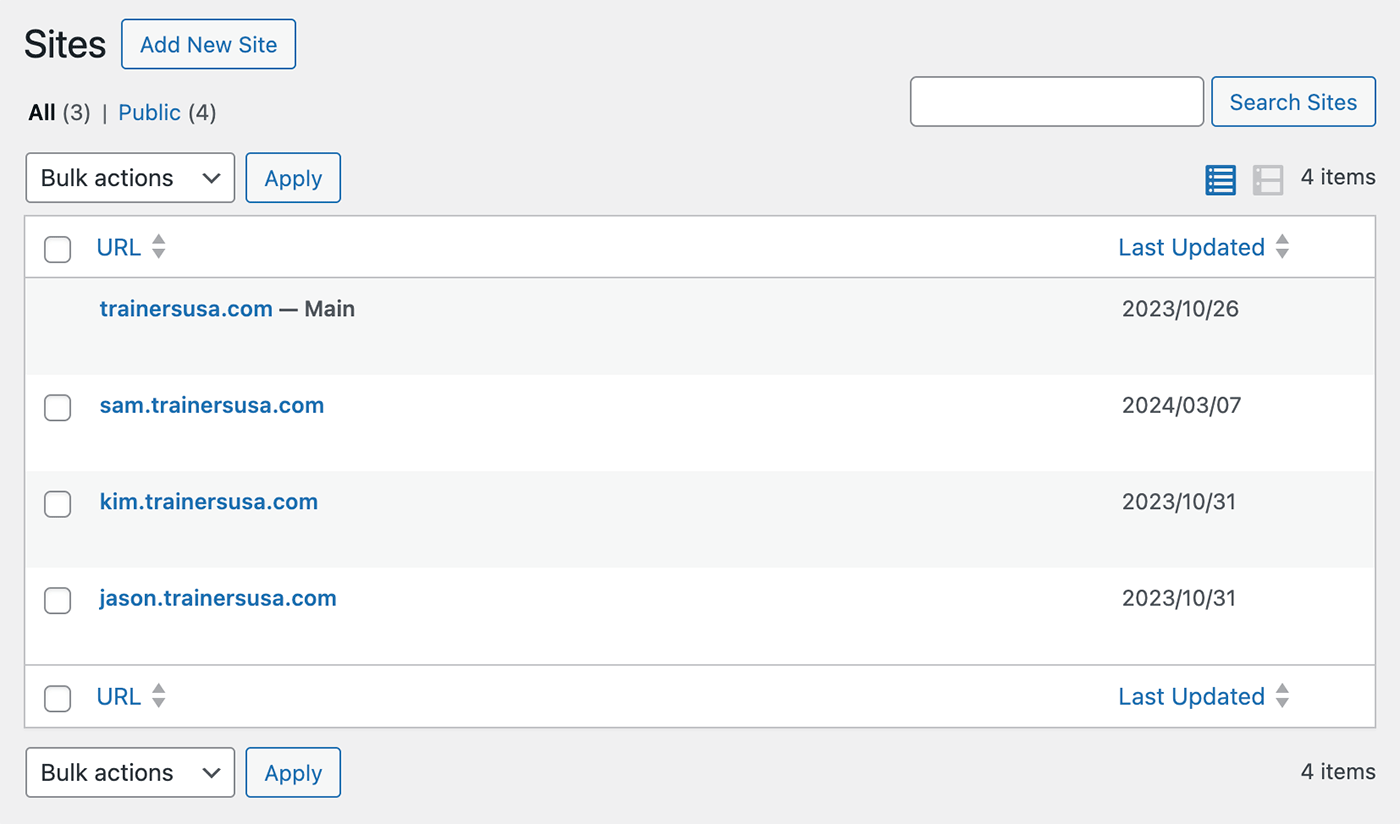
- If you delete a member’s site, it’s removed from the member’s site list and no longer counts against their credits.
- If you activate or deactivate a member’s site by hand, the Add On applies its own rules again the next time the member’s membership changes.
Default Settings for New Sites
While the Add On is active, it changes a few settings on every new site created on the network, including sites you add yourself from the Network Admin:
- The site’s tagline is set to “Change your subtitle”.
- The default category (Uncategorized) is renamed to “General”, with the slug
general. - The site is marked as public in the network’s site list.
To keep the WordPress defaults or apply your own settings instead, see Change or Turn Off the Default New Site Settings.
Troubleshooting
- A member checked out but has no site: Open their order under Memberships > Orders and check the notes. If WordPress couldn’t create the site, the note starts with “Site creation error” or “Site creation failed”. If a reclaimed site didn’t belong to the member, the note reads “Site reactivation failed” with the site’s ID.
- The Manage Sites link doesn’t appear for a member: Check that a page is assigned to Manage Sites under Memberships > Settings > Pages, and that the member has site credits. The link isn’t added when the Manage Sites page and the Membership Account page are the same page.
- A level’s checkout page has no Site Information section: The level’s Number of Sites is blank or 0, or custom code has excluded the level with the
pmpron_non_site_level_arrayfilter.
Get Support From Our Team of Experts
Have a question about how to use this feature? Our Support Page outlines three ways to get support.
Our Max plans include hands-on help customizing your membership site and implementing new features. Upgrade to PMPro Max now »
Last updated on November 19, 2026