To start getting notifications, create an incoming webhook in Slack and paste its URL into the Add On settings. Then choose the membership levels and the events (checkout, expiration, and cancellation) that should send a message to your Slack channel.
Create an Incoming Webhook in Slack
The Add On sends each notification to a Slack incoming webhook. Follow Slack’s guide to create a new incoming webhook for your workspace, and pick the channel where you want membership notifications to appear. Copy the webhook URL Slack gives you. You’ll paste it into the Add On settings in the next step.
Configure the Add On Settings
Navigate to Settings > PMPro Slack in the WordPress admin. All of the settings are in the Slack Notifications section.
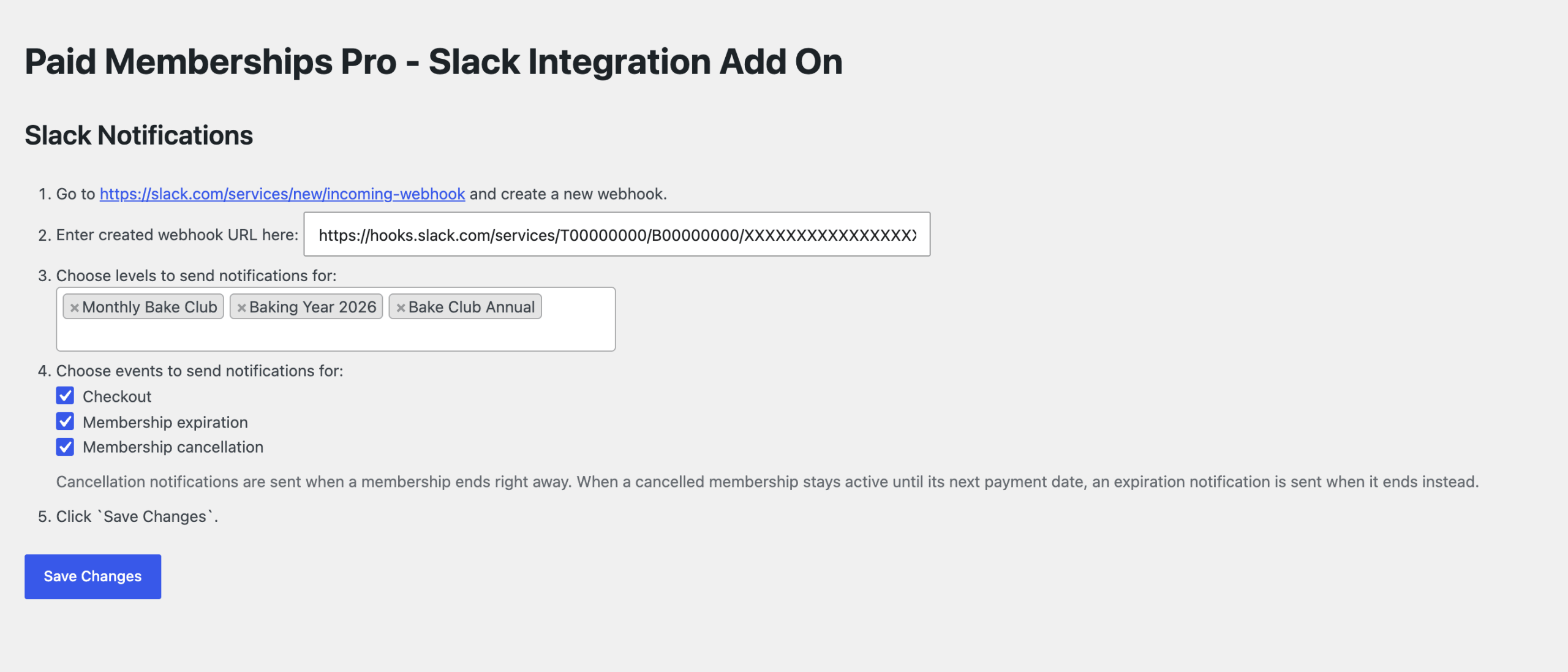
- Webhook URL: Paste the incoming webhook URL you copied from Slack. No notifications are sent until this field is filled in. If the value you enter isn’t a valid URL, the field is cleared when you save.
- Levels: Choose the membership levels to send notifications for. Start typing a level name to find it. Notifications are only sent for the levels you select, so if you leave this field empty, nothing is sent. The same levels apply to every event you turn on below.
- Events: Check each event that should send a notification: Checkout, Membership expiration, and Membership cancellation. Only Checkout is checked on a new install. Learn more about when each notification is sent below.
Click Save Changes.
When Notifications Are Sent
Each notification is a short Slack message with a bold title that includes the member’s email address and a second line with the member’s display name and membership level. A notification is only sent when the event is checked and the member’s level is one of the levels you selected.
Checkout
Sent after someone completes checkout for a selected level. With offsite payment gateways, the notification is sent once your site receives the payment confirmation from the gateway, so it can arrive a little after the member finishes paying.
- Title: New checkout: [member’s email address]
- Details: [Display name] has checked out for [level name], followed by the initial payment amount in parentheses.
Membership Expiration
Sent when Paid Memberships Pro ends a membership that has reached its expiration date. PMPro checks for expired memberships on a schedule, so the notification can arrive shortly after the end date passes. This includes recurring memberships that were cancelled but stayed active until the next payment date.
- Title: Membership expired: [member’s email address]
- Details: [Display name]’s [level name] membership has expired
Membership Cancellation
Sent when a cancelled membership ends right away. This happens when:
- A member cancels from the Membership Cancel page and has no upcoming payment date to keep their access until.
- An administrator clicks Cancel Membership for the level on the Edit Member screen.
- The member’s subscription is cancelled at the payment gateway and the membership ends right away.
- Title: Membership cancelled: [member’s email address]
- Details: [Display name]’s [level name] membership has been cancelled
A cancellation notification is not sent when a member changes to a different level, when a membership expires, or when a level is removed because you deleted the membership level.
Test Your Notifications
To confirm the connection works, complete a test checkout for one of the levels you selected. Use a free level, or a paid level with a 100% discount code. A “New checkout” message should appear in your Slack channel.
If no message arrives, check these settings and save again:
- The Webhook URL field still holds your webhook URL after saving.
- The level you checked out for is selected in the levels field.
- Checkout is checked under the events.
Get Support From Our Team of Experts
Have a question about how to use this feature? Our Support Page outlines three ways to get support.
Our Max plans include hands-on help customizing your membership site and implementing new features. Upgrade to PMPro Max now »
Last updated on November 19, 2026