Paid Memberships Pro v3.7 includes built-in email logging. Every email PMPro sends is recorded with its recipient, subject, body content, status, and timestamp. This helps administrators troubleshoot delivery issues, verify that emails are being sent, and review the exact content members received.
Viewing the Email Log
By default, email logging will be enabled. To disable or view other settings, navigate to Memberships > Settings > Email Settings.
Related: Email Settings Documentation
From the Reports Page
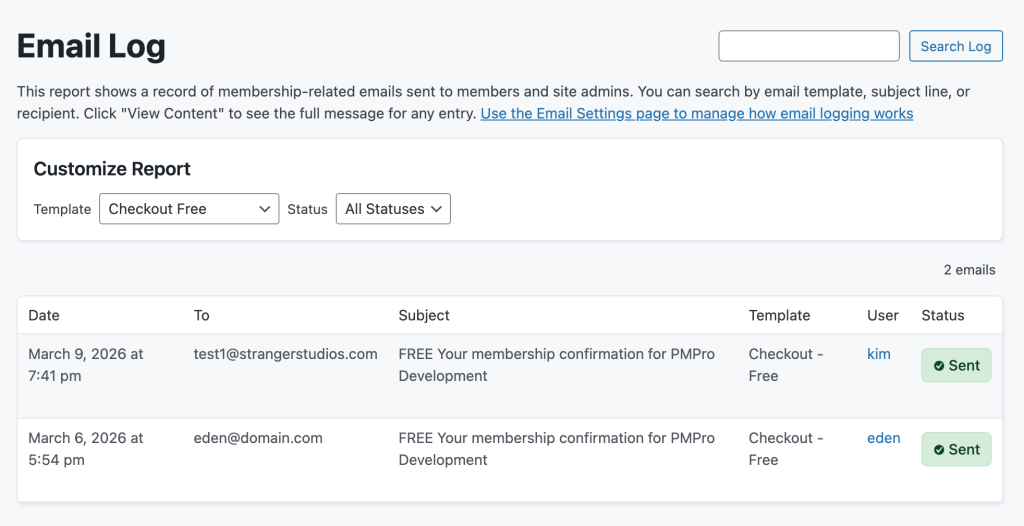
Navigate to Memberships > Reports and select the Email Log report. This shows a filterable, searchable list of all logged emails.
From the Edit Member Page
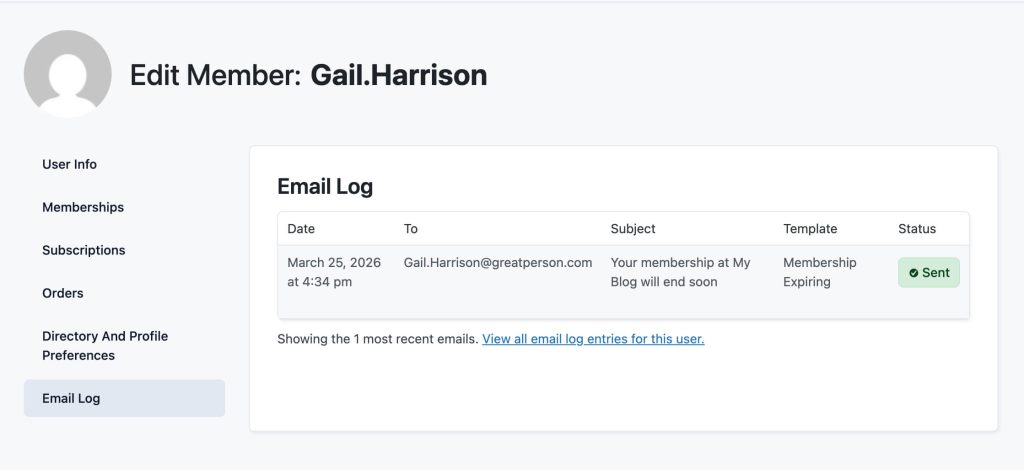
You can also view emails sent to a specific member from their Edit Member page. The Email Log panel shows all emails sent to that member.
- Navigate to Memberships > Members.
- Click on a member’s name.
- Select the Email Log panel.
What the Email Log Captures
Each log entry records:
- To: The recipient email address
- From: The sender email address and name
- Reply-To: The reply-to address, if set
- CC: Carbon copy recipients, if any
- BCC: Blind carbon copy recipients, if any
- Subject: The email subject line
- Body: The full email body (viewable as rendered HTML or raw HTML)
- Template: The PMPro email template used (e.g., `checkout_paid`, `cancel_admin`)
- Status: Whether the email was sent successfully or failed
- Timestamp: The date and time the email was sent
- Error: The error message if the email failed to send
Viewing Email Details
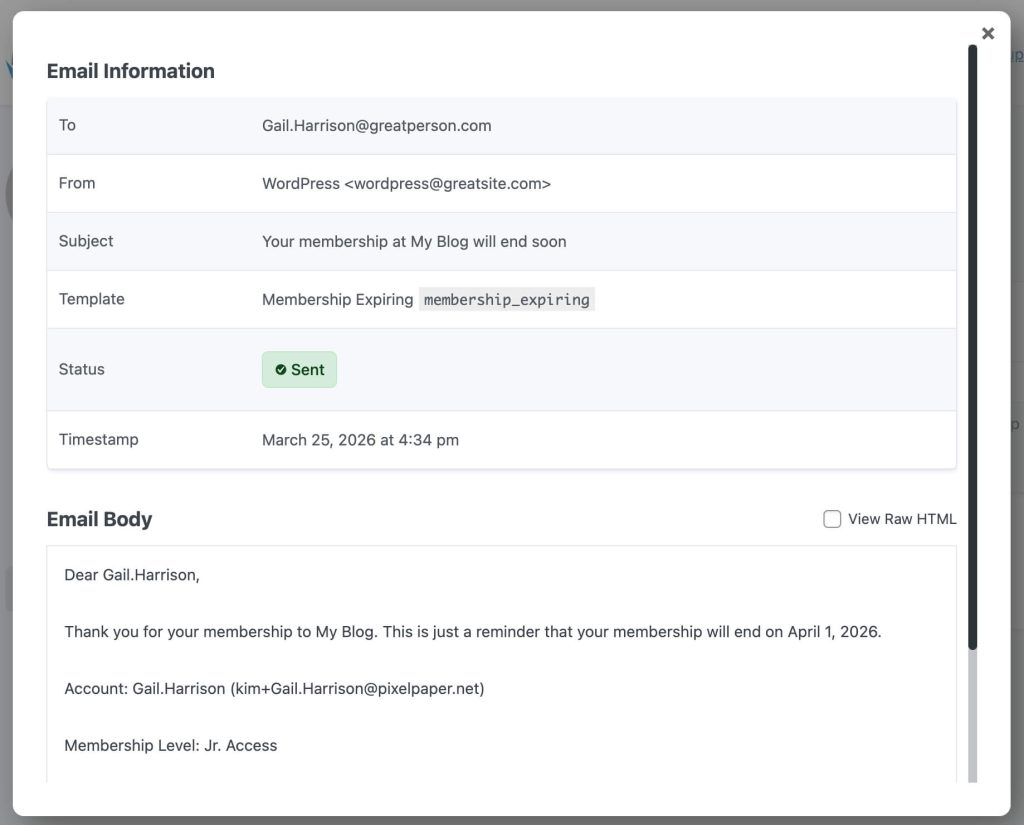
Click on any email in the log to open a modal with the full email details. The modal includes:
- All header information (To, From, Reply-To, CC, BCC)
- The email template name and description
- A sent/failed status indicator
- The full email body, with a toggle to switch between rendered HTML and raw HTML views
Troubleshooting with the Email Log
The email log is your first stop when a member reports they didn’t receive an email:
- Check the log for the member’s email address. Is there an entry for the expected email?
- Check the status. If it shows “Failed,” review the error message for clues.
- Check the content. Open the email detail to verify the body content, subject, and recipient are correct.
- If the email shows “Sent” but the member didn’t receive it, the issue is with email delivery, not PMPro. Consider using a transactional email service like SendWP to improve deliverability.
Get Support From Our Team of Experts
For more help with this PMPro feature, check out our Support Page with three ways to get support as a free or premium member.
Last updated on March 30, 2026

