Sometimes a discount code field on your checkout page costs you sales. A member who would have paid full price sees the field and goes searching for “company name discount codes” instead of completing checkout.
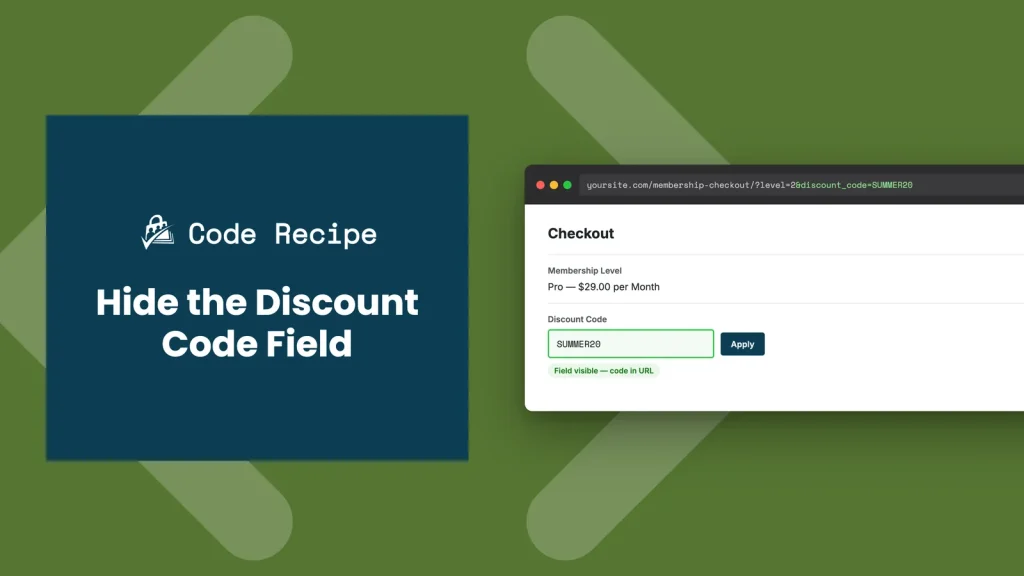
This code recipe hides the discount code field from checkout and only shows it when a code is passed through the URL, in the format &discount_code=CODEID.
Do You Need This Recipe?
By default, Paid Memberships Pro only shows the discount code field at checkout when the selected membership level has a discount code configured. If none of your levels use discount codes, the field is already hidden, so you don’t need this recipe.
Use this recipe when a level does have a discount code configured, so the field would normally show, but you only want members to see it when they already have a code in hand, for example from an email campaign or a partner link. The snippet hides the field by default and only reveals it when discount_code is present in the URL.
Best Practices and Considerations
Keep in mind this is not a security feature. Hiding the field only keeps casual visitors from noticing the discount. Anyone with the code and the URL format can still apply it. If you need to make sure only approved members use a code, build that check into the code itself rather than relying on this recipe alone.
About the Code Recipe
This recipe uses a PMPro filter called pmpro_show_discount_code to control whether the discount code field appears at checkout. The snippet below hides the field by default, and only shows it when the checkout URL includes a discount_code value.
To share a link that reveals the field, add discount_code=CODEID as a query parameter to your membership checkout URL, alongside the level parameter:
- With the field hidden:
https://yoursite.com/membership-checkout/?level=2 - With the field revealed:
https://yoursite.com/membership-checkout/?level=2&discount_code=SUMMER20
A member who visits the second link sees the discount code field and can apply the code. A member who visits the first link never sees the field at all.
The Code Recipe
Adding the Recipe to Your Website
You can add this recipe to your site by creating a custom plugin or using the Code Snippets plugin available for free in the WordPress repository. Read this companion article for step-by-step directions on either method.
How to Customize This Code Recipe
The recipe works as-is for most sites. The options below are for more specific setups.
- Use a different parameter name (line 17): Change
discount_codeto match a different query parameter name if you already usediscount_codeelsewhere on your site. - Require a specific level too: Wrap the check in a condition using
pmpro_hasMembershipLevel()so the field only unlocks via URL for certain levels, even if other levels also have discount codes configured. - Match against a list of valid codes: Instead of only checking for presence, compare
$_REQUEST['discount_code']against an array of the codes you issue, so the field only reveals itself for codes you recognize, not any value in the URL.

Get Support From Our Team of Experts
Have a question about how to use this feature? Our Support Page outlines three ways to get support.
Our Max plans include hands-on help customizing your membership site and implementing new features. Upgrade to PMPro Max now »