If you sell products through WooCommerce but only want paying members to see prices and complete a purchase, you need a way to turn browsing into a members-only privilege. This is common for wholesale pricing, private product collections, or stores that want membership to unlock buying power, not just viewing power.
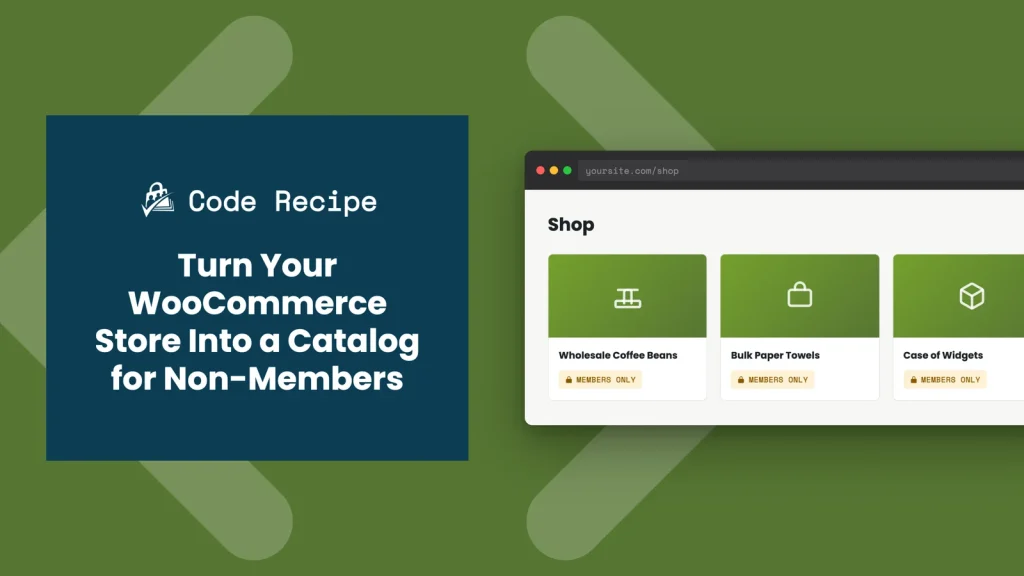
This recipe turns your WooCommerce store into a browsable catalog. Anyone can see your products, but only members can see prices, add items to a cart, or check out.
Do You Need This Recipe?
This recipe is a good fit if:
- You want visitors to browse your full catalog, but only members can see prices or buy
- You are running a wholesale, private-collection, or members-only storefront
- You want a clear separation between your membership functionality and your online store
If you’d rather non-members not see your products at all, Lock Your Entire eCommerce Shop for Members-Only redirects them to your membership levels page instead of letting them browse.
Best Practices and Considerations
- Requires the WooCommerce Integration Add On: Install and activate it before adding this snippet.
- Not for membership-as-product setups: If you sell membership levels as WooCommerce products, this recipe will block non-members from buying them. Use Require Membership to Purchase Specific Categories of Products in WooCommerce instead.
- This restricts your entire store: The snippet does not check product category or type. If you only want to restrict some products, you will need to add a category check (see How to Customize This Code Recipe).
- Test as a logged-out visitor: Use a private or incognito browser window to confirm prices and the add-to-cart button are actually hidden, since you will always see your own admin view as a logged-in user.
- Watch full-page caching: If your site uses a caching plugin, make sure it serves separate cached views for logged-in members and logged-out visitors. Otherwise, a cached page built for one audience can leak to the other.
About the Code Recipe
This recipe uses two functions that work together.
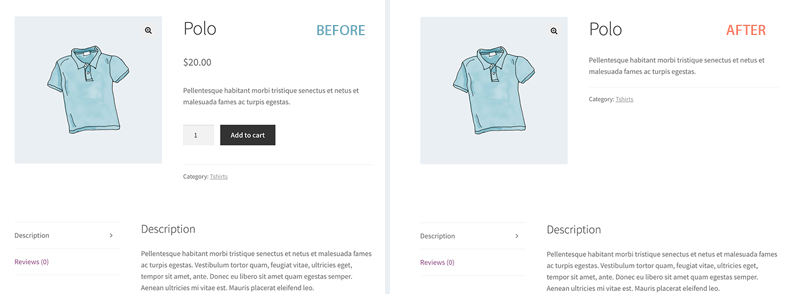
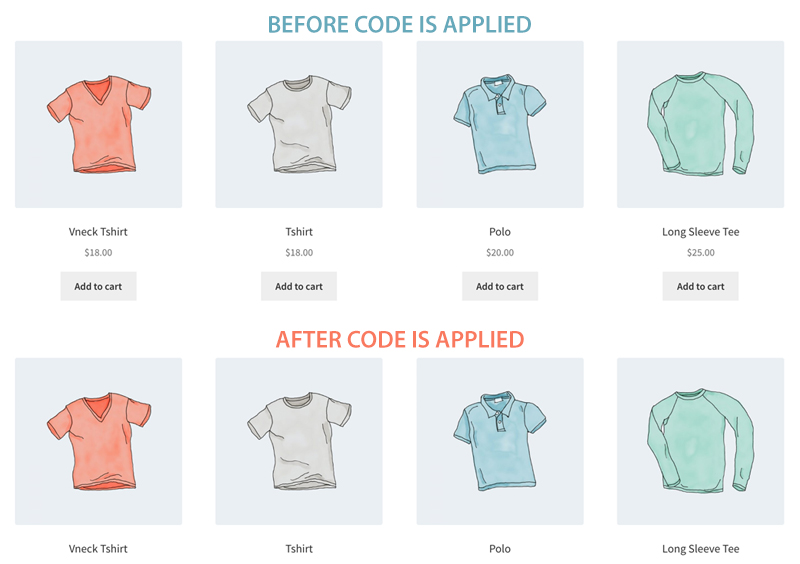
hide_prices_for_non_pmpro_members() runs on the wp action and checks pmpro_hasMembershipLevel(). If the current visitor has no membership level, it filters WooCommerce’s price HTML output to an empty string for every product, removes the add-to-cart button from shop and single product pages, and hides the sale badge.
my_pmpro_redirect_users_away_from_woo() runs on template_redirect and covers the gap a hidden button leaves open: a non-member who navigates straight to the cart or checkout URL. If that happens, it redirects them to the homepage instead of letting the page load.
Together, the two functions mean a non-member can browse every product page but has no path to seeing a price or completing checkout.
Understanding the pmpro_hasMembershipLevel() Function
Both functions in this recipe check pmpro_hasMembershipLevel(), called with no arguments to test whether the current visitor holds any active membership level at all.
pmpro_hasMembershipLevel( $level = null, $user_id = null )
$level accepts a single level ID or name, or an array of several, so you can check for specific levels instead of “any level.” $user_id lets you check a user other than the one currently logged in. Leaving both empty, as this recipe does, returns true for any member and false for guests or logged-in users without a level. See the pmpro_hasMembershipLevel() documentation for the full reference.
The Code Recipe
Adding the Recipe to Your Website
You can add this recipe to your site by creating a custom plugin or using the Code Snippets plugin available for free in the WordPress repository. Read this companion article for step-by-step directions on either method.
How to Customize This Code Recipe
- Redirect somewhere other than the homepage (line 69): Change
home_url()inmy_pmpro_redirect_users_away_from_woo()to any URL, such as your membership checkout or pricing page, so a non-member who tries to check out lands on a signup call to action instead of your homepage. - Restrict to specific membership levels (lines 38 and 63): Pass a level ID, name, or array to
pmpro_hasMembershipLevel()in both functions, for examplepmpro_hasMembershipLevel( array( 'Wholesale', 'VIP' ) ), if only certain levels should unlock pricing rather than any active member. - Show a message instead of a blank price (line 23): In
remove_my_woo_prices(), return a string like'Members only. Log in to see pricing.'instead of an empty string. - Restrict only some products: Wrap the checks in
remove_my_woo_prices()and the add-to-cart removals with a product category check, such ashas_term( 'wholesale', 'product_cat', $product->get_id() ), if you want the catalog rule to apply to only part of your store. For restricting entire categories to members while leaving the rest public, see Require Membership to Purchase Specific Categories of Products in WooCommerce instead.

Get Support From Our Team of Experts
Have a question about how to use this feature? Our Support Page outlines three ways to get support.
Our Max plans include hands-on help customizing your membership site and implementing new features. Upgrade to PMPro Max now »