Every order placed through a checkout with the Gift Aid checkbox records the member’s choice, and renewal payments carry that choice forward. Here’s where to find it for one member and how to export it for all of your orders.
Where the Gift Aid Value Appears
The Add On stores the member’s choice as “Gift Aid: Yes” or “Gift Aid: No” in the order notes. You’ll see it in these places.
Member Order and Confirmation Pages
Members see a Gift Aid: Yes or Gift Aid: No line on the order details shown on the Membership Confirmation page after a paid checkout, and on each single order page they open from the Order History on their Membership Account page. Orders with no Gift Aid record don’t show the line.
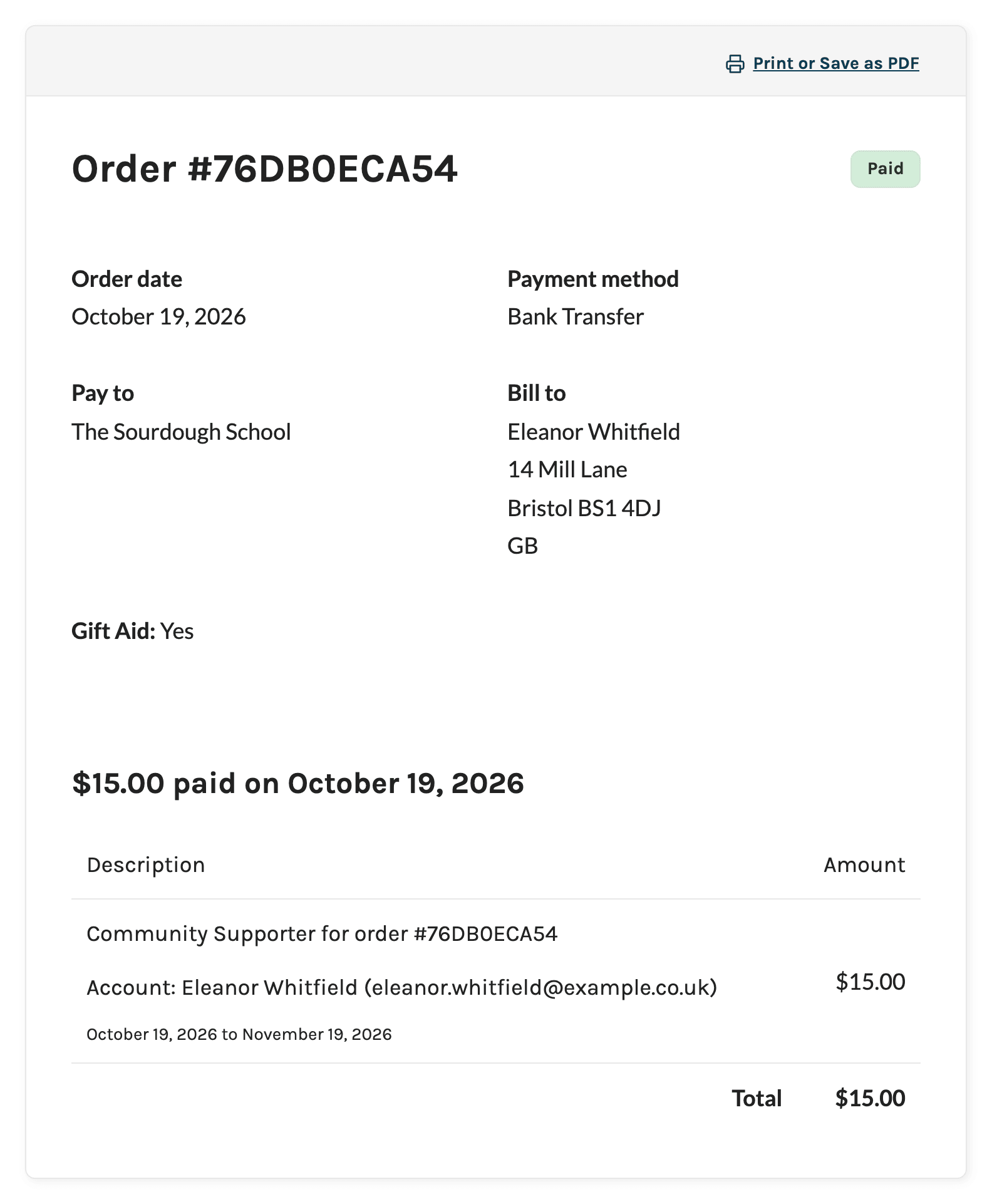
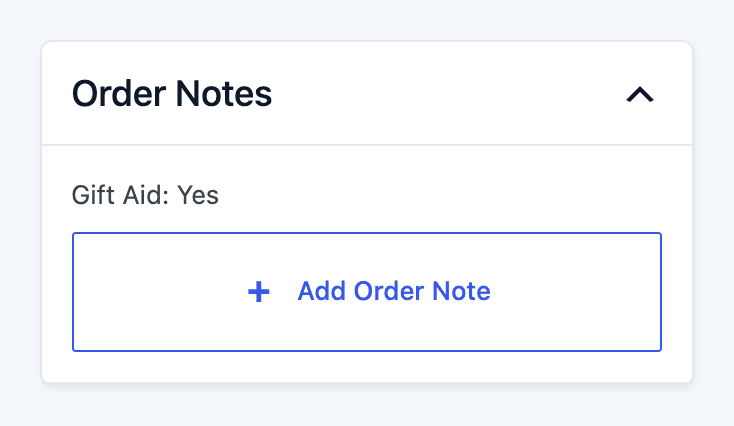
Order Notes in the Admin
Navigate to Memberships > Orders and open an order. The Gift Aid value is listed in the Order Notes section.
Admin Checkout Email
The Checkout – Paid (admin) email sent to site administrators after a paid checkout includes a “Gift Aid: Yes” or “Gift Aid: No” line, right after the paragraph with the order number and total.
- The line is only added to the Checkout – Paid (admin) email. The admin emails for free checkouts and Pay by Check checkouts don’t include it, even when the order has a Gift Aid note.
- The Add On places the line by finding the paragraph that starts with “Order #”. If you’ve edited this email template and removed or reworded that paragraph, the Gift Aid line won’t appear.
Renewal Payments
Members choose Gift Aid once, at checkout. When a recurring payment comes in for their subscription, the Add On copies the Gift Aid value from the subscription’s original checkout order onto the new renewal order. Renewals then show the same value on the member’s order page and in the Orders CSV export.
- Original Order Says Yes or No: The renewal order gets the same value.
- Original Order Has No Gift Aid Note: The renewal order doesn’t get one either. Before version 0.2.2, checkouts with the box left unchecked didn’t record a note, so renewals for those subscriptions get no note and show
Noin the Orders CSV export. - No Earlier Order for the Subscription: The Add On uses the choice saved on the member’s profile from their last checkout. If they’ve never made a choice, the renewal order gets no note.
Export Gift Aid Records
The Orders CSV export includes a gift_aid column, so you can build a report of every order where the member opted in.
- Navigate to Memberships > Orders in the WordPress admin.
- Optional: Filter the list first (for example, by date range or status). The export includes only the orders that match your filters.
- Click Export to CSV. The export builds in the background. When it’s done, the button changes to Download CSV.
- Open the CSV and find the
gift_aidcolumn. It readsYeswhen the order’s notes say “Gift Aid: Yes” andNofor every other order.
A No in the export can mean the member left the box unchecked, or that the order has no Gift Aid record at all, such as a free checkout or an order from before the Add On was active. To tell these apart, check the order’s notes.
Change the Gift Aid Value on an Order
Because every display reads the order notes, you can correct a member’s Gift Aid record by editing the note.
- Navigate to Memberships > Orders and open the order.
- Click Edit Order.
- In the Notes field, change “Gift Aid: No” to “Gift Aid: Yes” (or the other way around). Keep the exact wording and capitalization, and keep only one Gift Aid line.
- Click Save Order.
Future renewal orders copy the value from the subscription’s original checkout order, so edit that order if you want upcoming renewals to change too. Renewal orders that were already recorded keep their own notes. Editing an order doesn’t change the choice saved on the member’s profile, which only sets the checkbox at their next checkout.
Get Support From Our Team of Experts
Have a question about how to use this feature? Our Support Page outlines three ways to get support.
Our Max plans include hands-on help customizing your membership site and implementing new features. Upgrade to PMPro Max now »
Last updated on November 19, 2026