Add a backup provider that automatically retries an email when your primary API provider fails to send it. On staging and development sites, use sandbox mode to stop all outgoing email so test data never reaches real inboxes.
Table of contents
Backup Provider
When your primary provider returns an error for a message, the Add On sends that same message once through your backup provider. If the backup also fails, the email is recorded as failed.
Set Up a Backup Provider
Only the selected provider’s fields are visible on the Connection tab, so enter your backup provider’s credentials first, then switch back to your primary provider.
- Navigate to Memberships > SMTP.
- In the Email Provider section, select the provider you want to use as your backup and enter its credentials.
- Select your primary provider again and confirm its credentials are filled in.
- Click Save Settings. Credentials you entered for both providers are saved.
- In the Backup Provider section, choose your backup from the Backup Provider dropdown. The list doesn’t include Custom SMTP or the provider you saved as primary.
- Click Save Settings.
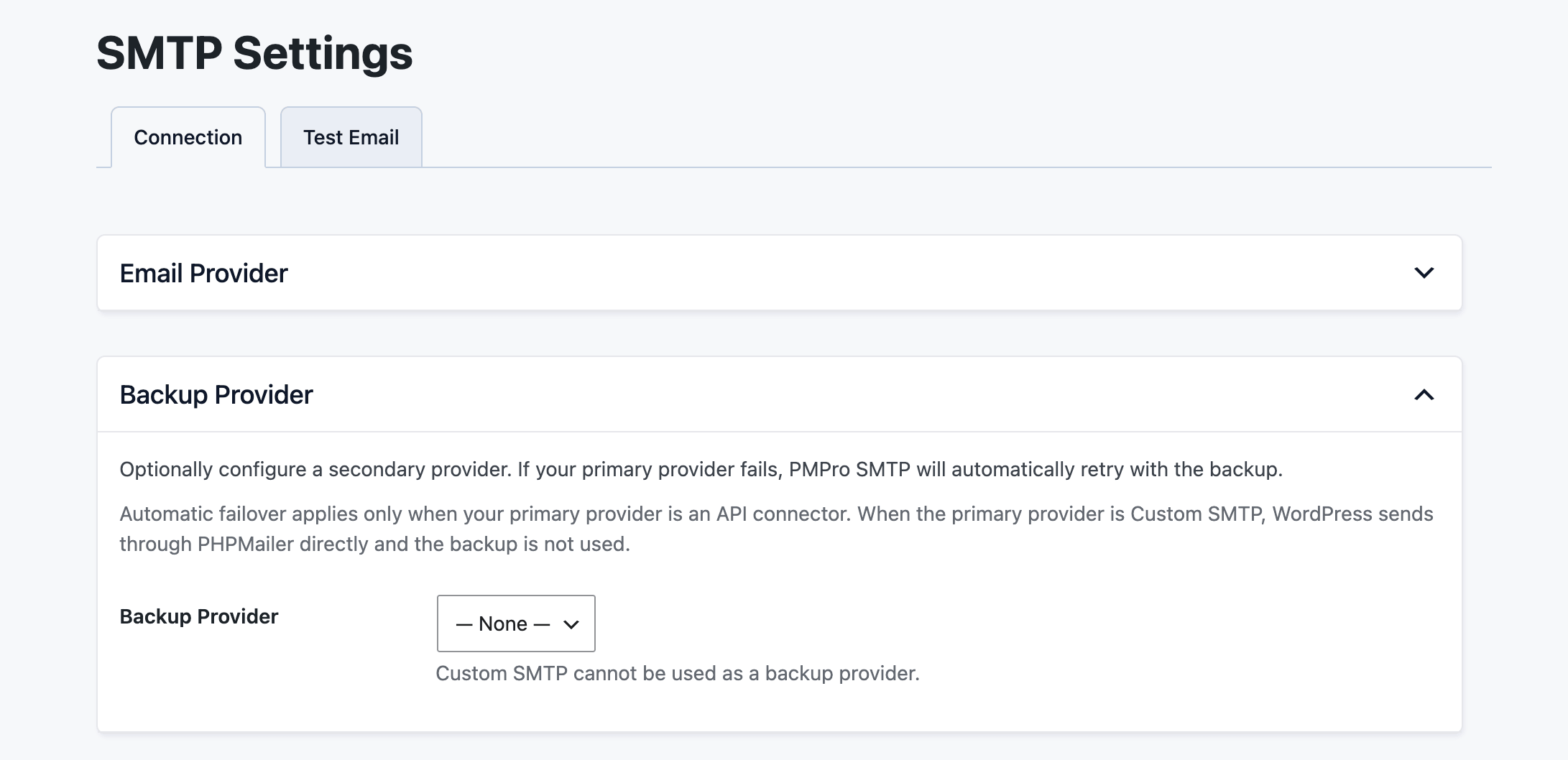
To turn off failover, set Backup Provider to None and save.
Sandbox Mode
Sandbox mode stops all outgoing email from your site. Every message is intercepted and discarded, so nothing is delivered. This applies to every email WordPress sends, including member emails, admin notifications, and password resets, no matter which provider you selected (even None).
Use sandbox mode on a staging or development copy of your site, where real member email addresses could otherwise receive test checkouts, renewal reminders, or other messages.
- Navigate to Memberships > SMTP.
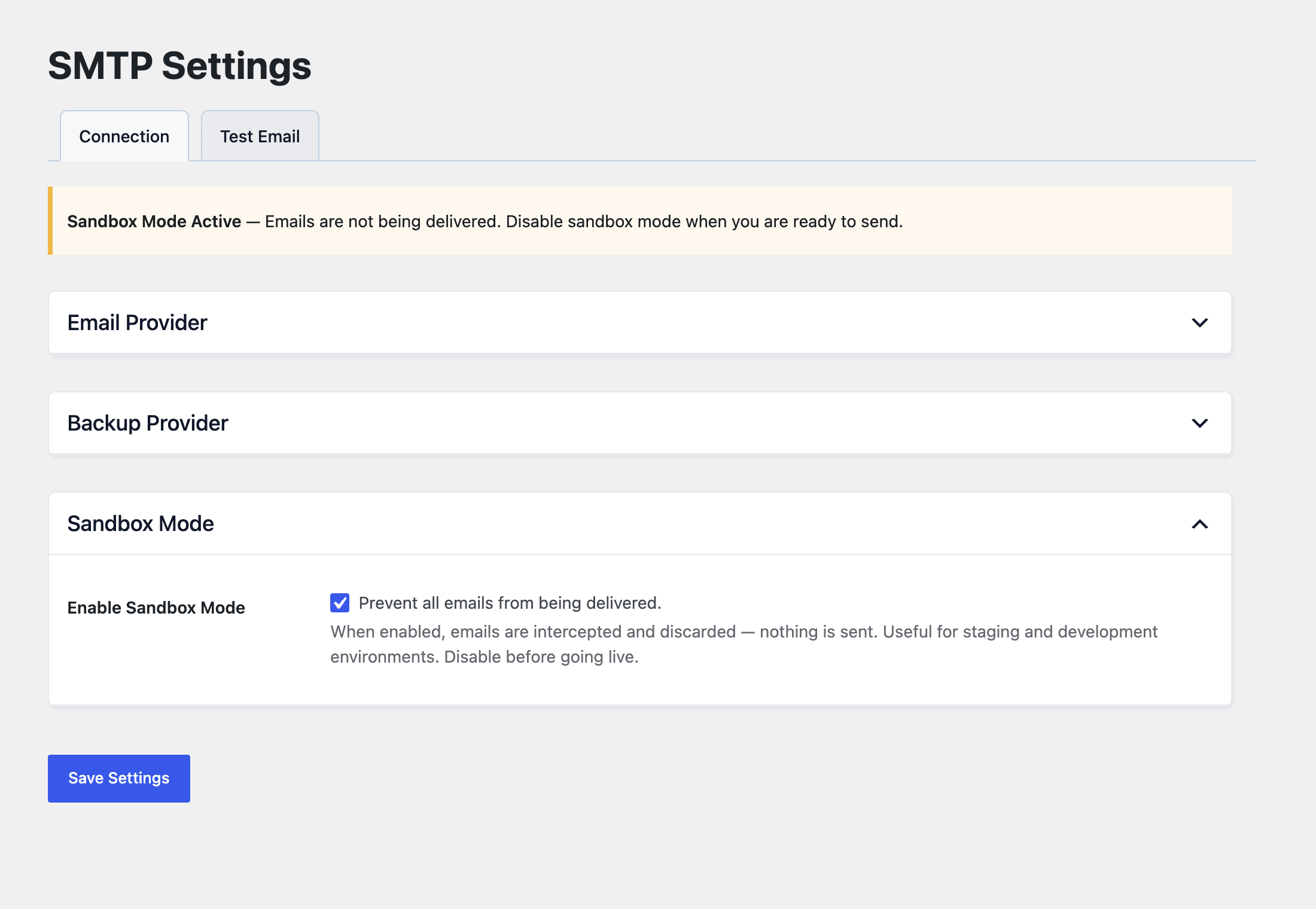
- In the Sandbox Mode section, check Enable Sandbox Mode.
- Click Save Settings.
While sandbox mode is on, a Sandbox Mode Active warning appears at the top of the SMTP Settings page. A test email sent from the Test Email tab reports that it was not delivered.
Get Support From Our Team of Experts
Have a question about how to use this feature? Our Support Page outlines three ways to get support.
Our Max plans include hands-on help customizing your membership site and implementing new features. Upgrade to PMPro Max now »
Last updated on November 9, 2026