Send a test email from the SMTP settings page to confirm your provider is connected before you rely on it. If the test fails, the Add On shows the error from your provider or mail server, plus connection details for Custom SMTP, so you can find the problem.
Send a Test Email
- Save a provider on the Connection tab. The Test Email tab asks you to set up a provider first if none is selected.
- Navigate to Memberships > SMTP and click the Test Email tab. The tab shows which provider the test will use.
- In Send To, enter the address to send the test to. Your site’s admin email is filled in by default.
- Click Send Test Email.
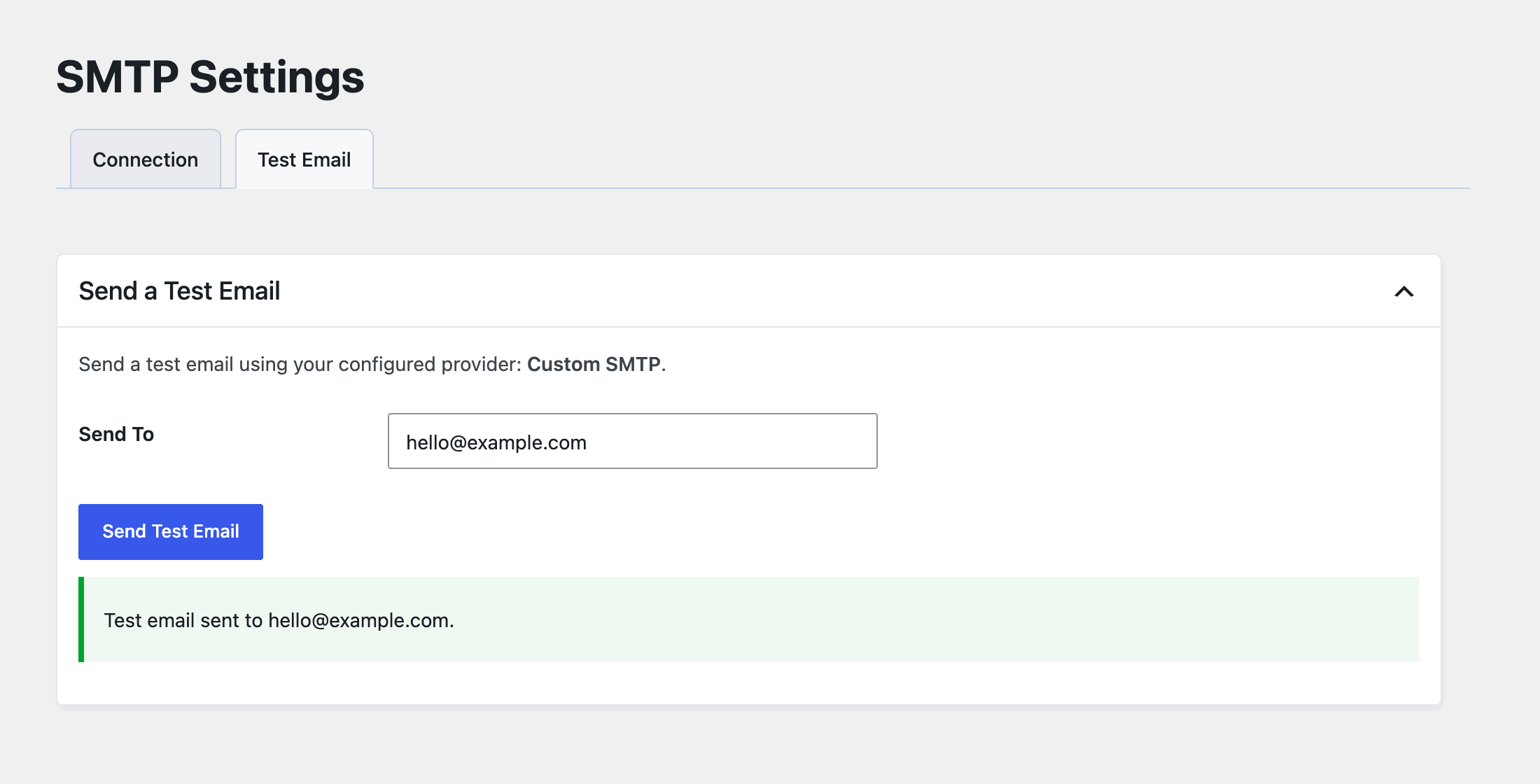
The test email has the subject “[Your Site Name] PMPro SMTP Test Email” and lists the provider, your site URL, and the date and time it was sent. When the provider accepts the message, you’ll see “Test email sent to” followed by the address. Check that inbox, including the spam folder, to confirm it arrived.
If sandbox mode is on, the test reports “Sandbox mode is active. The test email was not delivered.” and nothing is sent.
Troubleshoot a Failed Test
When the test fails, a red notice starts with “Test email failed:” followed by the error. What you see depends on your provider.
- Custom SMTP: The error from your mail server, plus a Show debug details link. Click it to see the mail server’s side of the connection, which helps with connection, encryption, and login problems. Your password is not included in these details.
- API providers: The provider name, the HTTP status code, and the error message the provider returned, such as an invalid API key or an unverified sending domain.
- Gmail and Google Workspace: If your SMTP Host is a Gmail host and login fails, a Hint reminds you to use an app password. See Google Workspace and Gmail.
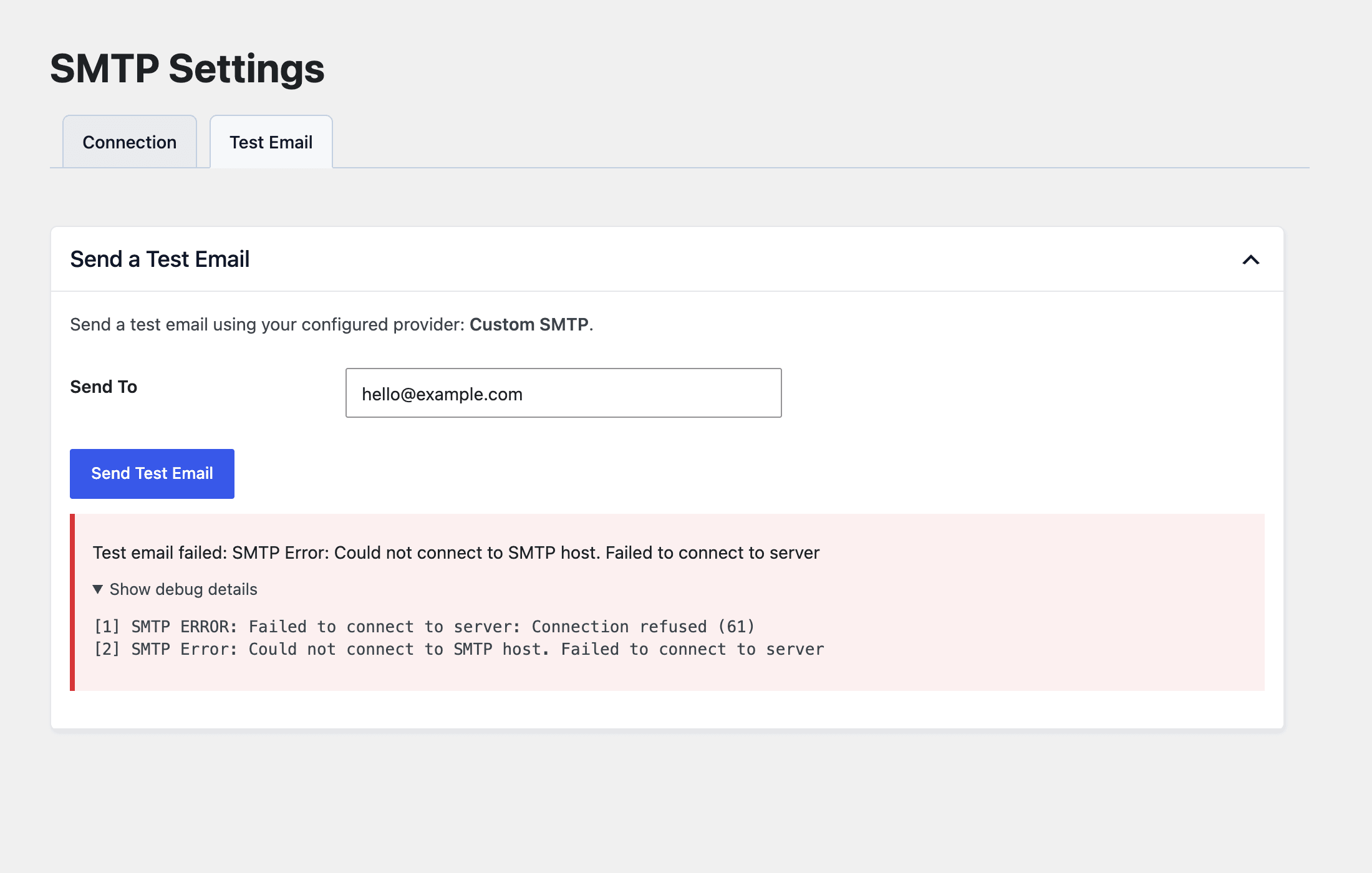
Common fixes:
- Could not connect to the SMTP host: Check the SMTP Host and SMTP Port. Make sure the Encryption setting matches the port (TLS for 587, SSL for 465). Some hosts block outgoing SMTP ports. If yours does, ask your host to open the port or switch to an API provider.
- Could not authenticate: Check that Authentication is checked and that the username and password are correct. For Gmail and Google Workspace, use an app password.
- Sender address rejected: Verify your sending domain with your provider, or enable Sender Address Compatibility in the Custom SMTP settings if your server requires the From address to match your login.
For more causes and fixes, see Troubleshooting Email Delivery on Your Membership Site.
Check the Email Log
Paid Memberships Pro keeps its own log of the membership emails your site sends, and it works with every provider in this Add On. Successful and failed sends are both recorded, including the error message for a failure. View the log under Memberships > Reports > Email Log. You can turn logging on or off in the Email Logging section of Memberships > Settings > Email Settings.
By default, the log records Paid Memberships Pro emails only, so the Add On’s test email does not appear there. Emails discarded by sandbox mode are not logged.
How Email Sending Works
The Add On takes over your site’s outgoing email in one of two ways, depending on the provider you choose:
- Custom SMTP configures WordPress’s built-in mailer (PHPMailer) to connect to your SMTP server. Email follows the normal WordPress send path.
- API providers send each message over the provider’s HTTPS API instead of PHPMailer. Paid Memberships Pro’s email formatting, including your email header and footer templates, is still applied before the message is sent.
Either way, your From name and email address still come from your Paid Memberships Pro email settings. The only exception is the optional Custom SMTP Sender Address Compatibility setting.
Hosting your site with us? See Transactional Emails in PMPro Hosting for how email delivery works on our platform.
Get Support From Our Team of Experts
Have a question about how to use this feature? Our Support Page outlines three ways to get support.
Our Max plans include hands-on help customizing your membership site and implementing new features. Upgrade to PMPro Max now »
Last updated on November 9, 2026