The State dropdown isn’t limited to checkout. Administrators get country and state dropdowns when editing an order, and members can get them on their profile if you add billing address fields to it.
Edit an Order in the Admin
Go to Memberships > Orders and edit an order. In the billing details, Billing Country becomes a dropdown of countries and Billing State becomes a dropdown of that country’s states. Both start with the country and state saved on the order.
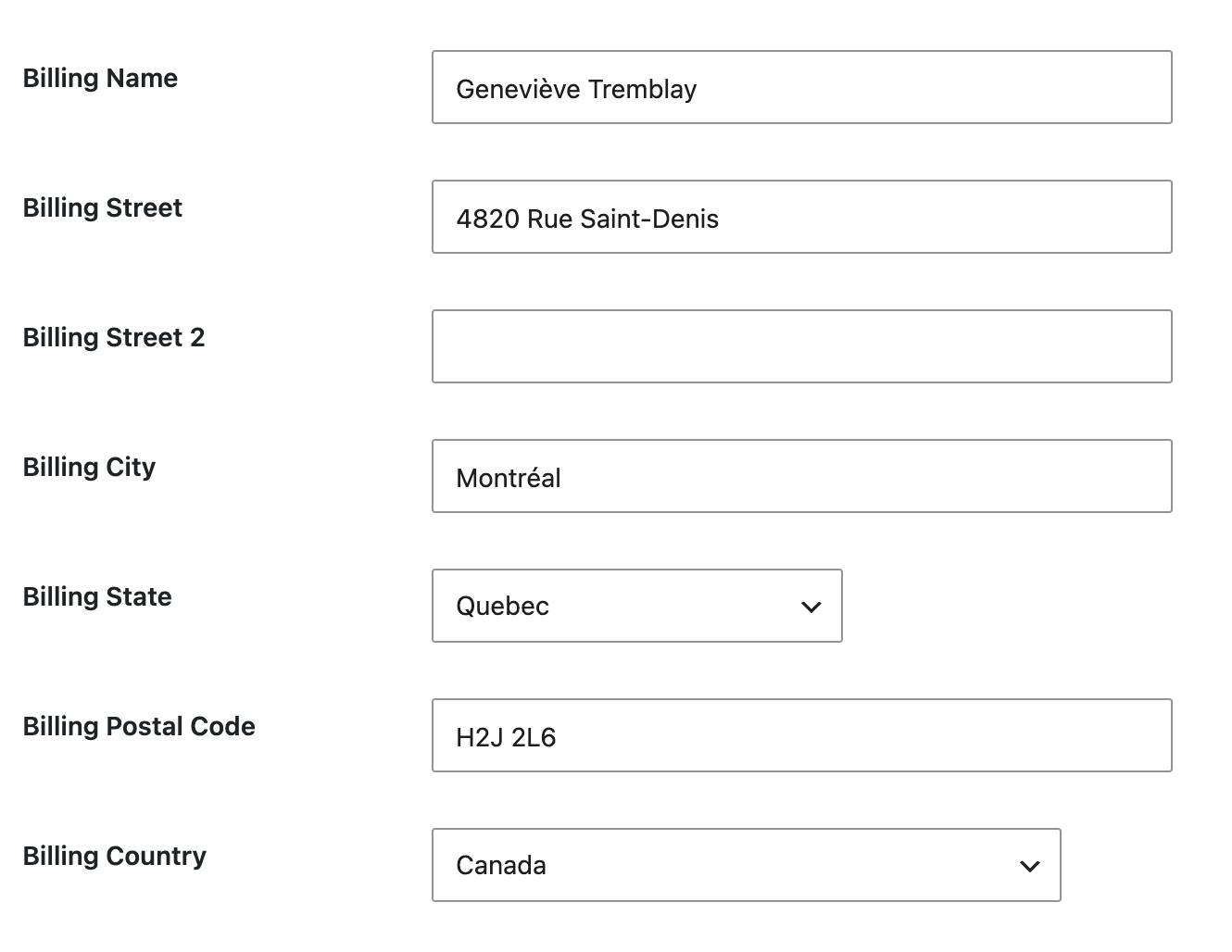
When you change the country, the State field is rebuilt for the new country. If the new country has no states, or isn’t in the Add On’s list, Billing State becomes a text field.
Billing Country and State on the Member Profile
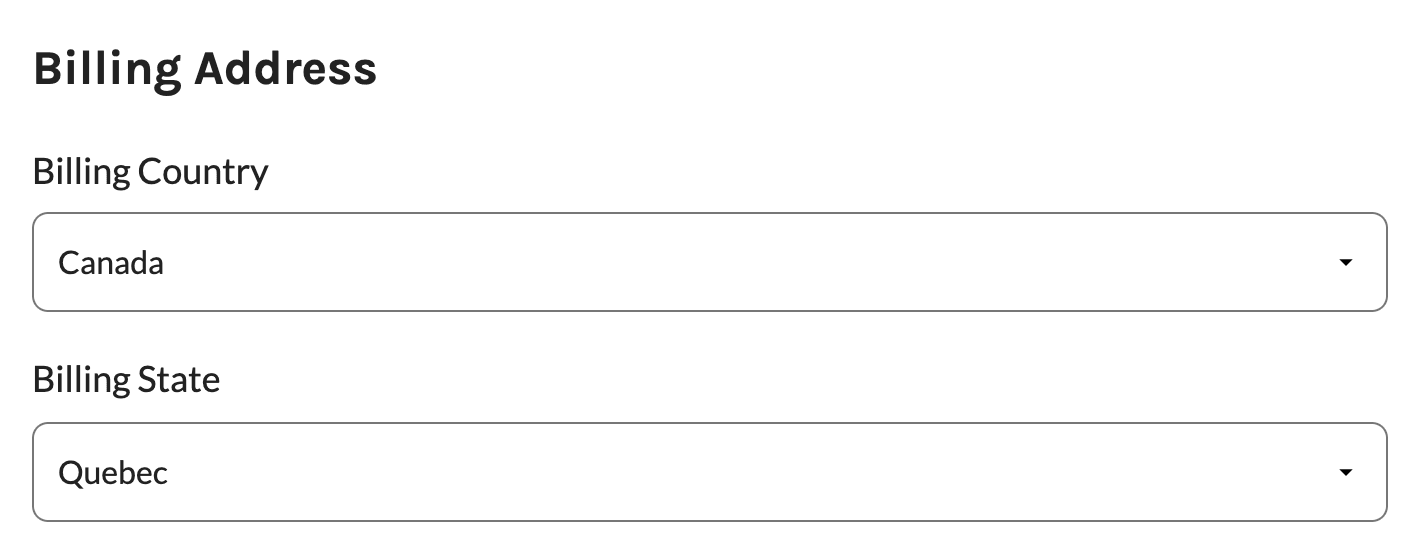
Paid Memberships Pro stores the billing address on each order and doesn’t show billing fields on the member’s profile. If you want members to keep a billing country and state on their profile, add them as User Fields named pmpro_bcountry and pmpro_bstate. These are the user meta keys Paid Memberships Pro has used for the billing address, so checkout also uses them to preselect the member’s country and state. The Add On turns the state field into a dropdown that follows the selected country, the same way it works at checkout.
The dropdowns load on:
- The frontend Member Profile Edit page, when the page uses the default
your-profileslug. - The Profile and Edit User screens in the WordPress admin.
Add the Fields With Custom Code
This code adds a Billing Address section with the two fields to the member profile only, not to checkout (checkout already has its own billing fields). The Billing Country dropdown uses the same country list as checkout. It requires Paid Memberships Pro 3.5 or newer. Add it to your site using a customizations plugin.
function my_pmpro_billing_country_state_profile_fields() {
	if ( ! function_exists( 'pmpro_add_user_field' ) || ! function_exists( 'pmpro_get_countries' ) ) {
		return;
	}

	pmpro_add_field_group( 'billing_address', 'Billing Address' );

	pmpro_add_user_field(
		'billing_address',
		new PMPro_Field(
			'pmpro_bcountry',
			'select',
			array(
				'label'   => 'Billing Country',
				'profile' => 'only',
				'options' => pmpro_get_countries( true ),
			)
		)
	);

	pmpro_add_user_field(
		'billing_address',
		new PMPro_Field(
			'pmpro_bstate',
			'text',
			array(
				'label'   => 'Billing State',
				'profile' => 'only',
			)
		)
	);
}
add_action( 'init', 'my_pmpro_billing_country_state_profile_fields', 20 );
The pmpro_bstate field is a text field in the code on purpose. The Add On swaps it for a dropdown in the browser and keeps the field’s name, so the selected state saves to the member’s profile. See Creating Fields via Custom Code for more User Field options.
Get Support From Our Team of Experts
Have a question about how to use this feature? Our Support Page outlines three ways to get support.
Our Max plans include hands-on help customizing your membership site and implementing new features. Upgrade to PMPro Max now »
Last updated on November 19, 2026