Once the Add On is active, the State field in the Billing Address section becomes a dropdown that updates with the country the member selects. Here’s how the fields behave at checkout and on the billing information page, and when a member sees a dropdown, a text field, or no State field at all.
Before You Start
There are no settings for this Add On. Activate it and it works on every page that shows Paid Memberships Pro’s Billing Address fields.
Those fields only appear when your checkout asks for a billing address. A few things decide that:
- Your payment gateway: Some gateways collect the address on their own payment page and don’t show billing fields at checkout. If you use Stripe, set Show Billing Address Fields in PMPro Checkout Form to “Yes” in your Stripe settings under Memberships > Settings > Payments.
- Free levels: Checkout doesn’t ask for a billing address on free levels. To collect one anyway, use the Capture Name & Address for Free Levels or Offsite Gateway Add On. The State dropdown works with the fields it adds.
What Changes in the Billing Address Fields
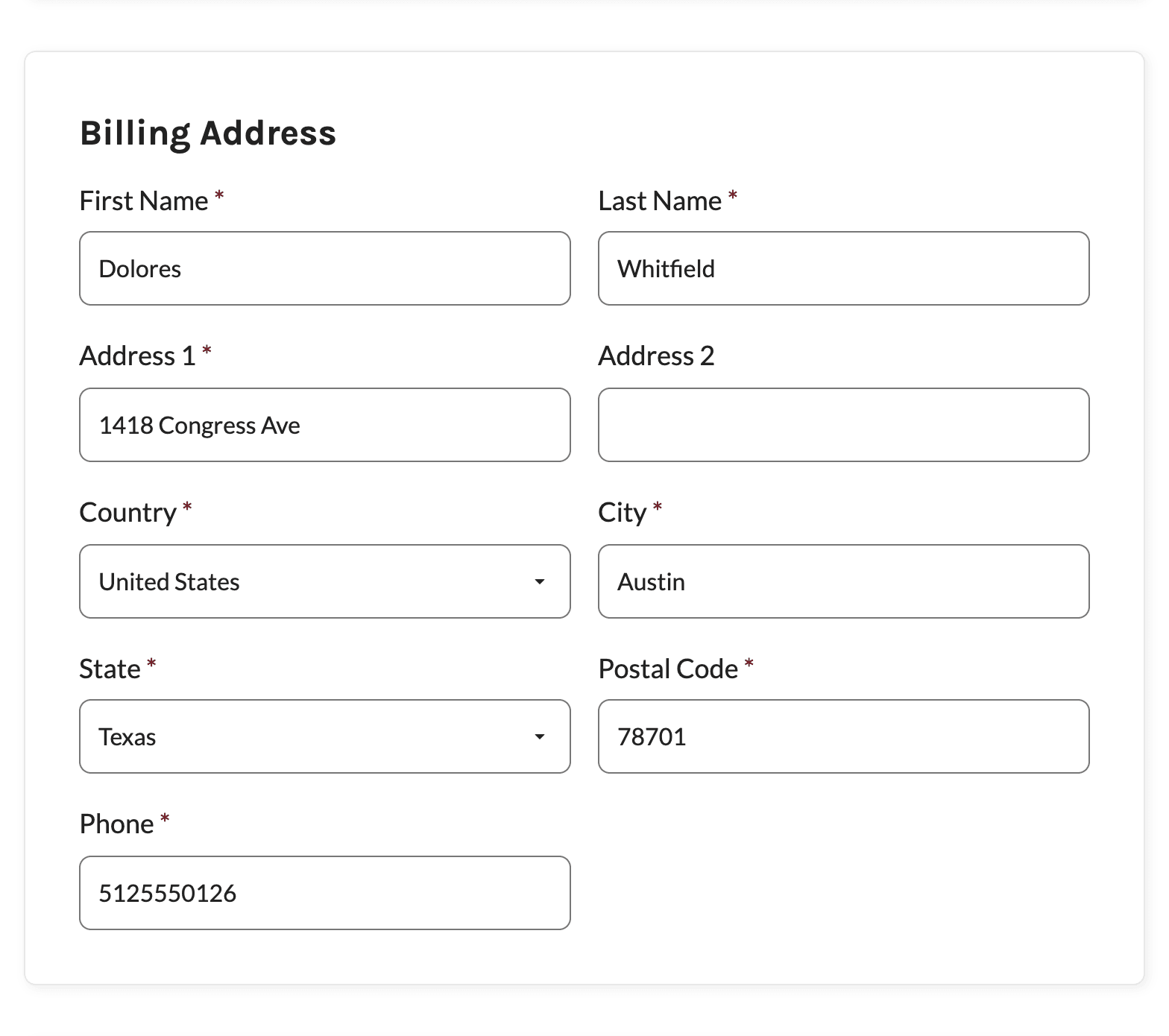
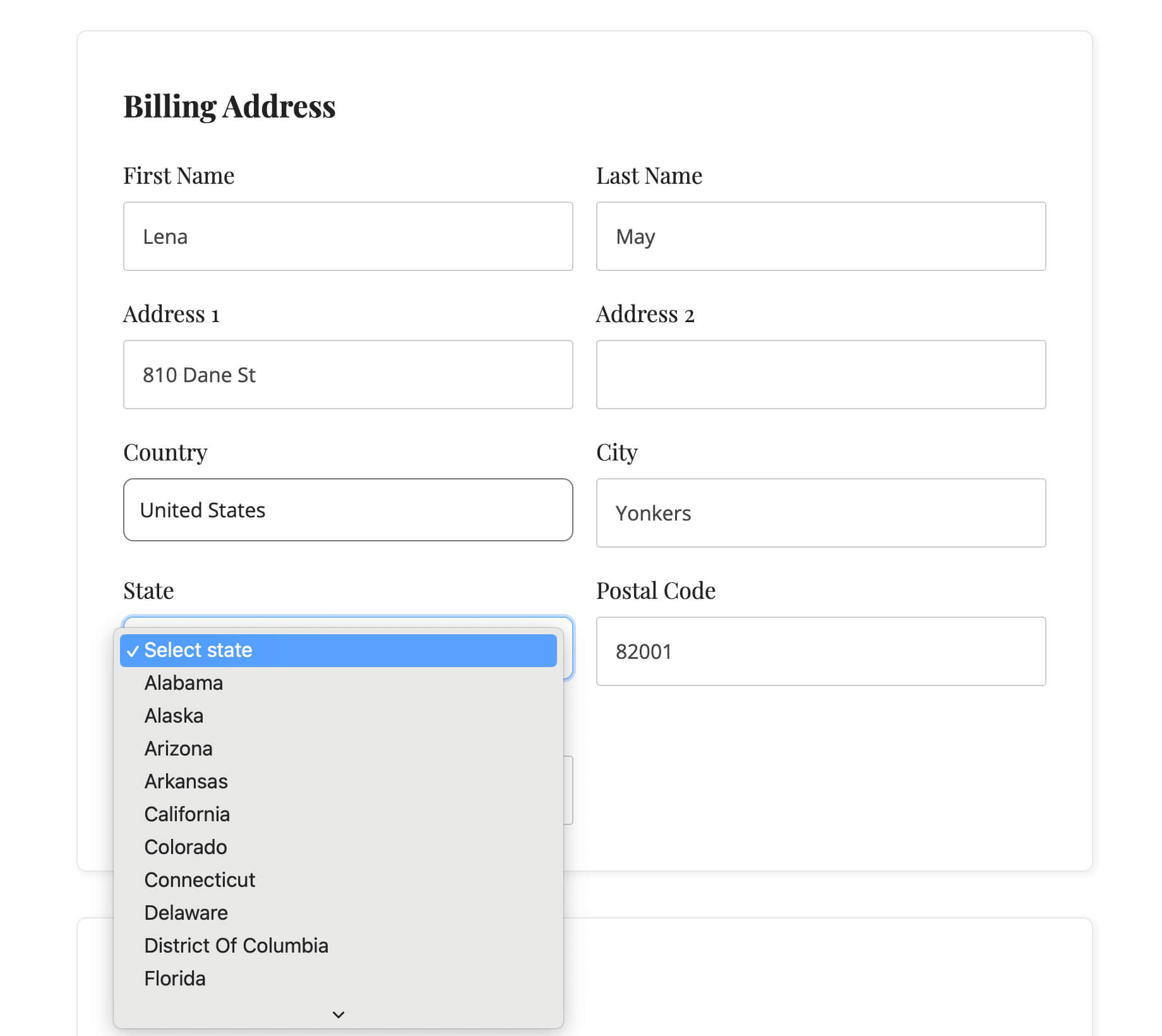
- State Dropdown: The State text field is replaced with a dropdown of the states, provinces, or regions for the selected country. The first option reads “Select state”.
- Country Before City: The Country field moves up so it sits before City and State. Members pick their country first, then their state.
- Country Field Turned On: The Add On turns on Paid Memberships Pro’s international address option, so the Country dropdown is part of the Billing Address fields.
- Updates as the Country Changes: When a member picks a different country, the State field is rebuilt for that country right away, and their earlier state choice is cleared.
How the State Field Works for Each Country
The Add On includes state and province lists for many countries. What the member sees depends on what the Add On knows about the country they select.
| Selected Country | State Field | Required? |
|---|---|---|
| Has a list of states or provinces (for example, United States, Canada, Australia, Mexico, Italy) | Dropdown of that country’s states | Yes |
| Listed as having no states (for example, France, Austria, Netherlands, Sweden) | Hidden and cleared | No |
| Not in the Add On’s list at all | Plain text field | Yes |
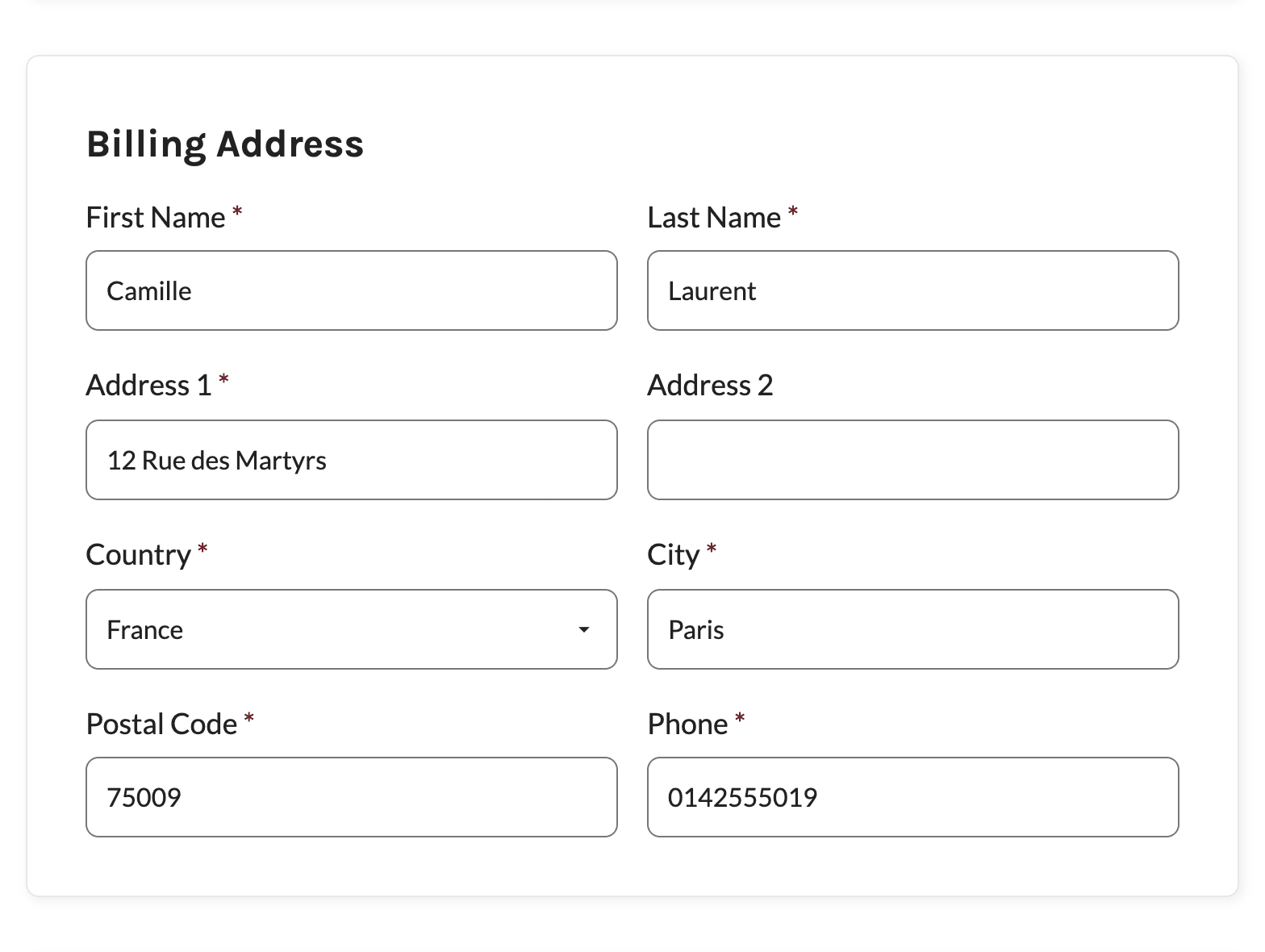
The State field stays required for countries that aren’t in the list because the Add On can’t tell whether they use states. Developers can add, change, or remove countries and states with the pmprosd_states filter.
What Gets Saved
The dropdown shows the full state name, but the value submitted with the form is the state’s code. For example, a member who picks “Texas” is saved with TX, and a member who picks “Quebec” is saved with QC. That’s the billing state you’ll see on the member’s order, in order exports, and in emails that include the billing address.
Preselected Country and State
When the page loads, the Add On fills in the country and state in this order:
- The values the member just submitted, if checkout reloaded with an error.
- The billing country and state stored in the logged-in member’s user meta, if there are any. Older versions of Paid Memberships Pro saved the billing address there, and so do the profile fields described here.
- Your site’s default country (United States unless you’ve changed it) and no state.
To change the default country, use Paid Memberships Pro’s pmpro_default_country filter, or follow our guide to customize the country dropdown at checkout. To preselect a state for new members, use the Add On’s pmprosd_default_state filter.
Billing Information Page
The same dropdowns load on the Paid Memberships Pro billing page you’ve assigned under Memberships > Settings > Pages, where members update the billing information for an active subscription. They work there whenever that page shows the Billing Address fields.
Mailing Address Fields
If you use the Mailing Address Add On, its Country and State fields work the same way as the billing fields:
- The mailing Country field lists your site’s countries and moves before City.
- The mailing State field becomes a dropdown for the selected country, is hidden for countries with no states, and isn’t required for those countries.
- When the member checks the option to copy the billing address, the mailing state is copied from the billing state and stays hidden along with the rest of the mailing fields.
See the Mailing Address Add On documentation for how those fields are set up.
Get Support From Our Team of Experts
Have a question about how to use this feature? Our Support Page outlines three ways to get support.
Our Max plans include hands-on help customizing your membership site and implementing new features. Upgrade to PMPro Max now »
Last updated on November 19, 2026