Memberlite 8.0 is here, and it changes how layout works in our membership theme.
For years, picking a layout in Memberlite meant picking a page template: Content/Sidebar, Narrow Width, Full Width, and so on. That worked for pages but nowhere else, and the settings for banners, titles, and breadcrumbs lived in a separate meta box under the editor. In v8.0, you now get one set of layouts for pages, posts, archives, search results, and custom post types: Right Sidebar, Left Sidebar, Narrow, Contained, and Full Width. Set your defaults in the Customizer, then override them on any single item from the block editor sidebar.
This release also adds a new Memberlite > Alerts page that tells you what to review after an update, 20+ starter site patterns, three new color schemes, a global button style, and a long list of accessibility fixes. Existing sites are migrated automatically and keep their look, with four intentional exceptions we spell out below. Read on for what’s new, where your settings moved, and how to update.
Key Features and Enhancements in Memberlite 8.0
Layout Settings for Every Page, Post, and Archive
Every view on your site now uses one of five layouts:
- Right Sidebar: content with a sidebar on the right.
- Left Sidebar: content with a sidebar on the left.
- Narrow: a single centered column, about 800px wide.
- Contained: a single wider column, up to 1230px.
- Full Width: no sidebar, using the full width of the page.
You set the default layout for each part of your site in the Customizer. Go to Appearance > Customize and open the panel for the content you want to change:
- Pages: Default Page Layout.
- Posts & Archives: Default Single Post Layout, Default Blog & Archive Layout, and Search Results Layout.
- Other Post Types: a layout for each supported custom post type and its archive. These settings also apply to that post type’s taxonomy archives.
The column ratio settings only show when the layout you picked has a sidebar, so the panels stay short.
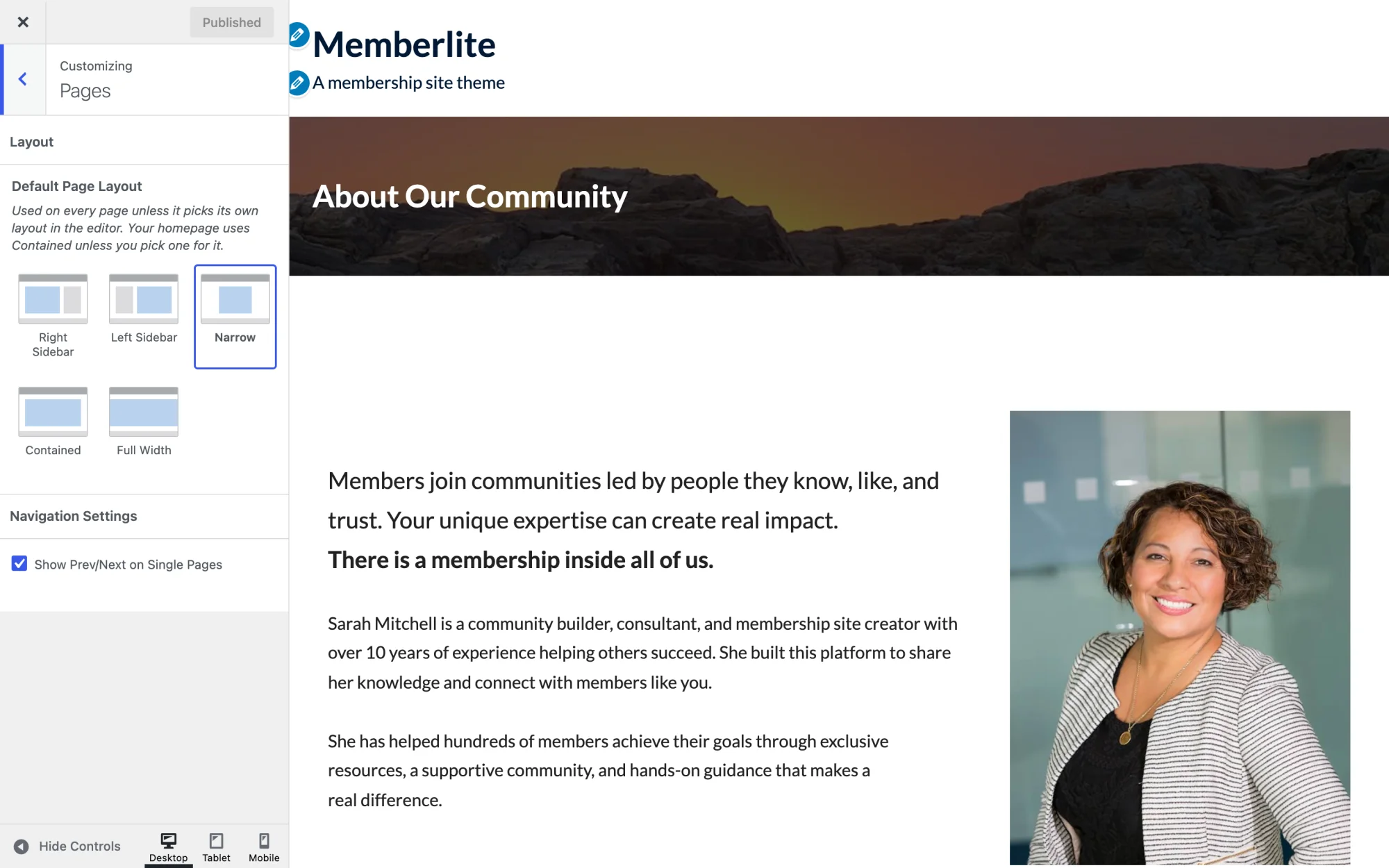
Your homepage uses Contained unless you choose a different layout for it.
Override the Layout on Any Page or Post
To give a single page, post, or supported custom post type its own layout, open it in the block editor and find the new Layout panel in the sidebar. Leave it on Default to follow your Customizer setting. The panel tells you which layout that is, with a link to change it in the Customizer.
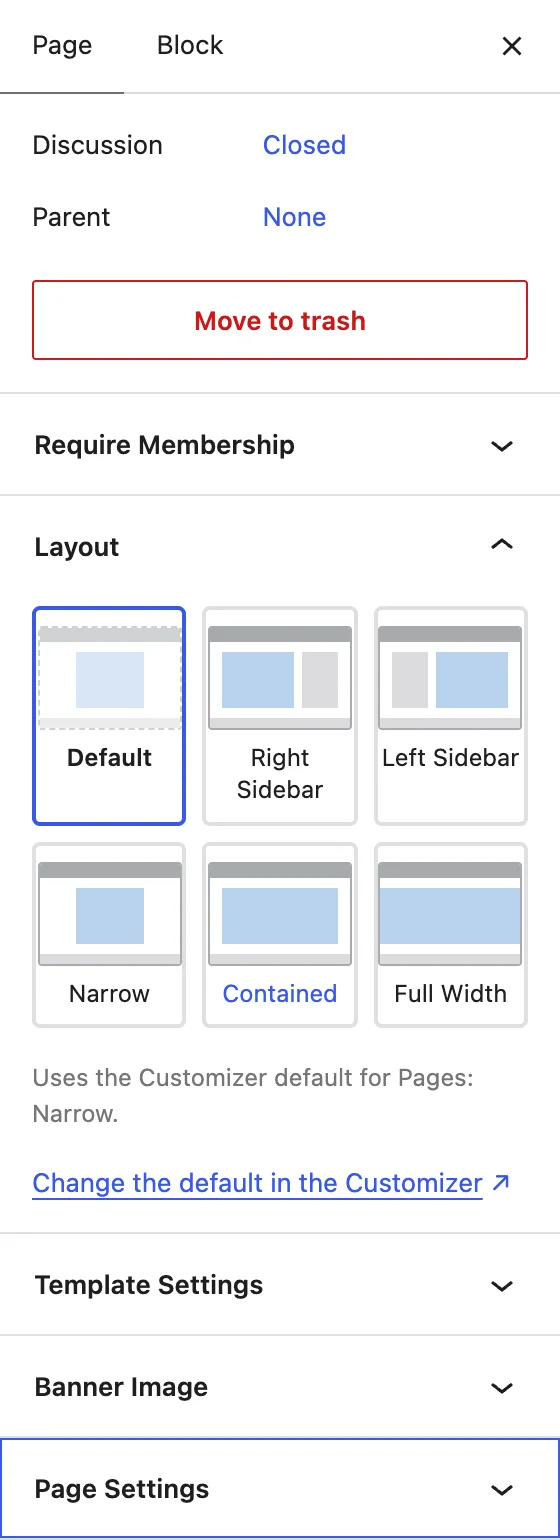
This replaces the Content/Sidebar, Sidebar/Content, Narrow Width, Full Width, Fluid Width, and Landing Page templates. When you update, Memberlite moves any page using one of those templates to the matching layout. Pages on the Landing Page template become Right Sidebar, which is what that template displayed.
Page Settings Moved Into the Block Editor Sidebar
The classic Memberlite Settings meta box below the editor is gone. The settings you use most now live in panels in the block editor sidebar, next to the rest of your page settings.
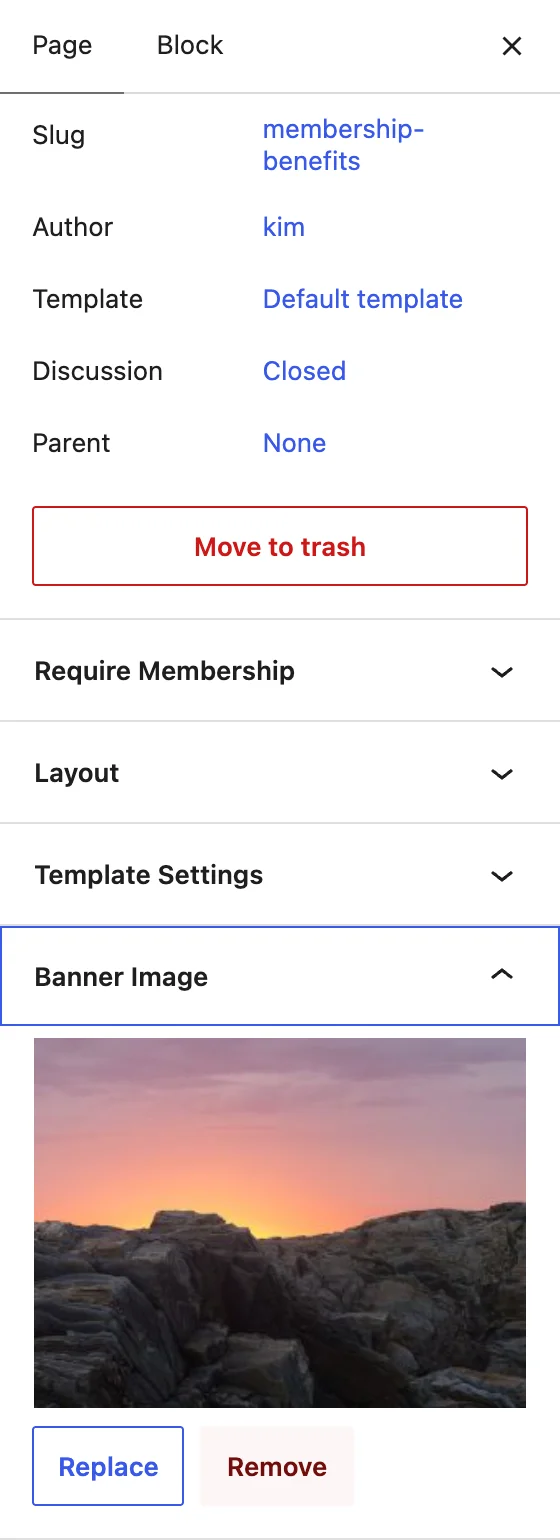
The Banner Image panel replaces the old Banner Image meta box and shows on every post type. It reads the same saved data, so any banner images you already set carry over.
The Page Settings panel (on pages) holds the display options:
- Show Masthead Banner
- Hide Page Title
- Hide Page Breadcrumbs
- Masthead Text Alignment: Left or Center
- Hide Prev/Next Page Navigation
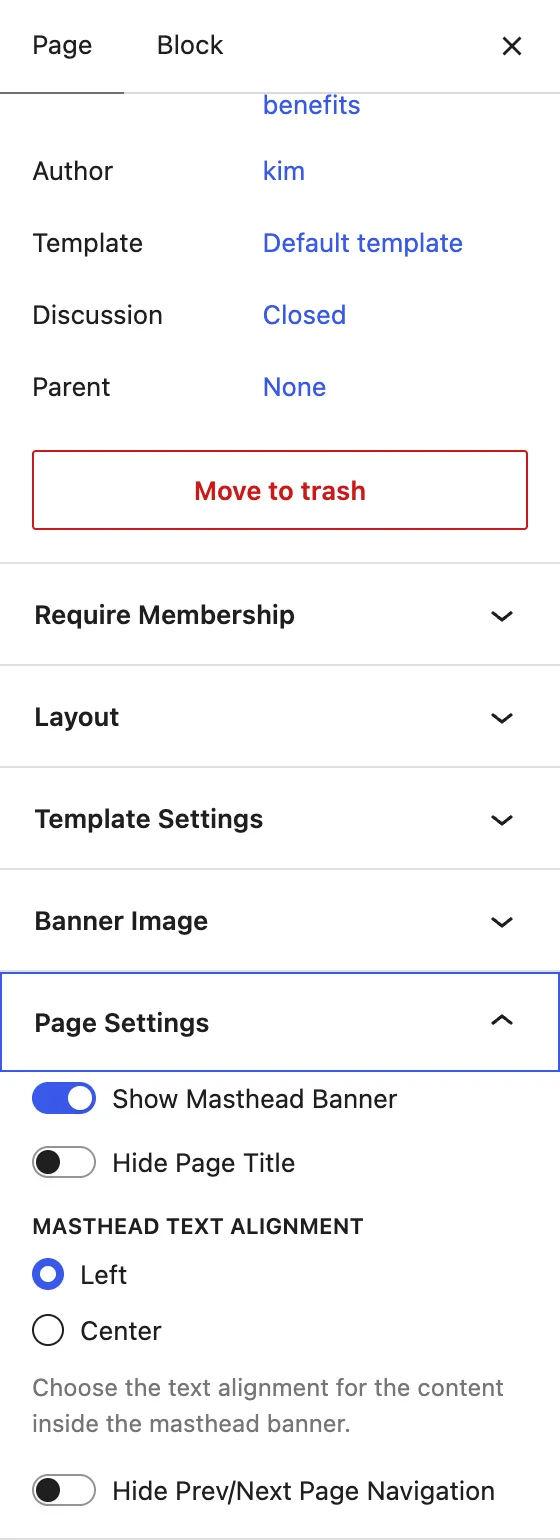
The Template Settings panel for header and footer overrides works the same as it did in 7.1.
A few of the old meta box fields don’t have a new home: the banner description, banner right column, page bottom banner, extra banner padding, page icon, and the Landing Page level, checkout button, and upsell fields. If you set any of these, the values are kept as custom fields on the page (for example, memberlite_banner_desc). Memberlite just doesn’t display them anymore. We wrote code recipes to show them again if you need them.
Memberlite Alerts
Memberlite now has an Alerts page under Memberlite > Alerts. It lists anything you should review after an update, like content the update changed or settings that are no longer used. When there’s something to look at, a count badge shows on the Memberlite menu.
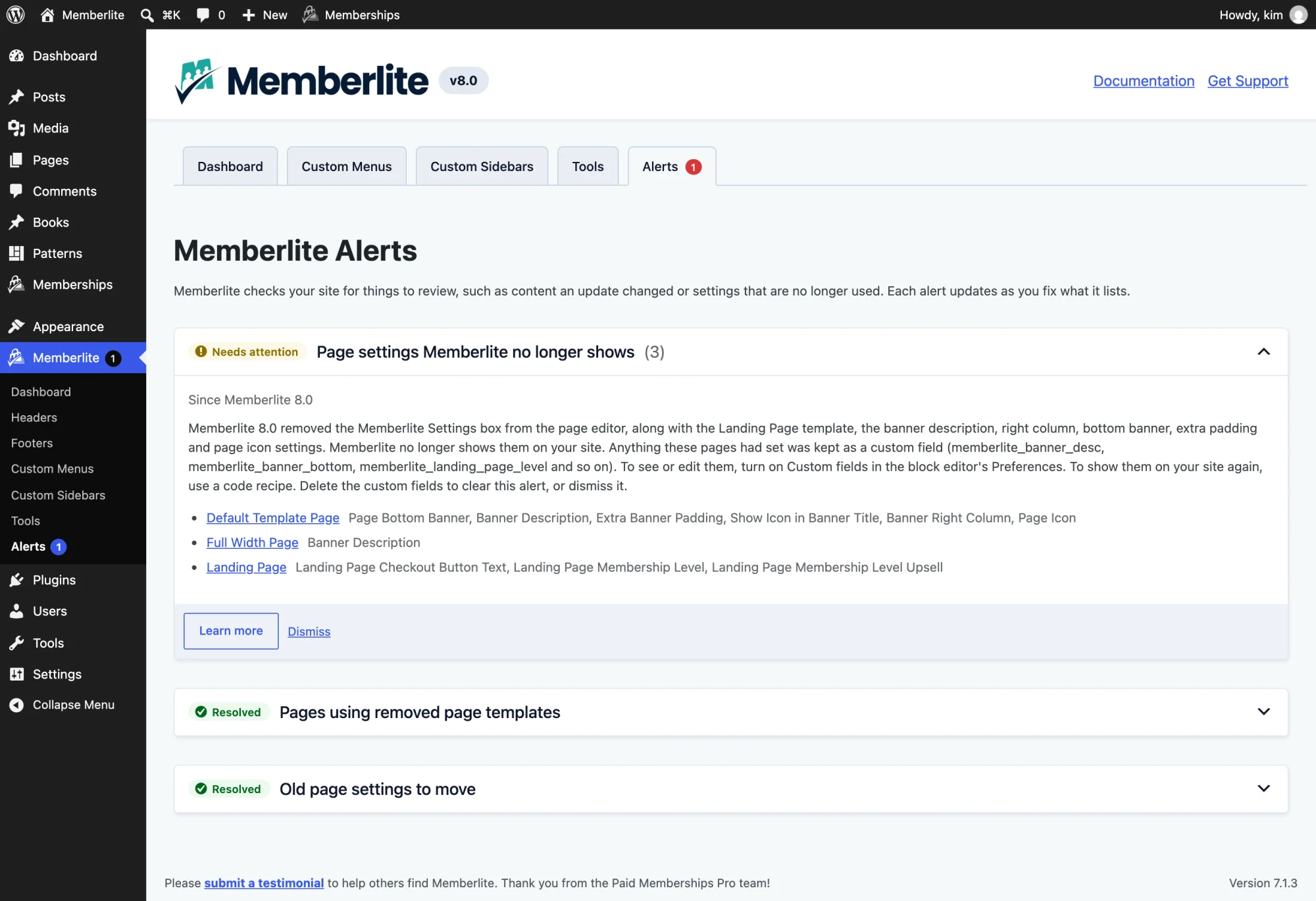
Memberlite 8.0 ships with three alerts:
- Pages using removed page templates: move them to the matching layout in one click.
- Old page settings to move: move them to custom fields in one click. This is handy if you import content from an older Memberlite site after updating.
- Page settings Memberlite no longer shows: lists each page and the fields it had set, with a Learn more link to the code recipes.
Each alert shows as Resolved once you’ve handled what it lists. You can also dismiss an alert if you’ve decided you don’t need to act on it.
Starter Site Patterns
Memberlite 7.1 bundled patterns for headers and footers. Memberlite 8.0 adds more than 20 block patterns for the rest of the page: heroes, pricing tables, testimonials, community and call-to-action sections, benefits bars, accordions, and team and founder sections.

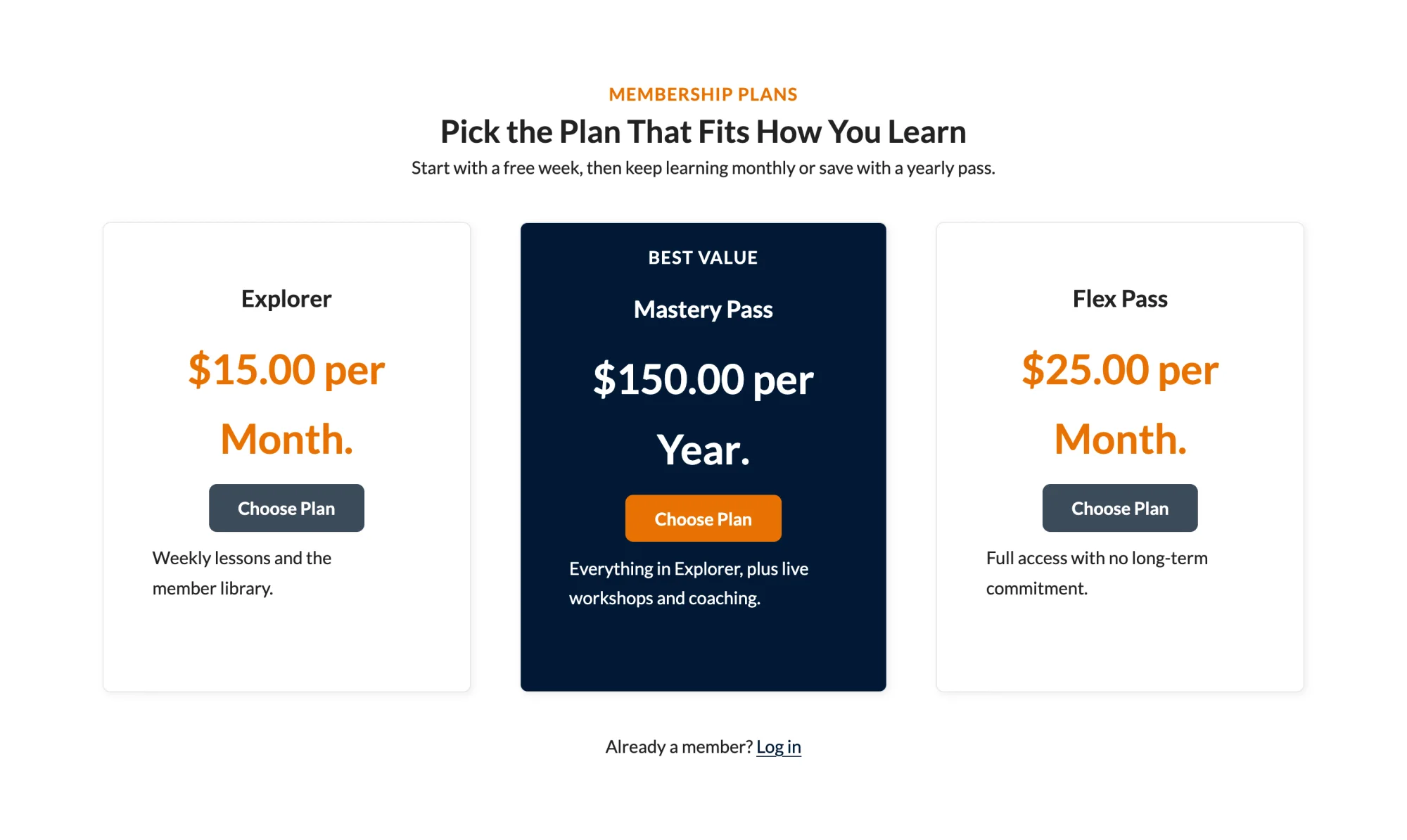

The patterns are organized into new pattern categories and tagged by site type, so you can find a starting point that fits the kind of membership site you run. We reviewed every pattern in the block editor before release, gave them consistent section spacing, and cut down the number of font sizes. All pattern text is translatable.

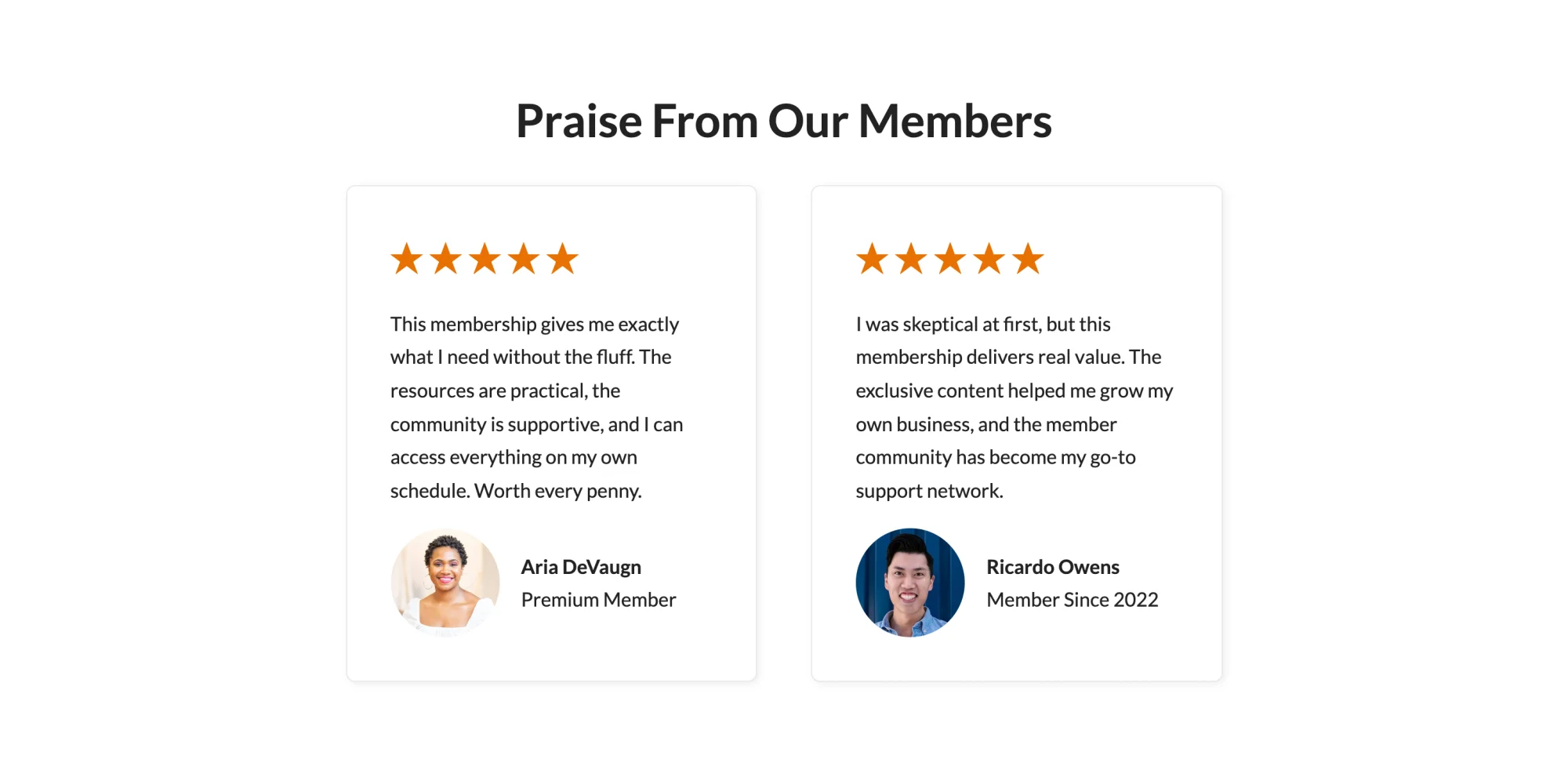
To browse them, open the block editor, click the + inserter, and go to the Patterns tab.
New Color Schemes, Button Styles, and Card Blocks
Three New Color Schemes
Memberlite 8.0 adds three color schemes: Neon Indigo, Cobalt Current, and Rosewood. Every scheme now has a distinct, readable action color, and we fixed contrast issues in several schemes and across all of the patterns.
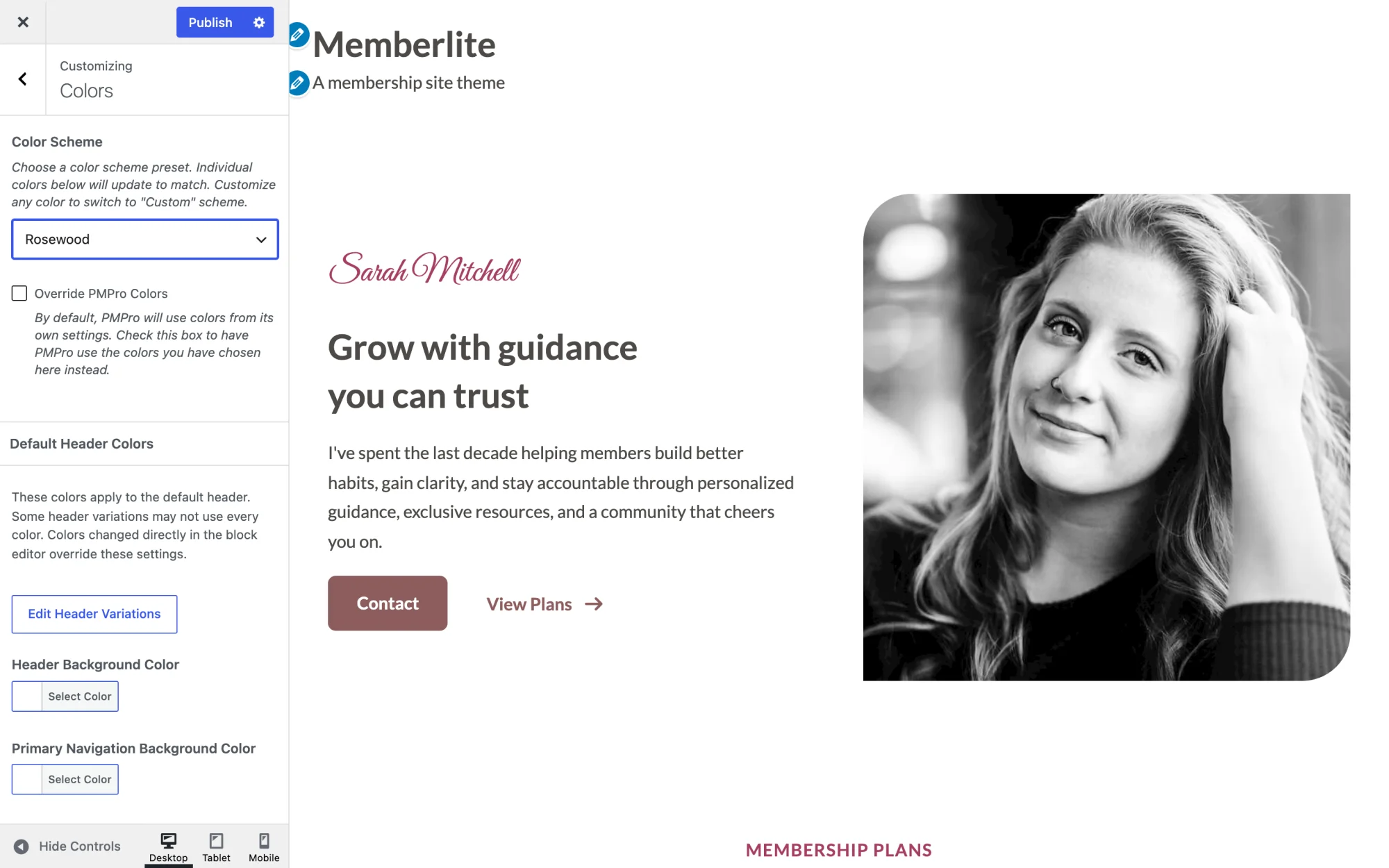
The block editor color palette also got smarter. It no longer hides Memberlite colors that happen to match another color in your scheme, and colors added by child themes, plugins, and snippets now show up in it.
A Global Button Style
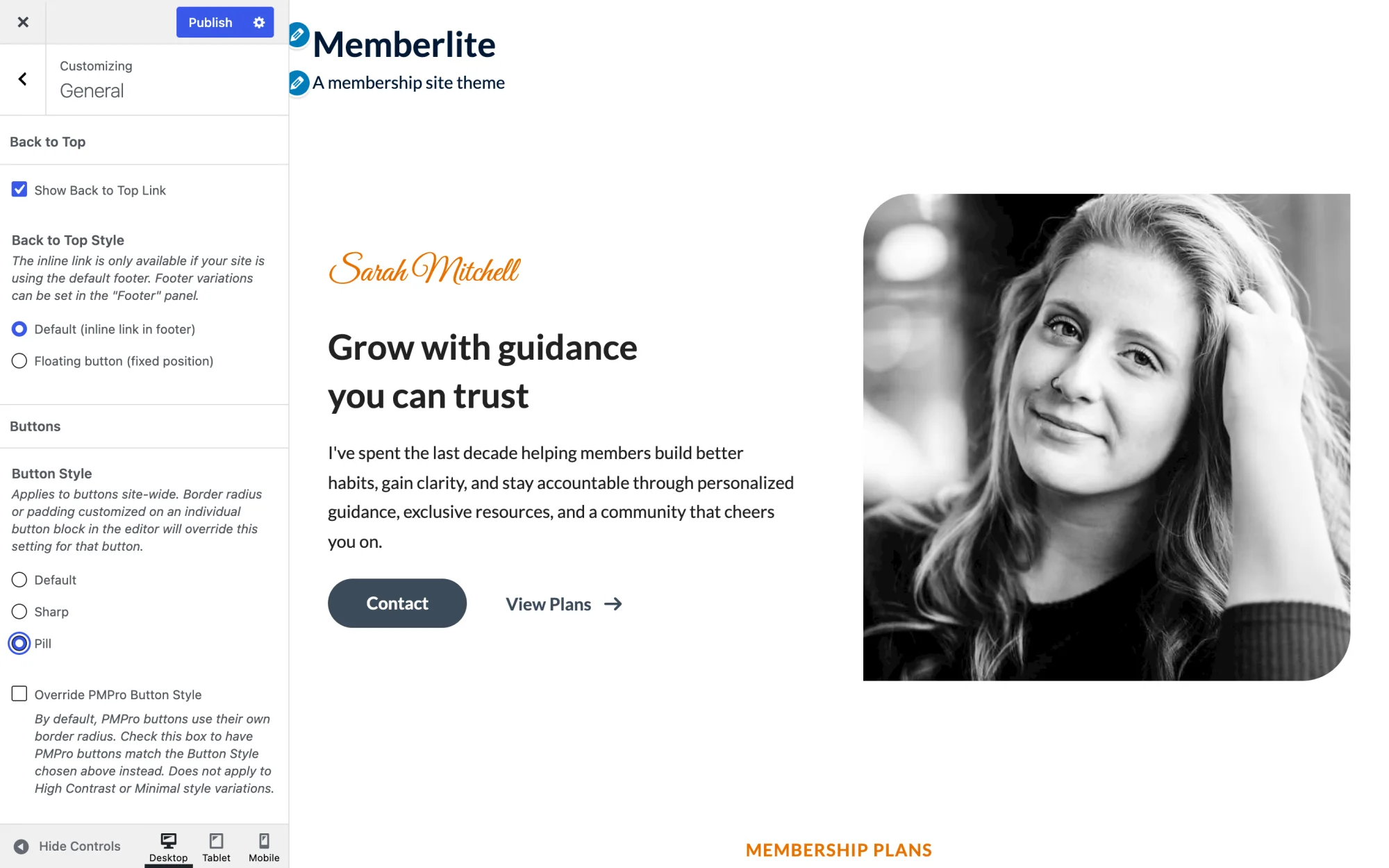
A new Button Style setting in Appearance > Customize > General sets the shape of buttons across your site. Choose Default, Sharp, or Pill. Check Override PMPro Button Style if you want Paid Memberships Pro buttons to match.
The Card Block Style
The new Card block style displays a block as a card. It’s available on Group, Columns, Column, Query Loop items (the Post Template block), and the PMPro Single Level block. Cards follow the card design setting in Paid Memberships Pro, so they match your membership pages.
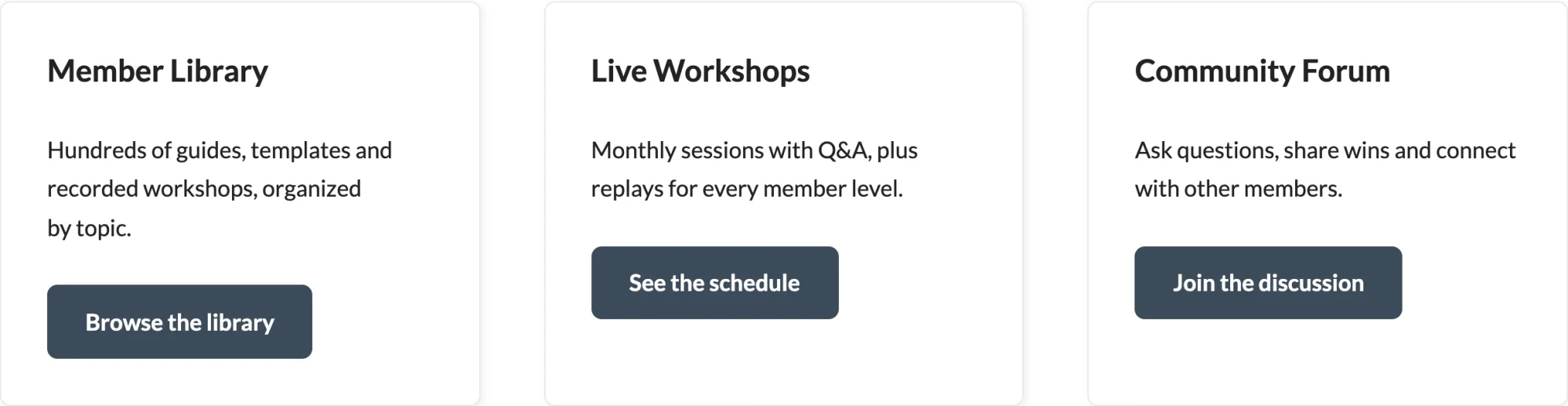
We also added new block styles for several core blocks.
New Icon Shapes
The [fa] shortcode has two new attributes, background and shape, so an icon can sit in a colored circle, square, or rounded square. background takes the same color names as color, and shape takes circle, square, or squircle.
[fa icon="star" color="white" background="primary" shape="squircle"]

22 New Brand Icons in Font Awesome 7.3.1
We updated Font Awesome from 7.2.0 to 7.3.1, which adds 22 brand icons. A few that membership sites will reach for: Substack, YouTube Shorts, Mattermost, Matrix, Nextcloud, and Internet Archive.
Use them with the [fa] shortcode like any other icon. Memberlite recognizes brand icons on its own, so you don’t need to set a type. They work with the new icon shapes, too:
[fa icon="substack" color="white" background="primary" shape="circle"]
Accessibility and Quality Fixes
Memberlite 8.0 also includes a long list of smaller fixes. A few you might notice:
- Post, paging, and page navigation use the same landmark labels and headings as WordPress core, and links include hidden “Previous post:” and “Next post:” text for screen readers.
- List bullets line up with the text above them.
- Separators keep their spacing.
- Third-level submenus grow to fit their items.
- The left sidebar layout on pages works again.
- Header background images crop correctly.
- Search results and 404 pages use your global footer.
- Theme package downloads now use SSL verification, and dismissing the welcome notice has a nonce and capability check.
The full list is in the changelog at the end of this post.
Developer Improvements
For theme developers and child theme authors:
- New filters:
memberlite_layoutfilters the layout for the current request.memberlite_layout_choicesfilters the layouts offered in each context (pages, posts, archives, search, and custom post types).memberlite_alertslets you register your own alerts on the Alerts page, andmemberlite_alert_meta_keysadds meta keys that refresh the alert count when they change. - Restored filters:
memberlite_get_banner_imageandmemberlite_banner_image_src, which were dropped in 7.0, are back. - Changed filter:
memberlite_masthead_contentnow receives the default title and description markup as its starting value, instead of an empty string. - Body classes: every view gets a
memberlite-layout-{layout}class, and thesidebar-*classes now reflect the actual layout. - New helpers:
memberlite_get_layout(),memberlite_get_layouts(), and the other layout functions ininc/layout.php. - Editor styles: editor styles now load with
add_editor_style(). - Developer docs: the
docs/folder in the Memberlite repository covers the Customizer settings, alerts, and legacy page settings. It’s left out of release zips, along withAGENTS.md. - Build:
package-lock.jsonis no longer tracked, andsassis pinned to~1.97.3.
How to Download and Update Memberlite
You can download the latest version directly from our downloads page here at the Paid Memberships Pro website.
Update Option 1: If You’re Using the PMPro Update Manager Plugin
If you have the PMPro Update Manager plugin active, Memberlite 8.0 can be updated automatically from the Appearance > Themes screen in the WordPress admin.
Update Option 2: Manual Update via .zip File
If you’re not using the PMPro Update Manager, you should install and activate this free Add On so that Memberlite, PMPro, and any PMPro Add Ons can be updated without the need to handle updates via .zip files. Once you install and activate the Update Manager Add On, you can upgrade Memberlite following the steps in Option 1 above.
If you need assistance upgrading or have questions about how 8.0 affects your site, we’re here to help. Find out how to get support for Memberlite here.
Upgrading: What You Need to Know
Memberlite 8.0 migrates your site for you when you update. Pages on the removed templates move to the matching layout, and settings from the old meta box move into custom fields. Most sites look the same afterward. Here’s what to do, and the few places where things do look different.
Back up your site first. The migration changes page templates and page settings across your whole site. A backup (or a test run on a staging site) means you can compare and roll back if anything surprises you.
Then open Memberlite > Alerts. It lists any pages that used the page settings Memberlite no longer shows, along with each setting they had. If you want one of those settings back on your site, use the Memberlite legacy page settings code recipes.
Four Intentional Visual Changes
We kept the look of existing sites wherever we could. These four changes are deliberate:
- Homepage layout on sites with Pages set to No Sidebar: If Customizer > Pages > Sidebar Location was set to No Sidebar and your homepage is a static page on the default template, the homepage now uses the Contained layout (up to 1230px wide) instead of the narrow centered column (about 800px). To get the old look back, edit the homepage and choose Narrow in the Layout panel of the block editor sidebar.
- More archive grid columns on mid-size screens: The Grid archive display now fits columns to the content area instead of switching at fixed screen widths. On archives without a sidebar, grids show 2 columns from about 580px wide (was 768px) and 3 columns from about 860px (was 1160px). Phones and screens 1160px and wider look the same as before.
- Block spacing: Groups, rows, stacks, grids, and column contents that don’t set their own block spacing now have 30px gaps instead of 40px. The editor now matches the front end.
- Single pages and posts are about 50px shorter: The extra bottom margin on single entries is gone. It now only spaces out items in lists.
Child Themes
If you run a child theme, check these:
- A child theme that has its own copy of a removed template (for example,
templates/narrow-width.php) keeps that template. - Code that reads
_memberlite_banner_bottomor the other old_memberlite_*page fields should read the un-prefixed custom field instead (for example,memberlite_banner_bottom). - Code that checks
is_page_template( 'templates/landing.php' )should check for amemberlite_landing_page_levelcustom field instead.
The legacy page settings recipes show both patterns in working code. We updated our own child theme for paidmembershipspro.com the same way.
We’re Already Running It
paidmembershipspro.com has run Memberlite 8.0 since October 25th, 2026. We updated our staging site first, made the child theme changes above, then updated the live site.
Deprecated in 8.0
These still work, but trigger deprecation notices in debug mode:
memberlite_sidebar_location_none_columns_ratio(): usememberlite_get_layout()instead.memberlite_sidebar_none_get_sidebar(): usememberlite_layout_get_sidebar()instead.memberlite_enqueue_block_assets(): editor styles now load withadd_editor_style().components/page/content-landing.php: usecomponents/page/content-page.phpinstead.[memberlite_subpagelist thumbnail="icon"]no longer shows page icons.
These functions were removed:
memberlite_http_request_args_for_update_info()- The meta box functions:
memberlite_settings_add_meta_box(),memberlite_settings_meta_box_callback(), andmemberlite_settings_save_meta_box_data() memberlite_display_banner_bottom(),memberlite_landing_page_after_content_page(),memberlite_maybe_customize_masthead_content(),memberlite_dedupe_editor_color_palette(), andmemberlite_admin_enqueue_scripts_for_page_banners()
Looking Ahead
When we shipped 7.1, whole-page block patterns for membership sites were at the top of our list. The starter site patterns in 8.0 are the first big piece of that. With layout now a single setting you can change anywhere, those patterns drop into any page without fighting a page template.
We’re committed to making Memberlite the best theme for membership sites. Is there a pattern or layout you wish Memberlite had? Tell us in the PMPro Slack Community.
Memberlite 8.0 Full Changelog
- FEATURE: Layout settings: one layout model (Right Sidebar, Left Sidebar, Narrow, Contained, Full Width) for pages, posts, archives, search results, and custom post types, set in the Customizer and per item in a new Layout panel in the block editor sidebar.
- FEATURE: Removed the Content/Sidebar, Sidebar/Content, Narrow Width, Full Width, Fluid Width, and Landing Page templates. Pages using them are moved to the matching layout on update. A child theme that ships its own copy of a template keeps it.
- FEATURE: Removed the classic Memberlite Settings meta box. Show/hide banner, title and breadcrumbs, and masthead text alignment are in the block editor’s Page Settings panel. The banner description, right column, bottom banner, extra padding, page icon, and landing page fields are no longer shown; saved values are kept as custom fields, and code recipes to show them again are in the docs.
- FEATURE: Added Memberlite > Alerts, which lists content an update changed or settings that are no longer used, with a “Learn more” link and a one-click fix where there is one.
- FEATURE: Moved the Banner Image setting from a meta box to a Banner Image panel in the block editor sidebar on every post type.
- FEATURE: Starter site patterns: 20+ new block patterns with new pattern categories and site-type tags, and a design review of every pattern.
- FEATURE: New color schemes and a distinct, readable action color for every scheme.
- FEATURE: New block styles for several core blocks, and a Card block style for groups, columns, query loop items, and the PMPro Single Level block that follows the PMPro card design.
- FEATURE: New Customizer setting for global button styles.
- FEATURE: New
backgroundandshapeattributes for the[fa]shortcode, so icons can sit in a colored circle or rounded square. - ENHANCEMENT: Block pattern text is now translatable.
- ENHANCEMENT: Improved accessibility of post, paging, and page navigation: landmark labels and headings that match core, and hidden “Previous post:” / “Next post:” text on links.
- ENHANCEMENT: The block editor color palette no longer hides Memberlite colors that match another color in the current scheme, and colors added by child themes, plugins, and snippets now appear in it.
- ENHANCEMENT: The default block gap is now 30px (spacing 20) instead of 40px, so spacing in the editor matches the front end.
- ENHANCEMENT: Removed the divider between parent menu links and their submenu toggle.
- ENHANCEMENT: List markers line up with the text above them, and lists keep their indent inside groups.
- ENHANCEMENT: Theme update checks fall back to cached update info and back off when the license server can’t be reached, and the
memberlite_get_update_info_timeoutfilter now takes effect. - ENHANCEMENT: Per-CPT layout settings now apply to that post type’s taxonomy archives.
- ENHANCEMENT: Updated Font Awesome from 7.2.0 to 7.3.1, adding 22 brand icons.
- SECURITY: Theme package downloads from the license server now use SSL verification. Removed
memberlite_http_request_args_for_update_info(). - SECURITY: Added a nonce and capability check to dismissing the welcome notice.
- BUG FIX: Fixed a fatal error when theme update info couldn’t be fetched.
- BUG FIX: Search results and 404 pages now use the global footer.
- BUG FIX: Restored the
memberlite_get_banner_imageandmemberlite_banner_image_srcfilters dropped in 7.0. - BUG FIX: Third-level sub-menus now grow to fit their items.
- BUG FIX: Banner, breadcrumb, and sidebar settings are no longer read from an unrelated post on category, tag, and author archives.
- BUG FIX: Restored the left sidebar layout on pages.
- BUG FIX: Page navigation, the edit link, and comments are contained on full-width pages.
- BUG FIX: Fixed header background image cropping, its CSS sizing, and the recommended size in the Customizer.
- BUG FIX: Fixed “invisible” primary color against the site background in some schemes, and text and icon contrast in patterns across color schemes.
- BUG FIX: Default separators keep their spacing, and custom separator styles have the right width in the editor.
- BUG FIX: Image blocks keep core’s figure margin.
- BUG FIX: An empty or invalid saved columns ratio falls back to the default instead of breaking the content and sidebar columns.
- BUG FIX: Memberlite buttons and block buttons inside PMPro cards keep their text color.
- BUG FIX: The document settings panel script only loads in the post editor, fixing a notice on Appearance > Widgets.
- BUG FIX: Removed an unsupported prop from the masthead alignment control.
- REFACTOR: Moved the theme.json color palette filter into
inc/colors.php. - REFACTOR: Editor styles load with
add_editor_style();memberlite_enqueue_block_assets()is deprecated. - REFACTOR:
package-lock.jsonis no longer tracked, andAGENTS.mdis left out of release zips. - NOTE: Homepage layout on sites with Pages set to No Sidebar. If your homepage is a static page on the default template, it now uses the Contained layout (up to 1230px wide) instead of the narrow centered column (about 800px). To get the old look back, edit the homepage and choose Narrow in the Layout panel.
- NOTE: The Grid archive display now fits columns to the content area. On archives without a sidebar, grids show 2 columns from about 580px wide (was 768px) and 3 columns from about 860px (was 1160px). Phones and screens 1160px and wider look the same.
- NOTE: Groups, rows, stacks, grids, and column contents that don’t set their own block spacing now have 30px gaps instead of 40px.
- NOTE: Removed the bottom margin on single pages and posts (
.hentry), so they’re about 50px shorter. - NOTE: Memberlite > Alerts lists pages that used the removed page settings. Code recipes to show those settings again: Memberlite legacy page settings.
Questions or Feedback?
We’d love to hear how 8.0 is working for you. If you run into any issues or have suggestions for future improvements, reach out through our support channels or join the conversation in the PMPro Slack Community.


