The Member Directory and Profile Pages Add On lets you build a public or members-only directory for your membership site. By default, it lists members by display name in ascending (A-Z) order.
If you collect a custom user field, like department, regional chapter, or professional group, you might want that directory organized around it instead.
This code recipe swaps the default alphabetical order for a sort based on that custom field.
Do You Need This Recipe?
This recipe is useful if:
- You collect a custom user field, such as department, chapter, or professional affiliation, and want the Member Directory sorted by that field instead of PMPro’s default order.
- You are organizing a directory around groups rather than individual names or join dates.
- You already have the Member Directory and Profile Pages Add On active and a user field populated for your members.
Best Practices and Considerations
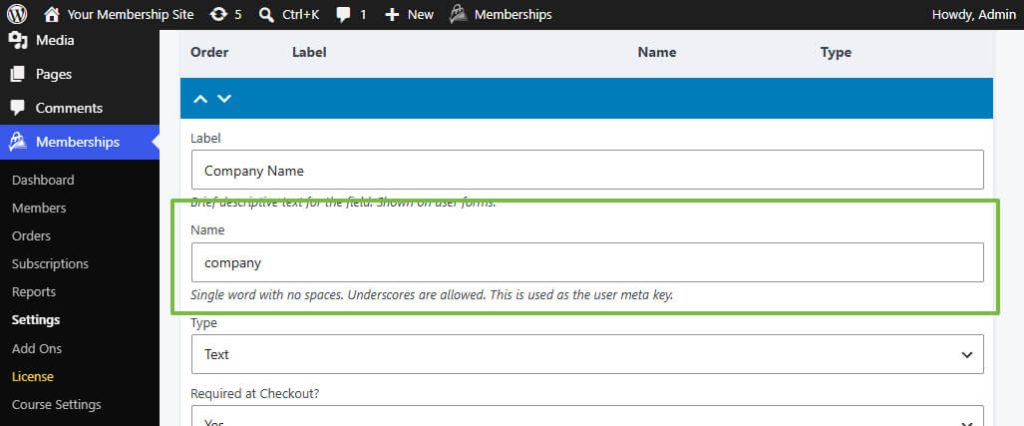
- Use the user field’s “Name”, not its Label. The
$user_meta_key_namevariable in the code recipe must match the “Name” you’ve set from your User Fields settings under Memberships > Settings > User Fields. - Members without a value for the field sort to one end. The code recipe is written so that members who have never had a value saved for that field will cluster at the start or end of the directory depending on your sort direction.
About the Code Recipe
The Member Directory and Profile Pages Add On builds its member list with a single SQL query assembled from several parts: which columns to select, which database tables to join, how to filter and group results, and how to order them.
The pmpro_member_directory_sql_parts filter hands you that query in pieces before it runs, so you can add a join to the meta table for your custom field and tell the query to order by that field’s value.
This recipe adds a LEFT JOIN against wp_usermeta for the meta_key, which is the “Name” of your user field, and then sets the ORDER to sort by the joined value in ascending or descending order.
The Code Recipe
Adding the Recipe to Your Website
You can add this recipe to your site by creating a custom plugin or using the Code Snippets plugin available for free in the WordPress repository. Read this companion article for step-by-step directions on either method.
How to Customize This Code Recipe
- Change the user field you sort by: Replace
'company'on line 19 with the “Name” of any user field your site collects. You can find your User Fields under Memberships > Settings > User Fields. - Reverse the sort order: Change
$switch_sort_orderfromfalsetotrueon line 20 to sort in the opposite direction. This changes the sort order from ascending to descending.

Get Support From Our Team of Experts
Have a question about how to use this feature? Our Support Page outlines three ways to get support.
Our Max plans include hands-on help customizing your membership site and implementing new features. Upgrade to PMPro Max now »