Automatically approving members added through the Paid Memberships Pro Add Member Dashboard can save time and reduce manual work for site administrators. By default, the Approval Process for Membership Add On places new signups in a pending status. A site administrator must approve them before access is granted. But when the site administrator is the one creating and adding the member account, that extra approval step isn’t always necessary.
This code recipe ensures that any member added directly by an administrator is automatically approved. It’s especially useful when onboarding trusted members, handling internal registrations, or quickly granting access to added members without waiting for the standard approval workflow.
Understanding the pmpro_after_change_membership_level Hook
The pmpro_after_change_membership_level hook runs whenever Paid Memberships Pro changes or cancels a user’s membership level. It passes three parameters: the new level ID, the user ID, and (if relevant) the level ID being cancelled. As a result, developers can run custom actions right after a membership update, such as sending a membership confirmation email when an admin changes a member’s level or setting a member author’s posts to draft when their membership is cancelled.
About the Code Recipe
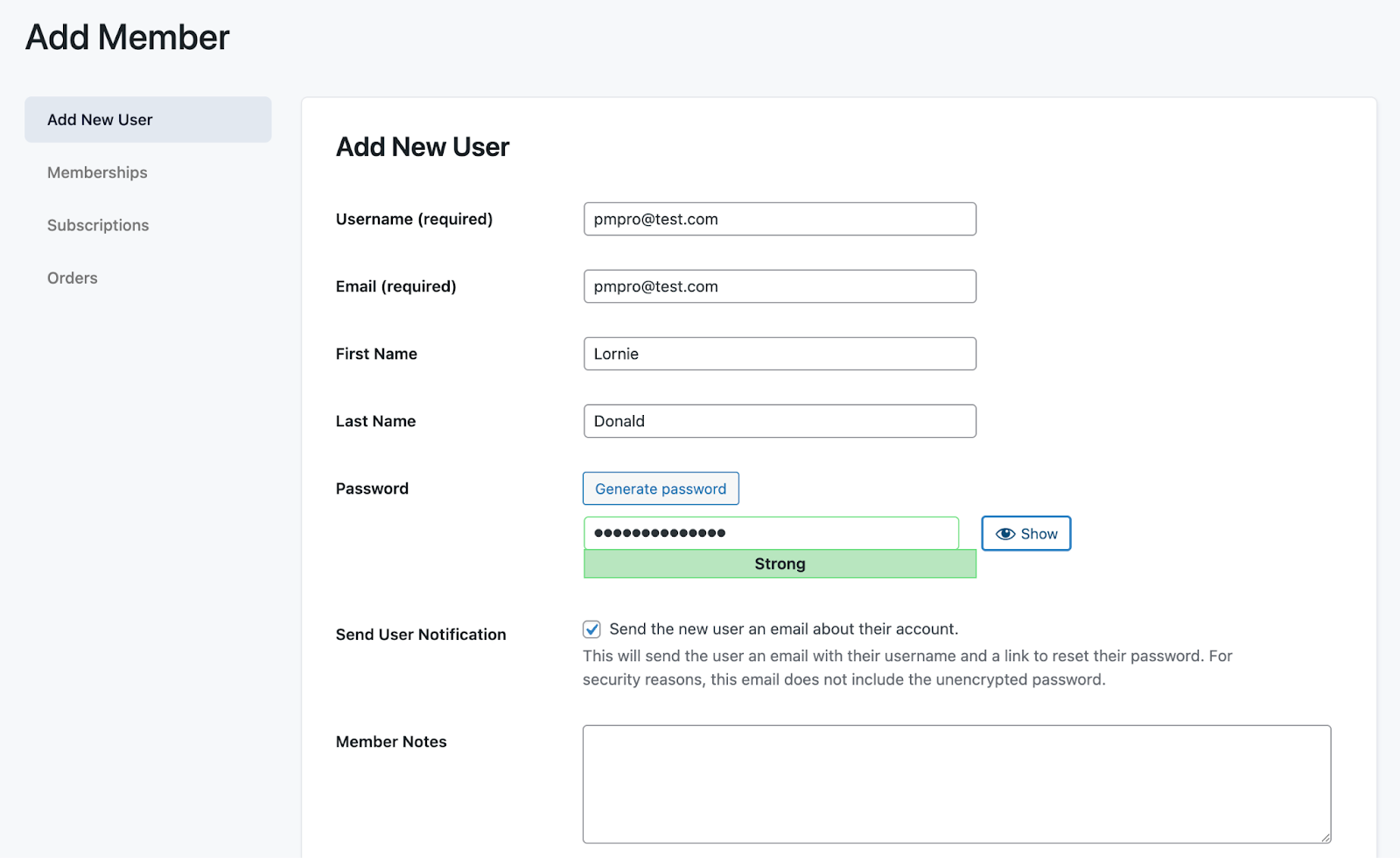
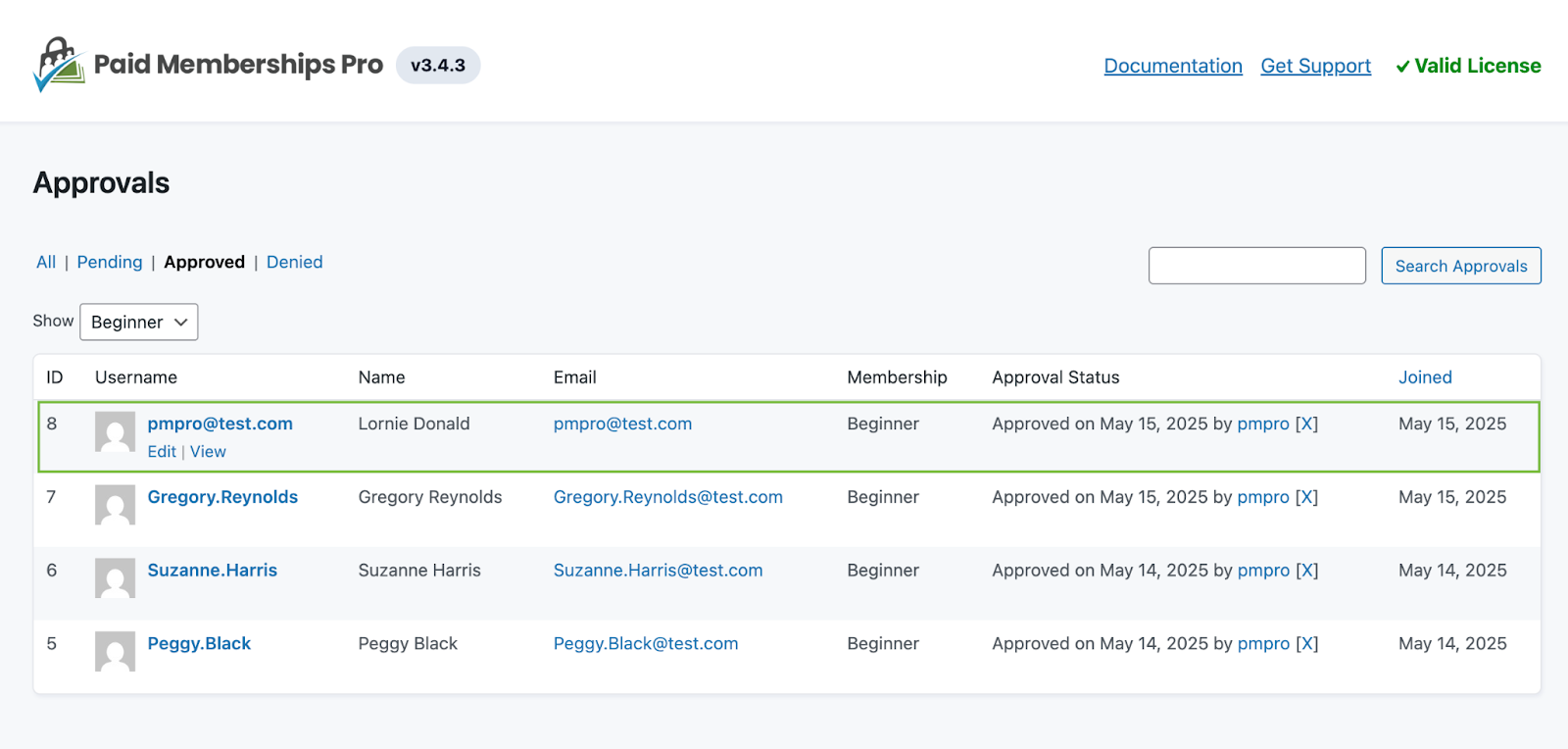
This code recipe ensures the approval process is triggered immediately when an administrator manually adds a user to a membership level from the Paid Memberships Pro Add Member Dashboard. This removes the need to visit the Memberships > Approvals > Pending page to approve the user’s membership.
The Code Recipe
How to Customize This Code Recipe
To get this code recipe working on your site, ensure the membership level being manually assigned by the site administrator is set to require approval.
You do not need any additional customization for this code recipe.
You can extend this recipe further to only automatically approve users for a specific membership level by adding a conditional check inside the function on line 19 of the code recipe. Post a topic in our member forums, and we will help you implement this.
Adding the Recipe to Your Website
You can add this recipe to your site by creating a custom plugin or using the Code Snippets plugin available for free in the WordPress repository. Read this companion article for step-by-step directions on either method.
Video: Coding with Sam Walkthrough

Free Course: Membership Site Development—The Basics
Develop a deeper understanding of membership site development in this beginner-level course. Learn how to make your site work better, save yourself time and money, and improve your site's performance.