When you pick a color for a heading, button, or group in the WordPress block editor, the color picker shows a set of swatches from your theme. This code recipe adds your own brand colors to that set, so they are one click away on every page and you no longer have to paste hex codes into the custom color field.
We built this recipe for Memberlite, but it should work with any theme that uses a theme.json file, including block themes and hybrid themes. Each color you add also becomes a CSS variable you can reuse in your own custom CSS.
Best Practices and Considerations
- Requires WordPress 6.1 or later: The filter this recipe uses was added in WordPress 6.1.
- Use a unique slug for every color: If a slug matches a color your theme already has, WordPress does not replace the theme’s color. It adds a second one, and you end up with a duplicate swatch in the picker.
- Choose slugs you can keep: WordPress saves the slug in every block that uses the color. If you change a slug later, those blocks lose their color. You can change a color’s name or hex value at any time, but leave the slug alone once you start using it.
About the Code Recipe
This recipe uses the wp_theme_json_data_theme filter. This is a WordPress core filter, not a PMPro hook, so it works the same whether or not Paid Memberships Pro is active. WordPress runs this filter when it loads your theme’s settings. The recipe reads the theme’s existing color palette, adds your colors to the end of it, and hands the combined palette back to WordPress.
The recipe runs at priority 20, which means your colors are added after the theme has loaded its own colors.
Where Your New Colors Appear
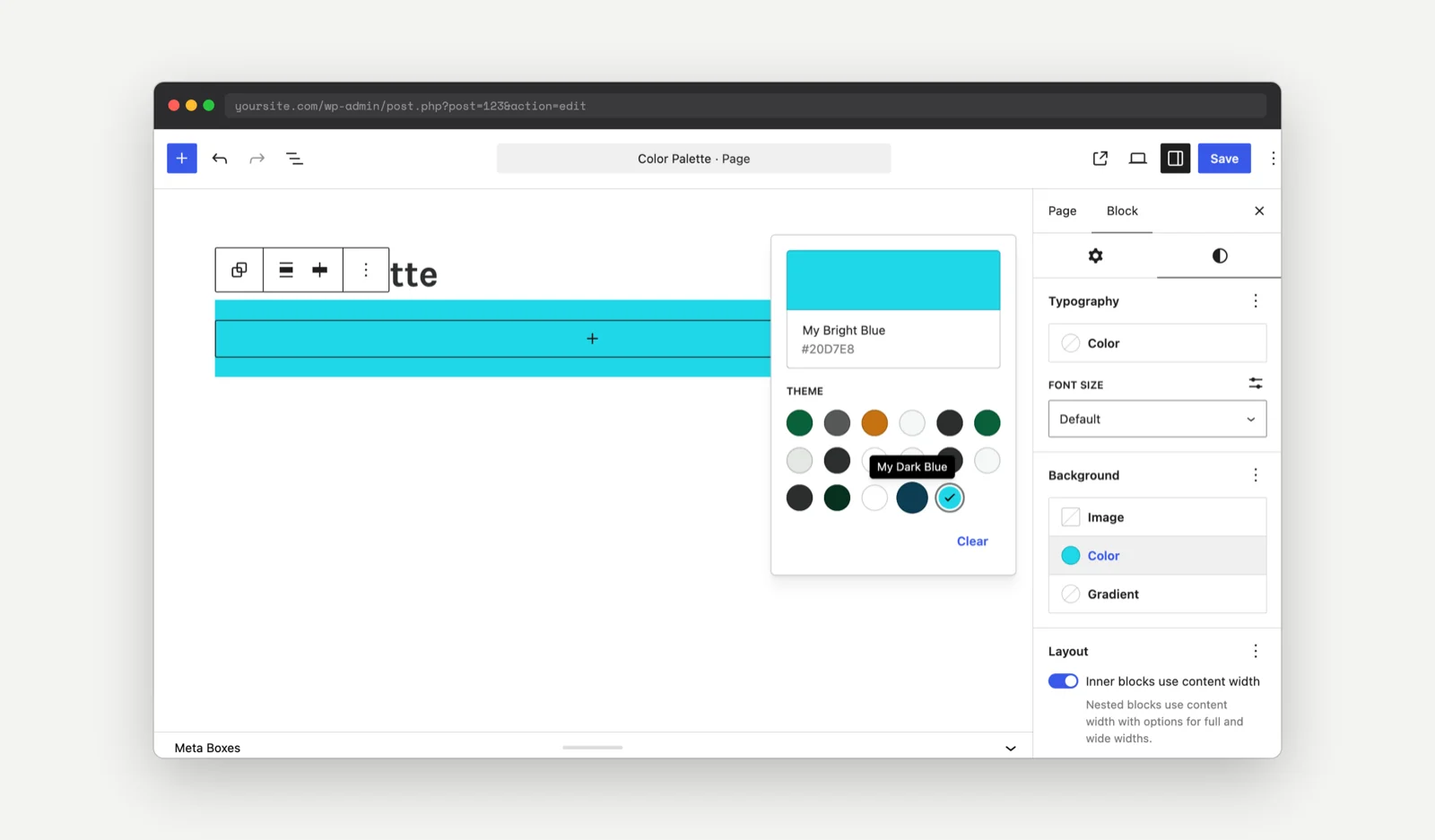
- Block editor color picker: Select any block that supports colors, open the Styles tab in the block settings sidebar, and click a color setting such as Text or Background. Your colors appear in the Theme section after the theme’s own colors. Hover over a swatch to see its name.
- CSS variable: WordPress creates a CSS variable for each color based on its slug. The sample color with the slug
my-dark-bluebecomesvar(--wp--preset--color--my-dark-blue). - CSS classes: WordPress also creates the
has-my-dark-blue-colorandhas-my-dark-blue-background-colorclasses. The editor adds these to any block that uses the color.
Use Your Colors in Custom CSS
The CSS variable lets you use the same brand color in your own styles. For example, this CSS gives a custom class a dark blue left border and a bright blue background:
.my-callout {
  border-left: 4px solid var(--wp--preset--color--my-dark-blue);
  background-color: var(--wp--preset--color--my-bright-blue);
}
Add CSS like this to your theme’s Additional CSS area or to a child theme stylesheet. If you change a color’s hex value in the recipe later, every block and CSS rule that uses the color updates automatically.
The Code Recipe
Adding the Recipe to Your Website
You can add this recipe to your site by creating a custom plugin or using the Code Snippets plugin available for free in the WordPress repository. Read this companion article for step-by-step directions on either method.
How to Customize This Code Recipe
The recipe includes two sample colors, My Dark Blue and My Bright Blue. Replace them with your own brand colors in the $new_colors array (lines 24 to 35). Each color has three values:
- Color name (line 26): The label shown when you hover over the swatch in the editor. Use any name that makes sense to you.
- Color slug (line 27): A unique ID in lowercase letters, with hyphens instead of spaces. WordPress uses it to build the CSS variable and class names.
- Hex value (line 28): The color itself, as a hex code such as
#0c3d54.
To change the number of colors:
- Add a color: Copy one full color array, from
array(through the closing),, and paste it below the last one. Then update its name, slug, and hex value. - Remove a color: Delete that color’s full array. For example, delete lines 30 to 34 to remove My Bright Blue.
Tip: Name your slugs for the job a color does, not what it looks like. A slug such as brand-primary or accent still makes sense if you rebrand and change the hex value. A slug such as my-dark-blue does not once the color is green.

Get Support From Our Team of Experts
Have a question about how to use this feature? Our Support Page outlines three ways to get support.
Our Max plans include hands-on help customizing your membership site and implementing new features. Upgrade to PMPro Max now »