Most people search for “corporate intranet.” Ask around the office, though, and you will hear it called the internal portal, the employee hub, the knowledge base, or just “wherever the HR PDFs live.” The terminology varies, but the need is the same: one private site where employees can find documents, finish training, read announcements, look up a coworker, and submit a request, without your company juggling five different SaaS logins.
WordPress and Paid Memberships Pro handle that well. We run our own internal company site on WordPress with PMPro, and the same patterns work whether your team is five people or a franchise network of five hundred.
In this guide, you will lock down the site, map departments to membership levels, capture employee data with User Fields, layer in courses, forms, and a team directory, and tighten the security details most intranets forget about.
Table of contents
- What a Corporate Intranet Actually Needs to Do
- Why Build on WordPress Instead of a SaaS Intranet Platform
- The Core Build: A Locked-Down Site, Levels, and User Fields
- HR-Managed Onboarding: Invite, Don’t Self-Register
- Security and Hygiene: Do Not Skip This Section
- Content Types Worth Building Into Your Intranet
- Your Phased Rollout Roadmap
- Frequently Asked Questions
What a Corporate Intranet Actually Needs to Do
Before you pick tools, get clear on the job. It is broader than most people expect:
- Internal documentation and standard operating procedures
- Employee onboarding workflows and new-hire checklists
- HR resources and policies, including the handbook, benefits, and time-off requests
- Company announcements and an internal news feed
- Training and compliance courses with progress tracking
- Franchise or location-specific operations manuals
- Department-specific resources that not everyone should see
- Searchable document libraries for contracts, brand assets, and templates
- Request and feedback forms for IT tickets, document corrections, and ideas
- A team directory with photos, roles, departments, and contact details
We have built every one of these into our own internal site. None of it requires custom code. It is all available through PMPro plus a small set of well-chosen WordPress plugins.
Why Build on WordPress Instead of a SaaS Intranet Platform
You have probably already looked at Notion, Confluence, SharePoint, or a dedicated intranet SaaS. Those tools work fine for a lot of teams. But run an internal site for more than a year or two, and a few patterns show up.
- You own the platform: No per-seat pricing creep, no vendor lock-in, no surprise feature deprecation because a SaaS company changed direction.
- The total cost is lower at scale: Even after hosting, plugin licenses, and setup time, a self-hosted WordPress intranet costs a fraction of $10 to $25 per employee per month across multiple tools.
- Your team already knows the CMS: If your marketing site runs on WordPress, nobody needs retraining, and you do not need to hire a Notion administrator.
- The plugin ecosystem is massive: Forms, learning management, automation, directories, and search are all available. You assemble exactly what you need instead of paying for a SaaS bundle where you use 30% of the features.
- You consolidate the stack: One login, one permissions model, one place to update.
- It is fully customizable: You are not locked into one vendor’s roadmap. Want a different field on the team directory? Add a field.
This is not a knock on SaaS intranets. Your internal site is one of the longest-lived pieces of software your company will run, and long-lived software is exactly where ownership and extensibility pay off.
The Core Build: A Locked-Down Site, Levels, and User Fields
Here is the foundation. Get these four pieces right, and the rest is just layering on content.
Lock Down the Entire Site
An employee portal is not a public marketing site. Nothing should be visible to non-employees, not even your home page. PMPro can redirect any visitor without an active membership straight to the login screen.
The simplest pattern is to require an active membership for every page on the site, with a short allow-list for the login page, password reset, and any other URL that has to stay reachable while logged out.
Map Membership Levels to Your Org Chart
In PMPro, membership levels are how you express who gets access to what. For an intranet, levels map directly onto your organization:
- All Staff (everyone gets this on day one)
- Engineering, Marketing, Sales, Operations, Customer Support (department levels)
- People Managers or Leadership (a cross-cutting tier)
- Franchise Owners or Regional Managers (for multi-location businesses)
Here is the part that makes this work for a real company. PMPro supports multiple memberships per user. One employee can hold “All Staff” plus “Engineering” plus “People Managers” at the same time. That is how real org structures work: people belong to multiple groups, and access compounds.
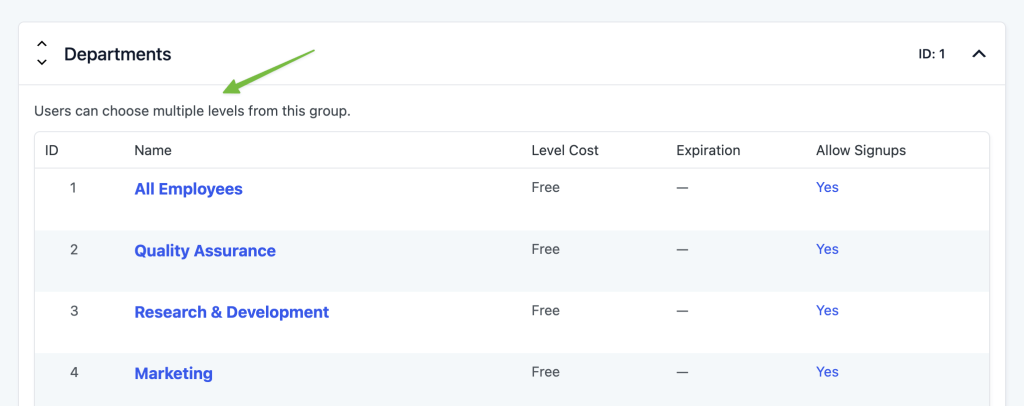
You control this through Level Groups. Create a group called “Departments,” and check the “Allow Multiple Selections” option in the group settings. Now a user can hold any combination of department levels. Groups where you want only one selection, such as “Employment Status: Full-Time vs. Contractor,” stay single-select.
Related: Level Groups Documentation
Capture Employee Data with User Fields
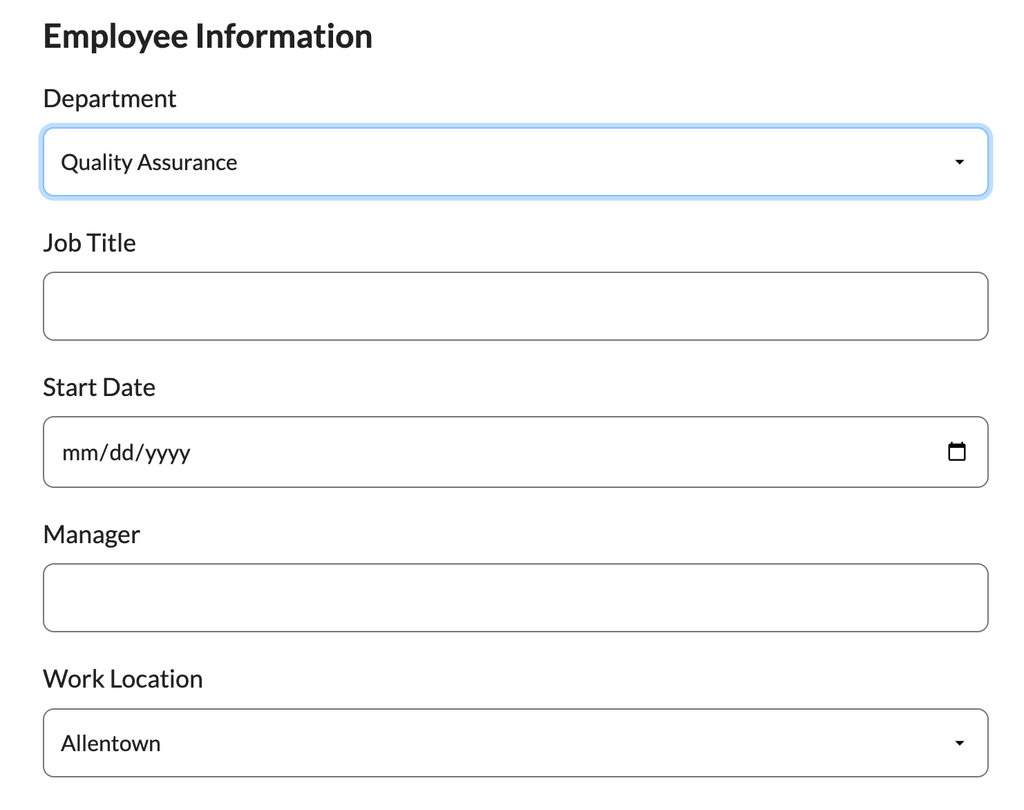
User Fields live in the core PMPro plugin to capture everything else you want to know about an employee. Common employee fields to capture:
- Department: the team they sit on, often redundant with their level but useful for directory display
- Job Title: their official title
- Start Date: for tenure and anniversary tracking
- Manager: who they report to
- Office or Location: for distributed and franchise teams
- Pronouns, Phone Extension, Slack Handle, or anything else you want visible in the directory
Field groups let you organize fields by purpose, such as HR fields, IT fields, directory-visible fields, and admin-only fields. For each one, you decide whether it is visible to the user, editable by the user, or admin-only.
Restrict Content by Level or Category
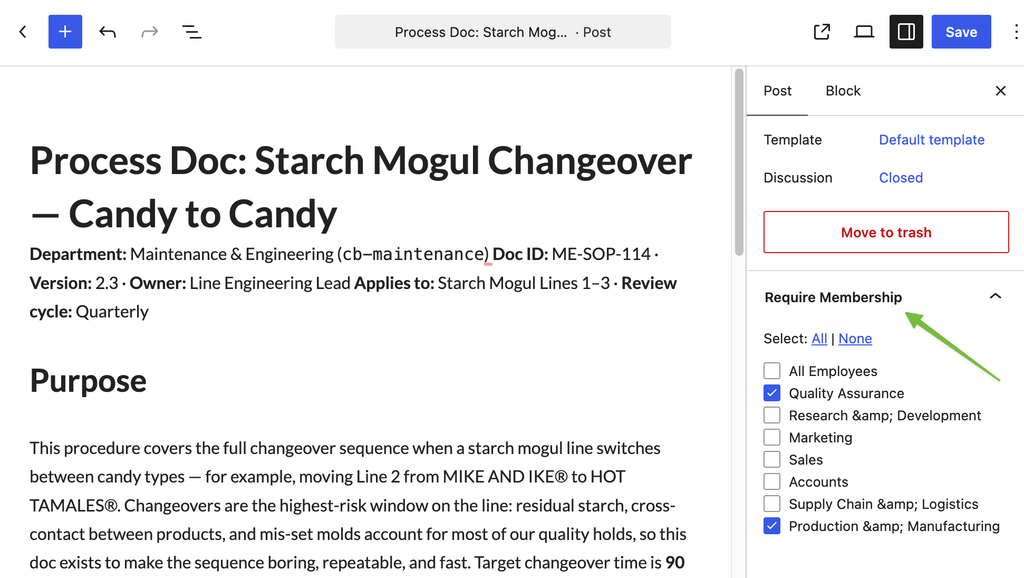
Once your levels and fields are set, restricting content is straightforward. Every WordPress post, page, and custom post type has a “Require Membership” meta box on the edit screen. Check which levels can see that content, and you are done.
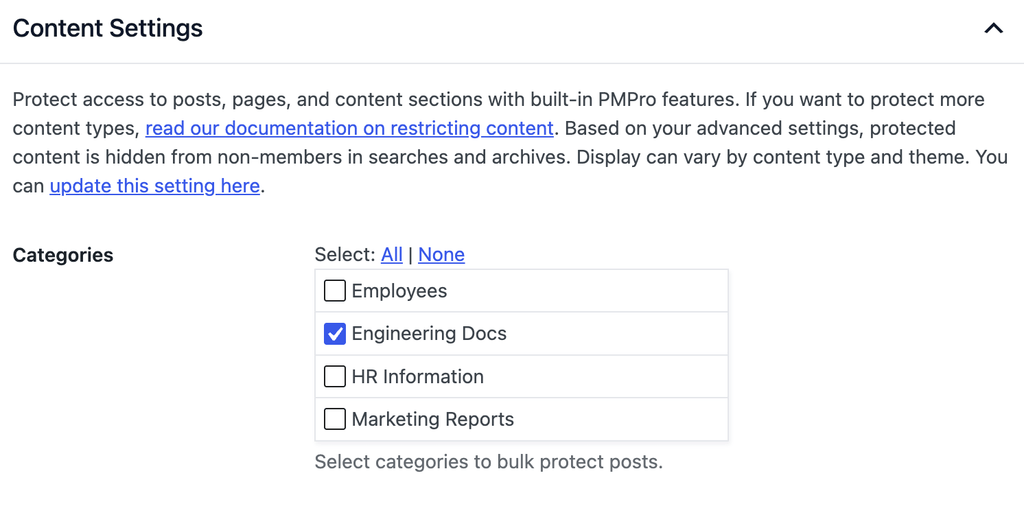
For sites with a lot of content, restrict by category instead of restricting individual posts one at a time. Set “Engineering Docs” as a category that requires the Engineering level, and every post you publish there inherits the restriction. This is how you scale to hundreds of internal articles without auditing each one by hand.
HR-Managed Onboarding: Invite, Don’t Self-Register
A public membership site lets visitors register themselves at checkout. An intranet works the opposite way: you want HR or an admin creating accounts and assigning access, not a random person finding the login page and signing up.
The simplest workflow:
- HR creates the WordPress user from Memberships > Members > Add New Member in the dashboard.
- Fill out the username, email, name, and check the box to “Send User Notification“. The new employee gets a welcome email with their login link.
- Click “Create User“.
- Add the membership level(s) that the new employee should hold.
For larger onboarding flows, the Approval Process for Membership Add On lets you require admin approval on any level, which is useful if you want department heads to confirm who joins their team.
Security and Hygiene: Do Not Skip This Section
This is the section most intranet projects skip, and it is the one that turns a useful tool into a liability. Internal portals accumulate sensitive information faster than almost any other system in your company. Treat it accordingly.
Restrict registration to your company email domain. If you ever let employees self-register, for example through a “claim your account” link sent to their work address, restrict signup to your company’s domain only. No @gmail.com accounts on the corporate intranet.
Have a real offboarding process. When an employee leaves, cancel their membership immediately. From there, you can delete the WordPress user account entirely, or move them to an “Alumni” level if you want to keep them in the directory while revoking everything else.
Limit simultaneous logins. Account sharing is a real problem on internal sites, and it is often how a single ex-employee’s credentials end up circulating long after they leave. The Limit Logins Add On caps the number of active sessions per user and logs out the oldest session when a new one signs in.
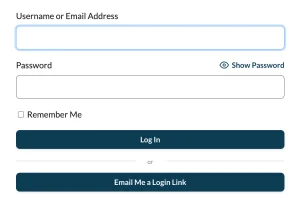
Consider passwordless login. Remembering yet another password leads to weak passwords, sticky notes, and reused credentials. The Magic Login Add On sends employees a one-time login link to their verified work email instead of a password field. It removes the friction and is harder to phish than a typed password.
Keep a strong WordPress security baseline. Two-factor authentication, brute-force protection, regular WordPress and plugin updates, and SSL on every page are not PMPro features. They are baseline hygiene for any WordPress site, and a corporate intranet is the last place to skip them.
Content Types Worth Building Into Your Intranet
With the foundation in place, you can layer in the content types that turn a locked-down WordPress site into a real internal portal.
Courses for Onboarding and Compliance Training
Compliance training, new-hire onboarding, and role-specific certification all fit naturally inside a learning management system layered onto WordPress. The Courses for Membership Add On connects PMPro to the leading WordPress LMS plugins, so course access maps to membership level.
Pair courses with a “Required Training” level assigned to new employees, then remove the requirement, or grant a “Certified” level, once they finish.
Internal Blog and Announcements Feed
WordPress is, at its core, a great blogging platform. Use it that way. An “Announcements” category restricted to All Staff becomes your internal news feed. You can email new posts to all employees automatically, pin important announcements to the dashboard, and let department heads publish their own updates.
Searchable Document Library
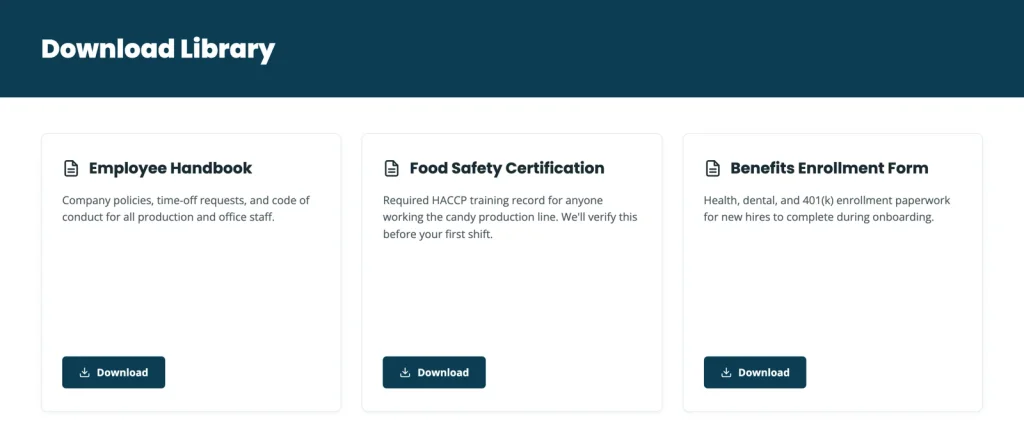
A document library is one of the highest-value features on any intranet, and one of the easier ones to build:
- Create a custom post type for “Documents,” using a custom post type plugin or theme code
- Restrict that post type to specific membership levels
- Display the library with Posts Table Pro or a similar plugin, so employees get a sortable, searchable, filterable table
Add taxonomies for “Department,” “Document Type,” and “Audience,” and your team can find the right HR form, brand asset, or operations manual in seconds.
Forms for IT Tickets, Requests, and Ideas
You will want forms for IT tickets, document feedback, time-off requests, employee suggestions, and a handful of other small workflows. Any major WordPress form plugin, such as Gravity Forms, WS Form, Formidable, or Fluent Forms, works here. Running them on the same site as your membership system means the form already knows who the submitter is, what department they are in, and what level they hold.
You can route submissions automatically: an IT ticket to a Zapier webhook, an HR request to your HR inbox, a feature idea to a private internal idea board, all driven by the form’s own automation.
Employee and Team Directory
The Member Directory and Profile Pages Add On turns your user list into a searchable, filterable team directory with a profile page for each employee. Combine it with the User Fields you defined earlier (Department, Title, Manager, Office), and you have an org chart your team can actually browse.
You can hide sensitive fields from the directory and show them only to certain levels. Salary band, for example, visible only to People Managers, while everyone sees name, title, department, and contact info.
Group Accounts for Delegated Team Management
If you do not want every employee account centralized in HR, the Group Accounts Add On lets you create a group per department, franchise, or office, each with a “Group Leader” who adds and removes their own team members. The franchise owner manages their staff. The department head manages their team. Central HR keeps oversight without becoming the bottleneck.
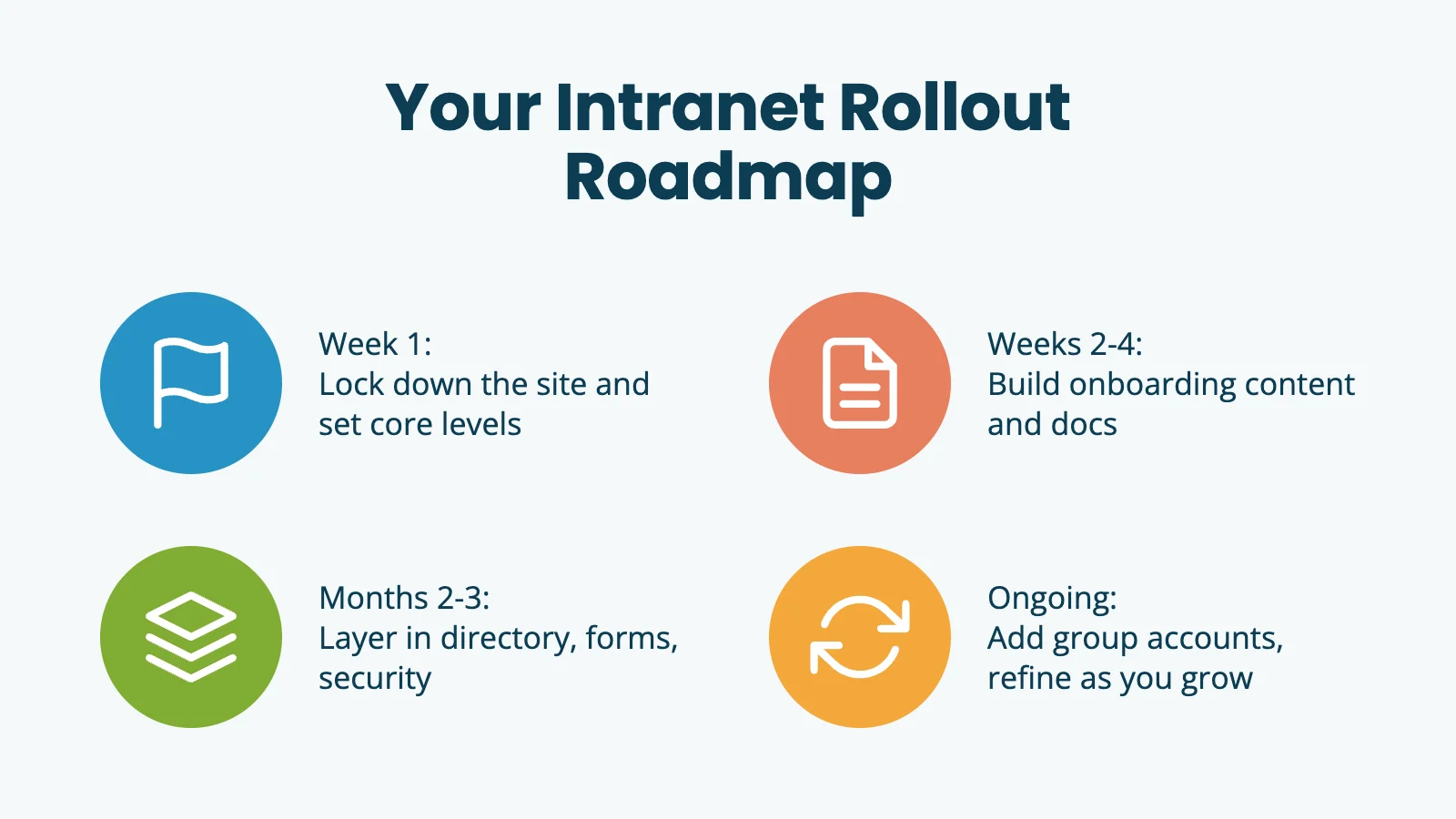
Your Phased Rollout Roadmap
You do not need to build all of this in week one. Teams that get the most out of an internal portal start with a tight foundation and layer in features as employees actually use them.
Week 1: Foundation
- Install PMPro on a fresh WordPress site
- Lock the site down so non-employees see only the login page
- Create your core membership levels: All Staff plus your top-level departments
- Add User Fields for Department, Job Title, Start Date, and Manager
- Create WordPress accounts for your existing team and assign their levels
- Restrict your existing internal docs to the right levels
Weeks 2 to 4: Onboarding and Content
- Build out department-specific landing pages and resource hubs
- Create the document library custom post type and import your top 50 documents
- Set up the internal announcements category and publish your first posts
- Document your offboarding checklist: cancel membership, then delete or archive the user
Months 2 to 3: Layered Features
- Add the team directory, and let employees fill in their own profile fields
- Set up the IT, HR, and idea-capture forms
- Tighten security with Limit Logins, Magic Login, and domain restriction
- Start moving onboarding training into courses
Ongoing
- Add Group Accounts once you outgrow centralized admin
- Build franchise-specific or region-specific portals as separate level groups
- Refine User Fields and directory display as you learn what your team actually wants to know about each other
Frequently Asked Questions
A corporate intranet is a private, internal website employees use to find documentation, training, announcements, HR resources, and tools. People also call it an internal portal, employee hub, or company knowledge base. The build pattern is the same.
Yes. Membership levels do not require payment. You can run an entirely free, invite-only site where HR creates every account by hand. Paid Memberships Pro works the same way whether levels cost money or not.
Use Level Groups with “Allow Multiple Selections” turned on. One employee can hold an “All Staff” level, a department level, and a “People Managers” tier at the same time. Content restrictions check across all of a user’s levels.
Cancel their membership immediately. That revokes access to all restricted content. From there, you can delete the WordPress user account entirely, or move them to an “Alumni” level to keep them in the directory while removing everything else.
Yes. There is a code recipe for restricting signup to a specific email domain, useful both for invite-only setups and for letting employees claim their own account from an emailed invitation.
Lock the site down, create your top-level membership levels, and add a handful of User Fields. Get your existing internal documents restricted to the right levels. Once that foundation works, layer in the directory, courses, forms, and group management.

Free Download: The AI-Powered Membership Site Blueprint
Download the free guide: Learn how to plan, build, and grow a membership site using AI as your strategic partner: from buyer persona to launch and beyond.