If you use the Set Expiration Date Add On to give a membership level a fixed end date, like December 31, timing becomes a problem. A member who signs up in January gets a full year. A member who signs up in November gets about six weeks before their membership expires. This code recipe shows you how to pick a cutoff month and automatically push late-year signups to the following year’s expiration date, so nobody ends up with a shrinking membership term just because of when they joined.
Do You Need This Recipe?
This recipe is useful if any of the following apply to your site:
- You use the Set Expiration Date Add On to set a fixed expiration date on a membership level or discount code, using the
Y1(or its shorthandY) placeholder, for exampleY1-12-31. - Members sign up year-round, but a fixed date tied to the current year means late-year signups get much less membership time than early-year signups.
- You are comfortable choosing a cutoff month (for example, October) after which new expiration dates should roll forward to next year automatically.
If your expiration date is not tied to the calendar year, or all of your signups happen in a tight window anyway, this recipe likely will not apply to you.
Best Practices and Considerations
- The cutoff month is hardcoded in the snippet
(line 33). Update it to match your own billing cycle before adding it to your site. - This only affects dates as they are resolved, typically at checkout. It does not change the expiration date for members who already signed up before you added the snippet.
- Test with a level that actually uses the
Y1orYplaceholder in its Expiration Date field. If the field already has a literal date instead of a placeholder, this filter has nothing to adjust.
Step-by-Step Implementation Guide
- Install and activate the Set Expiration Date Add On if you have not already.
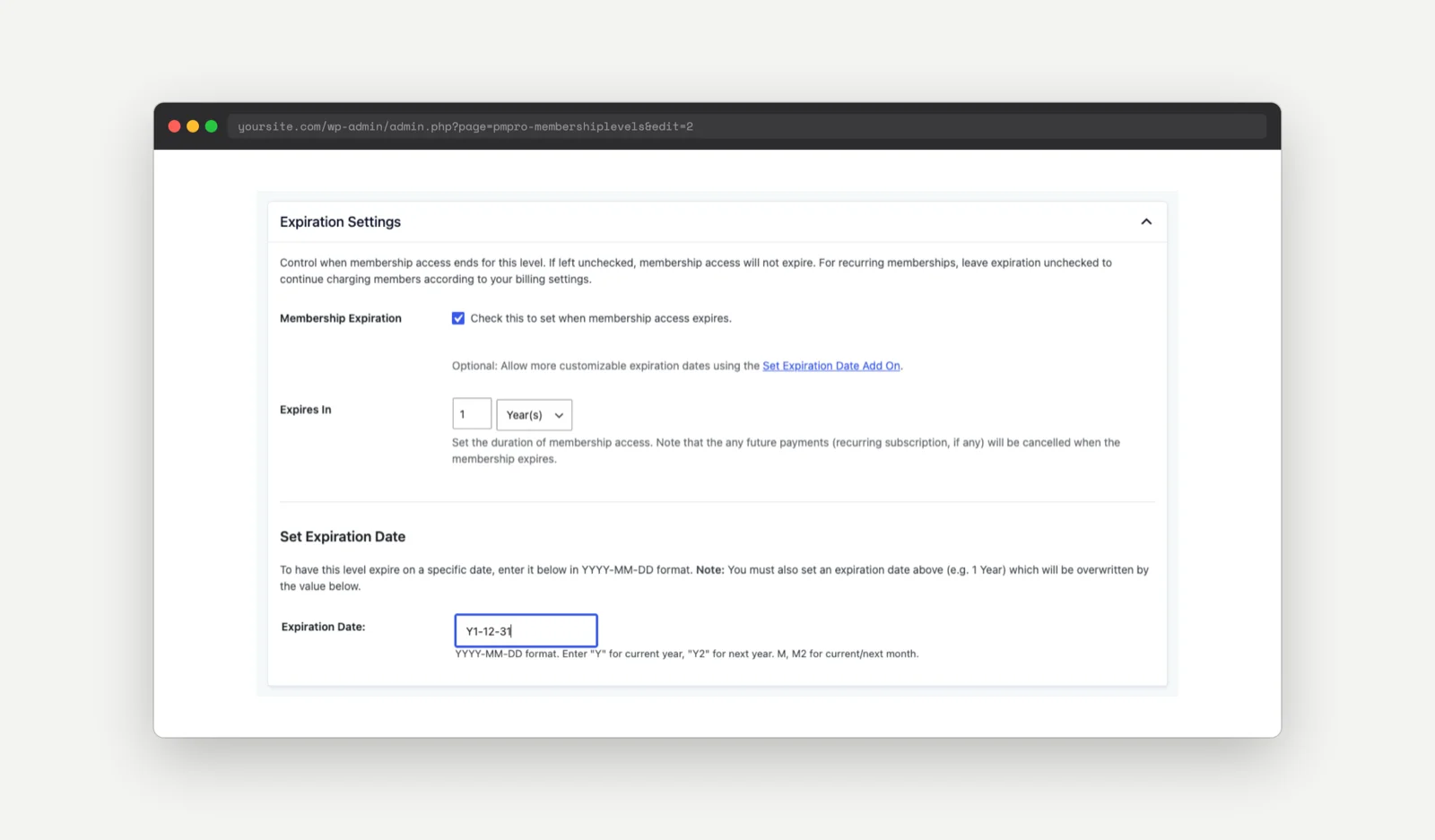
- On the level’s edit screen (or the discount code’s edit screen), set the Expiration Date field using the
Y1orYplaceholder, for exampleY1-12-31. - Add the code recipe below to your site using a Code Snippets plugin or a site-specific plugin.
- Update the month number in the snippet to match the point in the year when you want new signups to roll over to next year’s date.
- Confirm it worked by checking that a signup after the cutoff month resolves to next year’s expiration date instead of the current year’s.
Understanding the pmprosed_expiration_date_raw Filter
The Set Expiration Date Add On lets you configure a fixed expiration date using placeholders instead of a hardcoded date. Y1 (or its shorthand Y) resolves to the current year and Y2 resolves to next year, so a level set to expire on Y1-12-31 expires December 31 of whatever year its date gets resolved in.
The pmprosed_expiration_date_raw filter runs early in that resolution, while the value still contains the raw placeholder text, before the Add On converts it into an actual calendar date. Modify the string here, and the Add On finishes resolving whatever you return as usual.
Filter Arguments
$raw_date(string): The expiration date as configured on the level or discount code, still containing placeholder characters likeY1,Y, orY2(for example,Y1-12-31).
Returns: the modified raw date string, which PMPro then resolves into a real date.
The Code Recipe
This snippet checks the current month against a cutoff you set, and if the cutoff has passed, rewrites the expiration date’s year placeholder from the current year to next year. It handles both the Y1 and shorthand Y forms of the current-year placeholder.
Adding the Recipe to Your Website
You can add this recipe to your site by creating a custom plugin or using the Code Snippets plugin available for free in the WordPress repository. Read this companion article for step-by-step directions on either method.
How to Customize This Code Recipe
- Change the cutoff month: Update the month number in the snippet to any value from 1 to 12.
line 33 - Roll forward more than one year: Chain a second replacement (for example,
Y2toY3) if your site uses multi-year discount codes and you need the same protection further out.lines 39 & 40 - Scope to a specific level: This filter only receives the date string, not the level ID, so it cannot tell which level triggered it. If you need level-specific rollover logic, check the level ID earlier in the checkout process and only apply the year swap when it matches.

Get Support From Our Team of Experts
Have a question about how to use this feature? Our Support Page outlines three ways to get support.
Our Max plans include hands-on help customizing your membership site and implementing new features. Upgrade to PMPro Max now »