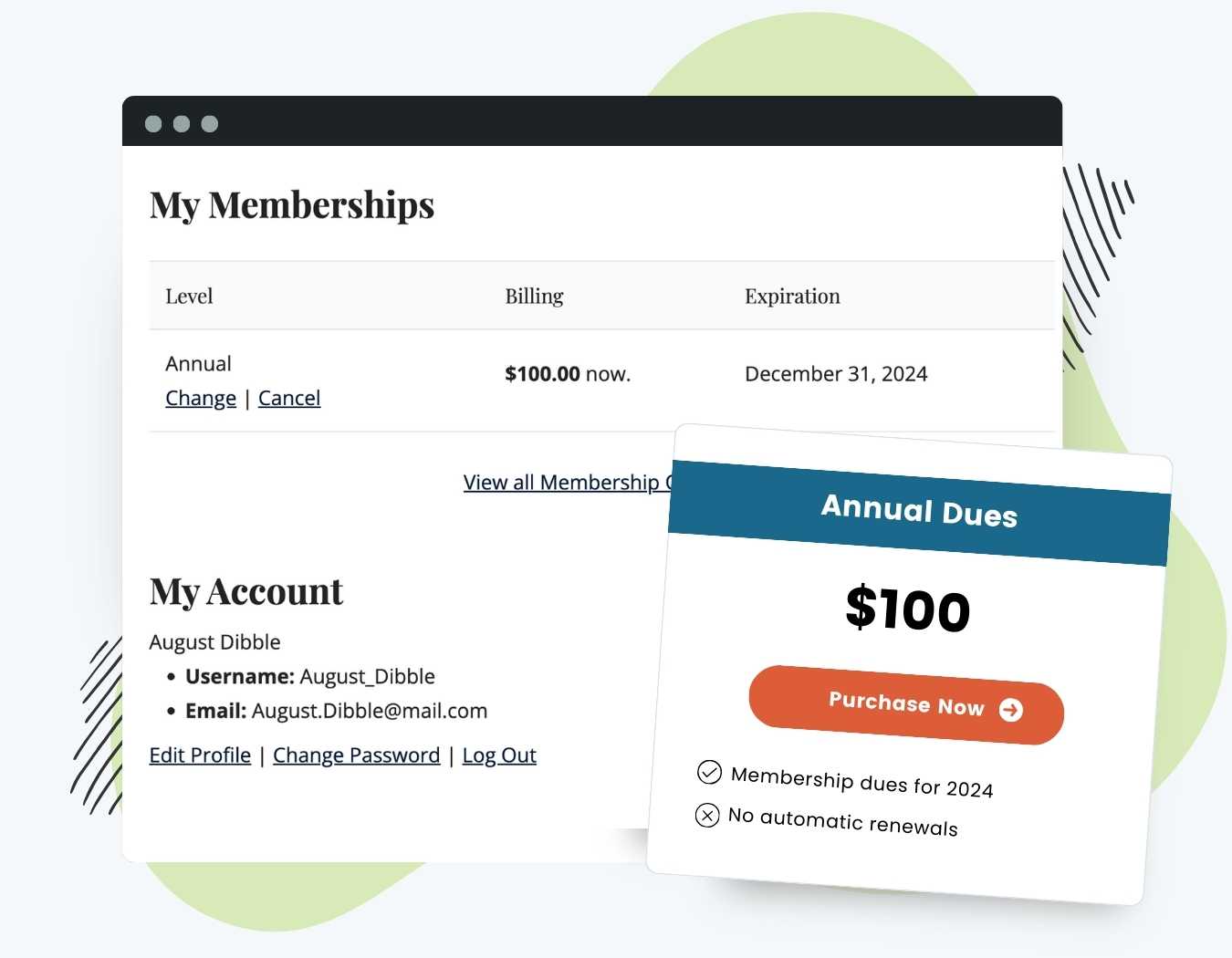
What Changed
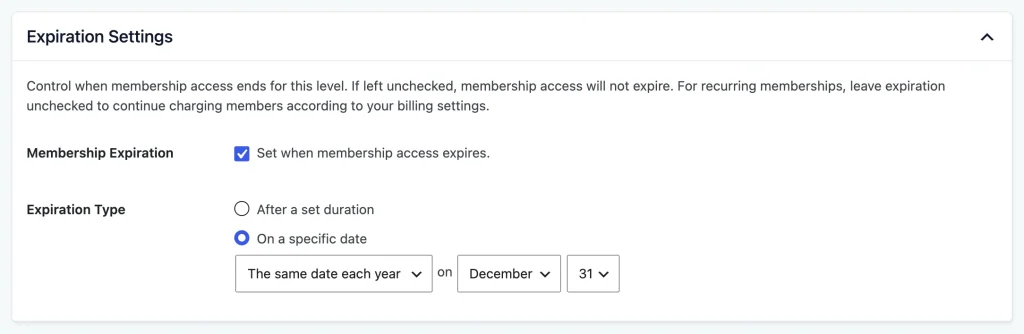
Levels and custom pricing discount codes can now expire memberships on a date set with a date pattern. The setting is Expiration Type in the Expiration Settings section. Your saved settings carry over and are used as they are.
- After a set duration: The standard behavior, like “1 year after checkout.”
- On a specific date: Membership expires on a date set with the date pattern builder. This replaces the duration.
When the date arrives, the membership expires and any recurring subscription for it is cancelled. A member who checks out again for the same level gets the date the pattern resolves to. Time is not added to their current end date.
For developers: the pmprosed_expiration_date_raw and pmprosed_expiration_date filters still run, and the Add On’s helper functions remain as deprecated wrappers. Custom code that removed the Add On’s own hook callbacks no longer has any effect.
Set a Membership Expiration Date
- Navigate to Memberships > Settings > Levels and edit a level, or navigate to Memberships > Settings > Discount Codes and edit a code that uses “Set custom pricing per level”.
- In the Expiration Settings section, select the Membership Expiration checkbox.
- Under Expiration Type, choose On a specific date and use the builder to choose the date.
- Click Save Level.
See Date Patterns for Membership Start and Expiration Dates for the builder, syntax, and examples, including calendar-year and seasonal memberships.
Moving From Old Expiration Values
Old values still work. Use these equivalents if you want the builder to show them.
| Old Add On value | Choose now | Pattern |
|---|---|---|
2024-12-31 | On a specific date > Custom pattern | 2024-12-31 |
Y2-01-01 | On a specific date > The same date each year > January 1 | Y-01-01 |
Y1-M2-01 | On a specific date > The same day each month > 1 | Y-M-01 |
A fixed date in the past gives the member one day of access, so update it before the date passes.

