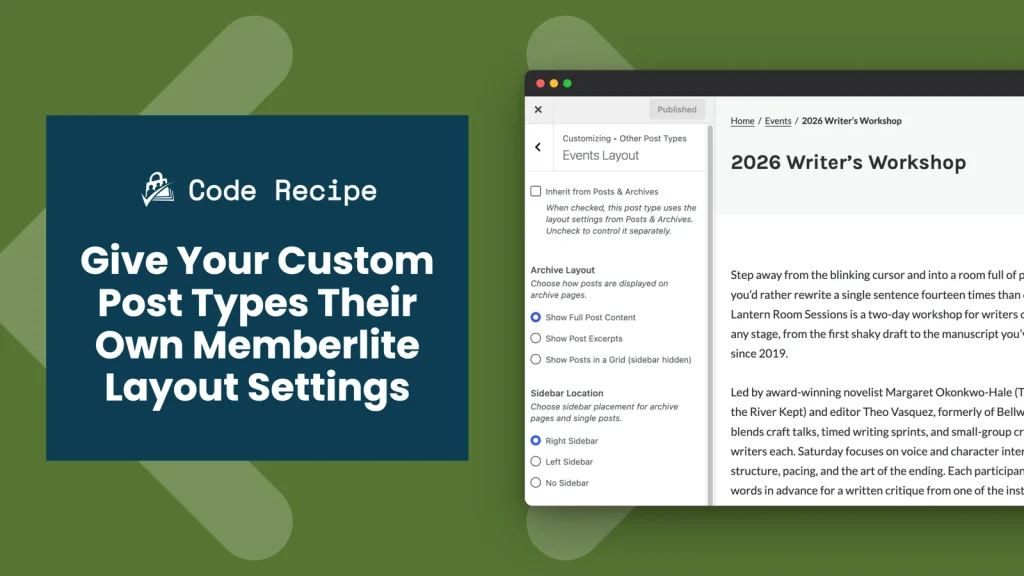
Memberlite lets you set the archive layout, sidebar location, and column ratio separately for each post type in the WordPress Customizer. Out of the box, these per-type settings are only available for the custom post types from our Courses for Membership and Series Add Ons. This code recipe adds any other custom post type to that list, such as events, directory listings, or a post type you built yourself, so it gets its own layout controls too.
Without the recipe, other custom post types use the generic layout from your Posts & Archives settings. With it, you can give your events a full-width grid archive and no sidebar while your blog keeps its right sidebar.
Best Practices and Considerations
- Requires Memberlite 7.1.2 or later: The per-type layout settings and the filter this recipe uses were added in Memberlite 7.1.2. On any other theme, the recipe does nothing.
- The post type must already be registered: Memberlite checks each slug against the post types registered on your site. If a slug is misspelled, or the plugin that registers the post type is inactive, Memberlite skips it without showing an error.
- The post type must have an admin screen: Memberlite skips post types registered with
show_uiset tofalse. These are usually internal post types that a plugin uses behind the scenes, and they would not benefit from layout settings anyway. - Test the front end after you add a post type: Some plugins use their own archive or single templates and ignore the theme’s layout. If your new settings do not change anything on the front end, the plugin’s templates are the likely cause.
About the Code Recipe
This recipe uses the memberlite_customizer_cpts filter. This is a Memberlite theme filter, not a PMPro hook. Memberlite uses it to build the list of post types that get their own layout settings. The list starts with three PMPro post types, and Memberlite only includes the ones that are active on your site:
pmpro_course(Courses for Membership Add On)pmpro_lesson(lessons from the same Add On)pmpro_series(Series Add On)
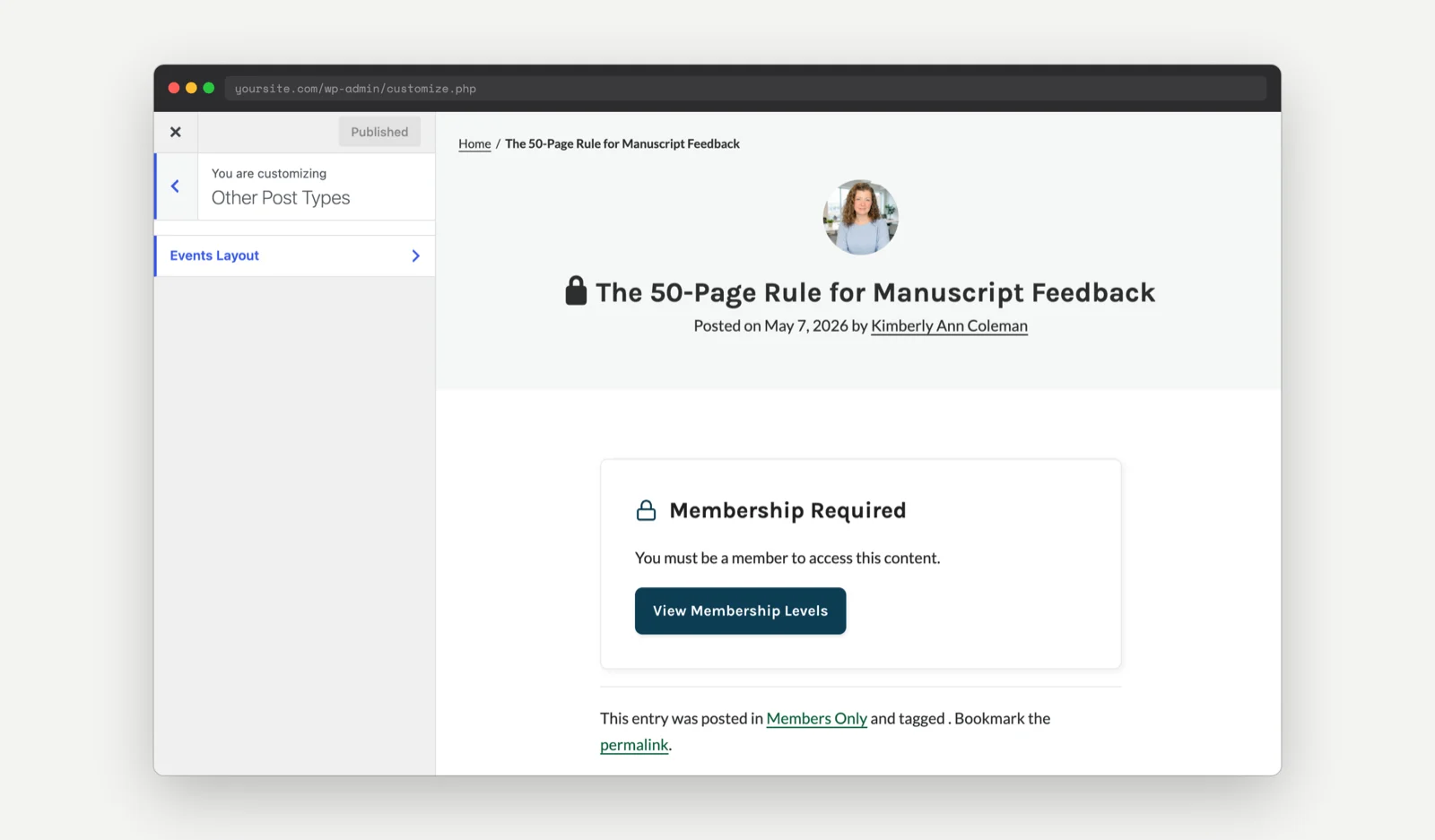
The recipe adds your post type’s slug to the end of that list. Memberlite then creates a layout section for it in the Customizer, under Appearance > Customize > Other Post Types. The section is named after the post type’s plural label, so a post type called “Events” gets an Events Layout section.
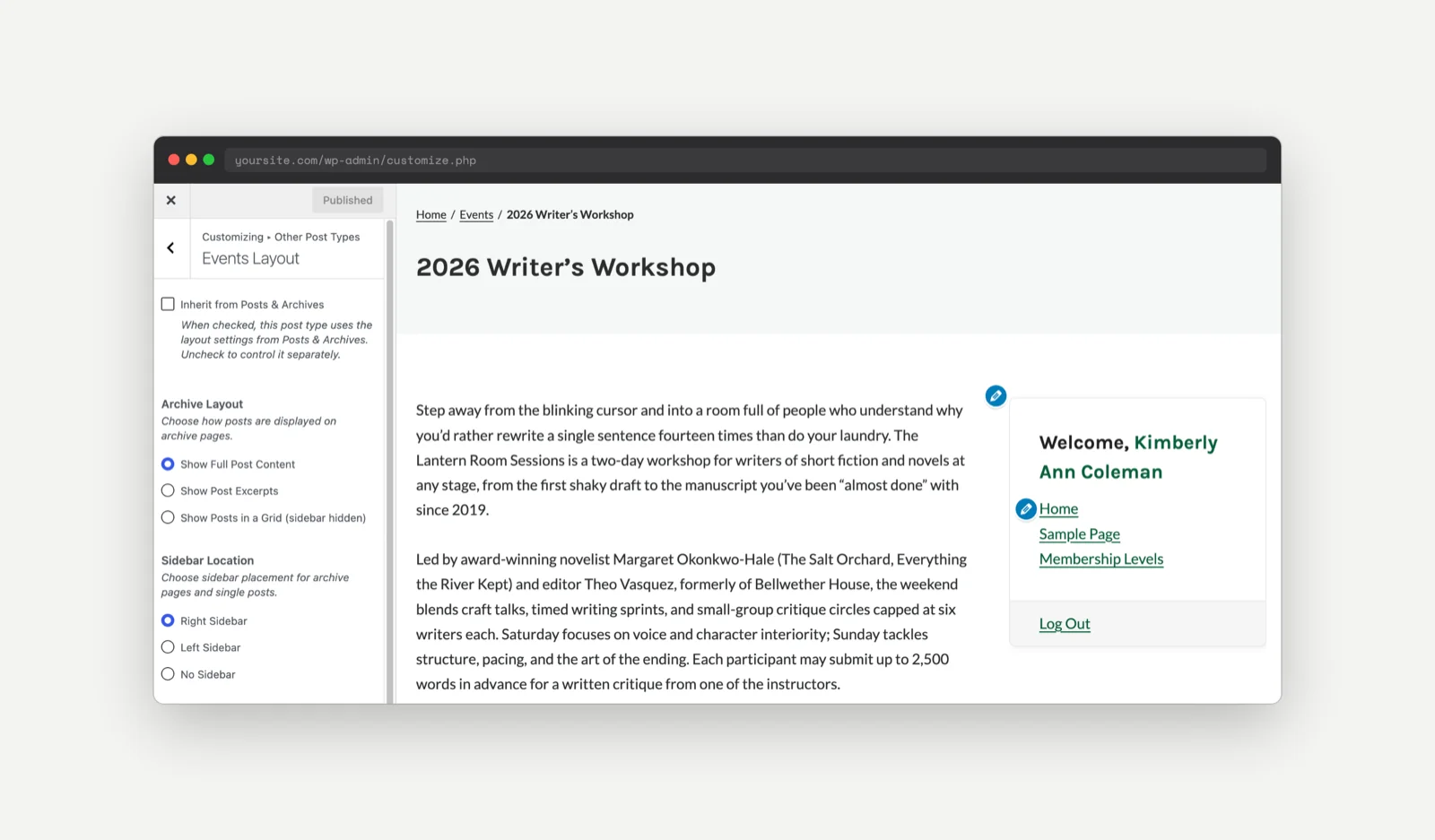
Each section starts with an Inherit from Posts & Archives checkbox. It is checked by default, so adding a post type does not change your site’s layout until you uncheck it. Once unchecked, these settings appear:
- Archive Layout: Show full post content, show excerpts, or show posts in a grid on the post type’s archive page. This setting only appears if the post type has an archive page.
- Sidebar Location: Right sidebar, left sidebar, or no sidebar. This applies to both the archive page and single posts of this type.
- Columns Ratio: How wide the content area is compared to the sidebar. This setting is hidden when Sidebar Location is set to No Sidebar.
Step-by-Step Implementation Guide
Step 1: Find Your Post Type’s Slug
The slug is the internal name WordPress uses for the post type. It is not always the same as the label you see in the admin menu.
- In the WordPress admin, click the menu item for your post type (for example, Events).
- Look at the URL in your browser’s address bar. It will look like
yoursite.com/wp-admin/edit.php?post_type=event. - The text after
post_type=is your slug. In this example, the slug isevent.
Step 2: Add the Recipe
Copy the code recipe below, replace 'event' with your slug, and add it to your site. The section after the code explains how.
Step 3: Set Up the Layout in the Customizer
- Go to Appearance > Customize. You will see a new Other Post Types panel below Pages.
- Click Other Post Types, then click the section for your post type (for example, Events Layout).
- Uncheck Inherit from Posts & Archives. Choose the Archive Layout, Sidebar Location, and Columns Ratio you want for this post type.
- Visit an archive page or a single post of this type in the Customizer preview to check the result, then click Publish.
The Code Recipe
Adding the Recipe to Your Website
You can add this recipe to your site by creating a custom plugin or using the Code Snippets plugin available for free in the WordPress repository. Read this companion article for step-by-step directions on either method.
How to Customize This Code Recipe
- Set your post type slug (line 23): Replace
'event'with the slug you found in Step 1. Keep the single quotes around it. - Add more than one post type: Copy line 23 and paste it directly below, once for each extra post type. Then change the slug on each line. For example:
$cpts[] = 'event';
$cpts[] = 'directory_listing';
Each post type gets its own section under Other Post Types, and you can set up each one separately.

Get Support From Our Team of Experts
Have a question about how to use this feature? Our Support Page outlines three ways to get support.
Our Max plans include hands-on help customizing your membership site and implementing new features. Upgrade to PMPro Max now »