You can control your content’s layout in Customizer under the Posts & Archives, Other Post Types, and Pages panels. Posts & Archives covers your blog feed, category and tag archives, and individual post pages. Pages covers your static WordPress pages, including any pages created by Paid Memberships Pro such as your Account, Checkout, and Membership Levels pages. You can also add layout settings for custom post types.
You can find these settings under:
- Appearance > Customize > Posts & Archives
- Appearance > Customize > Other Post Types (For compatible post types or post types passed through the
memberlite_customizer_cptsfilter.) - Appearance > Customize > Pages
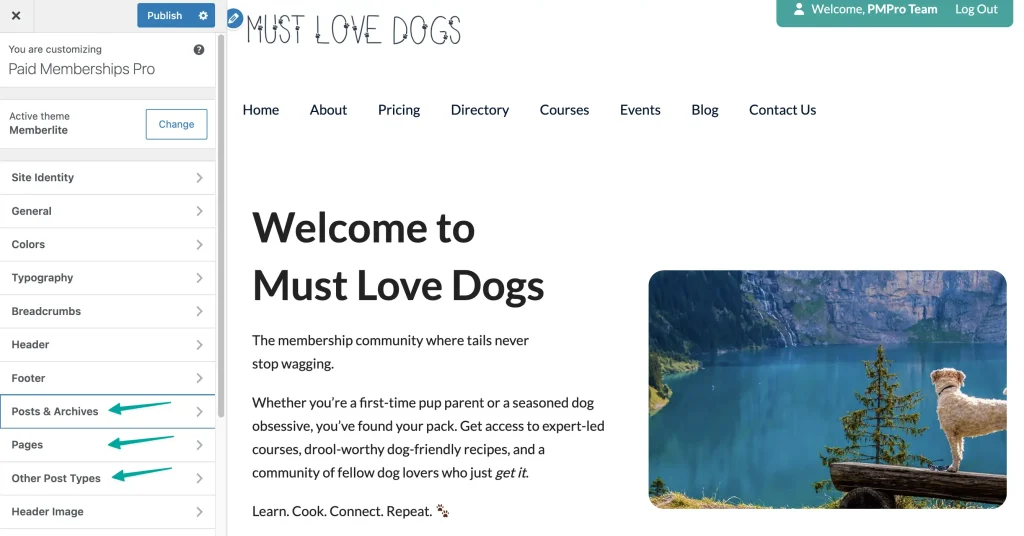
Table of contents
Posts & Archives
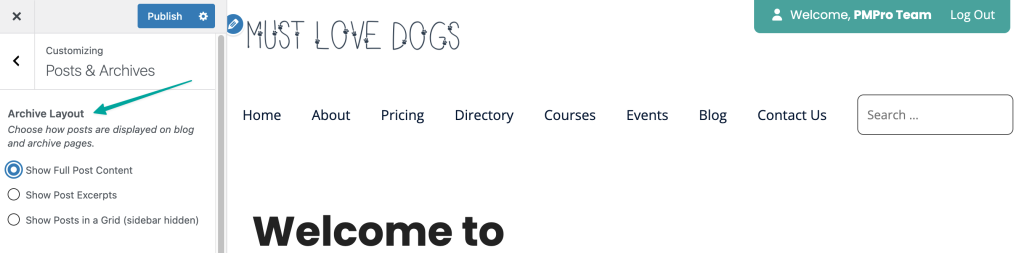
Archive Layout
The settings under Appearance > Customize > Posts & Archives control how posts appear on your blog feed and archive pages (category pages, tag pages, date archives, and author archives). This does not affect individual post pages.
- Show Full Post Content: Displays the complete text of each post on archive pages. Visitors do not need to click through to read a post. Works well for sites with short posts or when you want to surface your full content immediately.
- Show Post Excerpts: Displays a short preview of each post with a “Read More” link. The excerpt is either the manually written excerpt from the post editor, the text before a More block if you have added one, or an automatically generated snippet if neither is set.
- Show Posts in a Grid (sidebar hidden): Arranges posts in a grid of cards rather than a stacked list. The sidebar is hidden automatically when this option is selected.
The default is “Show Full Post Content”.
Sidebar Location
Controls where the sidebar appears on your blog feed, archive pages, and individual post pages.
- Right Sidebar: The sidebar appears to the right of the main content. This is the default.
- Left Sidebar: The sidebar appears to the left of the main content.
- No Sidebar: The sidebar is hidden. The main content expands to fill the available width.
Columns Ratio
Controls how the available width is divided between the main content area and the sidebar. This setting only appears when Sidebar Location is set to “Right Sidebar” or “Left Sidebar”.
The two numbers represent the content column width and the sidebar column width out of a 12-unit grid. For example, “8×4” gives the content 8 units and the sidebar 4 units. “9×3” makes the sidebar narrower. “6×6” splits the space evenly.
The default is “8×4”.
Other Post Types
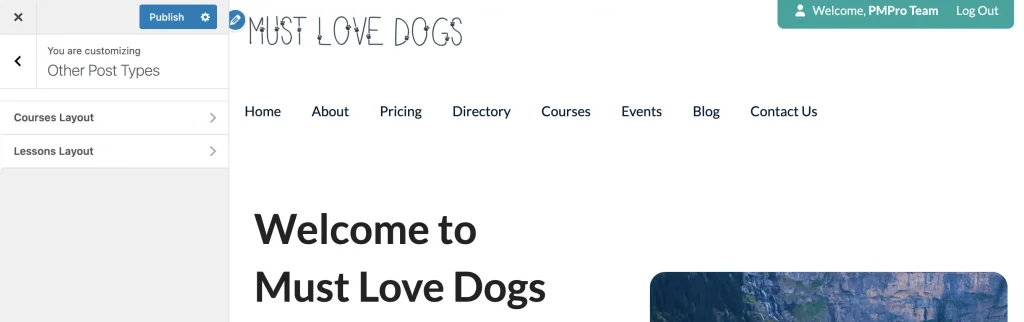
If compatible custom post types are detected, an Other Post Types panel will appear in Customizer. Each custom post type will have its own section where you can control settings for Archive Layout, Sidebar Location, and Columns Ratio. By default, custom post types will inherit these settings from the Posts & Archives panel.
Compatible Post Types
Memberlite automatically checks for these PMPro Add On custom post types. If the Add On is activated from your WP Admin, a new section will be added under Appearance > Customize > Other Post Types for each compatible post type.
pmpro_courseis registered from the Courses for Membership Add Onpmpro_lessonis also registered from the Courses for Membership Add Onpmpro_seriesis registered from the Series: Drip-Feed Content Add On
Passing Your Own Custom Post Types
Custom post types registered by third-party plugins or child themes can be added using the memberlite_customizer_cpts filter. The filter accepts an array of custom post type slugs.
add_filter( 'memberlite_customizer_cpts', function( $cpts ) {
	$cpts[] = 'my_cpt_slug';
	return $cpts;
} );
Custom Post Type Behavior
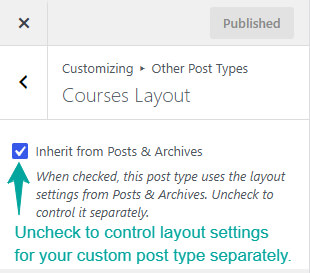
By default, custom post types will inherit the Archive Layout, Sidebar Location, and Columns Ratio settings from the Posts & Archives panel. Even if post types are automatically detected or manually passed through the memberlite_customizer_cpts filter, unless you go to that post type’s section in Customizer and uncheck the “Inherit from Posts & Archives” checkbox, you will not be able to adjust those settings separately for that post type.
Not all third-party post types are supported even if they’re passed through the filter and settings for that post type shows under Other Post Types. You can usually predict whether a third-party post type will properly obey these settings if the archive and single view for that post type uses Memberlite theme templates.
Pages
The settings under Appearance > Customize > Pages control sidebar layout for your static WordPress pages. This includes pages you create yourself and any pages generated by Paid Memberships Pro.
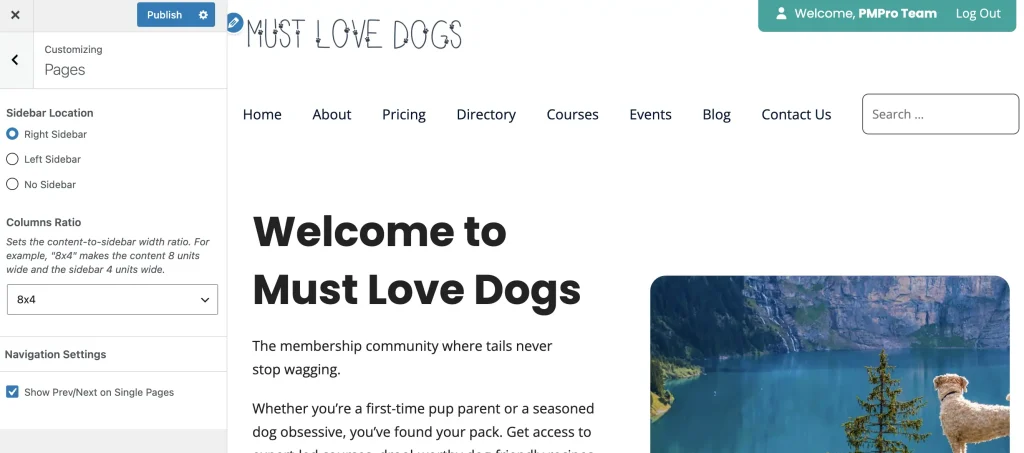
Sidebar Location
- Right Sidebar: The sidebar appears to the right of the main content. This is the default.
- Left Sidebar: The sidebar appears to the left of the main content.
- No Sidebar: The sidebar is hidden and the content expands to fill the full width. This is applied automatically to pages using the Full Width or Fluid Width page templates, regardless of this setting.
Columns Ratio
Controls the content-to-sidebar width split on pages with a sidebar, using the same 12-unit grid as Posts & Archives. The default is “8×4”.
Get Support From Our Team of Experts
Have a question about how to use this feature? Our Support Page outlines three ways to get support.
Our Max plans include hands-on help customizing your membership site and implementing new features. Upgrade to PMPro Max now »
Last updated on July 13, 2026

