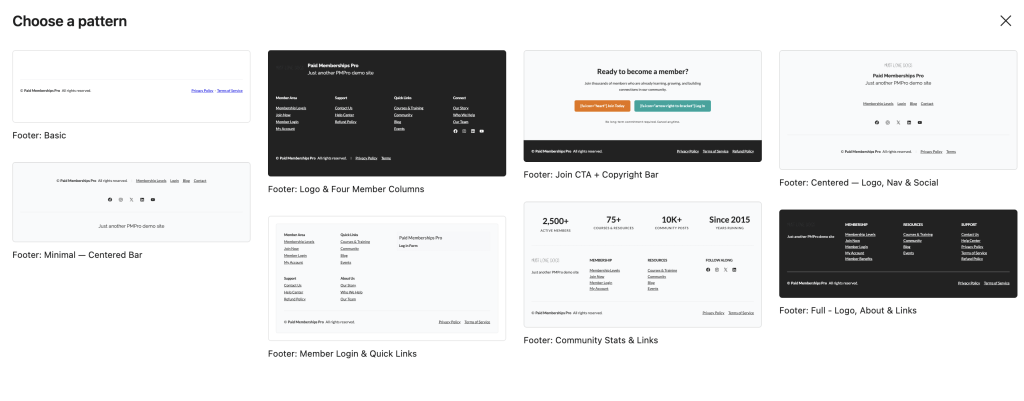
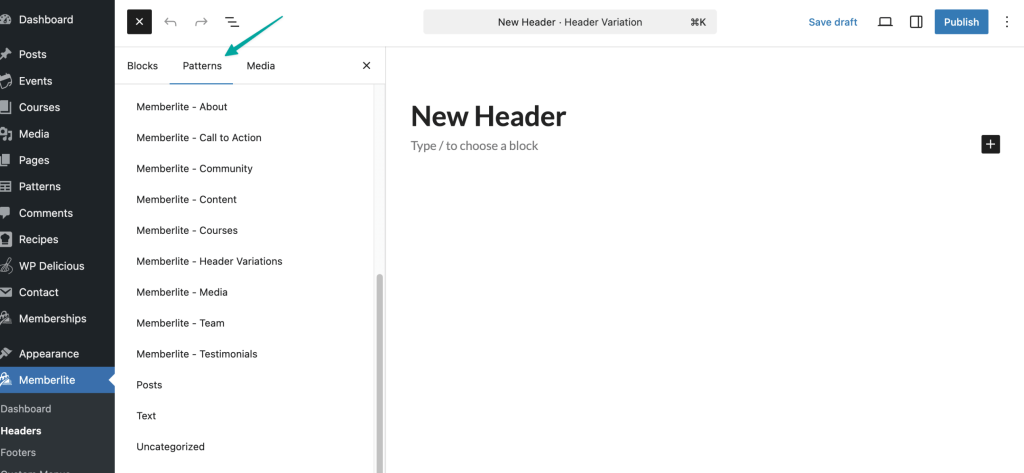
Memberlite includes a built-in default header and footer. Both work out of the box with no setup required. If you want more control over the layout and design, Memberlite 7.1 introduced header and footer variations where you can build custom layouts in the WordPress block editor and assign through the Customizer.
The Default Header and Footer
Memberlite includes a built-in header and footer that have been part of the theme from the beginning. In the Customizer, these are labeled the Default header and footer. If you have not created or assigned any variations, your site is already using them.
You can confirm which layout is active by going to Appearance > Customize > Header and checking the Global Header dropdown. If it shows “Default”, you are using the built-in header.
The same check applies under Appearance > Customize > Footer for the Global Footer dropdown.
If the default layouts meet your needs, you do not need to create any variations.
Default Header Settings
These settings only appear in Appearance > Customize > Header when Global Header is set to “Default”. If you assign a header variation, these settings are hidden.
- Columns Ratio: Controls how the left and right sides of the header are divided. The left side holds your site logo; the right side holds your navigation menu and any header widgets. For example, 4×8 makes the logo column narrower and the navigation column wider, while 6×6 splits the header evenly.
- Show Login/Member Info in Header: Displays a login link for visitors and account information for logged-in members. This feature is powered by Paid Memberships Pro.
- Show Search Form After Main Nav: Adds a search field to the right of the primary navigation menu.
- Enable Sticky Header: Keeps the header fixed at the top of the screen as visitors scroll.
Default Footer Settings
This setting only appears in Appearance > Customize > Footer when Global Footer is set to “Default”.
- Copyright Text: The line of text that appears at the bottom of the footer, below the widget area. Use it for your copyright notice, site name, or any brief message you want displayed site-wide.
Default Header and Footer Colors
Colors for the default header and footer are managed under Appearance > Customize > Colors. Look for the Default Header Colors and Default Footer Colors groups.
These color settings apply to the built-in layouts only. If you are using a variation, colors set in these groups may not affect that variation. Edit the variation directly in the block editor to control its colors instead.
Default Header Colors
- Header Background Color: The background color of the full-width header bar.
- Primary Navigation Background Color: The background color behind the main navigation menu.
- Primary Navigation Link Color: The color of the links in the main navigation menu.
Default Footer Colors
- Footer Widgets Background Color: The background color of the widget area in the footer.
- Footer Widgets Text Color: The text color of content inside the footer widget area.
Widget Areas for the Default Header and Footer
The default header and footer each have a dedicated widget area. You can add content to these areas under Appearance > Widgets.
- Header: Displays content on the right side of the default header, alongside the navigation. This is a good place for a phone number, a short call to action, or social icons.
- Footer Widgets: Displays content in the default footer, above the copyright line. Widgets appear side by side in a grid.
Footer Widgets is a legacy widget area from before footer variations were available. If you want more control over your footer layout, create a footer variation and assign it in the Customizer instead.
When Variations Are the Right Choice
A variation is a better fit when:
- You want a header or footer layout that the default template cannot produce — such as a full-width header with a hero image or a multi-column footer with custom content blocks.
- You need different designs for different sections of your site. For example, a minimal header on landing pages and your full branded header everywhere else, or a different footer for your blog than for your membership pages.
- You prefer designing your header and footer with blocks rather than Customizer controls.
You can create as many variations as you need. Each variation is a separate post you design in the block editor. Publishing a variation makes it available to assign. It does not replace your current header or footer until you assign it.
How Variations Work
Header and footer variations are stored as custom post types (memberlite_header and memberlite_footer). Each variation’s content is built with blocks in the editor, just like editing a page. When a variation is assigned, Memberlite renders its block content in place of the default header or footer.
Which Header Displays
Memberlite checks for a header in this order:
- Per-page override: A specific header assigned to an individual page (highest priority, pages only).
- Global header: The header selected in the Customizer under Header settings.
- Default header: The built-in Memberlite header template (fallback).
Which Footer Displays
Footers work the same way, with an extra level for location-specific assignments:
- Per-page override: A specific footer assigned to an individual page (pages only).
- Location-specific footer: A footer assigned to a content type (Blog & Archives, Single Posts, or Pages).
- Global footer: The footer selected in the Customizer under Footer settings.
- Default footer: The built-in Memberlite footer template (fallback).
If a variation post is deleted or unpublished, Memberlite automatically falls back to the default header or footer.
Creating & Editing Variations
Header and footer variations are managed from the WordPress admin. You will find them under Memberlite > Headers and Memberlite > Footers. Each variation is a post you design in the block editor.
Creating a New Variation
- Go to Memberlite > Headers or Memberlite > Footers.
- Click Add New Header or Add New Footer.
- Select a starter pattern to begin from a pre-built layout, or dismiss the pattern picker to start with a blank canvas.
- Design your header or footer using blocks.
- Click Publish when you are ready to make the variation available to assign.
Publishing a variation does not change anything on your live site. The variation will not appear anywhere until you assign it through the Customizer or on an individual page.
Editing an Existing Variation
- Go to Memberlite > Headers or Memberlite > Footers.
- Click the variation’s title to open it in the block editor.
- Make your changes.
- Click Update to save.
Changes take effect immediately on every page where that variation is assigned.
Seeing Where a Variation Is Used
The variation list includes a Used By column. It shows whether a variation is set as the global header or footer, assigned to a specific location (such as Pages or Archives), or used as an override on individual pages. If a variation is not assigned anywhere, the column shows a dash.
Starter Patterns
When you create a new variation, Memberlite offers starter patterns to help you get started quickly. These patterns only appear inside the header and footer variation editors — they do not show up in the block inserter on regular pages or posts.
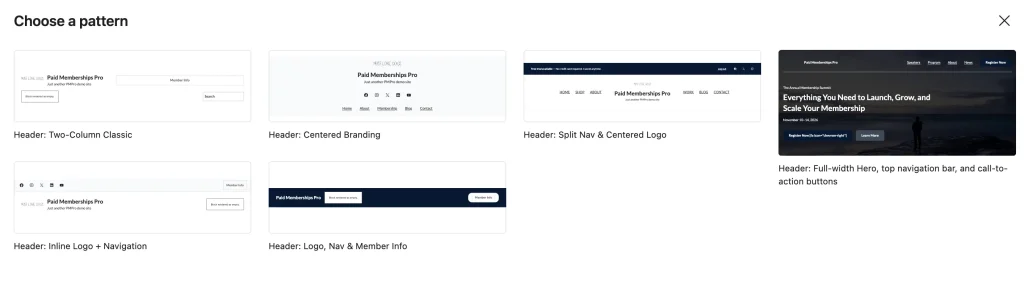
Custom Blocks
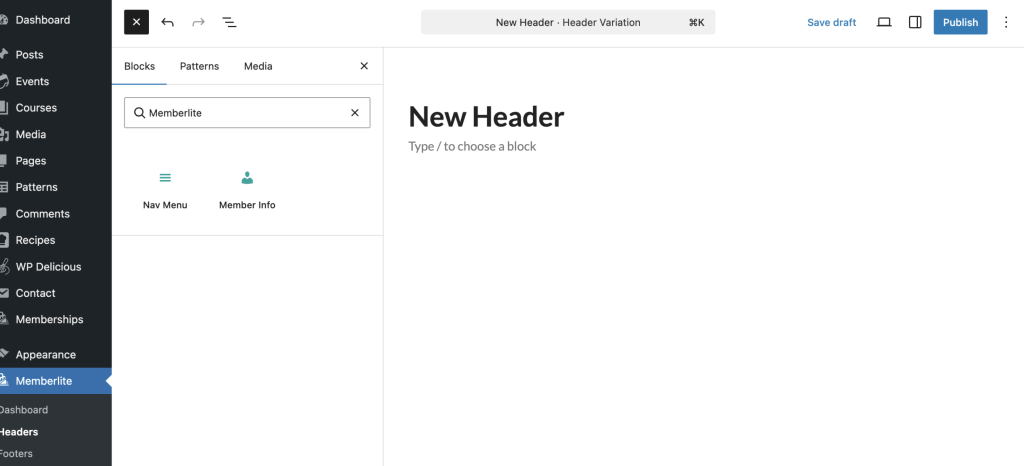
As of version 7.1, Memberlite includes custom blocks designed for use inside Header and Footer Variations: Nav Menu and Member Info. These blocks do not appear in the block inserter when you are editing a regular page or post. They are only available when you open a Header or Footer Variation for editing. You can find them in the block inserter.
Nav Menu Block
The Nav Menu block renders one of your WordPress navigation menus inside a Header or Footer Variation. Use it to place your primary navigation, footer links, or any other menu you have created.
To add the Nav Menu block to a variation:
- Open a Header or Footer Variation for editing.
- Click the + button where you want the menu to appear and search for Nav Menu.
- Insert the Nav Menu block.
- In the block settings panel on the right, open Menu Settings and use the Select Menu dropdown to choose which menu to display.
- Click Update to save your changes.
If you have not created any menus yet, the dropdown will be empty. Create your menus first under Appearance > Menus, then return to your variation to select one.
Selecting a Menu
The Select Menu dropdown lists all existing menus on your site grouped under By Menu. Select the menu you want to display by name.
If you have the PMPro Nav Menus add-on active, you will also see a By Location group. Selecting a location instead of a specific menu means the block will display whatever menu is currently assigned to that location, so you can swap menus at Appearance > Menus without editing the variation again.
Styling the Nav Menu Block
The Nav Menu block supports the full set of block-level design controls. Use the settings panel to adjust:
- Color: Text color, background color, and link color.
- Typography: Font family, size, weight, style, line height, letter spacing, and text transform.
- Border: Color, radius, style, and width.
- Width: Wide or full alignment.
Member Info Block
The Member Info block shows login-aware content in the header. It automatically displays different content depending on whether the visitor is logged in.
When a visitor is logged in, the block shows:
- A welcome message: “Welcome, [First Name]” with a link to the member’s account page (on by default).
- The menu assigned to the Member location at Appearance > Menus.
When a visitor is not logged in, the block shows:
- The menu assigned to the Member – Logged Out location at Appearance > Menus.
Before adding this block, make sure you have assigned menus to the Member and Member – Logged Out locations. Go to Appearance > Menus > Manage Locations to assign them.
To add the Member Info block to a variation:
- Open a Header or Footer Variation for editing.
- Click the + button where you want the member area to appear and search for Member Info.
- Insert the Member Info block.
- In the block settings panel on the right, use the toggle to turn the welcome message on or off.
- Click Update to save your changes.
Member Info Block Settings
- Show Welcome Message: When turned on, the block displays “Welcome, [First Name]” above the member menu for logged-in users. The name links to the member’s account page. Turn this off if you want to show only the navigation links without a greeting.
The Member Info block also supports color settings for text, background, and links.
Because navigation inside a Variation is managed directly in the block editor, changes you make at Appearance > Menus to the Primary or Footer locations will not affect any Header or Footer Variations you have created.
Making a Header Sticky
Each header variation has its own sticky setting, controlled by the Sticky Header toggle in the editor’s document settings panel. When enabled, the header stays fixed at the top of the browser window as visitors scroll.
This is a per-variation setting: one header can be sticky while another is not. It is separate from the Enable Sticky Header checkbox in the Customizer, which only applies to the default header.
Assigning Variations
After publishing a variation, you assign it through the Customizer. You can also override the Customizer assignment on individual pages.
Assigning a Header Variation
- Go to Appearance > Customize > Header.
- Open the Global Header dropdown.
- Select the variation you want to use. Select “Default” to return to the built-in Memberlite header.
- Click Publish to save.
Assigning Footer Variations
Footer variations can be assigned globally or by content type. Location-specific settings let you show a different footer on your blog and archive pages, single posts, and static pages — while using one consistent default for everything else.
- Go to Appearance > Customize > Footer.
- You have several settings for footers which are described in detail after this list of steps.
- Once you have selected a variation you want to use, you can click Publish to Save.
Go to Appearance > Customize > Footer to access all footer settings.
Global Footer
The footer shown on any page that does not have a location-specific or per-page assignment. Select “Default” to use the built-in Memberlite footer with widget areas and site info.
Location-Specific Footers (Optional)
- Blog & Archives Footer: Shown on the blog index and all archive pages. Set to “Use Global Footer” to inherit from the global setting.
- Single Post Footer: Shown on individual blog posts. Set to “Use Global Footer” to inherit.
- Pages Footer: Shown on static pages. Set to “Use Global Footer” to inherit.
To assign a variation to a location, open the dropdown for that location in the Customizer, select a footer variation, and click Publish.
Overriding the Header or Footer on a Single Page
Individual pages can use a different header or footer than the rest of the site.
This setting is only available on pages. It is not available on posts, archive pages, or other content types.
To override the header on a page: Open the page in the block editor, go to the Page tab in the Settings sidebar, and select a variation from the Header field. Click Update to save.
To override the footer on a page: Open the page in the block editor, go to the Page tab in the Settings sidebar, and select a variation from the Footer field. Click Update to save.
To hide the header on a page: Enable the Hide Header toggle in the same panel.
To hide the footer on a page: Enable the Hide Footer toggle in the same panel.
To remove an override and return to the Customizer assignment, set the Header or Footer field back to “Use Site Default”.
Developer Notes
This section covers technical details for developers working with header and footer variation data programmatically.
Custom Post Type Details
| Header | Footer | |
|---|---|---|
| Post type | memberlite_header | memberlite_footer |
| Public | No (admin-only, not queryable on the frontend) | No (admin-only, not queryable on the frontend) |
| Block editor | Enabled (show_in_rest is true) | Enabled (show_in_rest is true) |
| Supports | Title, Editor, Revisions, Custom Fields | Title, Editor, Revisions, Custom Fields |
| Capabilities | All mapped to edit_theme_options | All mapped to edit_theme_options |
| Admin location | Memberlite > Headers | Memberlite > Footers |
Theme Mods
- Global header:
memberlite_default_header_slug— stores thepost_name(slug) of the assigned header variation, or'0'for the default header. - Global footer:
memberlite_default_footer_slug— stores thepost_nameof the assigned footer variation, or'0'for the default footer. - Location-specific footers: Stored as separate theme mods for each content type (blog/archives, single posts, pages).
Post Meta
- Per-page header override:
_memberlite_header_overrideon page posts — stores thepost_nameof the assigned header variation. - Per-page footer override:
_memberlite_footer_overrideon page posts — stores thepost_nameof the assigned footer variation. - Sticky header per-variation:
_memberlite_header_sticky(boolean) on thememberlite_headerpost itself.
Filter Hooks
The resolved header and footer post names pass through filters before rendering, allowing programmatic overrides based on runtime conditions (user role, URL path, membership level, etc.).
/** * Filters the resolved header post_name before it is used. * * @since 7.1 * * @param string $post_name The resolved post_name, or '0' for the default header. */ apply_filters( 'memberlite_header_post_name', $post_name ); /** * Filters the resolved footer post_name before it is used. * * @since 7.1 * * @param string $post_name The resolved post_name, or '0' for the default footer. */ apply_filters( 'memberlite_footer_post_name', $post_name );
Cache
The list of header and footer variations is cached in transients (memberlite_header_variations and memberlite_footer_variations) for 12 hours. The cache is automatically cleared whenever a variation post is saved, trashed, or permanently deleted.
Cleanup on Deletion
When a variation post is permanently deleted, Memberlite automatically:
- Removes the relevant theme mod if it referenced the deleted post.
- Clears any per-page override meta values that referenced the deleted post.
This prevents orphaned assignments from leaving the Customizer dropdown or per-page settings pointing to a nonexistent variation.
Rendering
The memberlite_render_header_variation() and memberlite_render_footer_variation() functions look up the post by slug and render its block content via do_blocks(). If the post is not found or not published, they return false, and the theme falls back to the default header or footer template part.
Get Support From Our Team of Experts
For more help with this PMPro feature, check out our Support Page with three ways to get support as a free or premium member.
Last updated on June 22, 2026