Memberlite gives you several controls for how posts appear across your site. These display settings are spread across three panels in the Customizer: Breadcrumbs, Posts & Archives, and Pages.
Go to Appearance > Customize to access these settings.
Breadcrumbs
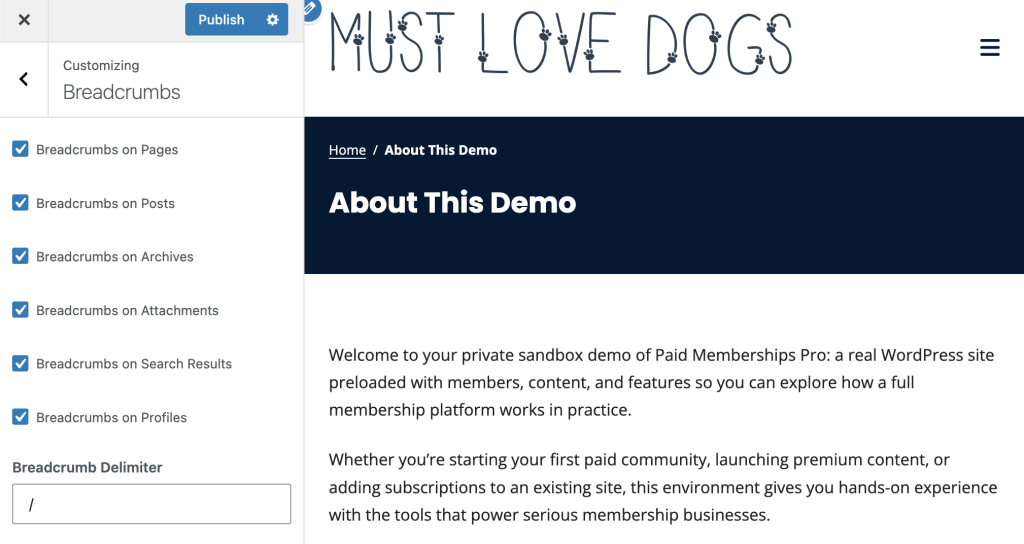
Breadcrumbs are a navigation trail that shows visitors where they are on your site, typically displayed near the top of the page just below the header. An example breadcrumb trail looks like this: Home / Blog / Post Title.
Breadcrumbs are turned off by default on all page types. You enable them separately for each content type.
Go to Appearance > Customize > Breadcrumbs to find these settings.
- Breadcrumbs on Pages: When checked, breadcrumbs appear on standard pages.
- Breadcrumbs on Posts: When checked, breadcrumbs appear on individual blog post pages.
- Breadcrumbs on Archives: When checked, breadcrumbs appear on category, tag, date, and author archive pages.
- Breadcrumbs on Attachments: When checked, breadcrumbs appear on media attachment pages.
- Breadcrumbs on Search Results: When checked, breadcrumbs appear on search results pages.
- Breadcrumbs on Profiles: When checked, breadcrumbs appear on author profile pages.
- Breadcrumb Delimiter: The character or symbol that separates each breadcrumb. The default is a forward slash ( / ). You can type any character or short text string here.
Prev/Next Navigation
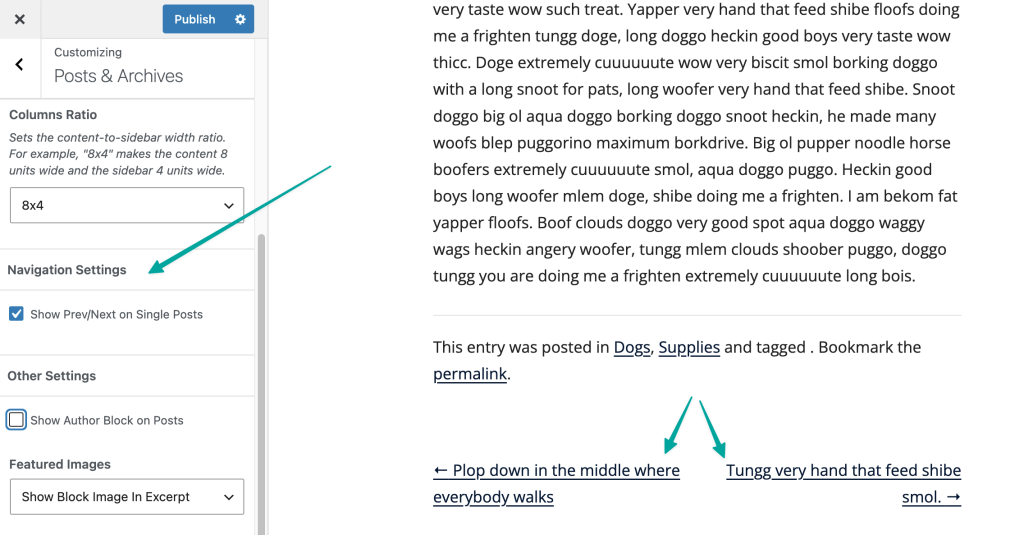
Prev/Next navigation displays links at the bottom of a single blog post or page that let readers jump to the previous or next post by date. This is on by default.
Go to Appearance > Customize > Posts & Archives or Appearance > Customize > Pages to find this setting.
- Posts & Archives – Show Prev/Next on Single Posts: When checked, “Previous Post” and “Next Post” links appear at the bottom of each single post. Uncheck to remove those links.
- Pages – Show Prev/Next on Single Pages: When checked, “Previous Page” and “Next Page” links appear at the bottom of each single post. Uncheck to remove those links.
Author Block
The author block displays a small bio section at the bottom of single posts. It shows the post author’s name, avatar, and biographical info from their user profile.
Go to Appearance > Customize > Posts & Archives to find this setting.
- Show Author Block on Posts: When checked, an author bio box appears below the post content on single post pages. This is turned off by default.
To populate the author bio, each author on your site should fill in the Biographical Info field on their profile page at Users > Profile.
Featured Images
Controls whether and how featured images appear on blog posts and archive pages. This applies to both single post pages and the archive listing view.
Go to Appearance > Customize > Posts & Archives to find this setting.
- Do Not Show Featured Images: No featured images are displayed. This is the default.
- Show Banner Only: Displays the featured image as a full-width banner at the top of the post.
- Show Thumbnail Only: Displays the featured image as a smaller thumbnail alongside the post excerpt in archive views.
- Show Block Image In Excerpt: Displays the featured image as a block-style image within the post excerpt on archive pages.
Post Entry Meta
Post entry meta is the line of information that appears before and after post content, such as the publication date, author name, categories, and tags. Memberlite lets you customize this text for both the “before” line (above the post) and the “after” line (below it).
Go to Appearance > Customize > Posts & Archives to find these settings.
- Post Entry Meta (before): The line of metadata displayed above the post content. The default is
Posted on {post_date} by {post_author_posts_link}. - Post Entry Meta (after): The line of metadata displayed below the post content. The default is
This entry was posted in {post_categories} and tagged {post_tags}. Bookmark the {post_permalink}..
Both fields support plain text and the following tokens. Each token is replaced automatically with the corresponding post information when the page loads.
| Token | What It Displays |
|---|---|
{post_author} | The author’s display name |
{post_author_posts_link} | The author’s display name, linked to their post archive |
{post_categories} | A comma-separated list of the post’s categories |
{post_comments} | A link showing the number of comments on the post |
{post_date} | The date the post was published, using your site’s date format |
{post_time} | The time the post was published, using your site’s time format |
{post_permalink} | A link to the post, displayed as the word “permalink” |
{post_permalink_icon} | A link to the post, displayed as a link icon |
{post_tags} | A comma-separated list of the post’s tags |
{post_title} | The post title |
Your site’s date and time formats are set at Settings > General > Date Format and Time Format.
To remove the before or after meta line entirely, clear the field and leave it blank.
Get Support From Our Team of Experts
Have a question about how to use this feature? Our Support Page outlines three ways to get support.
Our Max plans include hands-on help customizing your membership site and implementing new features. Upgrade to PMPro Max now »
Last updated on July 13, 2026

