
This section explains how to import, export, or reset your Memberlite theme settings using the tools built into the theme. These options allow you to back up your current design, apply settings to another site, or restore the default Memberlite look and feel.
Table of contents
Import Theme Settings
Use this tool to import Memberlite theme settings from a previously exported .json file. This will overwrite your current theme settings, including:
- All Customizer settings (logo, colors, typography, backgrounds, layouts)
- Any Additional CSS
- Related Memberlite-specific options, such as custom sidebars.
- Navigation Menus
How to Import Theme Settings
- Navigate to Memberlite > Tools.
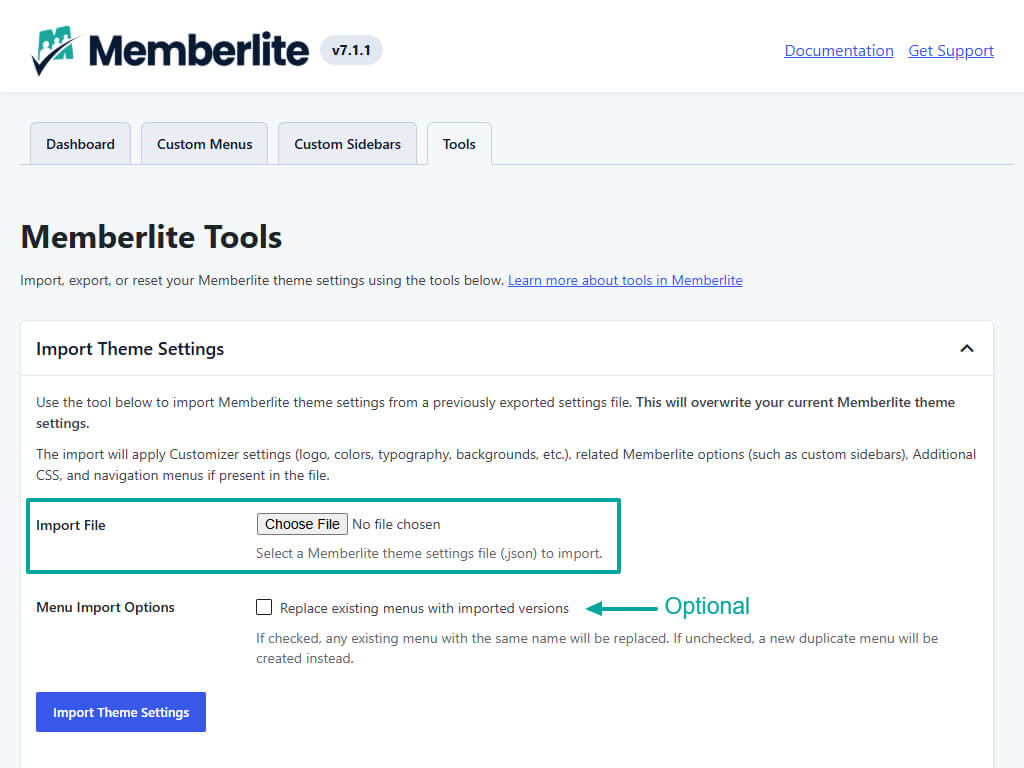
- Under the “Import Theme Settings” section, click Choose File and select your
.jsonsettings file. - If you’d like to replace existing navigation menus with the ones being imported, check the “Menu Import Options” checkbox. If unchecked, your existing menus will remain untouched, and any menus from the
.jsonfile will be created as duplicates. - Click Import Theme Settings button.
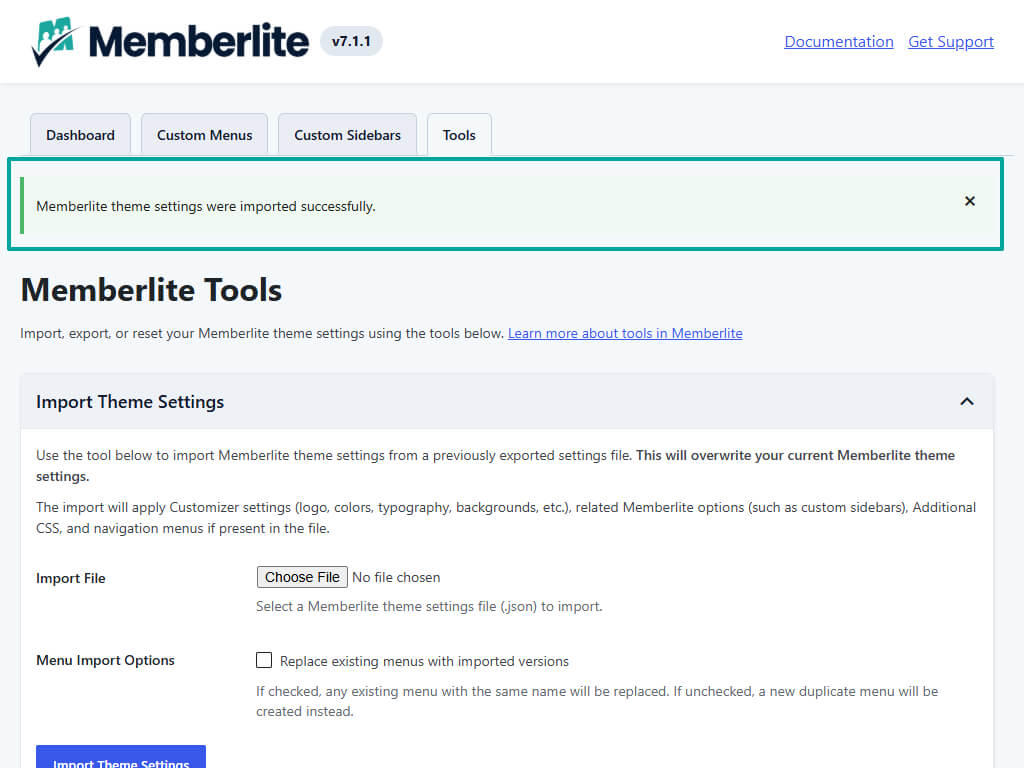
- If the import is successful, a notification will display once the import is complete.
This process does not import WordPress content (pages, posts, headers, footers, media, etc.). To import WordPress content, go to Tools > Import in the WordPress admin panel.
Export Theme Settings
Export your current Memberlite theme settings to a .json file. This file can be used to:
- Back up or export your current site’s Customizer settings, custom sidebars, Additional CSS and navigation menus.
- Migrate the same look and feel to another Memberlite-powered site.
How to Export Theme Settings
- Navigate to Memberlite > Tools.
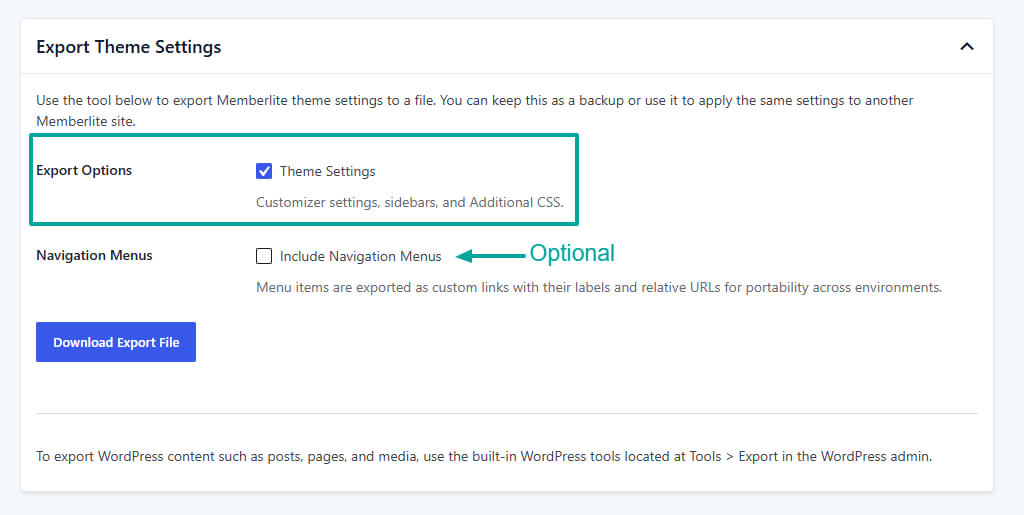
- Under the “Export Theme Settings” section, check the Theme Settings checkbox.
- If you want to include navigation menus in your export, also check the Include Navigation Menus checkbox.
- Click the Download Export File button. Your
.jsonfile will download automatically.
This process does not export WordPress content (pages, posts, headers, footers, media, etc.). To export WordPress content, go to Tools > Export on your WordPress admin panel.
Reset Theme Settings
Resetting Memberlite theme settings will return the design to its default configuration. It will:
- Reset all Customizer settings such as colors, typography, layout, and so on.
- Clear Custom Sidebars and Memberlite sidebar settings. (Custom Menus are content and will remain as is.)
- Remove the site icon and site logo. The media will still exist in your media library.
- Clear anything in Customizer’s Additional CSS section.
- Unassign navigation menus from their menu locations.
It will not delete your site’s content (posts, pages, headers, footers, navigation menus, or media).
How to Reset Theme Settings
- Navigate to Memberlite > Tools.
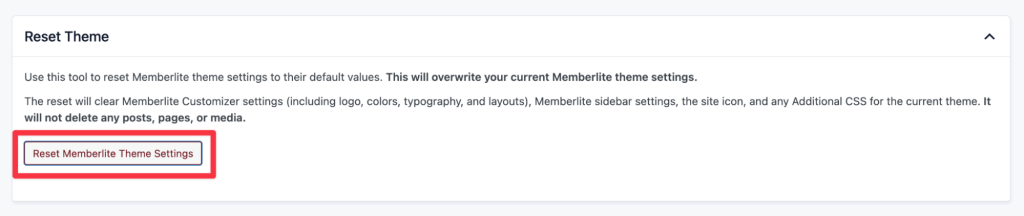
- Under the “Reset Theme” section, click Reset Memberlite Theme Settings.
- Confirm your choice when prompted.
Get Support From Our Team of Experts
Have a question about how to use this feature? Our Support Page outlines three ways to get support.
Our Max plans include hands-on help customizing your membership site and implementing new features. Upgrade to PMPro Max now »
Last updated on June 8, 2026

