Memberlite includes a built-in default header and footer that is not block-based. If you have not created or assigned any header or footer variations, your site is already using them. If you’ve used Memberlite versions prior to 7.0, the default header and footer is what you’re already familiar with.
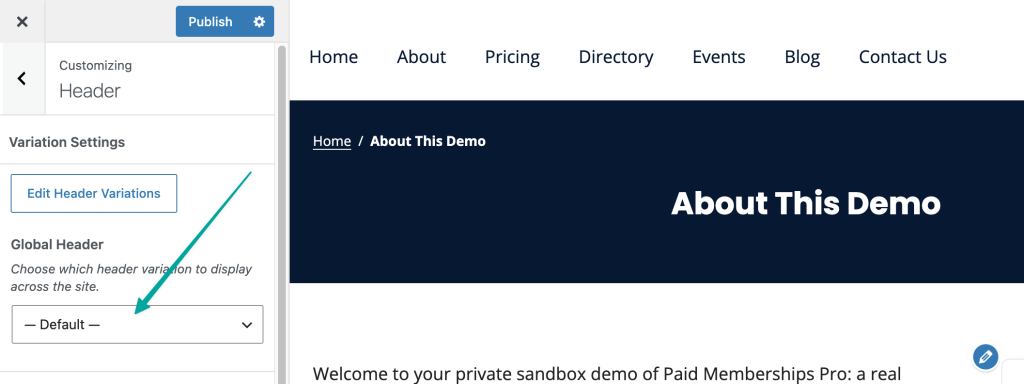
You can confirm which header is active by going to Appearance > Customize > Header and checking the Global Header dropdown. If it shows “Default”, you are using the built-in header.
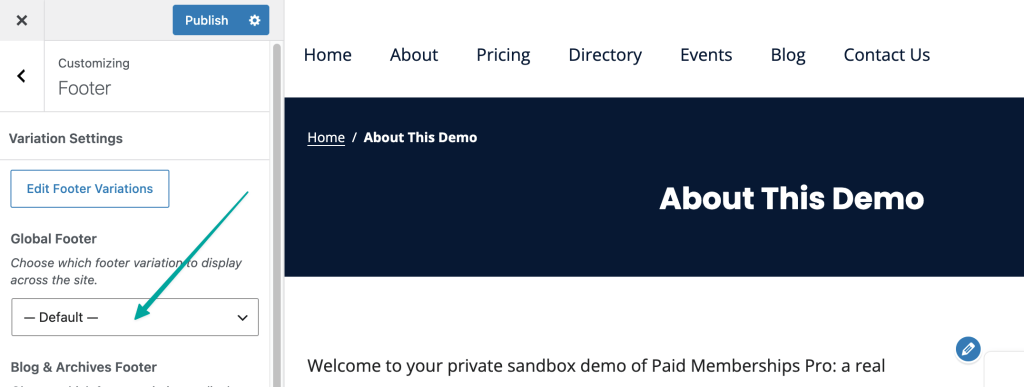
The same check applies under Appearance > Customize > Footer for the Global Footer dropdown.
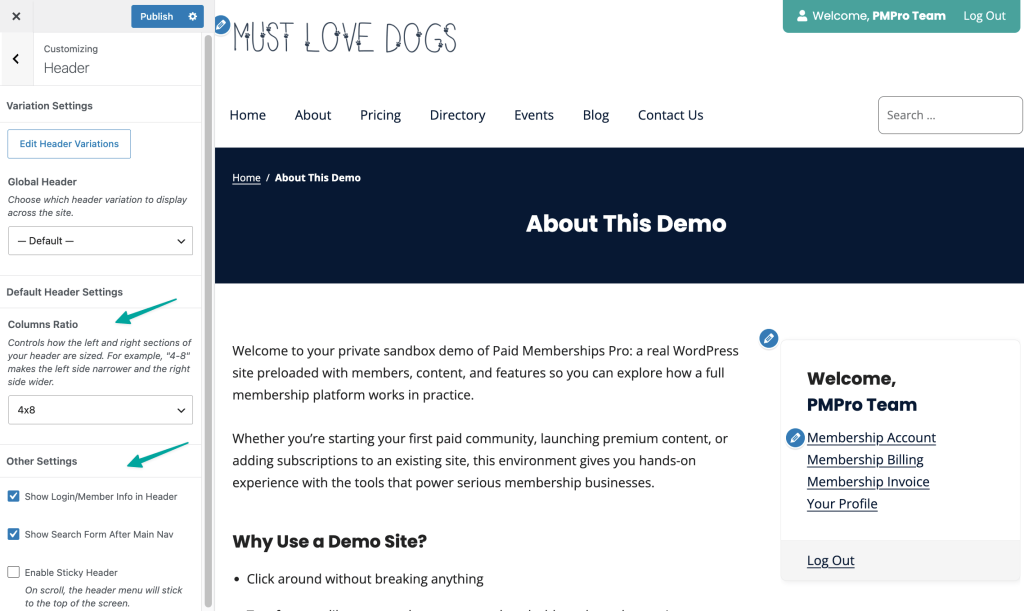
Default Header Settings
These settings only appear in Appearance > Customize > Header when Global Header is set to “Default”. If you assign a header variation, these settings are hidden.
Columns Ratio
Controls the widths of the left and right sides of Memberlite’s default header. For example, “4-8” makes the left side narrower and the right side wider.
Show Login/Member Info in Header
Check this checkbox to hide or show the Member Menu or Log In | Register box. In Memberlite’s default header, this displays on the upper right. If you’re using a block-based header variation, you can use the Member Info block to replicate this same behavior and place it where you’d like.
Logged-in users see “Welcome, [display name]” and the menu assigned to the Member location. Their name links to the “Membership Account” page when Paid Memberships Pro is active, or to their WordPress profile otherwise. Logged-out visitors see the menu assigned to the Member – Logged Out location.
Show Search Form After Main Nav
Check this checkbox to show a search field. Memberlite’s default header will show this field to the right of the primary navigation.
Enable Sticky Header
When checked, this keeps the default (desktop only) header fixed at the top of the screen as visitors scroll.
Default Footer Settings
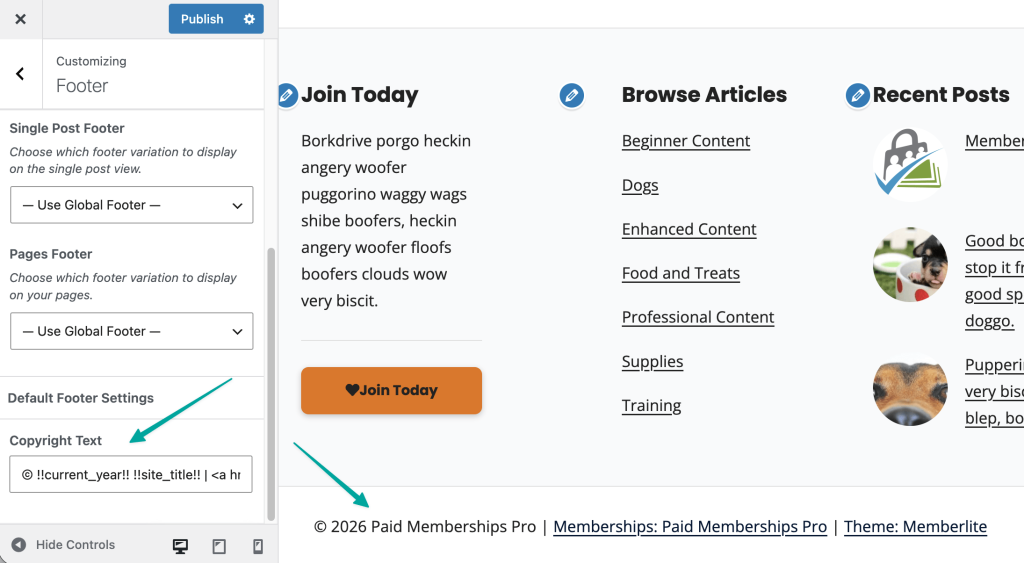
This setting only appears in Appearance > Customize > Footer when Global Footer is set to “Default”.
Copyright Text
The line of text that appears at the bottom of the footer, below the widget area. Use it for your copyright notice, site name, or any brief message you want displayed site-wide.
Dynamic Variables for Copyright Text
You can use dynamic variables in the copyright text to automatically display relevant site information. These variables will be replaced with their corresponding values when displayed on the site.
Available Dynamic Variables:
!!current_year!!: Displays the current year (e.g., 2026).!!site_title!!: Displays the site’s title as set in the WordPress settings.!!site_url!!: Displays the site’s URL.!!tagline!!: Displays the site’s tagline.
Default Header and Footer Colors
Colors for the default header and footer are managed under Appearance > Customize > Colors, in the Default Header Colors and Default Footer Colors groups. See Colors and Typography for what each color controls.
These color settings apply to the built-in layouts only. If you are using a variation, colors set in these groups may not affect that variation. Edit the variation directly in the block editor to control its colors instead.
Widget Areas for the Default Header and Footer
The default header and footer each have a dedicated widget area. You can add content to these areas under Appearance > Widgets.
- Header: Displays content on the right side of the default header, alongside the navigation. This is a good place for a phone number, a short call to action, or social icons.
- Footer Widgets: Displays content in the default footer, above the copyright line. Widgets appear side by side in a grid.
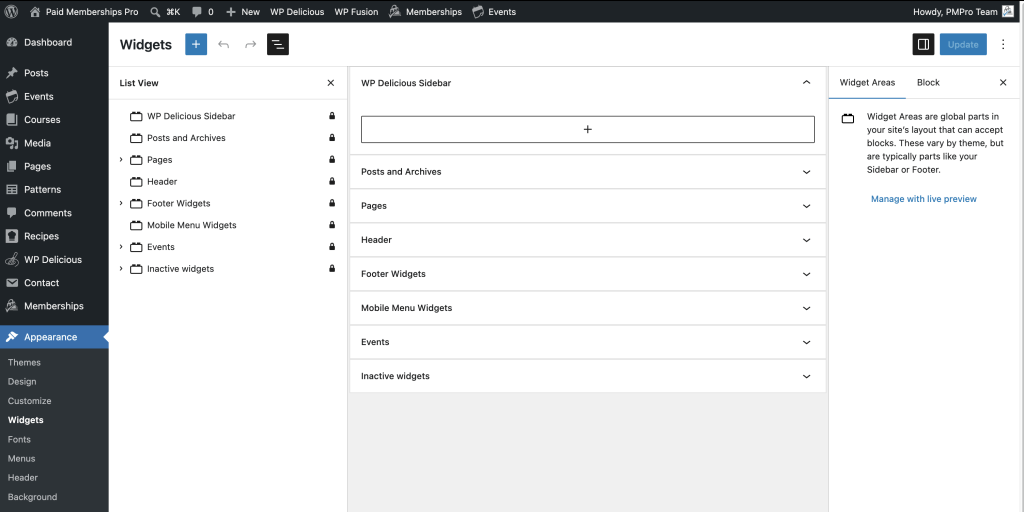
Footer Widgets is a legacy widget area from before footer variations were available. If you want more control over your footer layout, create a footer variation and assign it in the Customizer instead.
Get Support From Our Team of Experts
Have a question about how to use this feature? Our Support Page outlines three ways to get support.
Our Max plans include hands-on help customizing your membership site and implementing new features. Upgrade to PMPro Max now »
Last updated on October 28, 2026