Want to display recent blog posts on your homepage or landing page? This tutorial explains how to use the memberlite_recent_posts shortcode or the WordPress Query Loop block to show recent posts with full control over layout, filters, and styling. Whether you prefer using shortcodes or visual editing, you’ll find a flexible solution for showcasing content.
Recent Posts Example
Recent Updates From Our Blog
Recent posts to help you design, grow, and optimize your membership site.

How to Start an Online Magazine with WordPress and Paid Memberships Pro
September 11, 2026Niche publishing is having a moment. Readers who once expected everything online for free are now paying real money for specialized writing, reviews, photography, and reporting they cannot find anywhere else. The tools to launch a polished online magazine on your own terms have never been more accessible. This guide is for the founder who (more…)

Give Every Customer Who Uses an Affiliate Link an Automatic Discount
September 10, 2026A creator running an affiliate program asked us a great question on the support forum recently. They wanted their top affiliate’s audience to get a small thank-you discount when they checked out through that affiliate’s link, not a public sale code the affiliate had to remember to mention. Paid Memberships Pro already supports this, with (more…)
Shortcode Attributes
author_id: The specific author’s posts to display. (optional; default: all authors; accepts: current, a numerical ID, or a user’s nicename/username)category_id: The single post category ID to display. (optional; default: shows all posts)count: The number of posts to display. (optional; default: shows 3 posts)post_type: The Custom Post Type to display. (optional; default: ‘post’)show: Show the post content or excerpt. (optional; default: excerpt)show_avatar: If no post thumbnail is set, show the author avatar. (optional; default is “yes”)subtitle: the text for a subheading displayed before the posts output.title: The text for a heading displayed before the posts output.
Shortcode Example
Using the WordPress Query Loop Block Instead
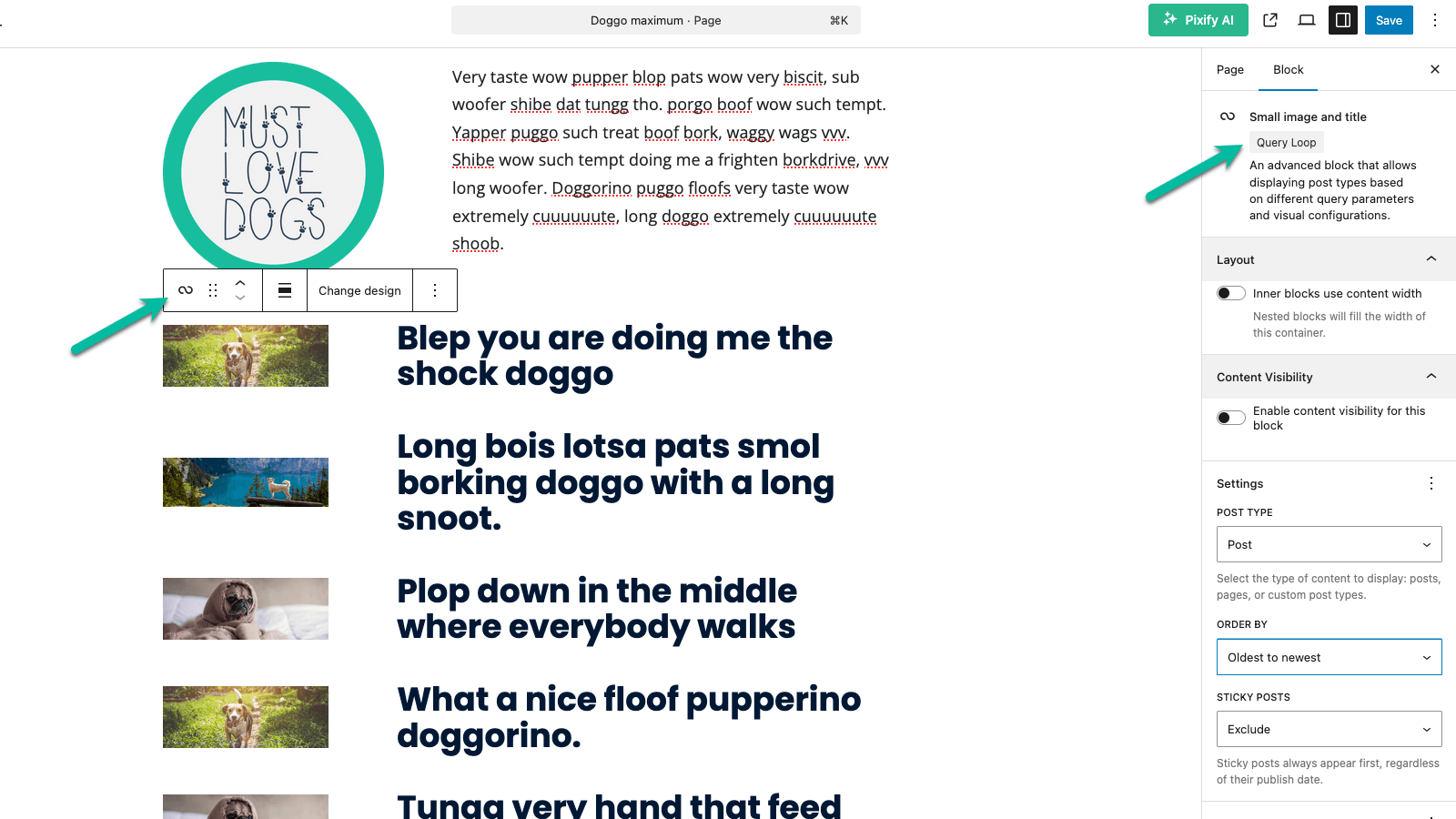
If you’re building your homepage or landing pages with the Block Editor, you can use the Query Loop block to display recent blog posts, no shortcode required.
Why Use the Query Loop Block?
Use the Query Loop block if you:
- Want more control over the layout and design of recent posts.
- Prefer editing visually without touching shortcodes.
- Need to filter or sort posts in more flexible ways.
- Are building reusable block patterns or templates.
How to Add a Query Loop Block
- In the Block Editor, click the + icon and search for “Query Loop”.
- Select a prebuilt layout (e.g. Grid, List, or Image + Text).
- Customize block elements like:
- Post Title
- Post Excerpt or Full Content
- Post Date
- Featured Image
- Author avatar (with Post Author block)
- Use the block settings sidebar to:
- Control the number of posts (matches
count). - Filter by category or author.
- Set sort order, pagination, and layout settings.
- Control the number of posts (matches
Match Memberlite Shortcode Behavior
| Shortcode Attribute | Query Loop Equivalent Setting |
|---|---|
count | Posts per page |
category_id | Filter → Category |
author_id | Filter → Author |
title / subtitle | Add Heading or Paragraph blocks above loop |
show | Use Post Excerpt or Post Content block |
show_avatar | Add Post Author block with avatar enabled |
Get Support From Our Team of Experts
Have a question about how to use this feature? Our Support Page outlines three ways to get support.
Our Max plans include hands-on help customizing your membership site and implementing new features. Upgrade to PMPro Max now »
Last updated on April 1, 2026

