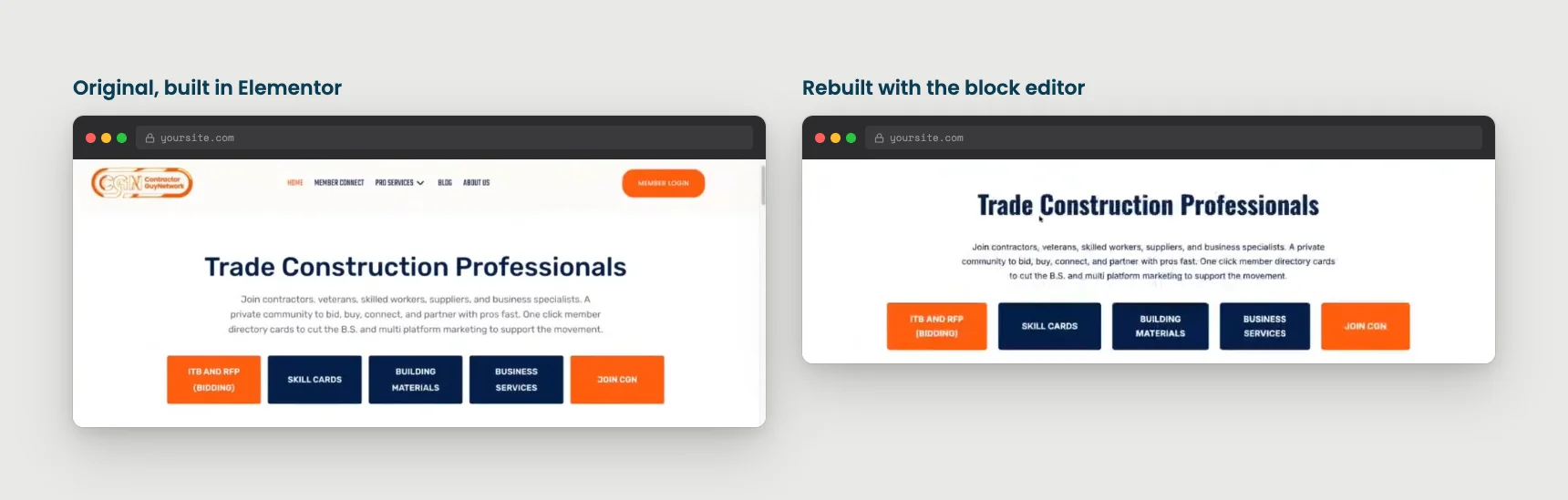
A customer sent us his homepage to use in a live demo. It was built in Elementor, and it had a lot going on: a scrolling bar across the top, a video background, a headline with a word that kept swapping out, and a row of five buttons. On our Open Office Hours, I tried to rebuild it using nothing but our Memberlite theme and the WordPress block editor. No extra block plugins, no custom CSS, and no hand-coded HTML.
Most of it came out fine. A few pieces did not, and I will tell you exactly which ones. But the part I keep thinking about is what a page builder quietly costs you, and on a membership site, that cost is bigger than the usual debate about speed and features.
If you already use a page builder and your site works, this post is not telling you to rip it out. It is a guide to making the choice with your eyes open, whether you are starting fresh or wondering if you picked the right tool.
This is the written companion to that session. If you would rather watch, the replay is at the end of this post.
What Actually Breaks
The usual arguments about page builders are about speed and learning curves. Those are real, but they are not what I want to focus on here. The two things I care about are harder to see: what happens to the structure of your pages, and what happens to your members-only content.
The Structure Your Theme Gave You
A well-built theme comes with good bones. Every page has one H1 heading that says what the page is about, and the headings below it follow an order. That structure tells a visitor what matters most on the page. It also tells Google, and the AI tools now summarizing the web, what your page is about.
When you build freehand in a page builder, it is easy to take those bones apart without noticing. You drop in a text section, make it big and bold, pick a color, and move on. It looks like a heading, but nothing in the page code says so. Do that across a whole site and you end up with pages that have no H1, or three of them, or headings that jump around.
To be fair, the Elementor page we rebuilt got this right. I inspected it on air, found one proper H1 in the hero, and gave it credit. So it is absolutely possible to build a well-structured page in a builder. The builder just will not remind you to.
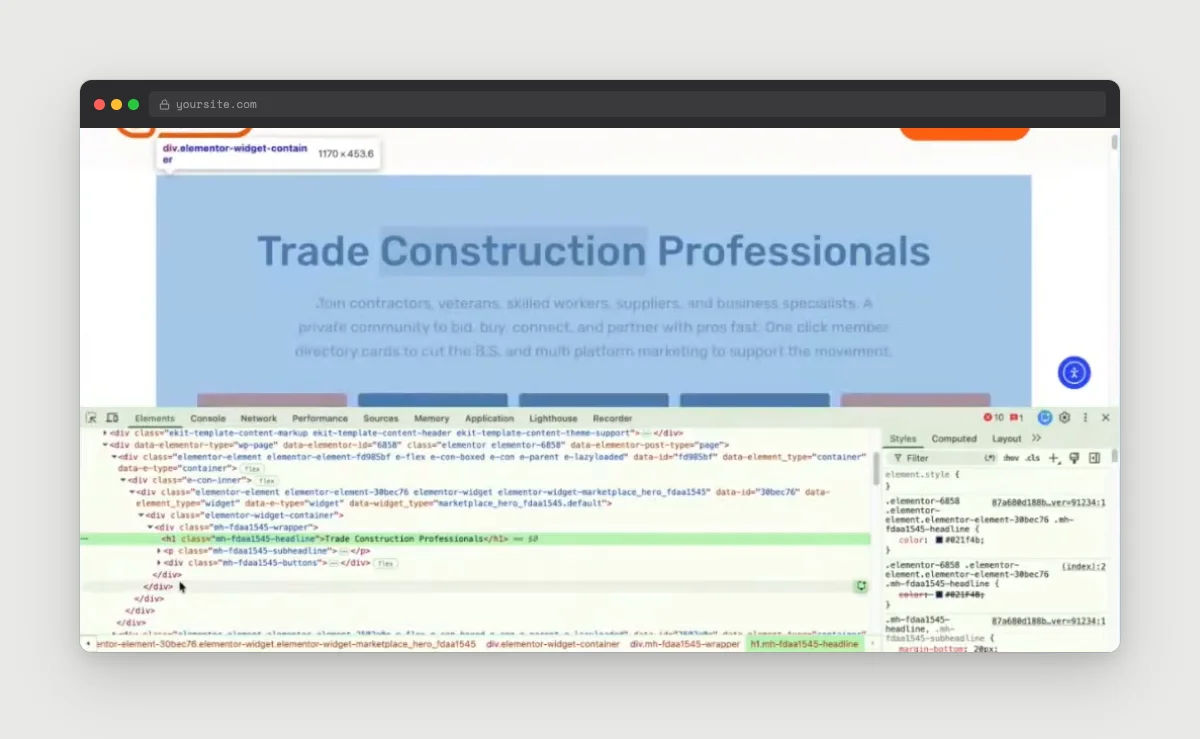
The one rule to remember: each page should have exactly one H1 that names what the page is about, with H2s and H3s below it in order. Heading levels describe the structure of the page, so an H2 can be bigger than your H1 if that is the look you want.
Accessibility Goes With It
Page builder templates love all-caps styling. It looks bold and modern, and it creates friction for real people.
If you type a word in all capital letters, a screen reader may treat it as an acronym and read it out letter by letter. The block editor’s letter case setting fixes that part. It displays text in capitals while the page code keeps normal capitalization, so a screen reader reads the words as words. You will find it under the typography settings (click the three dots to show more options).
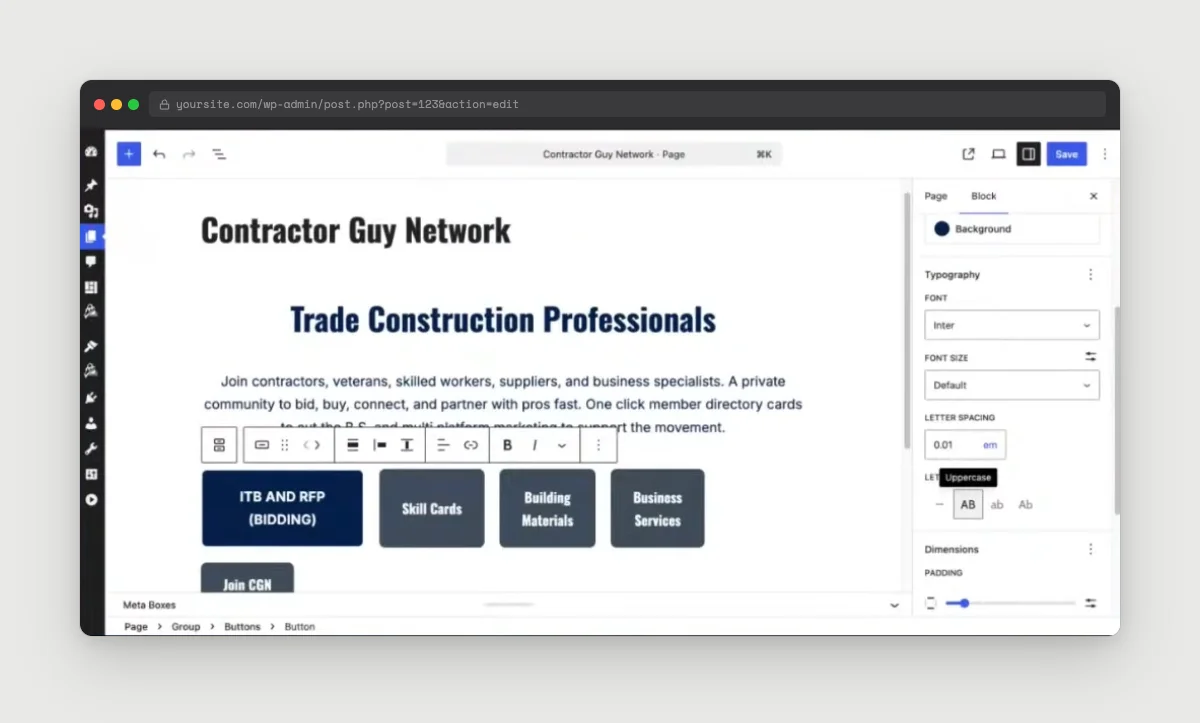
That setting does not fix everything, and Sam is the reason I know that. She pointed out during the session that all caps also slows down people with dyslexia, no matter how the code handles it. So my rule: if it is a little eyebrow label above a heading, a bit of all caps is probably fine. For the main content, skip it.
Motion is the other one. The page we rebuilt had a video playing behind text that was also moving. Sam flagged that motion like that can make people with vestibular disorders dizzy, and this page did not respect the reduced motion setting on her computer. The pause button disappeared before she could click it. If you use a video background, make sure visitors can stop it, or use a still frame instead.
Even small choices count. At one point I almost split a heading in two so I could color half of it orange, which would have announced two headings to a screen reader. Highlighting part of the text inside one heading gets the same look without the problem.
My personal hierarchy puts accessibility above visual interest. I will pick the accessible choice over the more exciting one every time.
The Part That Only Applies to Membership Sites
This section did not come up in the session, so if you watched the replay, this part is new.
On a membership site, your page builder and Paid Memberships Pro are both deciding what shows up on a page. The builder is deciding the layout, and we are deciding who is allowed to see it. When those two systems do not coordinate, here is what can go wrong:
- Members-only content showing to everyone: Page builders use their own logic to render a page, and sometimes their content filters run after ours. In the worst case, content you meant to protect is publicly visible. This is the one that can cost you revenue.
- Caching the wrong pages: Anything that changes based on who is logged in, like the membership checkout, account, and levels pages, should never be cached. Some builders now cache page elements to speed things up, which is great for a brochure site and risky for yours.
- The required frontend pages: Your checkout, levels, and account pages are not ordinary pages. The checkout page needs a level passed to it in the URL, for example. A builder’s live editor treats them like any other page, which is why those editors sometimes fail to load or redirect you somewhere else.
- Where the restriction settings live: If your builder takes over editing, the Require Membership settings may not show up where you expect them, so it is easy to design a page and forget to protect it.
Every one of these has a fix, and a page builder can still be a great choice. These issues are why your choice of builder matters more on a membership site than most “which page builder is best” articles will tell you.
Why Your Choice of Builder Matters More Here
PMPro natively supports six page builders: Elementor, Divi, Beaver Builder, Oxygen Builder, SiteOrigin Page Builder, and Bricks Builder. That is in addition to the block editor and Full Site Editing, where our own blocks handle the membership pieces.
Native support does two things for you.
First, with most of them you can restrict content inside your layout instead of all or nothing. You can restrict a single container or widget in Elementor, any module, row, or section in Divi 5, or an individual module in Beaver Builder. (SiteOrigin is the exception, where you restrict the whole page.) So you can leave the top of a page public as a teaser and protect the rest, which is good for members and good for search.
Second, the coordination problems above become ours to solve. When Elementor added element caching, for example, we updated PMPro to mark restricted Elementor content as dynamic, so the cache does not serve it to the wrong visitor.
If you are going to use a builder on a membership site, pick one from that list. It is the most important decision in this whole post.
The block editor gets the same kind of control through our Content Visibility block, which lets you show or hide any section of a page by membership level.
What the Rebuild Showed
The Rules I Set
The rules are what make the result mean something, so here they are.
- No third-party plugins that add blocks or settings: Just WordPress, PMPro, and our Memberlite theme on my demo site.
- No custom CSS: Someone in the chat rightly pointed out that custom CSS on blocks works perfectly well, and I agree. I left it out anyway to keep the comparison fair.
- No hand-coded HTML: I knew the HTML tag that would have solved one of the problems, and I did not use it. The whole point of a page builder is to keep you out of code. If I solved the demo by sending you back into code, it would prove nothing.
What Came Out Fine
More came out fine than people expect. I rebuilt the full-width striped sections (each stripe is its own group block), the multi-column layouts, and a row of buttons with small rounded corners and extra letter spacing. Even the video background worked, since the block editor’s cover block now supports a video behind your text. (The animated logo turned out to be an animated GIF, which works the same with or without a builder.)
What Did Not
I promised to be honest about this part.
- The scrolling bar across the top: There is no block setting for it.
- The rotating headline, where one word swaps out every few seconds. Elementor calls it a dynamic text headline. A few lines of JavaScript would do it. No block setting will.
- Five buttons sharing the width evenly: I tried, and I could not get there. I said on air that this was probably one of the roadblocks. A grid layout might get you there, but I did not want to go down that path live.
- Stretching the video to fill the section at every screen size: The cover block did not give me an aspect ratio control for the video, and I ran out of time to find a workaround.
We did not get through the whole page, either. These sessions can go on for hours.
The Patterns Library
This is the most underrated thing in the block editor, and it is my answer to the page builder template library.
The WordPress patterns library is an open source collection of ready-made layouts that people contribute, just like WordPress itself. You can browse and insert them right from the block editor without installing anything. If you use Memberlite, it also ships with its own patterns that pick up your color scheme and fonts automatically.
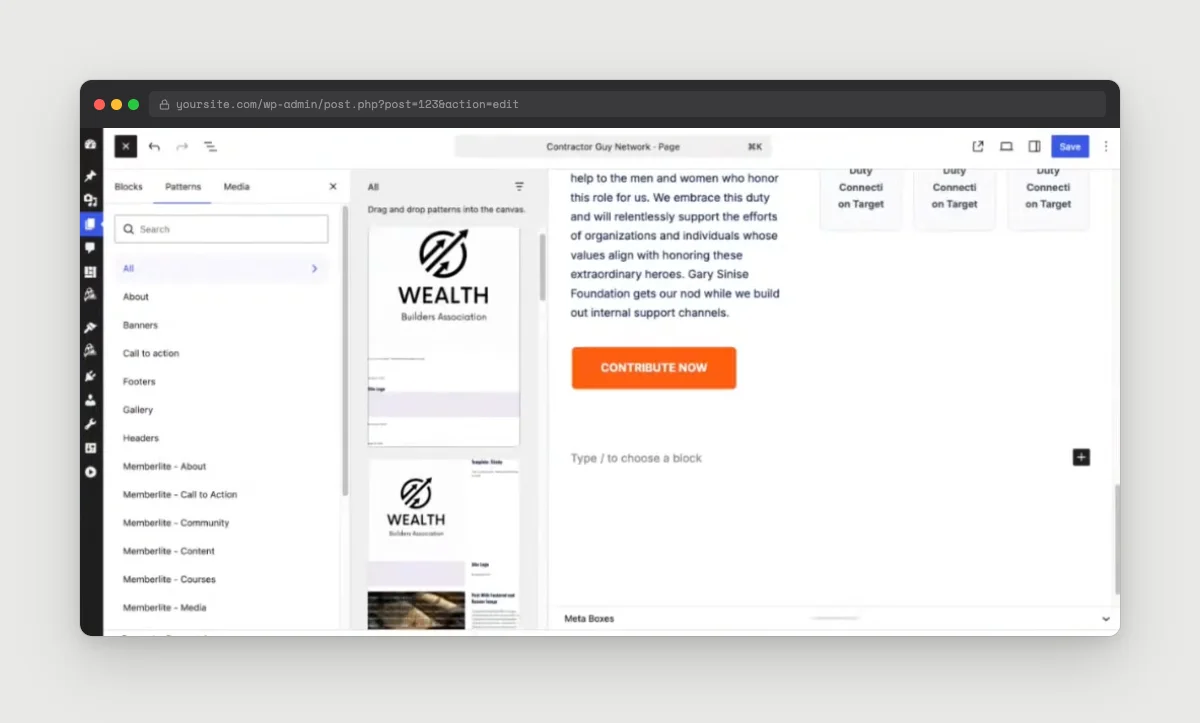
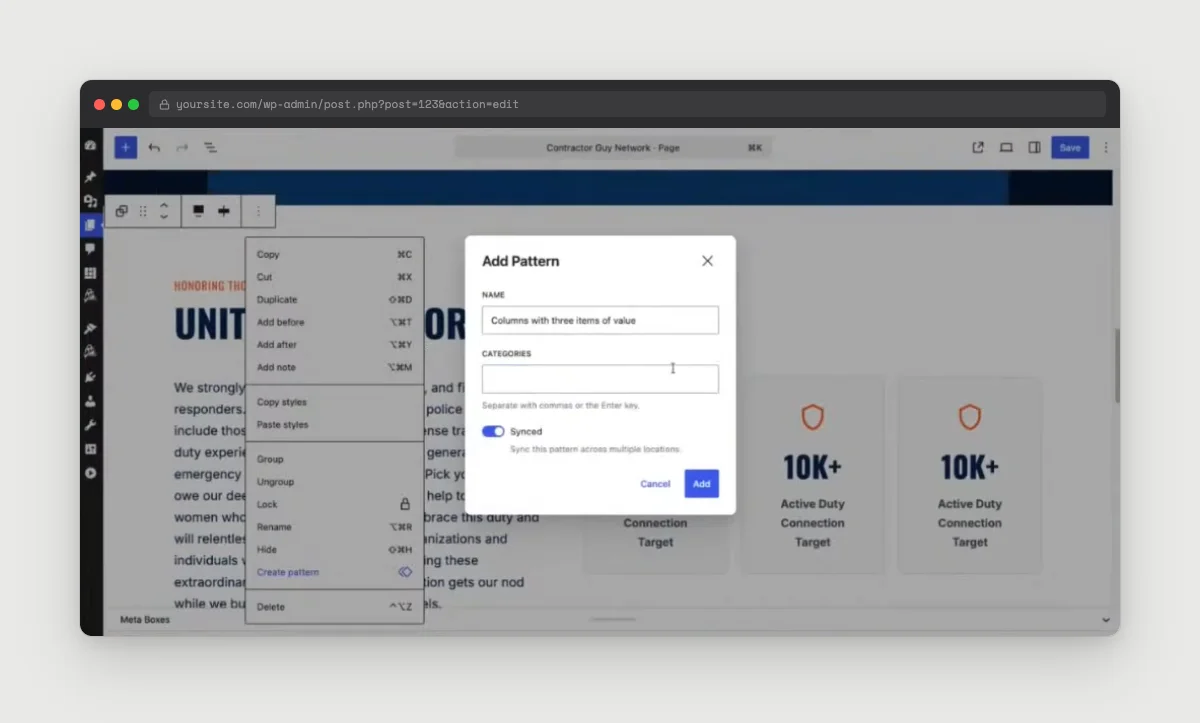
You can also save your own. Select a section you have built, choose Create pattern, and it becomes a layout you can drop into any page. You choose whether it stays synced (edit it once, it updates everywhere) or unsynced (a starting point you change each time). At PMPro, our team could not live without this.
One fair caveat: I did this on our own theme, which is built for membership sites and did some of the work for me. The themes bundled with WordPress do not depend on a page builder either, so you can do the same thing on those. On a generic theme, expect a somewhat harder version of the same job.
For what it is worth, we mostly use the block editor across our own site. That is what works for us, and your site may be different.
The Case for a Page Builder
When Sam polled the audience, most of the handful of people who answered were using a page builder. One attendee said they use Elementor on one site because they have to, Beaver Builder and Divi on two others when they have to, and no page builder when they have the choice. I think that is the honest version of most people’s situation. The builder came with a client, a theme, or a site you inherited, and it works.
A page builder is a good fit when:
- You need the design effects the block editor cannot do natively, like the scrolling bar, the rotating headline, and precise control over widths and spacing. If those matter to your brand, that is a legitimate reason to stay.
- Your team already knows the tool: Learning a new editor costs time, and time is money.
- You build lots of different sites: Agencies often rely on a builder’s templates and widgets to work fast and stay consistent across clients.
- Switching would mean rebuilding pages that already work: A working site beats a tidier setup.
Sam made the other side of this point at the start of the session. Even on a builder site, some parts of WordPress still send you to the block editor, so you end up learning both. That is worth weighing, but it is not a reason to rebuild a site that is doing its job.
How to Decide
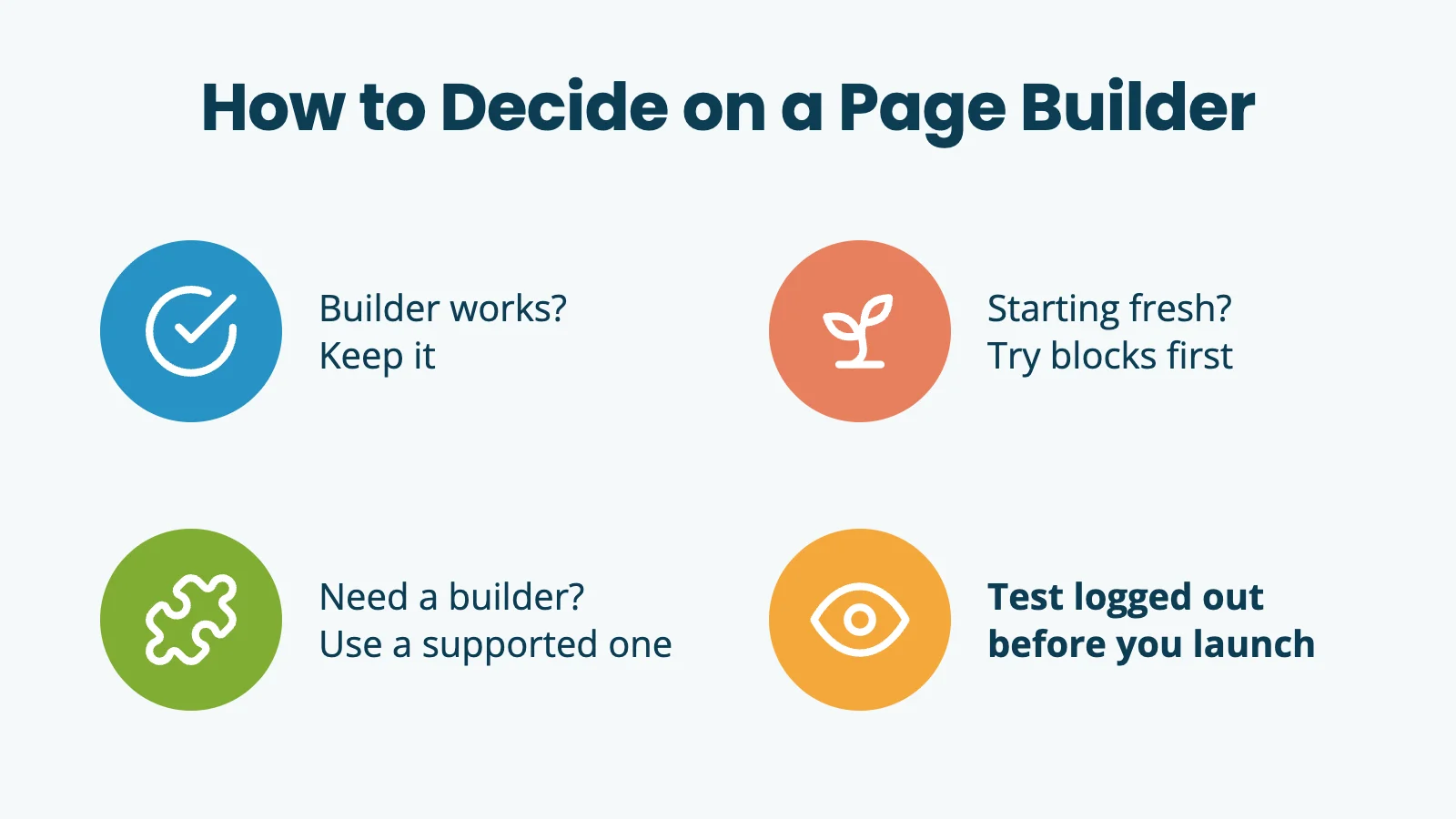
- Already on a page builder that works? Stay. Check that it is on our natively supported list, review the four membership issues above, and get on with your day.
- Starting fresh? Try the block editor first. The rebuild showed it goes further than most people expect, especially with patterns.
- Need what a page builder gives you? Pick one Paid Memberships Pro natively supports. That choice matters more than which builder has the flashiest templates.
Whichever you choose, test your members-only pages while logged out before you launch: Open a private browser window and visit a members-only page, your checkout page, and your account page. Every membership problem in this post is easy to spot from the outside in a couple of minutes, and easy to miss while you are logged in as an admin.
Frequently Asked Questions
No. The WordPress block editor can handle most membership site layouts, including full-width sections, columns, styled buttons, and video backgrounds. A page builder makes sense if you need design effects the block editor does not offer natively, or if your team already knows one.
In our rebuild, the block editor could not natively reproduce a scrolling bar, a rotating headline, or five buttons sharing the width evenly. Each of these is possible with a small amount of code or an extra plugin, but not with the block editor’s built-in settings.
Yes. Paid Memberships Pro natively supports Elementor, Divi, Beaver Builder, Oxygen Builder, SiteOrigin Page Builder, and Bricks Builder. In most of them, you can restrict individual sections, containers, or modules from inside the builder.
It can. Some builders render content in a way that runs after our protection, which can make members-only content public. Native support means we work through known problems like this for you, such as Elementor’s element caching. Either way, test your protected pages while logged out before you launch.
Not if your site works and your builder is natively supported. Switching means rebuilding pages that already do their job. If you are starting a new site or a major redesign, that is a good time to try the block editor.
Webinar Replay

Free Download: The AI-Powered Membership Site Blueprint
Download the free guide: Learn how to plan, build, and grow a membership site using AI as your strategic partner: from buyer persona to launch and beyond.