Block styles are alternate designs for WordPress core blocks. Memberlite adds its own styles to several blocks so you can change how they look with one click, without custom CSS.
Table of contents
How to Apply a Block Style
- Select a block in the block editor.
- In the Settings sidebar, open the Styles tab (the half-filled circle icon).
- Click a style to apply it. Click Default to remove it.
Card
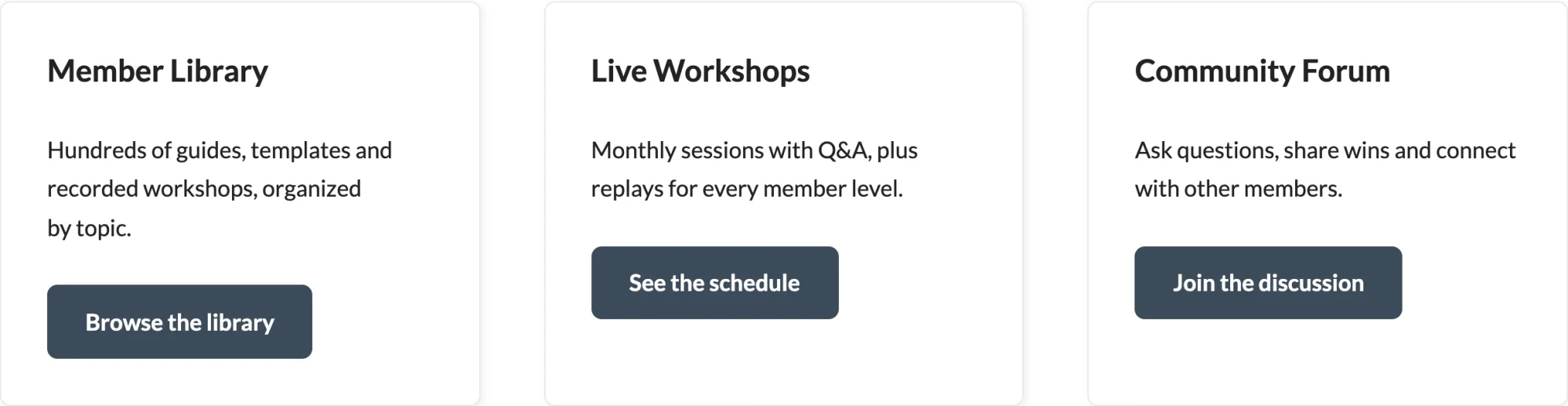
The Card style shows a block as a card. It is available on the Group, Columns, Column, and Post Template (the items inside a Query Loop) blocks, and on the Paid Memberships Pro Single Level block.
Cards follow the card design in Paid Memberships Pro, so they match your checkout, account, and other membership pages.
Styles for Other Blocks
| Block | Memberlite Styles |
|---|---|
| Button | Arrow Fill, Arrow Plain |
| Cover | Scroll Indicator, Slant: Bottom Right, Slant: Bottom Left |
| Heading | Rule |
| List | Plain, Horizontal Left, Horizontal Center |
| Login/out | Button |
| Post Title | Podcast, Video |
| Search | Filled Pill, Filled Sharp, Icon Round, Icon Square |
| Separator | Faded Edges, Double, Diamond |
| Accordion | Caret |
Block styles use your site’s colors. The shape of Button blocks is set site-wide with the Button Style setting under Appearance > Customize > General. Read more in Customizer Settings.
Get Support From Our Team of Experts
Have a question about how to use this feature? Our Support Page outlines three ways to get support.
Our Max plans include hands-on help customizing your membership site and implementing new features. Upgrade to PMPro Max now »
Last updated on October 28, 2026

