The Colors and Typography settings in the Customizer control the visual style of your entire site, including background colors, text colors, link colors, button styles, and fonts.
Changes you make here will apply globally and will show in Customizer’s preview before you publish them. This section covers each setting, what it affects, and how to use it.
Typography
Memberlite gives you two levels of font control: you can set site-wide default fonts in the Customizer, and you can override the font on individual blocks in the block editor. Memberlite comes bundled with a large library of Google Fonts and web safe fonts, so in most cases you won’t need to add anything to get the look you want.
Setting Default Fonts
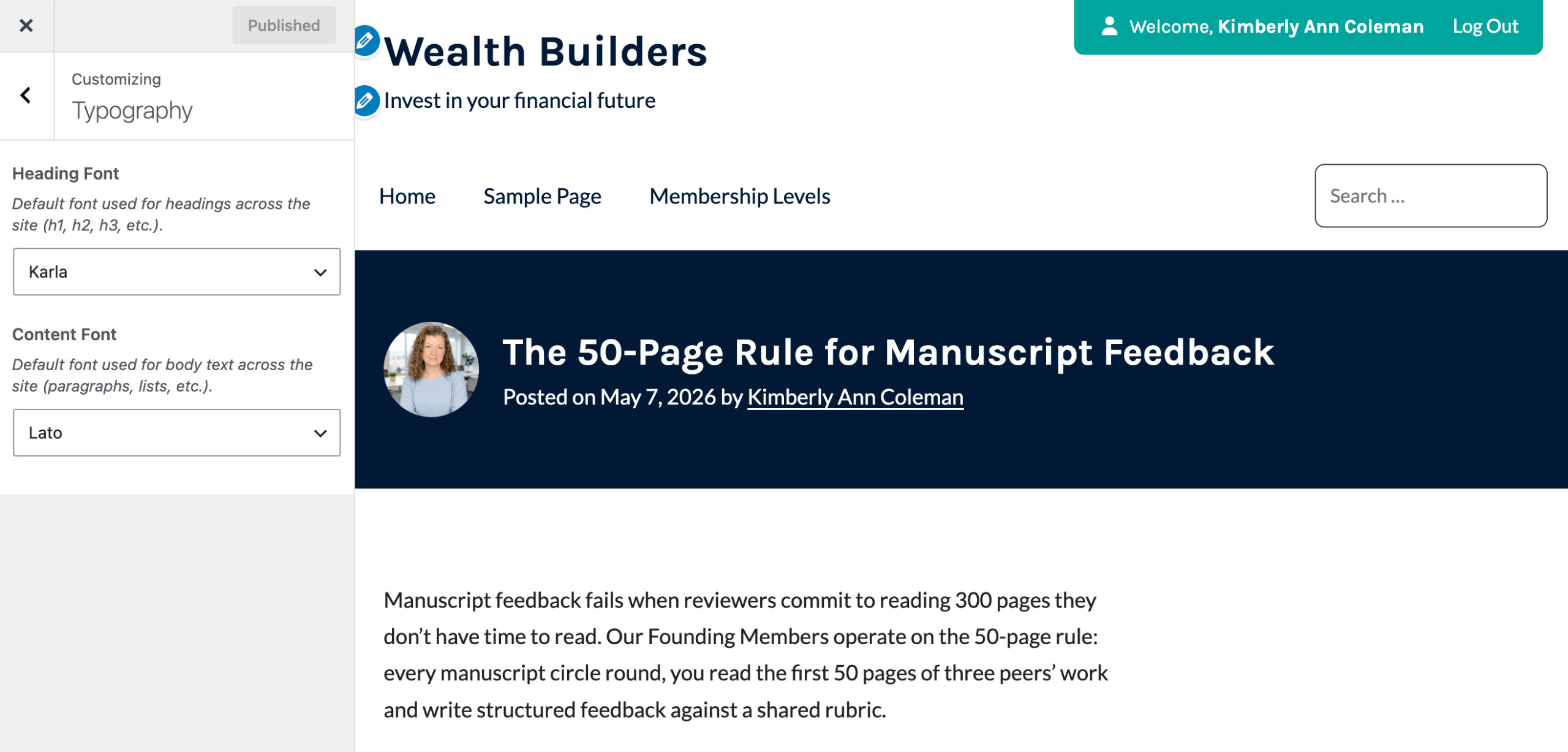
Your site-wide fonts are set under Appearance > Customize > Typography. Here you choose a default heading font and a default body font, which apply across your entire site. These act as the starting point for everything. Any block that doesn’t have its own font assigned will use these defaults.
Changing Fonts in the Block Editor
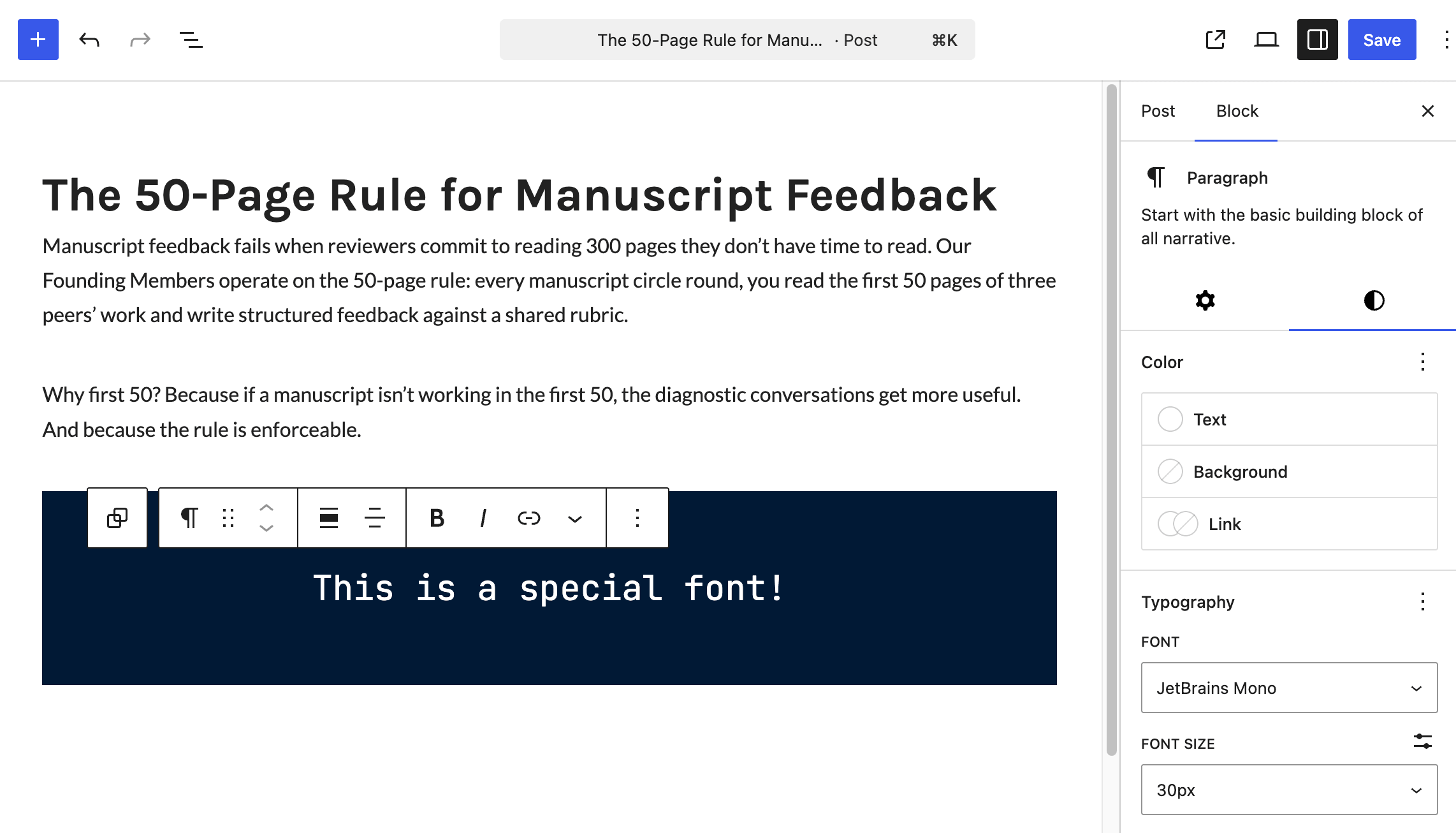
While the Customizer sets your defaults, the block editor lets you assign a different font to any individual block. Every font bundled with Memberlite is available in the block editor’s typography settings, not just the two you selected as defaults. This makes it easy to give a single heading, button, or section its own font without changing the rest of your site.
Adding a Custom Font
If you want to use a custom brand font or another web font that isn’t bundled with Memberlite, it can be registered so that it appears in the block editor’s font picker alongside the built-in fonts. Once registered, your custom font works exactly like a bundled font. You can set it as a default in the Customizer or apply it to individual blocks.
This requires adding a small code snippet to your site. See our guide on adding a custom font to Memberlite or reach out to our support team for help with your own site.
Colors
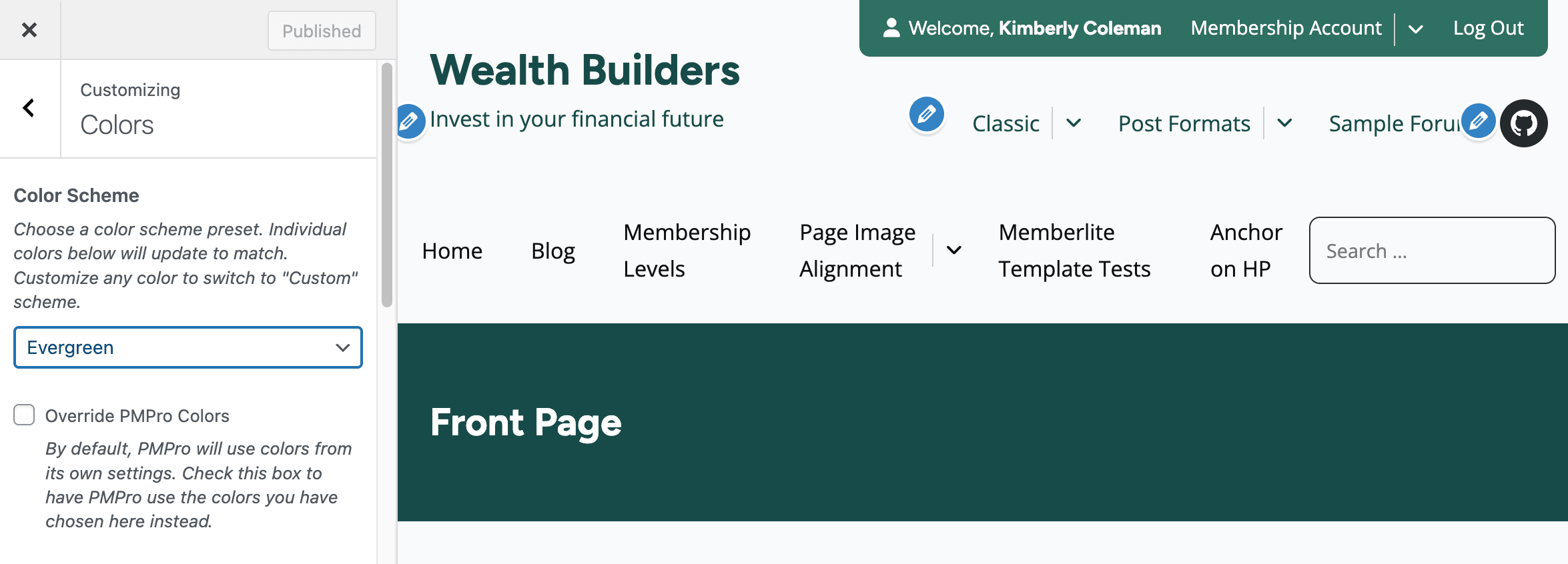
Memberlite lets you control every major color on your site from settings found under Appearance > Customize > Colors. Changes you make here apply across your entire site and sync automatically to the block editor color palette.
Choosing a Color Scheme
At the top of the Colors section is the Color Scheme dropdown. As of Memberlite 7.1, Memberlite includes ten built-in color schemes:
- Default: A clean navy and teal palette with an orange accent, suited to professional associations, course sites, and member directories that want a trustworthy, established look without being corporate.
- Evergreen: A rich forest green scheme with a bold pink accent, well suited to wellness, nature, or environmental membership sites and community-centered organizations.
- Seaside Linen: A warm, earthy palette with a sandy background, deep blue tones, and a chartreuse accent, a natural fit for independent blogs, paid newsletters, and creative membership sites.
- Deep Harbor: A calm, cool-toned scheme in layered grays and blues with a muted sage accent, suited to professional associations, paid newsletters, and member directories where understatement signals credibility.
- Midnight Violet: A full dark mode scheme with purple accents throughout, best suited to podcast networks, private video libraries, and tech or creative community sites.
- Cocoa Ash: A warm dark mode in deep browns and amber orange, suited to food, craft, or lifestyle membership sites where richness and warmth are part of the brand.
- Gotham: A sophisticated dark charcoal scheme with soft blush and peach tones, a strong fit for editorial blogs, paid newsletters, and interview-style podcasts with a high-design sensibility.
- Soft Spruce: A clean light scheme with restrained forest green tones and a warm amber accent, suited to wellness courses, environmental organizations, and member directories that want an approachable, grounded feel.
- Iron Ember: A minimal scheme in cool light gray with near-black type and rust orange accents, suited to certification prep sites, independent blogs, and professional membership organizations that prioritize clarity over color.
- Slate Harbor: A crisp white and deep navy scheme with coral orange accents, suited to associations, member directories, and course sites that want a polished but approachable look with clear visual energy.
Selecting a color scheme updates all 17 color picker settings at once, giving you a coordinated starting point.
To apply a Color Scheme:
- Go to Appearance > Customize > Colors.
- Open the Color Scheme dropdown and select a preset.
- Review the color picker fields below to see what was applied.
- Click Publish to save.
Syncing Colors with Paid Memberships Pro
By default, Paid Memberships Pro uses its own color settings on checkout and member account pages. To have PMPro use your Memberlite colors instead, check the Override PMPro Colors checkbox in the Colors section.
Individual Color Settings
The Colors section is divided into four groups. You can adjust any color within a group without affecting the others.
Default Header Colors
Default Header Colors
These settings apply to Memberlite’s default header. If you are using a header variation, colors set directly in the block editor take precedence over these settings.
- Header Background Color: The background of the full-width header bar at the top of your site.
- Primary Navigation Background Color: The background area behind the main navigation menu.
- Primary Navigation Link Color: The color of links in the primary navigation menu.
Default Footer Colors
These settings apply to the widget-area in Memberlite’s default footer. If you are using a footer variation, colors set directly in the block editor take precedence over these settings.
- Footer Widgets Background Color: The background of the footer widget area.
- Footer Widgets Text Color: The text color used inside the footer widget area, including widget titles and content.
Masthead Colors
The page masthead is the banner that appears below the header and above the main content on most pages. It displays the page title.
- Page Masthead Background Color: The background color of the page title banner.
- Page Masthead Text Color: The text color displayed in the page title banner.
Site Colors
These settings control colors used across your site’s content areas and general design elements.
- Site Title and Tagline Color: The color of your site name and tagline as displayed in the header.
- Site Background Color: The background color of the main content area of your site.
- Default Text Color: The base color for body text throughout your site.
- Default Link Color: The color of inline hyperlinks in your post and page content.
- Post Meta Link Color: The color of smaller metadata links such as category, tag, and author links that appear below post titles.
- Primary Color: Used for headings and prominent design elements across your site.
- Secondary Color: A supporting accent color used alongside the primary color.
- Action Color: An accent color for calls to action, highlight elements, and decorative details.
- Default Button Color: The background color for buttons throughout your site.
- Border Color: The color for dividers, card borders, and horizontal rules.
Get Support From Our Team of Experts
Have a question about how to use this feature? Our Support Page outlines three ways to get support.
Our Max plans include hands-on help customizing your membership site and implementing new features. Upgrade to PMPro Max now »
Last updated on July 10, 2026

