Memberlite settings are spread across three areas of your WordPress dashboard. This page shows you where each type of setting lives and the order to configure them when setting up your site for the first time.
Where Settings Live
The Customizer
Most of your site’s visual settings live in the Customizer. Go to Appearance > Customize to open it. From there you can control colors, typography, header and footer layout, sidebar placement, and more. Changes preview live on your site before you publish them.
The Appearance Menu
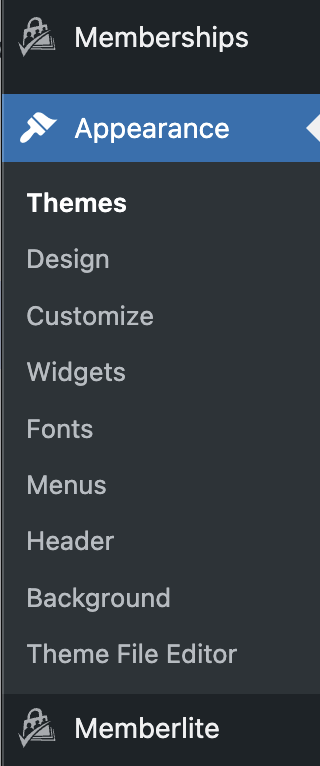
A few things live outside the Customizer, directly in the Appearance menu:
- Appearance > Menus — Build and assign your site’s navigation menus.
- Appearance > Widgets — Add content to your sidebar and footer widget areas.
- Appearance > Headers — Create and manage block-based header layouts.
- Appearance > Footers — Create and manage block-based footer layouts.
The Page Editor
When editing an individual page, you can override certain settings for that page only. Look for the Template Settings in the right sidebar of the editor. This is where you assign a custom header or footer to a specific page, or hide the footer entirely.
Set Up Your Homepage First
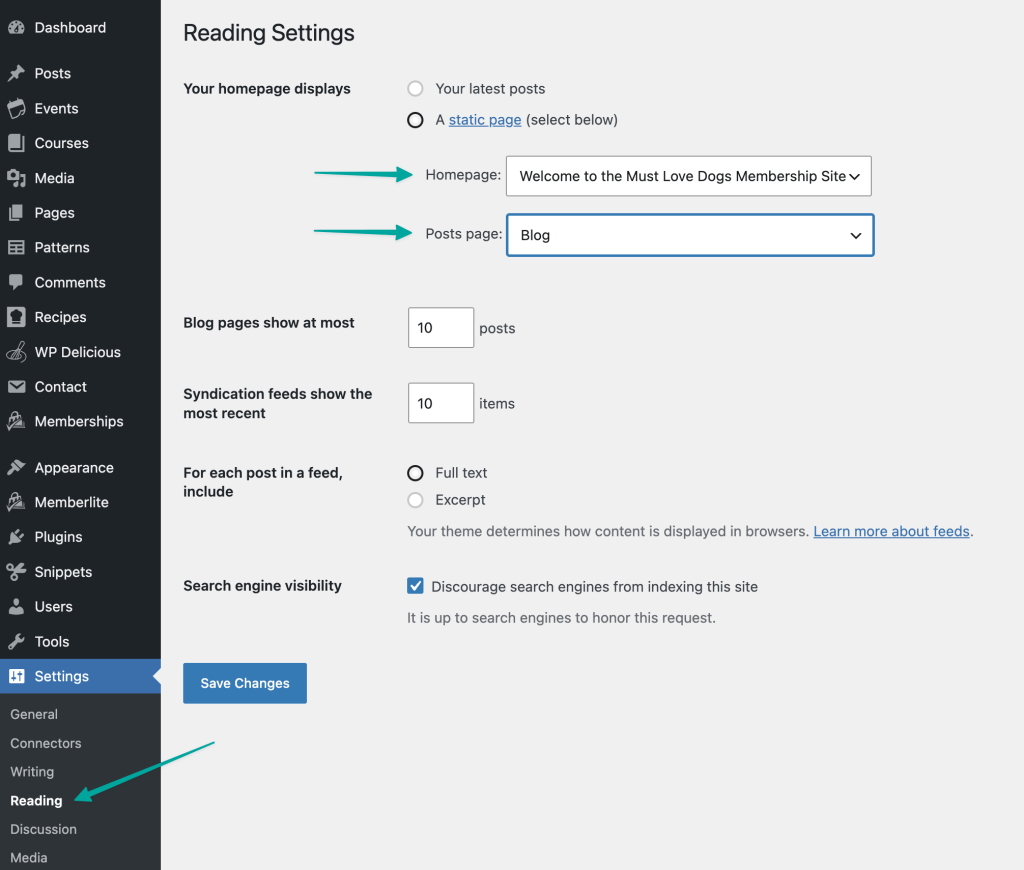
Before you open the Customizer, confirm what your homepage displays. This is a WordPress setting, not a Memberlite setting. You’ll find it under Settings > Reading.
- Go to Settings > Reading.
- Under Your homepage displays, select A static page.
- Set Homepage to the page you want visitors to land on first.
- Set Posts page to the page where your blog posts will appear, if you have one.
- Click Save Changes.
Getting this right first means the rest of your Customizer settings will apply to the correct pages.
Configure in This Order
We recommend work through these areas in the following order. Each one builds on the last.
- Site Identity: Your site title, tagline, and logo.
- Menus: Build and assign your navigation menus under Appearance > Menus or Appearance > Customize > Menus.
- Widgets: Add content to sidebar and footer widget areas under Appearance > Widgets or Appearance > Customize > Widgets.
- Colors: Choose a global color scheme or set your own brand colors.
- Typography: Set heading and body fonts.
- Header: Choose a header layout.
- Footer: Choose a footer layout.
- Posts & Archives: Sidebar placement, content display, and columns ratio for your blog and archive pages.
- Pages: Sidebar placement and columns ratio for standard pages.
Get Support From Our Team of Experts
Have a question about how to use this feature? Our Support Page outlines three ways to get support.
Our Max plans include hands-on help customizing your membership site and implementing new features. Upgrade to PMPro Max now »
Last updated on July 10, 2026

