Memberlite has widget areas for your sidebars, the default header and footer, and the mobile menu. You can also create custom sidebars and assign them to single pages and posts or to whole custom post types.
Default Widget Areas
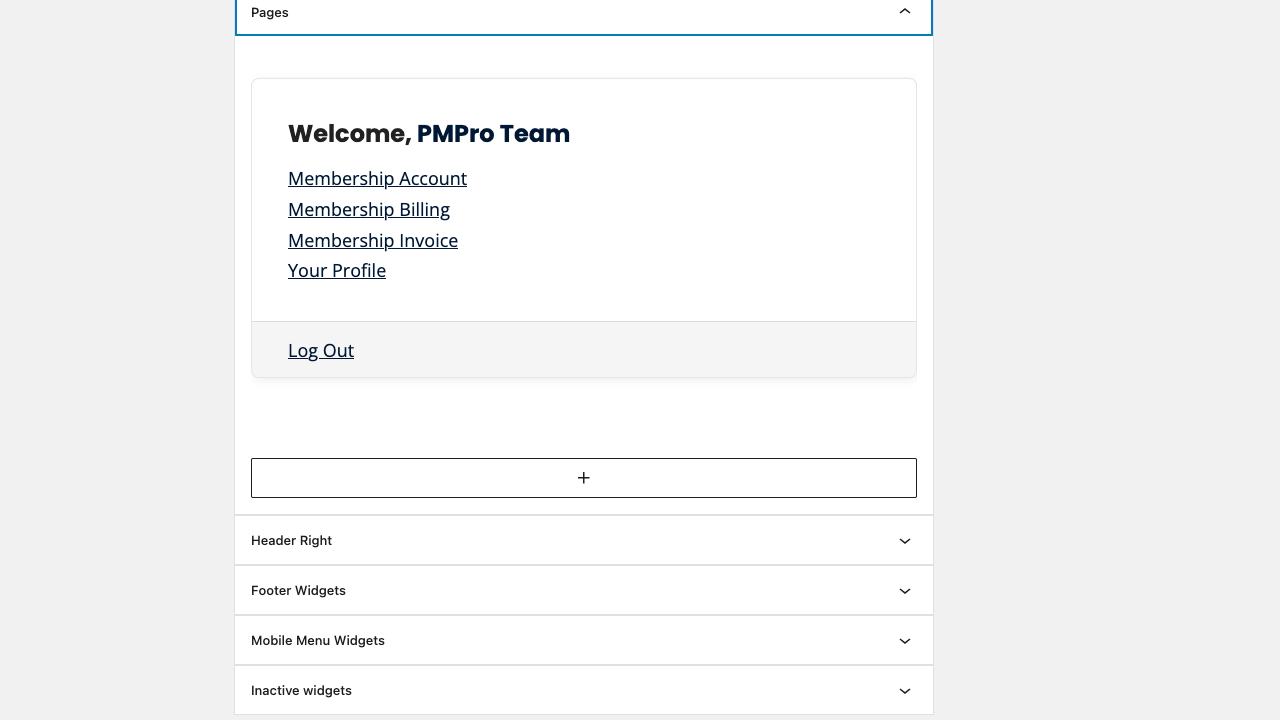
Add widgets to these areas under Appearance > Widgets.
| Widget Area | Where It Appears |
|---|---|
| Posts and Archives | The sidebar on your blog, archive pages, search results, and single posts |
| Pages | The sidebar on pages |
| Header | The right side of Memberlite’s default header, next to the navigation. Not shown with a header variation. |
| Footer Widgets | Memberlite’s default footer, above the copyright line. Widgets show side by side in a grid. Not shown with a footer variation. |
| Mobile Menu Widgets | The slide-out mobile menu. Read more about mobile menu behavior. |
When Sidebars and Widgets Do Not Appear
Sidebars rely on your layout settings. If a sidebar is not showing on your site, check the following before troubleshooting your widgets.
The Layout Doesn’t Have a Sidebar
Only the Right Sidebar and Left Sidebar layouts show a sidebar. The Narrow, Contained, and Full Width layouts do not, even if you have widgets in the Posts and Archives or Pages widget area.
Check two places:
- The default layout in the Customizer, under Appearance > Customize > Pages or Appearance > Customize > Posts & Archives. New sites use Narrow for single posts and Contained for the blog and archives. Read more in Layout Settings.
- The Layout panel on the page or post itself, in case it overrides the default.
Footer Widgets Only Apply to the Default Footer
The Footer Widgets area only displays inside Memberlite’s default footer. If you have assigned a footer variation in the Customizer, the Footer Widgets area is not shown on your site. To add content to a footer variation, edit it in the block editor under Memberlite > Footers.
Add a New Custom Sidebar
Memberlite lets you create custom sidebars beyond the default widget areas. You can assign custom sidebars to single pages and posts, and to custom post types detected on your site.
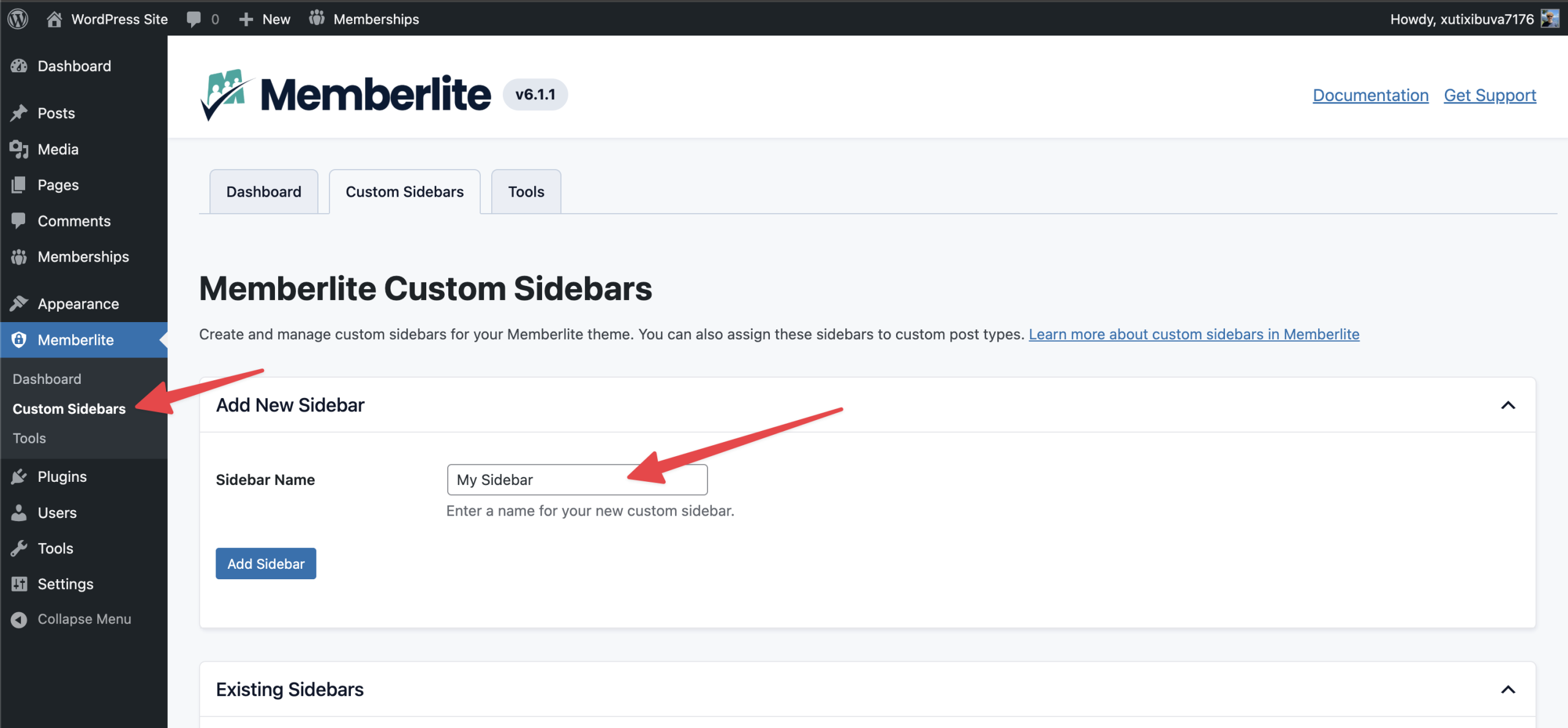
- Go to Memberlite > Custom Sidebars.
- Under Add New Sidebar, enter a name in the Sidebar Name field.
- Click Add Sidebar.
- The new sidebar now appears under Appearance > Widgets, where you can add widgets to it.
After creating a custom sidebar, you can assign it in three ways:
- Per page or post: Use the custom sidebar settings in the Layout panel.
- Per custom post type: Go to Memberlite > Custom Sidebars and scroll to the Assign Sidebars to Custom Post Types section.
- Per single custom post type item: If your plugin supports it, you can override the post type’s sidebar on a single item. For example, with bbPress you can assign a custom sidebar to all forums, then change it on one forum’s edit page.
Change the Sidebar on a Single Page or Post
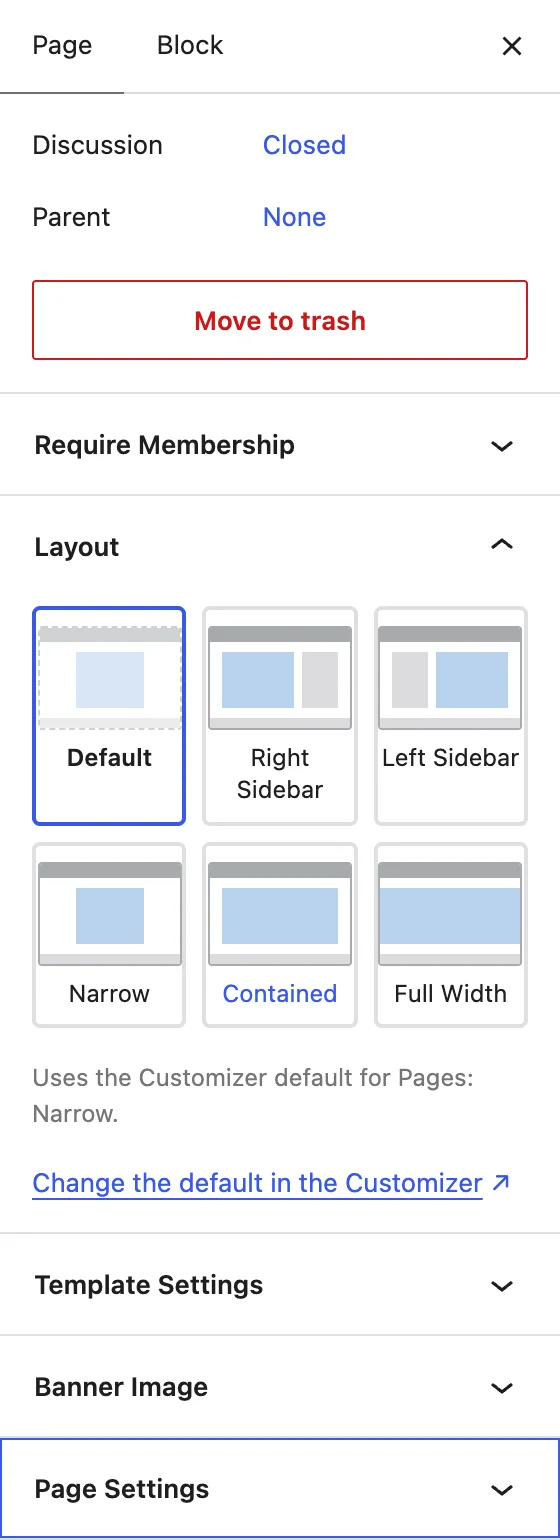
Pages, posts, and supported custom post types have custom sidebar settings in the Layout panel of the block editor sidebar.
- Open the page or post in the block editor and find the Layout panel in the Settings sidebar.
- Make sure the item uses a layout with a sidebar. Pick Right Sidebar or Left Sidebar, or leave it on Default if your default layout has a sidebar. The sidebar settings only show for sidebar layouts.
- Select a sidebar from the Custom Sidebar dropdown.
- Choose a Default Sidebar Behavior: Show Default Sidebar Above, Show Default Sidebar Below, or Hide Default Sidebar.
- Click Save or Update.
Other Post Types and the Classic Editor
Post types that don’t have the Layout panel still get a Custom Sidebar meta box. The same box shows in the classic editor. If you don’t see it in the block editor, open the three-dots menu in the top right corner, select Preferences, and turn on Custom Sidebar under Advanced.
Assign Custom Sidebars by Custom Post Type
If you are using a plugin that adds a custom post type (such as an events plugin or an ecommerce plugin), you can assign a custom sidebar to the whole post type.
- Go to Memberlite > Custom Sidebars.
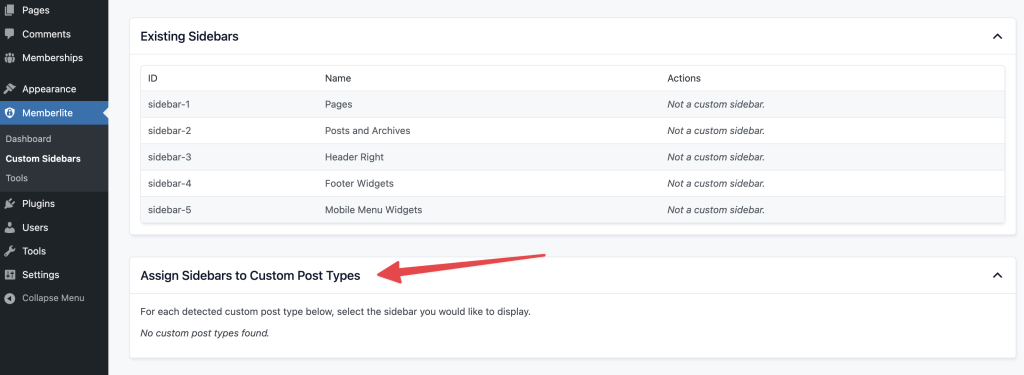
- Scroll to the Assign Sidebars to Custom Post Types section.
- For each detected custom post type, select the sidebar you would like to display.
For example, the Events Manager plugin creates custom post types for Events and Locations. You can assign each one its own custom sidebar with its own widgets.
You can still change the sidebar on a single item where the plugin supports it. This depends on how the plugin displays its post type on your site.
Hide the Page Children Menu
By default, the sidebar on a page shows a menu of the other pages in that page’s section (its parent and child pages). To hide this menu on a single page:
- Open the page in the block editor and find the Layout panel.
- With a sidebar layout selected, turn on Hide Page Children Menu in Sidebar.
- Click Update.
The Membership Account page and its child pages never show this menu.
Get Support From Our Team of Experts
Have a question about how to use this feature? Our Support Page outlines three ways to get support.
Our Max plans include hands-on help customizing your membership site and implementing new features. Upgrade to PMPro Max now »
Last updated on October 28, 2026

