Everyone nods when you say “you need a CRM.” But if you stop and ask “a CRM for what?” the room gets quiet. Most online debates about CRMs are really people talking past each other, because the acronym is doing the work of four very different jobs at once. Before you buy anything, name the one job you actually need. That answer usually decides everything else.
This post is the written companion to our Open Office Hours on CRMs for membership sites. If you would rather watch, the full session is embedded below. Otherwise keep reading, and we will make the case that your membership site is already doing most of the work you would hire a CRM for.
Table of contents
- Webinar Replay
- The Four Jobs a CRM Does
- Your membership site is already a CRM
- Keep WordPress as Your Source of Truth
- The Aggregation Superpower
- What “PMPro as Your CRM” Looks Like: A Lead Scoring Demo
- When an Offsite CRM Genuinely Earns Its Place
- A Word on WordPress-Native CRMs
- If You Do Go Offsite: WP Fusion and Zapier
- A Four-Step Framework for Deciding
- Frequently Asked Questions
Webinar Replay
The Four Jobs a CRM Does
When I prepared this session, I broke “CRM” down into four different jobs the tool might do for you. Once you get specific, most people realize they want one of these, not the whole enterprise stack.
- Lead scoring and sales enablement: Who is warm, who is cold, who is worth reaching out to, and what to say. This is the sales pipeline job.
- Billing, invoicing, and donor tracking: Quotes, invoices, terms, accounts receivable, and giving history. This is the accounting-adjacent job.
- Tagging and personalization: Segmenting members by who they are, what they are into, and what they have done, so you can send the right email or show the right content.
- Nurturing and retention: Onboarding, activation, win-back sequences, and general “keep people around” work.
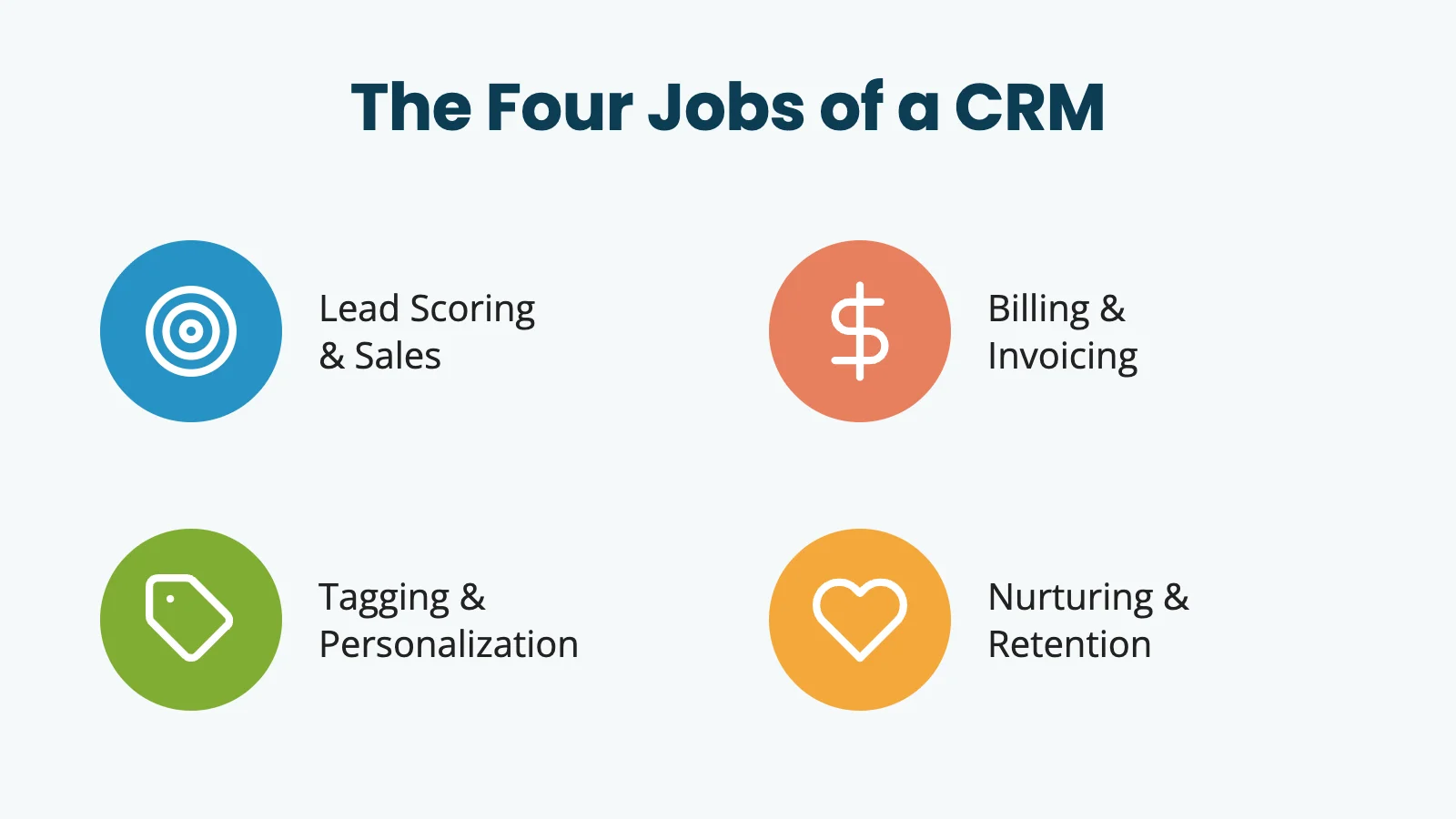
Most of the time, once you get specific with yourself, you want one of these. Usually it is tagging for email, or a bit of lead scoring. It is not the enterprise sales machine you had in your head.
Naming the job is the hard part. Once you know which job you are hiring a CRM to do, the question of whether you need a separate CRM at all gets much easier to answer.
Your membership site is already a CRM
Here is the hot take. Your membership site is already a CRM. Paid Memberships Pro handles:
- Tracking members, membership levels, order and subscription history, failed payments, cancellations, and expirations
- Sending lifecycle emails at checkout, at renewal, and on cancellation
- Segmenting your members list by level
- Custom user fields that let you collect anything else you need at checkout or in the member profile. You can also mark fields as admin-only, so your team can keep internal data about a member that the member does not see.
Pair that with your email marketing tool, and for most membership sites, that is the whole picture.
A great example came up during the session. A PMPro customer mentioned that his team keeps extensive member notes in Word documents. Why they joined, conversation history, support requests, and eventually birthdays. He wanted to bring those notes inside PMPro. That is a classic CRM use case, and PMPro already covers most of it with member notes and user fields. His instinct is also the right one. Do the work manually first. You will prove out the features you actually need before you start shopping for a tool.
That is the meta-message of this whole post: if you are going to collect data, use the data. Do not build a huge checkout form full of custom fields you never look at. Every field we ask for at PMPro checkout has a reason. Setup stage helps our support team meet you where you are. Use case and topic feed our tagging in our email tool. Phone number is a signal about how warm a lead is (and a consent step if we ever text you). Collect it because you will use it. Otherwise leave it off.
Keep WordPress as Your Source of Truth
This is the hill I will stand on. Every offsite service you bolt onto your site is another point where data can get out of sync, slow things down, or quietly break.
When something on your WordPress site talks to a third-party API, you are waiting for their server to respond, then their server to send data back. That call can fail because their server had a blip, or your server had a blip, or the data looked wrong to their validation, or they updated their API and the plugin on your side has not caught up. None of that is theoretical. It just happens.
A concrete example. We regularly get emails from customers who see a mismatch between their site revenue and Google Analytics. “You said I made $2,402 yesterday. Google says I made $1,862. Where is the missing money?” It is not missing. Google Analytics loses conversion data to ad blockers and cookie consent refusals. The number in your PMPro reports is the trustworthy one because it is native to the platform actually taking the payments. That same pattern shows up any time you rely on an offsite tool for a number that WordPress already has.
I am not trying to scare anyone off offsite tools. Another customer in the webinar chat runs Zoho with WP Fusion and it works fine for him. Some tools have self-repair when data gets out of sync. Just go in knowing what you are signing up for.
The rule I try to follow: if you are going to sync, sync out from WordPress. Do not make WordPress chase another system for the truth about your own members.
The Aggregation Superpower
Here is where built-in stops being “good enough” and actively wins. The more of your business runs inside WordPress, the more one-sided this gets.
Think about all the signals your site is already collecting:
- Membership level, join date, renewal history, and failed payments in PMPro
- Course progress and lesson completions in your LMS
- Posts read, comments left, forum threads participated in
- Event tickets purchased through your events plugin
- Physical products bought through WooCommerce
- Downloads accessed, videos watched, saved favorites
All of that lives in your WordPress database. A CRM built on top of that database can see every signal at once and correlate them. An offsite CRM cannot, unless you set up constant, fragile syncing to push each signal upward, one integration at a time.
Say you run a dog training site. Someone spends two weeks reading everything you have written about senior dogs. Your native setup can tag them “interested in senior dogs” and quietly kick off an email sequence about your senior dog program. Doing that offsite means syncing every content view up to your CRM in real time, which is a lot of moving parts to keep alive.
The more of your business you run on your own site, the more staying native pays off.
What “PMPro as Your CRM” Looks Like: A Lead Scoring Demo
To make this concrete, I demoed a lead scoring report we have been quietly using at Paid Memberships Pro. It has four moving parts. The full code is in the companion recipe. Here is the strategy behind it.
1. Profile
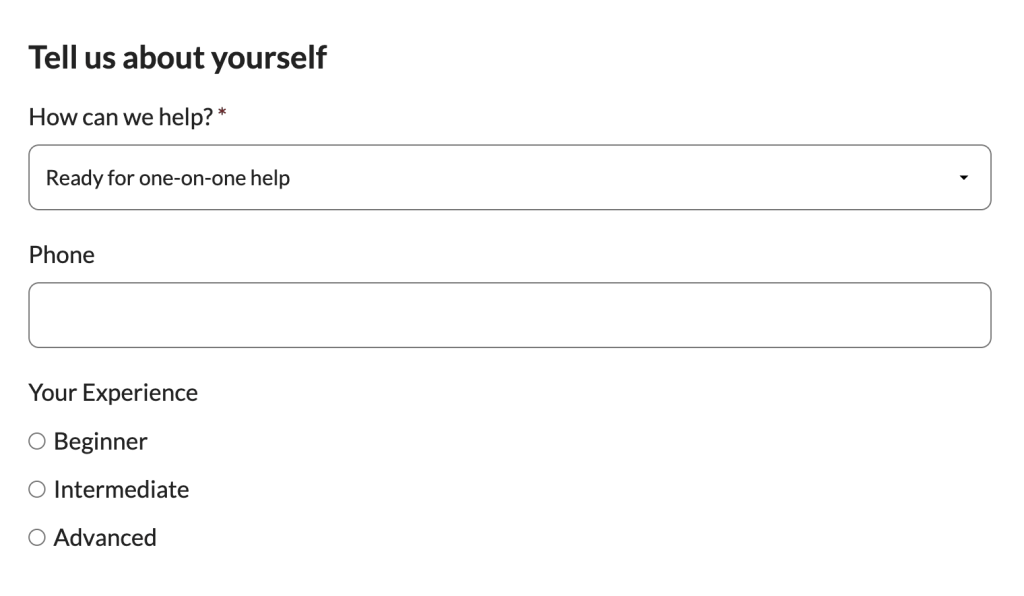
Ask a few questions at checkout using plain user fields. No Add On required. We ask where the member is at in their journey with PMPro (already have a WordPress site, already launched, ready for one-on-one help). We ask:
- Their use case and topic
- How they heard about us
- (Optionally) Collect a phone number
That data is stored in standard WordPress user meta, so other plugins (WP Fusion, our email integration, our reports) can all read it.
2. Behavior
A small bit of code quietly logs when a logged-in member visits key pages. Pricing, checkout, hosting docs, migration docs. Profile tells you who. Behavior tells you how close.
3. Score
Roll it all into one number. Their answer at checkout is weighted. Page visits add up. Having a phone number on file adds points. Existing paid members get a small bump. And we deduct points for signals that look off, like checking every single use case box (a sign of a rushed form, or a bot), or going quiet for a month after showing high intent.
4. Pipeline
Under Memberships > Reports > Lead Scoring, every member is ranked by score with a status column you set (Unassigned, Qualified, Contacted, Converted, Disqualified, Stale). It is a sales pipeline, sitting inside WordPress, using the data WordPress already has.
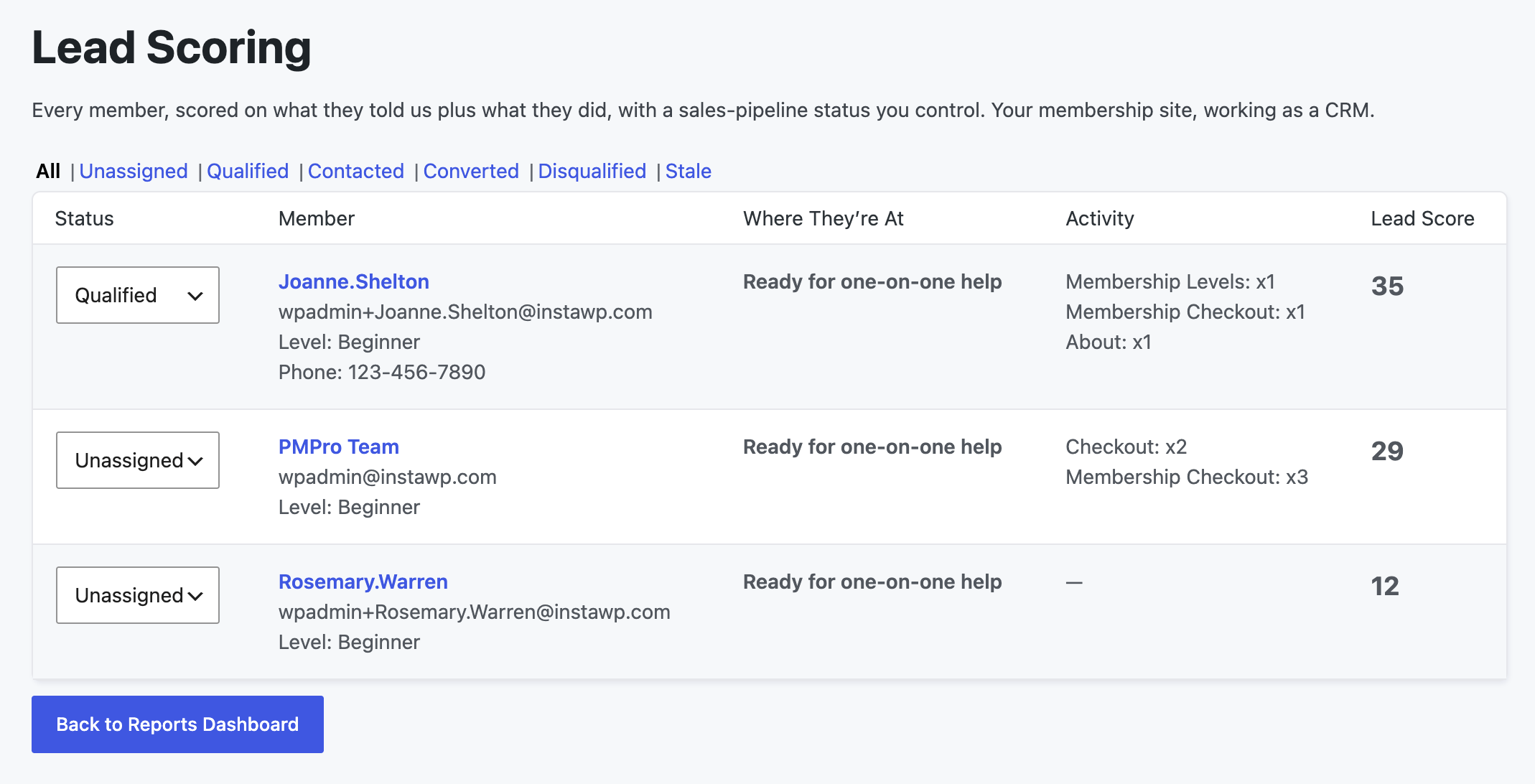
I will be honest about where this is right now. Moving leads between statuses is still manual. Some of the user meta we track does not yet show on the edit member screen. This is the “incubate in code first” phase of how we build things at Stranger Studios. We use it, we see the rough edges, we polish, and eventually it might become a proper Add On.
The real payoff is not the score itself. It is the correlations you can find because all the data lives together. You (or an AI you point at your database) can ask which use cases correlate with lifetime value, whether a certain setup stage predicts churn, or which of your content topics drives the stickiest segments. No offsite CRM can answer those questions without a lot of custom sync work, because the offsite tool cannot see your courses, your forum activity, or your content library.
When an Offsite CRM Genuinely Earns Its Place
I do not want to strawman the case for a real CRM. Sometimes it is exactly the right call. If you fit one of these profiles, an offsite CRM is not overbuilding, it is right-sizing.
- Nonprofits managing donor relationships: Giving history, donor segmentation, and campaign tracking are what donor CRMs are built for.
- Large associations with complex, multi-role members: One person might be a member, a donor, a partner, and a volunteer at the same time.
- A real multi-rep sales pipeline: Multiple reps, per-rep interaction history, lead assignment, and shared visibility. The member notes approach works for a small team. It stops scaling once you have several salespeople talking to the same prospect list.
- High-ticket invoicing: Selling $12,000 to $20,000 organizational memberships that are paid by invoice or wire rather than credit card. That kind of accounts receivable belongs in an accounting tool or a CRM that supports it, not in your membership plugin.
If that is you, adding a CRM is not a mistake. It is meeting your business where it actually is.
A Word on WordPress-Native CRMs
This is opinion, and I invite disagreement. If I am going to take on a whole second system to run alongside PMPro, I would rather go truly offsite than adopt a WordPress-native CRM plugin like FluentCRM or Groundhogg.
Two reasons. First, those plugins tend to bundle their own email marketing engine and run everything through your server. The WordPress admin is not cached, so the “keep everything in one place” perf argument does not hold up. Second, in my view, they do not do the membership-side jobs better than what you can already build in Paid Memberships Pro with user fields, lifecycle emails, and a bit of custom code.
I am not saying “do not use them.” FluentCRM has an integration with Paid Memberships Pro, and we have documentation for it. If you are already invested and it is working, keep going. But if you are choosing between “stay native in PMPro” and “add a WordPress-native CRM,” I would rather see you either stay native or commit to a real offsite CRM that unlocks something you truly cannot do on your own site.
If You Do Go Offsite: WP Fusion and Zapier
If a real CRM makes sense for you, the cleanest way to connect it to Paid Memberships Pro is WP Fusion. WP Fusion Lite plus the PMPro-specific integration is built into Paid Memberships Pro. Your only added cost is the offsite CRM subscription.
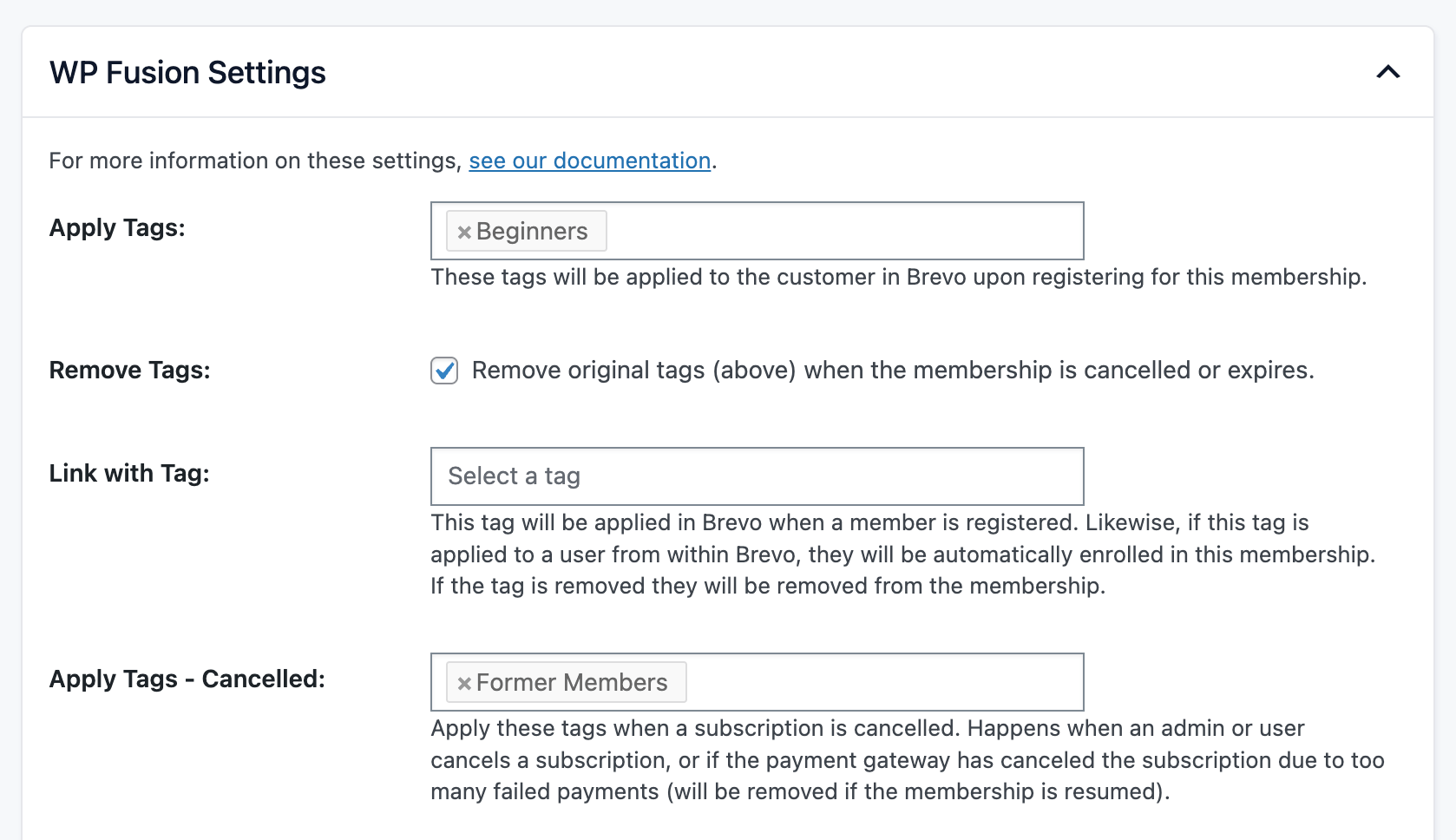
WP Fusion gives you a GUI to map your PMPro membership levels to CRM tags, and to map your user fields to CRM contact fields. When someone joins, upgrades, cancels, or expires, WP Fusion updates the CRM automatically. You can also apply tags based on per-page or per-post activity, so a member hitting a high-intent page can trigger a CRM automation. And WP Fusion is not PMPro-only. It reads LMS progress, login history, and other on-site signals and pushes those upward too.
The demo I ran in the session used WP Fusion with Zoho CRM. Full disclosure: it did not work smoothly at first. The free Zoho tier blocked custom fields and tagging, and I had not run the “sync existing users” step, so new signups were syncing while my test user was not. Once I resynced, contacts started flowing. If you want a cleaner reference, the HubSpot demo on the WP Fusion documentation is a good one to walk through.
For lighter, one-off connections, PMPro also has Zapier built in. Zapier is fine for a specific bridge (add new members to a Google Sheet, ping a Slack channel on cancellation). I would not lean on it as your CRM backbone. It is more glue to build and babysit, another silent failure point, and it does not give you the GUI mapping that WP Fusion does.
A Four-Step Framework for Deciding
If you take one thing from this post, take these four questions.
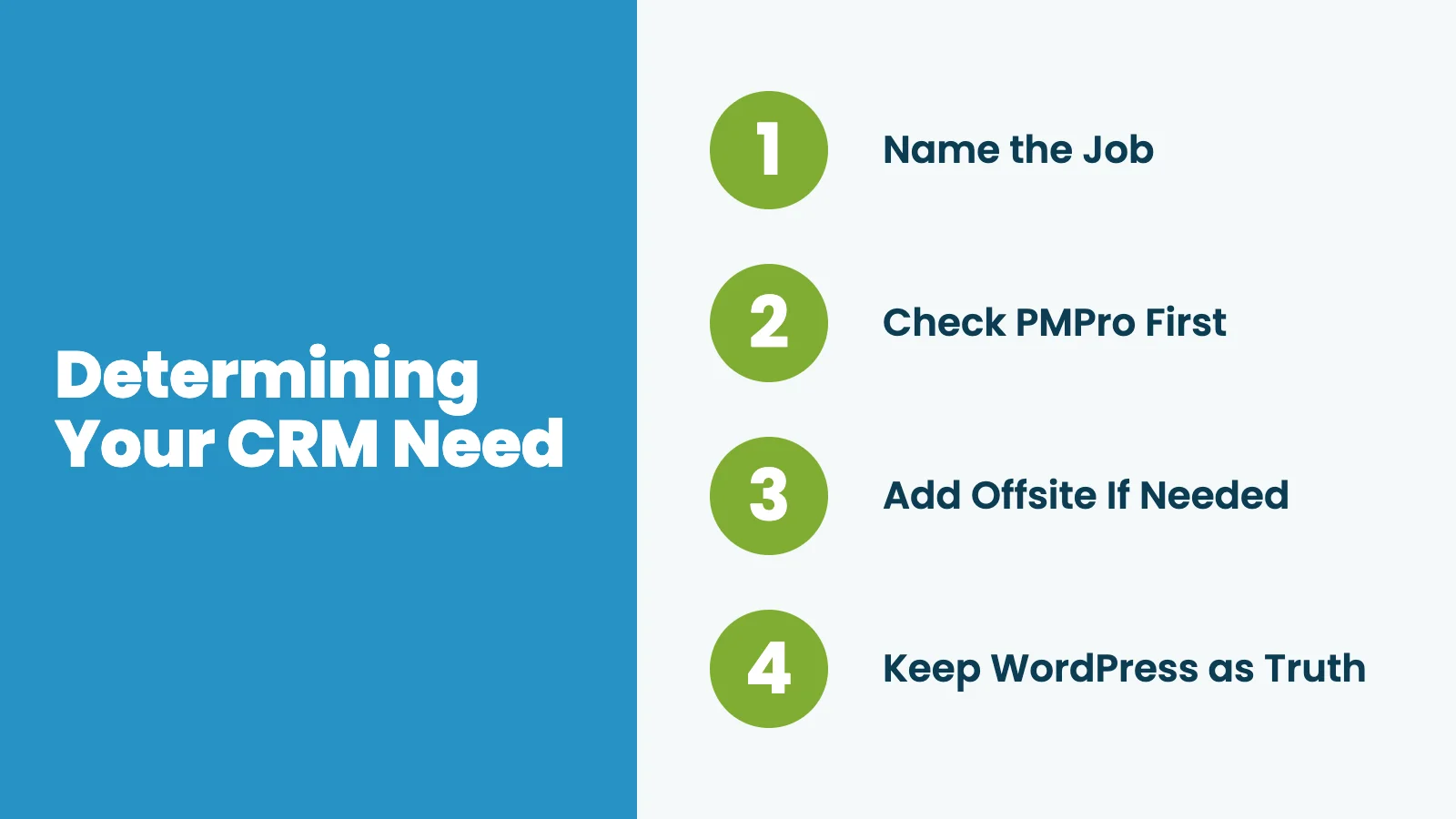
- Name the single job you need a CRM to do: Is it lead scoring, invoicing, tagging, or nurturing? If you cannot pick one, you probably do not need a CRM yet. You need to do the work manually until you know what you actually need.
- Ask if PMPro plus your email tool already does that job: Usually the answer is yes. Stop there. Do not buy a second system to solve a problem your first system already solves.
- If you genuinely need donor tracking, a real multi-rep pipeline, or high-ticket invoicing, add an offsite CRM through WP Fusion: That is the point at which the offsite tool earns its place.
- No matter what, keep WordPress as your source of truth: Sync outward, not inward. If you outgrow the native lead scoring later, you have lost nothing. All the data is already in WordPress. You can craft a clean one-time import to the new CRM the day you switch.
Do not overbuild this, and do not underbuild it either. Buying a CRM just to have one will not fix anything on its own. Most membership sites already have everything they need for what they are actually trying to do. You just had not named it a CRM yet.
Frequently Asked Questions
Have a specific setup in mind and want a second opinion on whether you need a CRM? Get in touch and we will talk through your case.
Usually no. Name the single job you would hire a CRM to do (lead scoring, invoicing, tagging, or nurturing). If Paid Memberships Pro plus your email tool already covers that job, you are done.
For most sites, yes. Paid Memberships Pro tracks member records, membership levels, order and subscription history, failed payments, and lifecycle emails. It supports custom user fields for anything else you want to collect. Pair it with an email marketing platform and you have covered the four common CRM jobs.
Nonprofits managing donor and giving history, large associations with multi-role members, teams running a real multi-rep sales pipeline, and businesses selling high-ticket organizational memberships by invoice.
WP Fusion is the cleanest option. It gives you a GUI for mapping levels to tags and user fields to CRM fields, with WP Fusion Lite and the PMPro-specific integration built into Paid Memberships Pro. Zapier is available for one-off automations but is not ideal as a backbone.
Personal opinion: if you are going to take on a second system, get one that does something your native setup truly cannot. WordPress-native CRM plugins are heavy on your server and, in my view, do not outperform what you can already build in Paid Memberships Pro.

Free Download: The AI-Powered Membership Site Blueprint
Download the free guide: Learn how to plan, build, and grow a membership site using AI as your strategic partner: from buyer persona to launch and beyond.