If you build or manage your site with an AI coding agent, Memberlite includes notes written for it. They tell the agent how to customize the theme without losing changes on the next update, and give it a reference for Memberlite’s colors, gradients, textures, block styles, and patterns so its designs match the rest of your site.
The Files That Ship With Memberlite
As of Memberlite 8.0.1, three files are included in the theme folder (usually wp-content/themes/memberlite/):
AGENTS.md: Short rules for agents working on a site that uses Memberlite. It tells the agent to readDESIGN.mdfirst.CLAUDE.md: LoadsAGENTS.md, for agents that look for aCLAUDE.mdfile instead.DESIGN.md: The design and customization reference. It’s written for agents, but it’s a handy reference for people building pages too.
Point Your Agent to the Notes
An agent that works inside the theme folder will find these files on its own. Most agents start in your site’s root folder, though, and may never look in the theme.
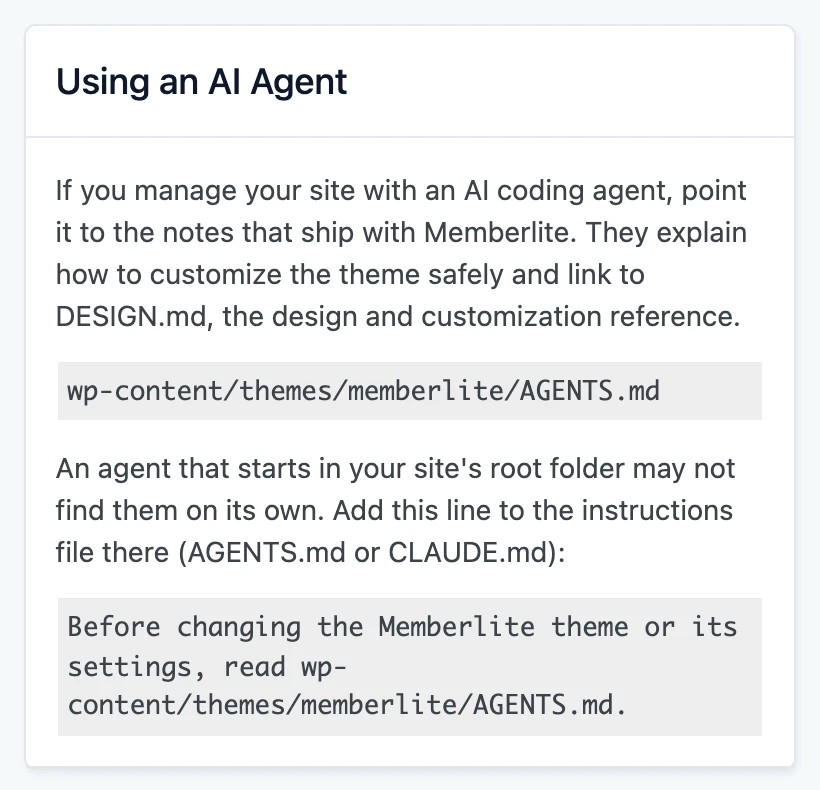
Go to Memberlite > Dashboard and find the Using an AI Agent box. It shows the path to AGENTS.md on your site and a line to copy. Add that line to the instructions file in your site’s root folder (AGENTS.md or CLAUDE.md). On most sites it looks like this:
Before changing the Memberlite theme or its settings, read wp-content/themes/memberlite/AGENTS.md.
What the Notes Tell Your Agent
- Read DESIGN.md before designing or customizing.
- Don’t edit the theme folder on an installed site. Theme updates replace it, so PHP and CSS go in a child theme or a plugin, and design changes use block markup and Customizer settings.
- Check the code before relying on memory. Memberlite 8.0 replaced page templates and the Memberlite Settings meta box, so older instructions an agent learned elsewhere may be wrong.
- Ask the site owner before changing anything. Back up the database before bulk changes, run
wp search-replacewith--dry-runfirst, and use a staging site when there is one. - Use WP-CLI when it’s available. Memberlite’s Customizer settings are theme mods, so the agent can read them with
wp theme mod list. - Check Memberlite > Alerts after an update.
- Stay inside the theme’s job. Don’t edit WordPress core,
wp-config.php, or other plugins, and don’t deactivate plugins unless the site owner asks.
What DESIGN.md Covers
The main rule in DESIGN.md is to use the theme’s presets instead of fixed values. A section built with Memberlite’s color, gradient, font size, and spacing presets keeps matching your site when you change your color scheme or fonts in the Customizer. It covers:
- Colors, with which background and text colors pair together (see Colors and Typography)
- The seven gradient presets and six background textures (see Gradients and Textures)
- Every Memberlite block style and block pattern category
- Font size and spacing presets, and content widths
- Layouts, header and footer variations, hooks, theme mods, and shortcodes
- What changed in Memberlite 8.0, for agents that learned an older version
Example Requests
Once your agent can find the notes, you can ask for changes in plain language. For example:
- “Add a pricing section to the Join page using a Memberlite pattern, with the Soft Wash gradient and the Dots texture.”
- “Make the homepage hero use the Bottom Scrim gradient over the photo so the headline is easier to read.”
- “Our courses don’t need the author box. Turn it off for courses but keep it on blog posts.”
If you’d rather have our team make changes for you, PMPro Max includes hosting and monthly Max Credits for Do It For Me requests like design changes, setup, and custom code.
Get Support From Our Team of Experts
Have a question about how to use this feature? Our Support Page outlines three ways to get support.
Our Max plans include hands-on help customizing your membership site and implementing new features. Upgrade to PMPro Max now »
Last updated on November 12, 2026