Starting in WordPress 7.0, the block editor inserts patterns in content-only mode. You can change the text and swap the images, but you cannot change the layout, adjust the styles, or add and remove blocks inside the pattern. This code recipe turns off content-only mode for unsynced patterns, so every pattern you insert is fully editable right away.
Content-only mode is a helpful guardrail when clients or editors update your pages and you do not want them to break the design. If you’re the one building the site, and you insert patterns as a starting point to restyle, it gets in your way on every pattern you add.
Do You Need This Recipe?
Most patterns you insert from the block inserter are unsynced patterns. WordPress copies the pattern’s blocks into your page, and any changes you make only affect that copy.
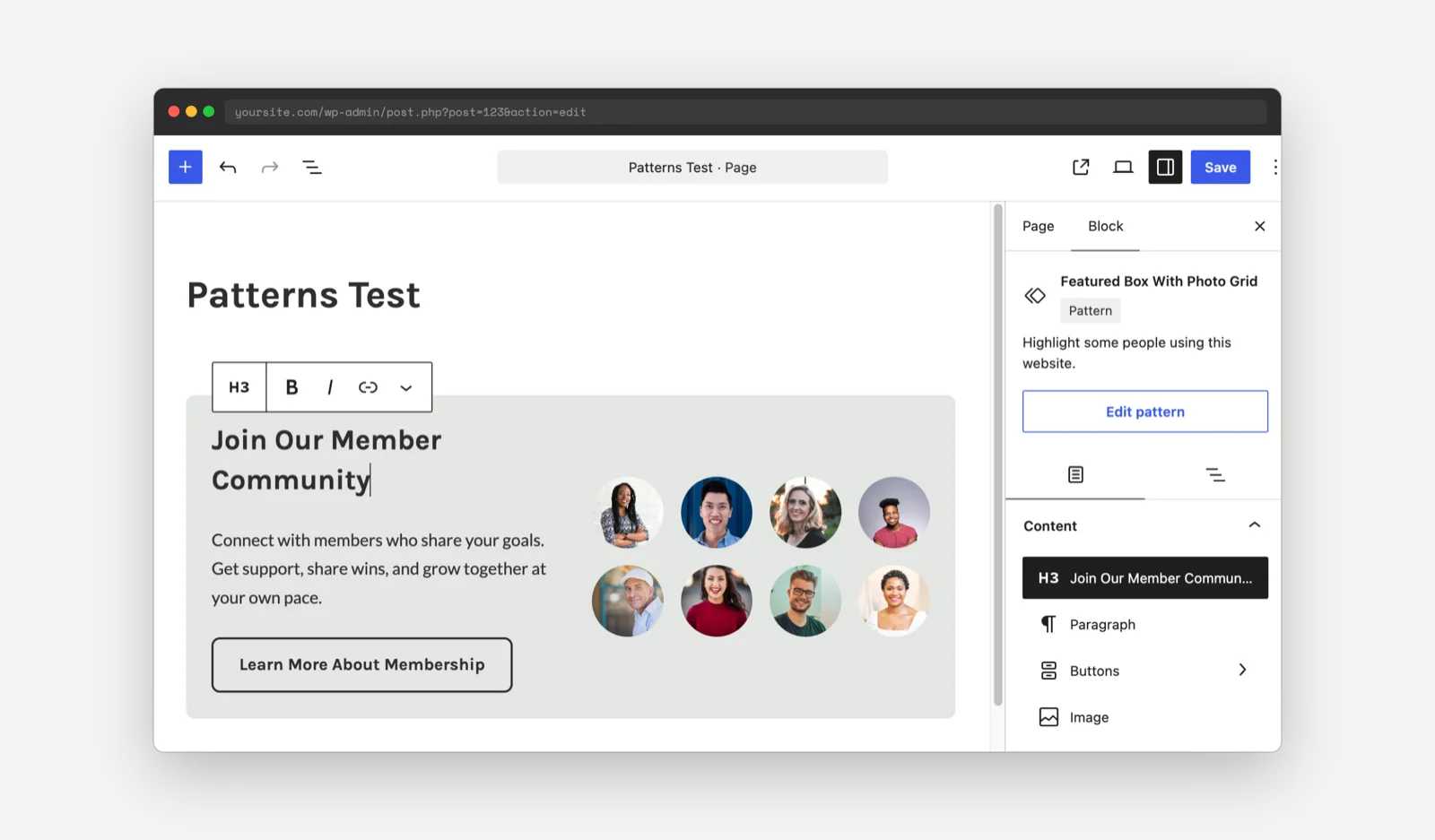
When an unsynced pattern is in content-only mode, the block toolbar only shows text formatting options. The block settings sidebar shows the pattern name, an Edit pattern button, and a Content list of the blocks you are allowed to edit, such as headings, paragraphs, buttons, and images. The style and layout settings for those blocks are hidden.
WordPress gives you two ways to unlock patterns without code. If you only restyle a pattern once in a while, one of these may be all you need.
Unlock One Pattern at a Time
Select the pattern and click Edit pattern in the block toolbar or the block settings sidebar.
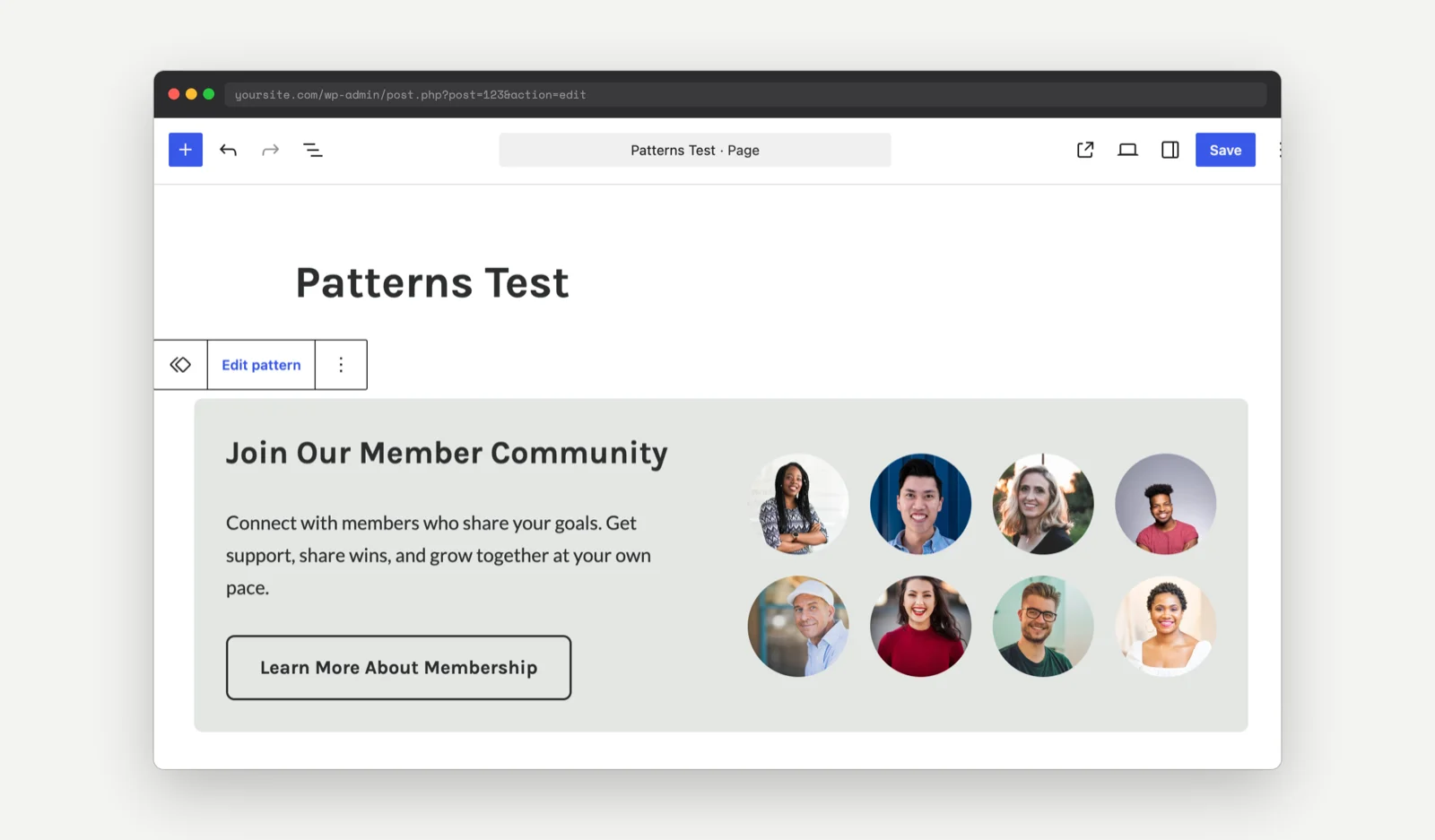
While you edit the pattern, the rest of the page is dimmed, the top bar reads “Back [Pattern Name] · Pattern”, and the block toolbar shows an Exit pattern button. You now have full control over the pattern’s layout and styles. Click Exit pattern when you are done.
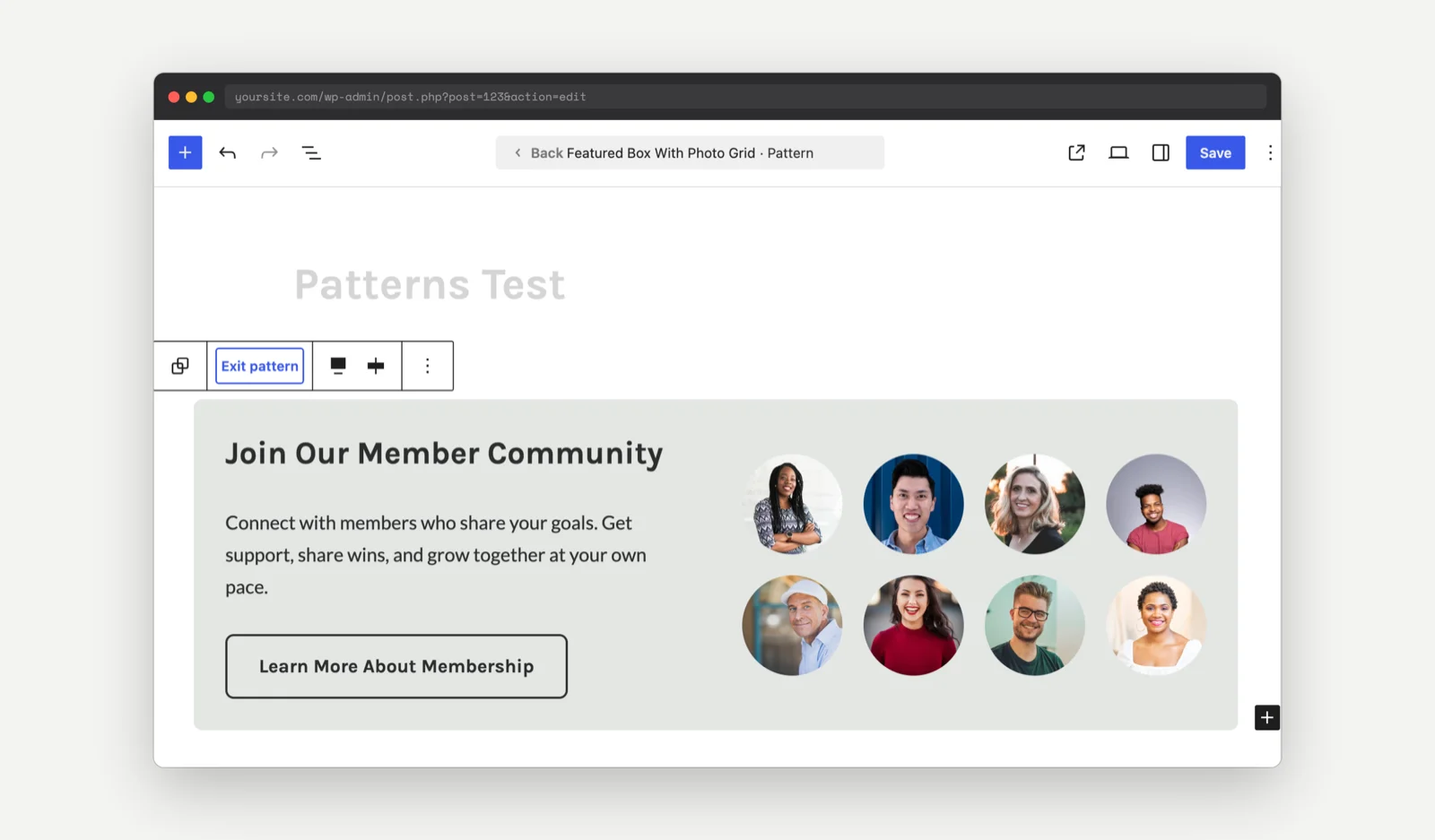
You need to repeat these steps for each pattern you want to change.
Unlock All Patterns for One Editing Session
Open the command palette with Cmd+K on a Mac or Ctrl+K on Windows, then run the Enable editing all patterns command. This unlocks every pattern and template part in the editor.
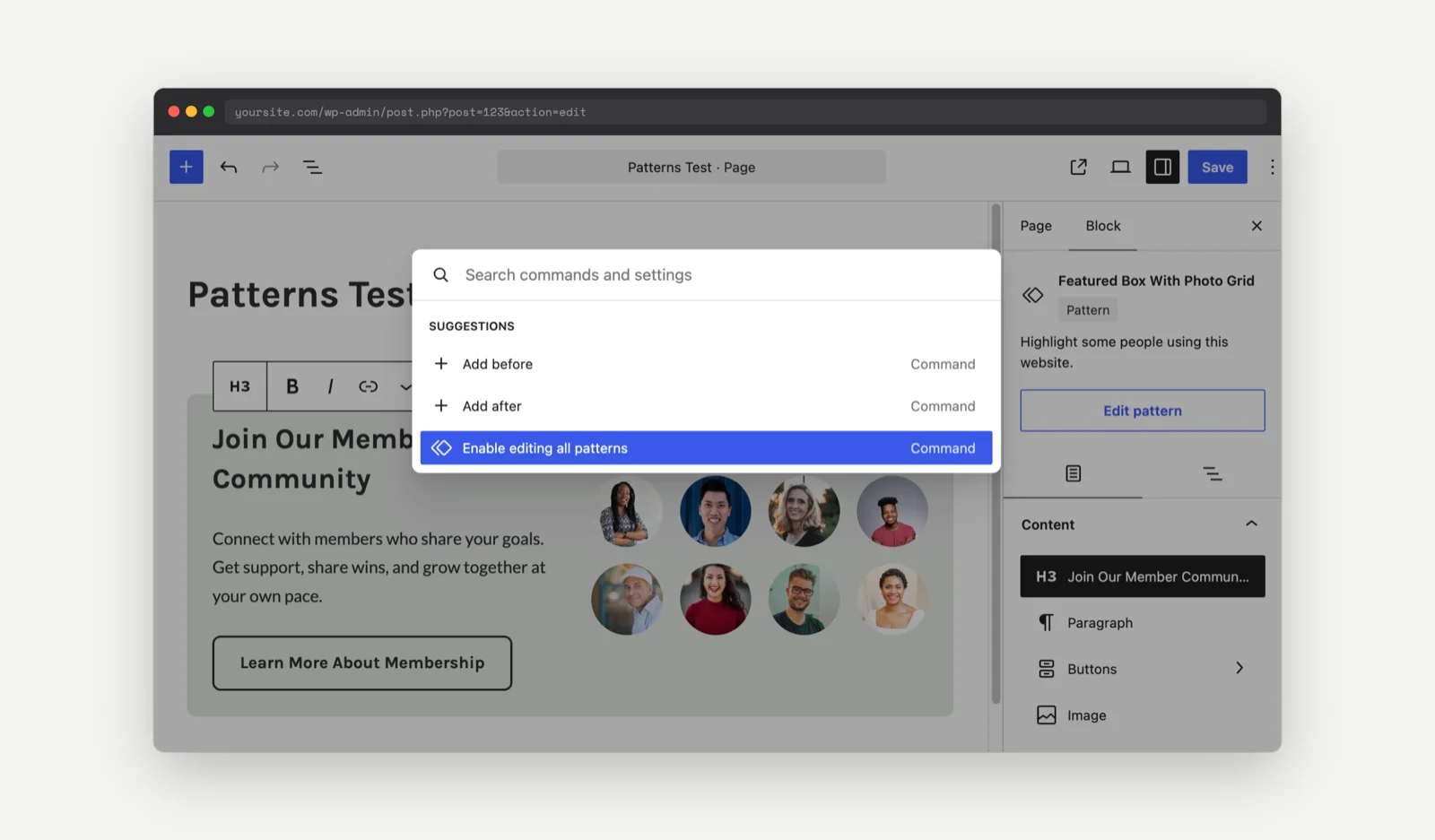
The command only lasts until you reload the editor. The next time you open a page, your patterns are back in content-only mode.
Use this recipe if you want patterns to stay unlocked every time you open the editor, without clicking Edit pattern or running a command first.
Best Practices and Considerations
- Requires WordPress 7.0 or later: Before WordPress 7.0, content-only mode for inserted patterns was an experimental feature that was off by default. On WordPress 6.9 and earlier, this recipe has no effect.
- Applies to everyone who can edit: The recipe removes content-only mode for every user, including clients and editors. If you rely on content-only mode to protect your designs, use the customization below that limits the recipe to administrators.
- Synced patterns are not affected: A synced pattern is shared across your site, and a change to it updates every page that uses it. To change a synced pattern’s layout, select it and click Edit original.
- Template parts are not affected: Template parts, such as your header and footer, still open in content-only mode. WordPress controls these with a separate setting. You can unlock them for one session with the Enable editing all patterns command, or unlock them permanently with the customization below.
About the Code Recipe
This recipe uses the block_editor_settings_all filter. This is a WordPress core filter, not a PMPro hook, so it works the same whether or not Paid Memberships Pro is active. WordPress runs this filter each time it loads the block editor and passes in an array of editor settings. The recipe sets disableContentOnlyForUnsyncedPatterns to true and hands the settings back to WordPress.
The filter runs for every block editor screen, so the recipe works in the post and page editor as well as the Site Editor.
The Code Recipe
Adding the Recipe to Your Website
You can add this recipe to your site by creating a custom plugin or using the Code Snippets plugin available for free in the WordPress repository. Read this companion article for step-by-step directions on either method.
How to Customize This Code Recipe
- Unlock template parts too (line 24): Add
$settings['disableContentOnlyForTemplateParts'] = true;on a new line below line24. Template parts such as your header and footer then open fully editable, just like your patterns. - Limit the recipe to administrators (line 24): Wrap line
24in a capability check so only administrators get fully editable patterns. Editors, authors, and other roles keep content-only mode. Replace line24with:
if ( current_user_can( 'manage_options' ) ) {
	$settings['disableContentOnlyForUnsyncedPatterns'] = true;
}

Get Support From Our Team of Experts
Have a question about how to use this feature? Our Support Page outlines three ways to get support.
Our Max plans include hands-on help customizing your membership site and implementing new features. Upgrade to PMPro Max now »