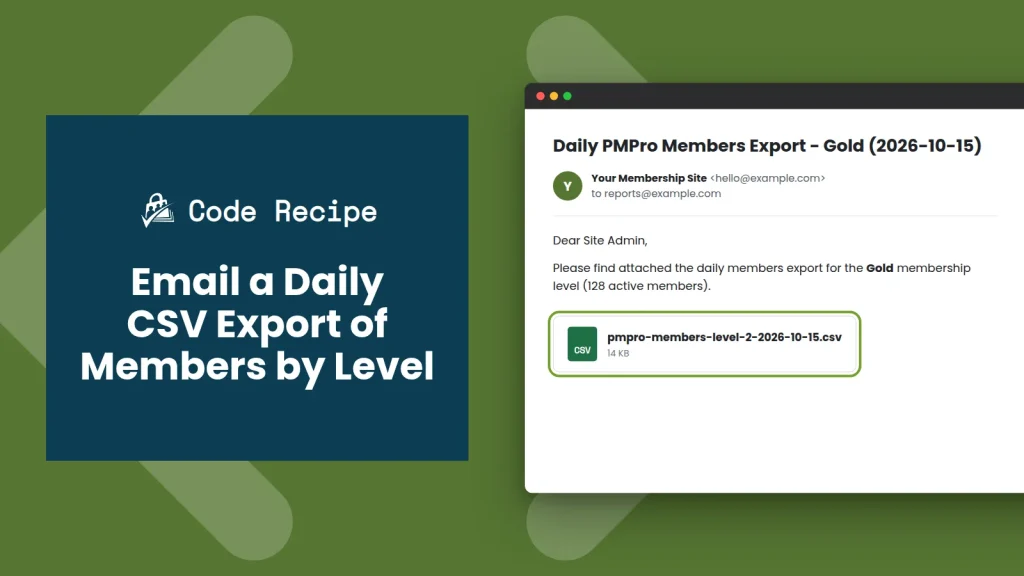
If you hand member data to a bookkeeper, a sales team, or another system, you probably know the routine: log in, go to Memberships > Members, filter by level, click Export to CSV, and send the file along. This code recipe does that for you once a day. Paid Memberships Pro builds a CSV of every active member in each membership level you choose and emails it to you as an attachment, with one email per level.
The recipe hooks into PMPro’s built-in daily scheduled task, so there is no cron job to register, no server configuration, and no activation step. You set your level IDs and the recipient address, add the snippet, and the first export arrives the next day.
Do You Need This Recipe?
This recipe is a good fit if:
- You want a standing daily record of who is active in each level, without remembering to export it yourself
- Someone outside your team (a bookkeeper, a sales lead, a fulfillment partner) needs a current member roster, and you do not want to give them a WordPress admin account
- An external tool accepts CSV files by email or import, and you want a fresh file waiting for it every morning
If you only need a member list now and then, the built-in Export to CSV button on the Members List is the simpler choice and includes more columns. If you want the data to flow into an email marketing platform, one of our email marketing integrations will keep that list in sync in real time, which is better than a daily file.
Best Practices and Considerations
- PMPro version: This recipe requires Paid Memberships Pro v3.5 or later. That is the release that moved PMPro’s background tasks to Action Scheduler and added the daily event this recipe uses.
- Timing: PMPro schedules its daily task for 10:30 a.m. in your site’s timezone (set under Settings > General). Your exports arrive shortly after that task runs.
- Empty levels still send an email: If a level has no active members on a given day, you still get an email for that level. It says no active members were found and has no attachment. That way a missing email always means something went wrong, not that the level was empty.
- Attachment size: CSV files are plain text and stay small. A level with a few thousand members typically produces a file well under one megabyte. Very large levels may run into the attachment size limit on your mail server or your recipient’s inbox, so check with your host or email provider if you have tens of thousands of members in one level.
- The Default Email template: The recipe sends through PMPro’s email class, so your From Name, From Email, email header, and email footer settings all apply. It uses PMPro’s “Default Email” template. If you have edited the subject of that template under Memberships > Settings > Email Templates, your custom subject replaces the “Daily PMPro Members Export” subject line from this recipe.
About the Code Recipe
The recipe attaches one function to the pmpro_schedule_daily action. Once a day, that function loops through the level IDs you list at the top of the snippet. For each level it:
- Confirms the level exists using
pmpro_getLevel(). Any ID that does not match a real level is skipped. - Queries the
pmpro_memberships_userstable for every member whose membership in that level is active. This is the same table PMPro’s own Members List reads from. - Looks up each member’s first and last name and, using
PMPro_Subscription::get_subscriptions_for_user(), their billing amount, billing cycle, and next payment date. - Writes everything to a temporary CSV file named for the level and the date, for example
pmpro-members-level-2-2026-10-15.csv. - Emails the file using the
PMProEmailclass, then deletes the temporary file from your server withwp_delete_file().
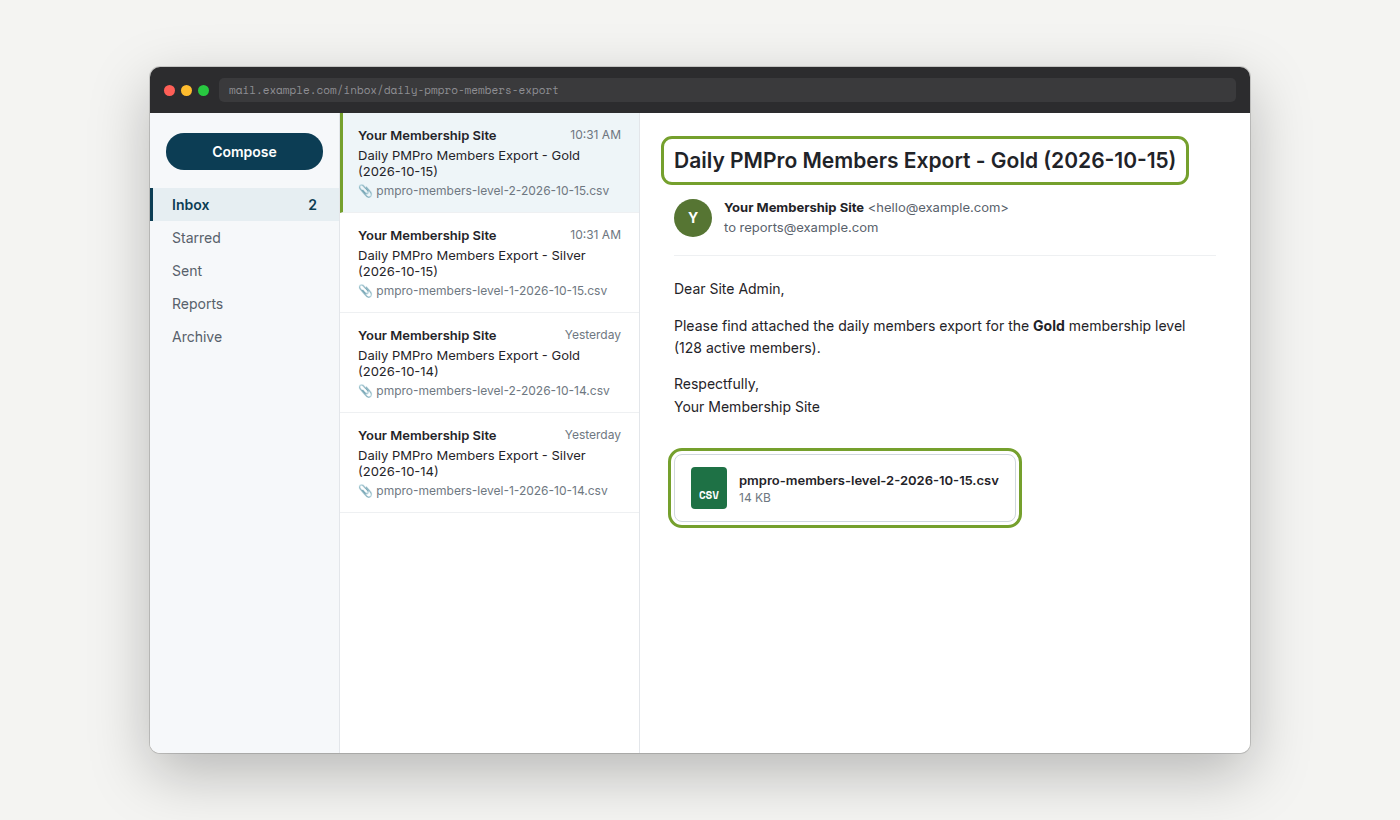
The subject line follows the pattern “Daily PMPro Members Export – [Level Name] ([date])”, so it is easy to filter these emails into their own folder.
What Is in the CSV
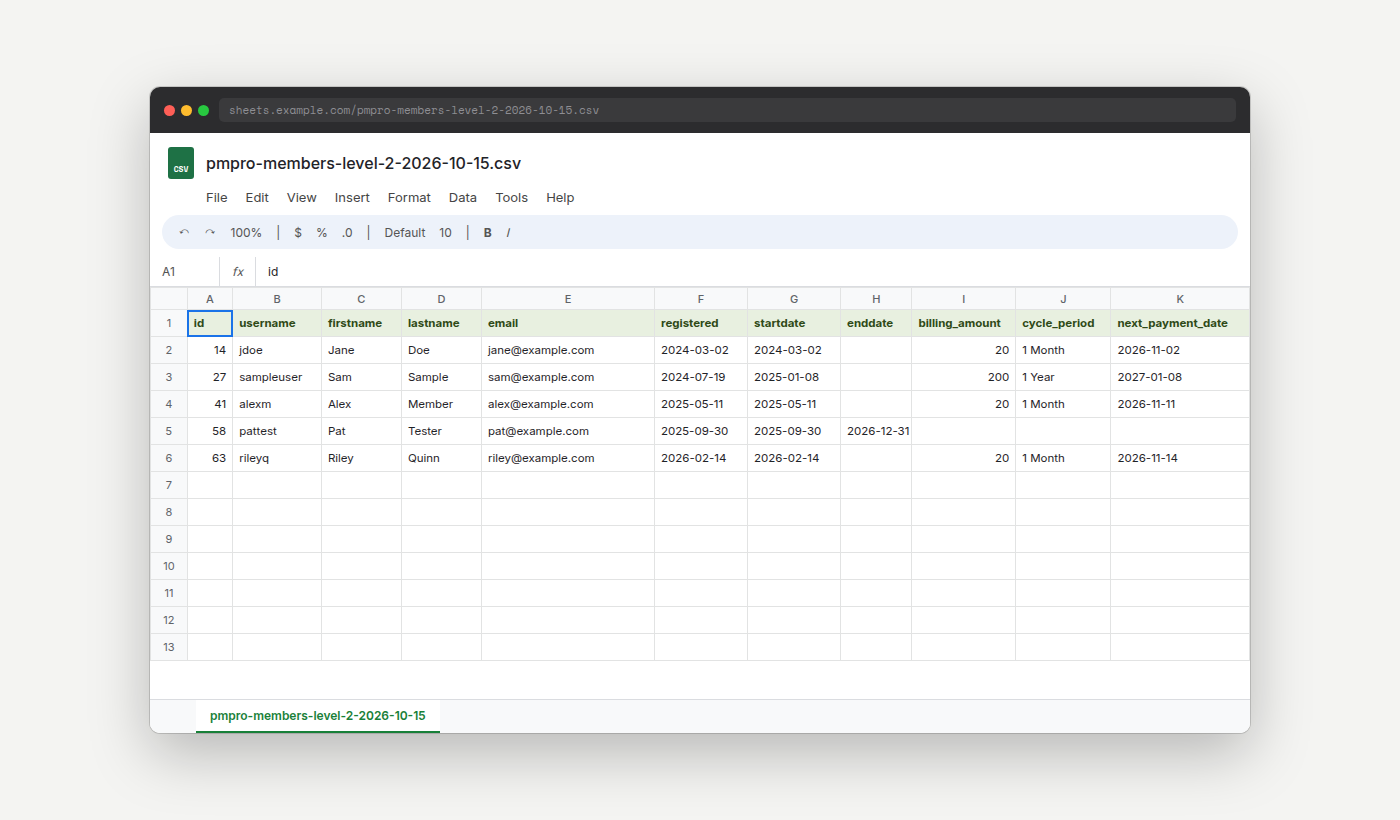
Each file has a header row followed by one row per active member. The columns are id, username, firstname, lastname, email, registered, startdate, enddate, billing_amount, cycle_period, and next_payment_date. Most of these match columns in PMPro’s built-in Members List export, so the file will look familiar if you have exported from the Members List before. The billing columns are blank for members without a recurring subscription, and enddate is blank for memberships that do not expire.
Dates use the same format as PMPro’s Members List export. By default that is YYYY-MM-DD, and if you have already changed it with the pmpro_memberslist_csv_dateformat filter, this recipe uses your format too.
Why Action Scheduler Instead of WP-Cron
Most “run this every day” tutorials for WordPress use wp_schedule_event() to register a WP-Cron event. That works, but it means your snippet also has to schedule the event once, avoid scheduling it twice, and clean it up if you ever remove the code. WP-Cron also depends on visitors loading uncached pages, so on a quiet or heavily cached site a scheduled task can run late or pile up.
Since v3.5, PMPro runs its own background work (membership expirations, reminder emails, cleanup tasks) through Action Scheduler, a job queue that logs every run and can retry or run tasks on demand. PMPro registers a set of recurring events there, including pmpro_schedule_daily. This recipe adds one more task to an event PMPro already schedules and maintains, so the whole setup is a single add_action() line. You can also see every run, and whether it succeeded, under Tools > Scheduled Actions.
For more on how the two systems differ and how to check that scheduled tasks are running, see Troubleshooting Issues with Action Scheduler and WP-Cron.
Step-by-Step Implementation Guide
- Find your level IDs: Go to Memberships > Settings > Levels. The ID column shows the number for each level. Write down the IDs you want exported.
- Copy the snippet: Copy the full code recipe below into the Code Snippets plugin or your site-specific customizations plugin. Do not activate it yet.
- Set your levels (line 22): Replace
'1,2'with your own level IDs, separated by commas. For example,'3'exports one level and'2,5,7'exports three. Keep the quotation marks. - Set the recipient (line 25): Put the address that should receive the exports between the quotation marks, for example
'reports@yoursite.com'. If you leave it empty, the emails go to the Administration Email Address under Settings > General. - Activate the snippet: Save and activate. There is nothing else to configure. The first export goes out the next time PMPro’s daily task runs.
- Test it (optional): To see an export right away, go to Tools > Scheduled Actions, open the Pending tab, and search for
pmpro_schedule_daily. Hover over the row and click Run. Check the recipient inbox (and its spam folder) for one email per level.
The Code Recipe
Adding the Recipe to Your Website
You can add this recipe to your site by creating a custom plugin or using the Code Snippets plugin available for free in the WordPress repository. Read this companion article for step-by-step directions on either method.
How to Customize This Code Recipe
Export more or fewer levels (line 22): Add or remove IDs in the comma-separated list. Each level gets its own email and its own CSV. There is no limit on how many levels you list.
Change the recipient (line 25): Enter any single email address. To send the exports to more than one person, set up a forwarding address or group address with your email provider and enter that here.
Send the export weekly or monthly (line 31): Replace pmpro_schedule_daily with pmpro_schedule_weekly to send the export every Sunday morning, or with pmpro_schedule_monthly to send it on the first day of each month. Both are recurring events that PMPro already schedules. The email subject will still say “Daily”, so update the subject text on line 158 to match.
Add or remove columns (lines 92 and 145): The recipe includes two filters for this. my_pmpro_daily_csv_header_columns controls the header row and my_pmpro_daily_csv_row controls the values in each member row. Always filter both together and keep the columns in the same order. If you add a header without adding a matching value to each row (or remove one but not the other), every column after that point will shift and the CSV will not line up. Removing the email column from both is a good option if the person receiving the file does not need email addresses.
Change the email wording (lines 158, 167, and 176): These lines hold the subject, the body for levels with members, and the body for empty levels. Edit the text inside the quotation marks, and leave the %1$s, %2$s, %2$d, and %s placeholders in place. They are replaced with the level name, the date, and the member count.
Skip the email for empty levels: If you would rather get no email at all when a level has no active members, add if ( 0 === $member_count ) { return; } on a new line directly after line 83, where $member_count is set.

Get Support From Our Team of Experts
Have a question about how to use this feature? Our Support Page outlines three ways to get support.
Our Max plans include hands-on help customizing your membership site and implementing new features. Upgrade to PMPro Max now »