The Add On sends three reminder emails, each with its own template. You can edit the subject and body of each reminder, disable one you don’t want to send, and send yourself a test before going live.
Table of contents
The Three Reminder Emails
The reminder templates are listed with your other emails at Memberships > Settings > Email Templates. Each one is sent to the member’s email address by default.
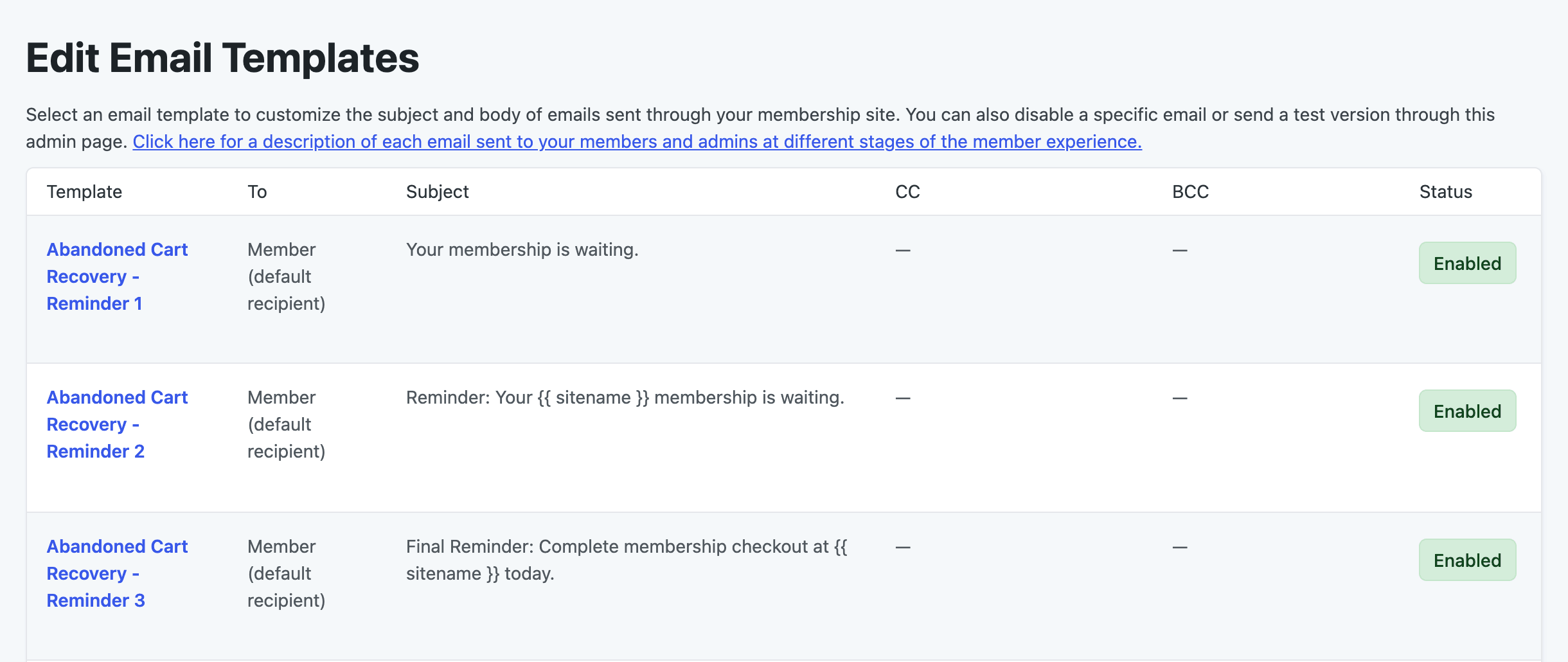
| Template | Default Subject | Default Content |
|---|---|---|
| Abandoned Cart Recovery – Reminder 1 | Your membership is waiting. | Lets the user know they started signing up for the level but didn’t finish, with a link to complete checkout and a link to opt out. |
| Abandoned Cart Recovery – Reminder 2 | Reminder: Your {{ sitename }} membership is waiting. | A second reminder with a Complete Your Purchase Now link and a link to opt out. |
| Abandoned Cart Recovery – Reminder 3 | Final Reminder: Complete membership checkout at {{ sitename }} today. | The final reminder with a Complete Your Purchase Now link. This email does not include an opt-out link by default. |
See The Reminder Email Schedule for when each email is sent.
Edit a Reminder Email
- Navigate to Memberships > Settings > Email Templates.
- Click the name of the reminder you want to change, such as Abandoned Cart Recovery – Reminder 1.
- Update the Subject and Body. Use the variables listed below the editor to add details like the level name and the checkout link.
- Click Save Template.
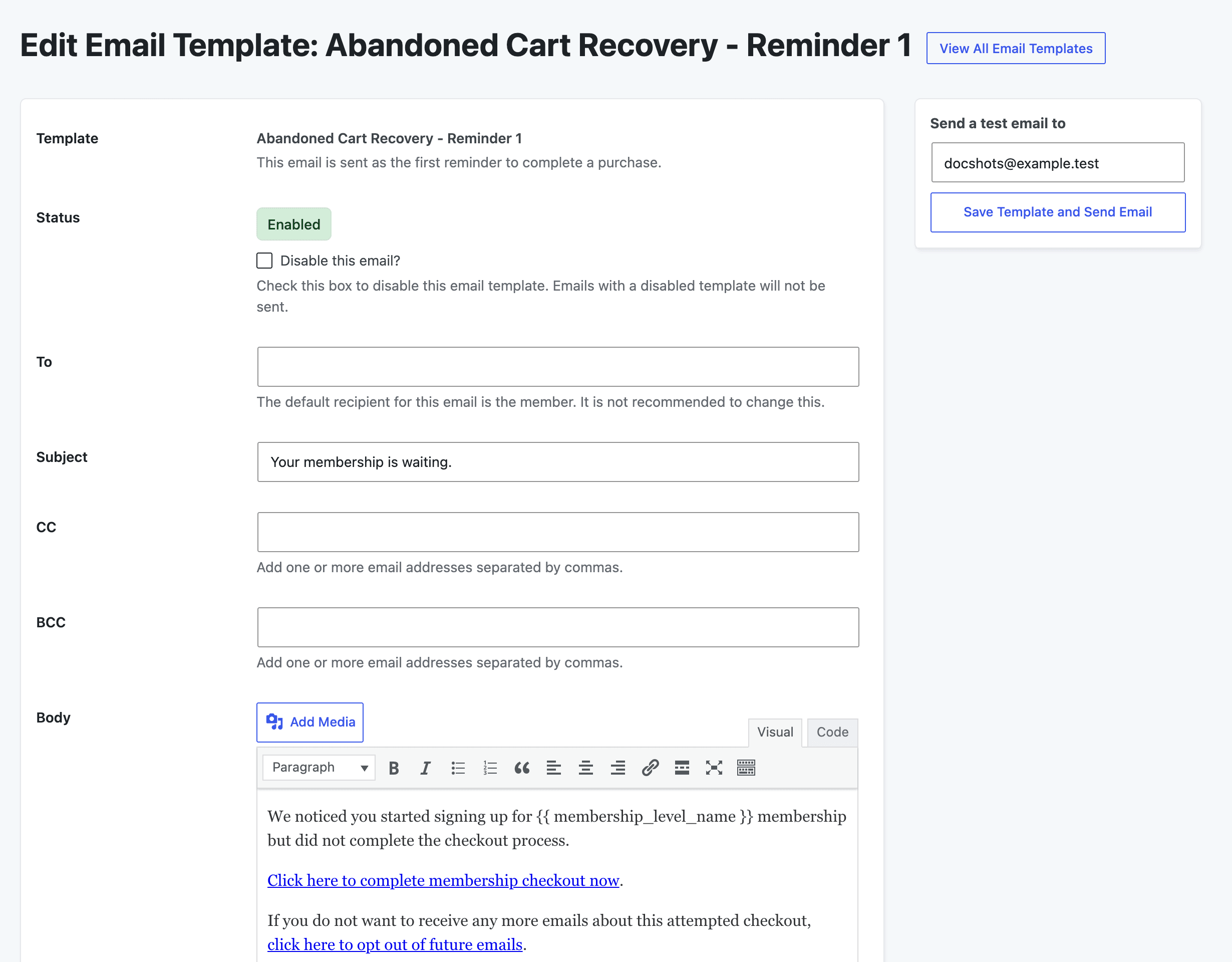
To preview your changes, enter an address under Send a test email to in the sidebar and click Save Template and Send Email. The test email uses your own account and one of your site’s membership levels.
Some ideas for your reminder emails:
- Answer common questions about the membership right in the email, such as what’s included or how to cancel.
- Offer a discount code in the second or third reminder to give people a reason to come back.
- Add the
{{ opt_out_url }}link to the final reminder if you want every email to include a way to opt out.
For more about editing emails, the header and footer, and the template editor, see our email templates documentation.
Email Template Variables
PMPro provides a set of global variables you can use to personalize your email templates. When editing a template, a dynamic list of variables specific to that template appears below the text editor.
Global Template Variables
Global Variables
| Variable | Description |
|---|---|
{{ sitename }}
|
The name of the site. |
{{ siteemail }}
|
The email address of the site. |
{{ site_url }}
|
The URL of the site. |
{{ levels_url }}
|
The URL of the page where users can view available membership levels. |
{{ login_url }}
|
The URL of the login page. |
{{ pmpro_from_email }}
|
The "From Email" set in Memberships > Settings > Email Settings. |
{{ wordpress_admin_email }}
|
The "Administration Email Address" set in Settings > General. |
{{ header_name }}
|
The name of the email recipient. |
Template Variables
Abandoned Cart Variables
| Variable | Description |
|---|---|
{{ display_name }}
|
The display name of the user. |
{{ user_login }}
|
The username of the user. |
{{ user_email }}
|
The email address of the user. |
{{ membership_id }}
|
The ID of the membership level. |
{{ membership_level_name }}
|
The name of the membership level. |
{{ checkout_url }}
|
The URL to the checkout page with the membership level pre-selected. |
{{ opt_out_url }}
|
The URL the user can click to opt out of future abandoned cart emails. |
Get Support From Our Team of Experts
Have a question about how to use this feature? Our Support Page outlines three ways to get support.
Our Max plans include hands-on help customizing your membership site and implementing new features. Upgrade to PMPro Max now »
Last updated on November 13, 2026