Abandoned cart recovery is turned on one membership level at a time. This page covers which payment gateways the Add On works with, how to enable recovery for a level, and how to update your privacy policy so members know you may email them about an unfinished checkout.
Before You Begin
The Add On can only email someone who has a user account and an order on your site. That happens when your payment gateway creates a token order and then sends the person offsite to pay. If they never finish paying, the token order stays behind, and that’s the abandoned cart.
These Paid Memberships Pro gateways create token orders:
- Stripe: Only when the Payment Flow setting is Accept payments in Stripe (Stripe Checkout). The Accept payments on this site payment flow does not create token orders.
- PayPal Express: A token order is created when the member is sent to PayPal to approve the payment.
Payment Gateway settings are found at Memberships > Settings > Payments.
Enable Cart Recovery for a Level
- Navigate to Memberships > Settings > Levels.
- Edit the membership level you want to send reminders for.
- Expand the Abandoned Cart Recovery Settings section.
- Check Enable Abandoned Cart Recovery for this level.
- Click Save Level.

Repeat these steps for each paid level you want to include. The setting is off by default for every level. Once a level is enabled, the Add On checks for abandoned carts every hour and sends the reminder emails on the schedule described in How Abandoned Cart Recovery Works.
Update Your Privacy Policy
Because the Add On emails people who haven’t finished checkout, we recommend telling them so in your privacy policy. The Add On adds suggested text to the WordPress privacy policy guide and can show a short privacy notice at checkout.
Add the Suggested Policy Text
- Navigate to Settings > Privacy in the WordPress admin.
- If you don’t have a Privacy Policy page yet, select or create one on the Settings tab.
- Click the Policy Guide tab.
- Expand the Paid Memberships Pro – Abandoned Cart Recovery section.
- Click Copy suggested policy text to clipboard and paste the text into your Privacy Policy page.
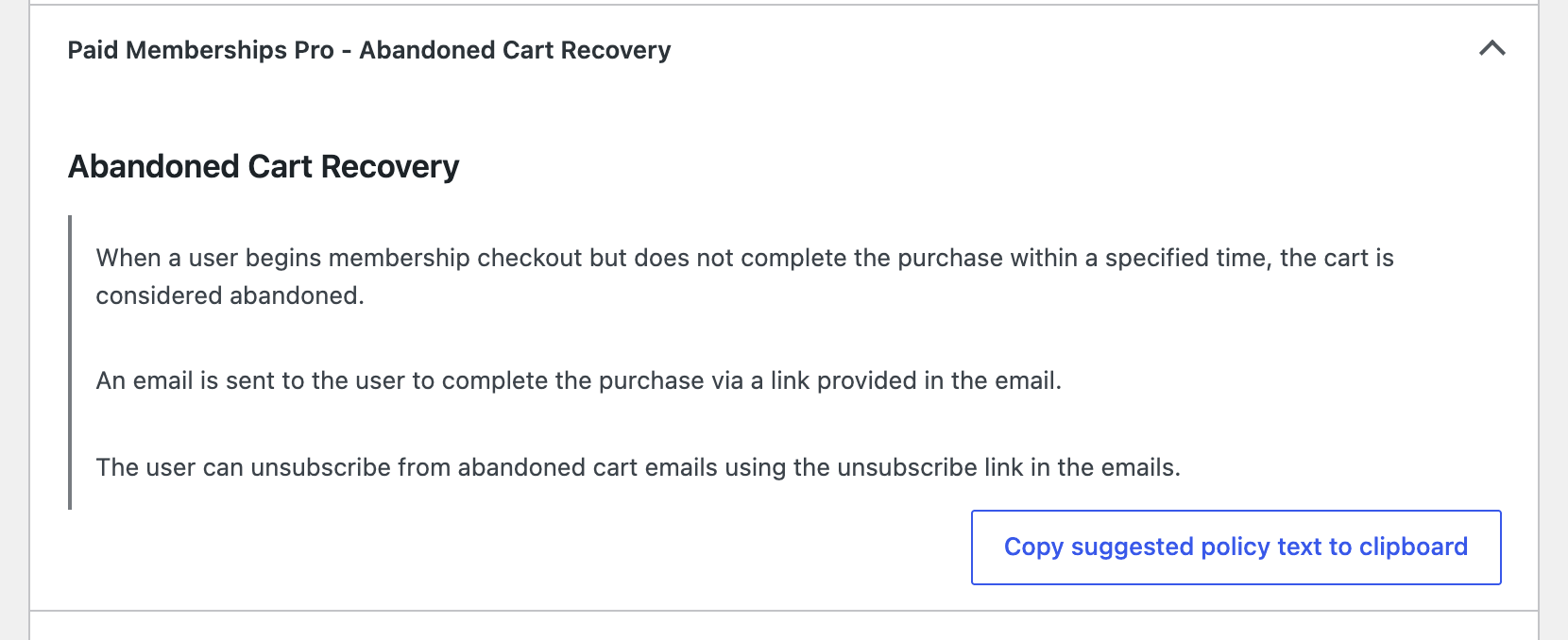
The suggested text explains that a checkout that isn’t completed is considered abandoned, that the person may receive an email with a link to complete their purchase, and that they can unsubscribe using the link in the email.
Privacy Message at Checkout
On the checkout page for a level with cart recovery enabled, the Add On shows a short message above the submit button that links to your privacy policy:
Your personal data will be used to process your order, support your experience throughout this website, and for other purposes described in our privacy policy.
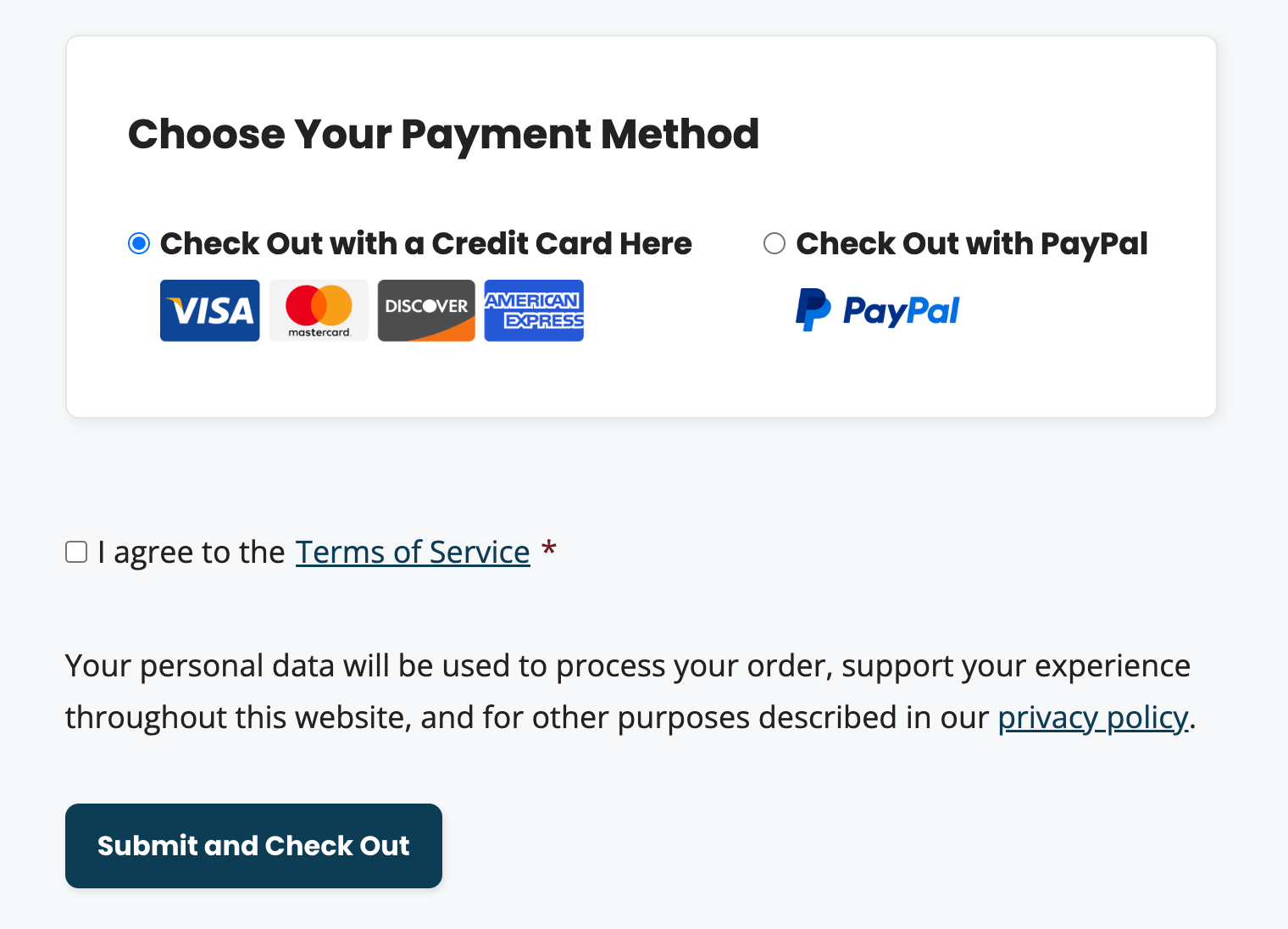
The message only appears when a Privacy Policy page is assigned under Settings > Privacy and that page is published. Developers can change or remove the message with the pmproacr_privacy_message filter.
Get Support From Our Team of Experts
Have a question about how to use this feature? Our Support Page outlines three ways to get support.
Our Max plans include hands-on help customizing your membership site and implementing new features. Upgrade to PMPro Max now »
Last updated on November 9, 2026