Administrators can see a member’s invite codes, give them more, and check who invited them from the Invite Codes panel on the Edit Member screen. This page also explains what happens to codes when a membership renews, changes, or ends.
Invite Codes Panel on the Edit Member Screen
The Add On adds an Invite Codes panel to the Edit Member screen. To open it:
- Navigate to Memberships > Members in the WordPress admin.
- Search for the member, hover over their row, and click Edit Member.
- Click Invite Codes in the panel menu on the left.
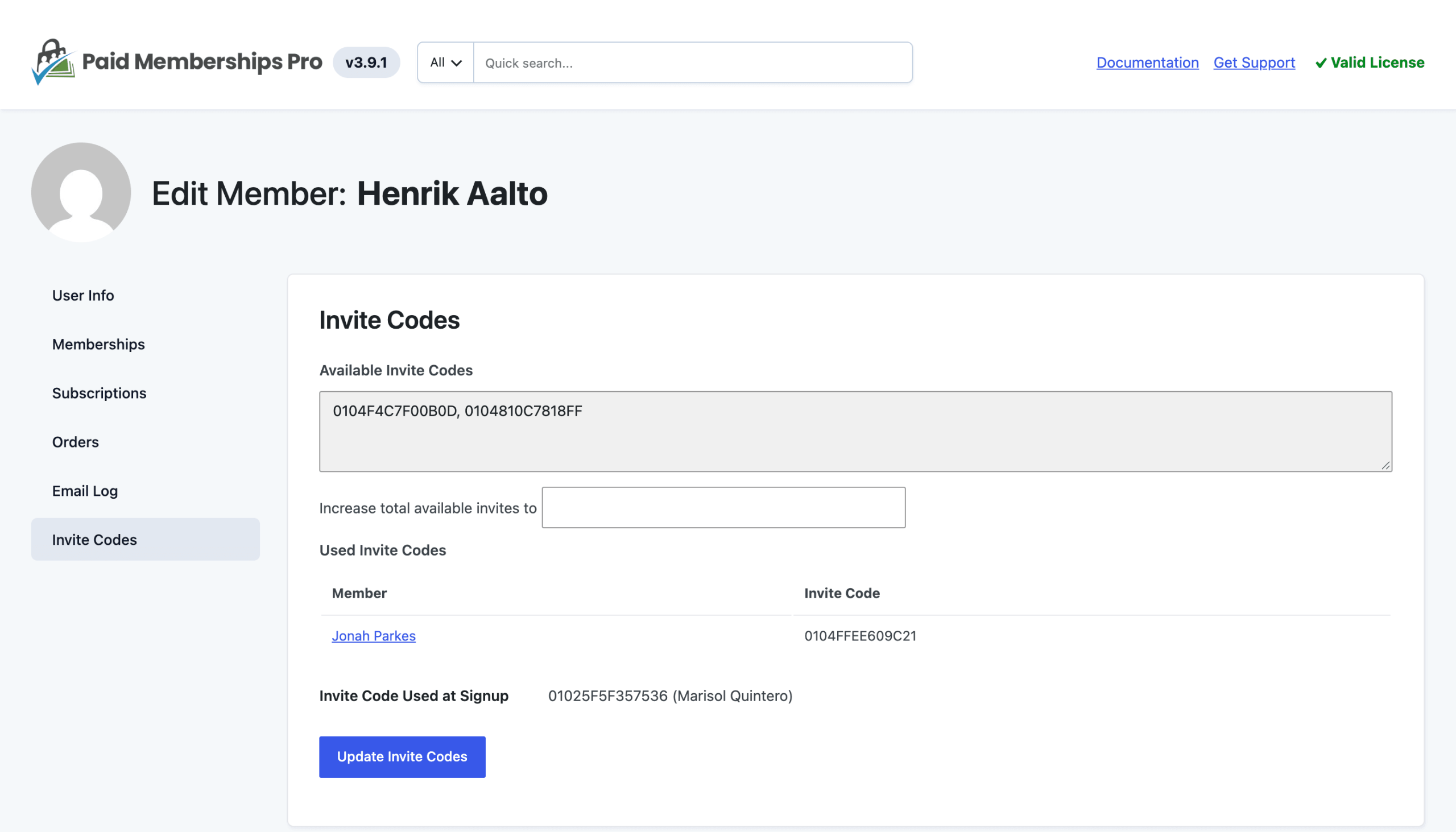
The panel shows:
- Available Invite Codes: The member’s codes that still have uses left.
- Increase Total Available Invites To: A field for giving the member more codes.
- Used Invite Codes: A table of the people who checked out with this member’s codes and the code each one used. Click a name to open that person’s Invite Codes panel.
- Invite Code Used at Signup: The code this member entered at checkout, followed by the name of the member who owns that code. It shows N/A if the member didn’t use a code.
Give a Member More Invite Codes
- Open the member’s Invite Codes panel.
- In Increase total available invites to, enter the total number of codes you want the member to have.
- Click Update Invite Codes.
The number is a new total, not the number of codes to add. The total counts every code the member has, including used ones. For example, if a member has 3 codes and you enter 5, they get 2 new codes. If you enter a number equal to or lower than the codes they already have, nothing changes. You can’t remove codes from this panel.
You can add codes for any member, even one whose level doesn’t normally give codes. The codes work the same way as codes created at checkout, including the use limit you set. They only work while the member holds an active membership level.
See Who Invited a Member
Open the new member’s Invite Codes panel and look at Invite Code Used at Signup. The name in parentheses is the member who shared the code. To see everyone a member has invited, open that member’s panel and check the Used Invite Codes table.
Renewals, Cancellations, and Returning Members
- Renewals and Level Changes: A member gets codes when they receive a level that gives codes, whether at checkout or when an administrator assigns the level. They never get more than the number of codes per member this way, so renewing or switching levels doesn’t add codes. Use the Invite Codes panel to give a member more.
- Expired or Cancelled Memberships: The member keeps their codes, but the codes stop working while the member has no active membership level. They work again if the member rejoins any level. People who already joined with those codes keep their memberships. Developers can keep codes working after the owner’s membership ends with the pmproio_check_user filter.
- Returning Members: When a former member logs in and checks out for an invite-only level again, the Invite Code field is filled in with the code they used the first time. That code still works if its owner has an active membership and the code hasn’t reached its use limit. Their first signup counts as one use, so with single-use codes they need a new code.
If you need to link several people to one membership, such as a team or family, consider the Group Accounts Add On instead.
Get Support From Our Team of Experts
Have a question about how to use this feature? Our Support Page outlines three ways to get support.
Our Max plans include hands-on help customizing your membership site and implementing new features. Upgrade to PMPro Max now »
Last updated on November 19, 2026