See what invited people see at checkout and where members find the invite codes they can share after they join.
Invite Code Field at Checkout
Checkout for an invite-only level has an Invite Code section with a required Invite Code field. The member enters the code they were given and completes checkout as usual.
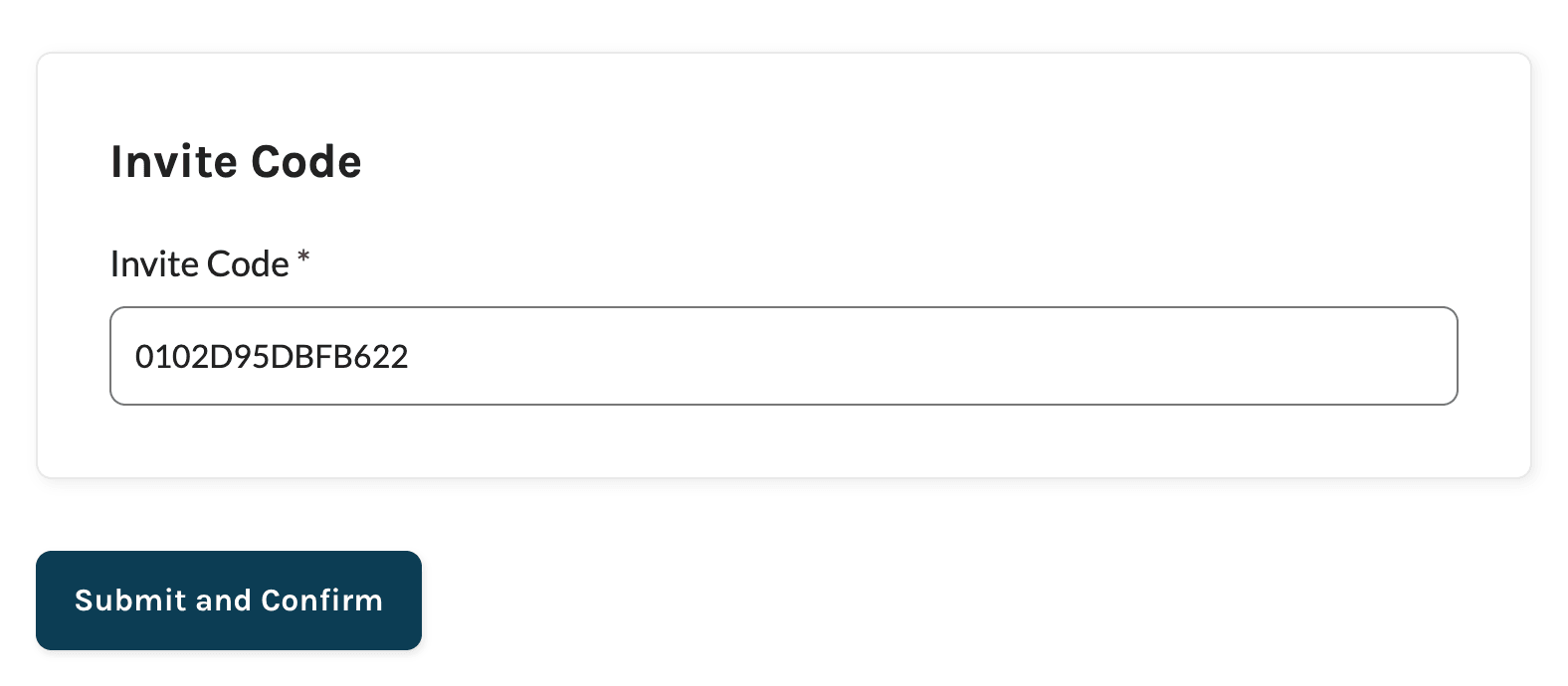
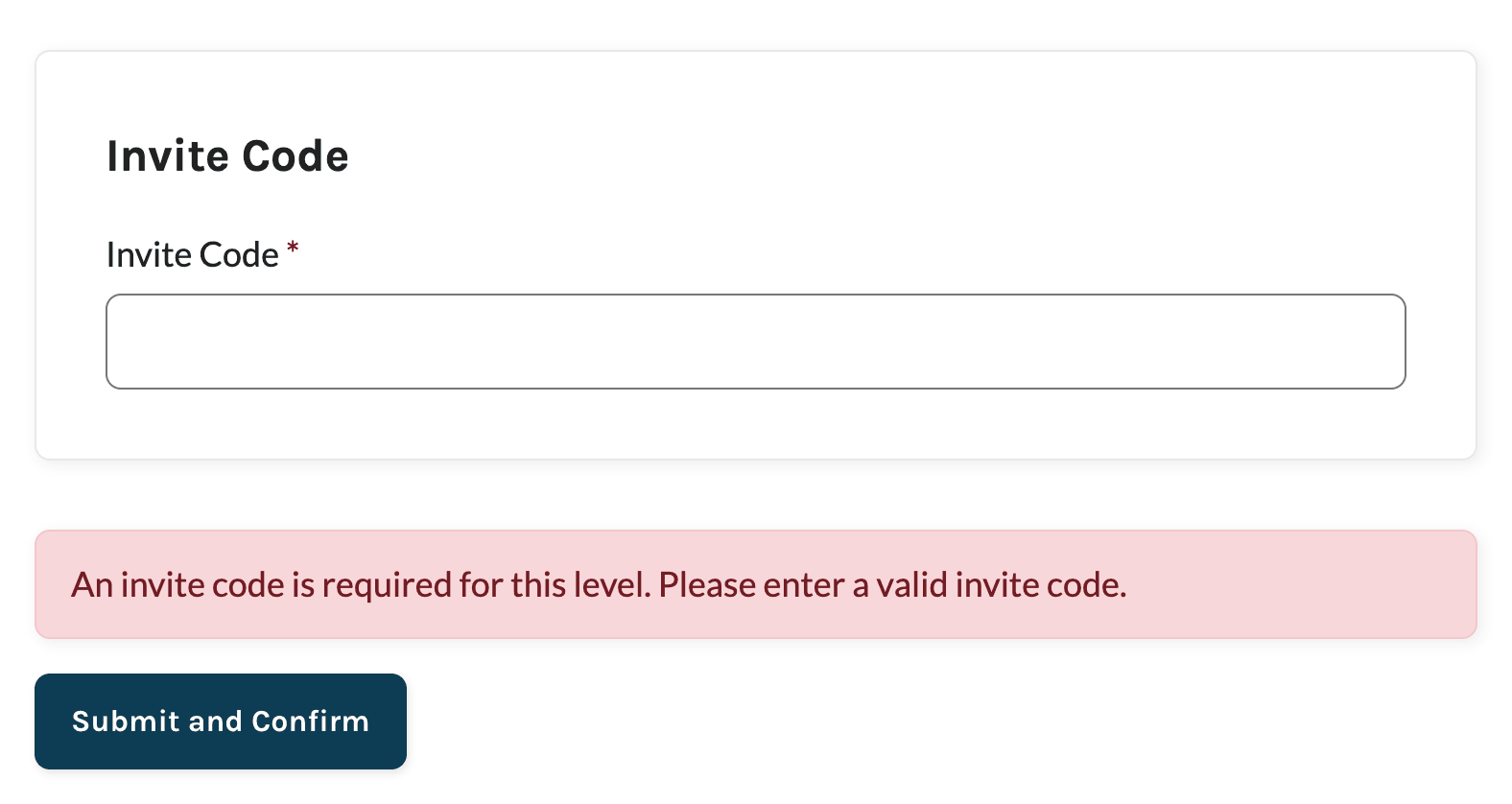
If the field is empty or the code isn’t valid, checkout stops and shows this message: “An invite code is required for this level. Please enter a valid invite code.”
A code is valid when all of these are true:
- It matches one of a member’s codes exactly. Codes are case-sensitive, so members should copy and paste them rather than retype them.
- The member who owns the code has an active membership level. It can be any level.
- The code hasn’t reached its use limit, if you set one.
The invite code requirement only applies to checkout. Administrators can still assign an invite-only level to anyone from the Edit Member screen.
Share an Invite Link
Members can send a link that fills in the code for the person they invite. Add invite_code to the checkout page URL for the invite-only level, like this:
https://yoursite.com/membership-checkout/?pmpro_level=2&invite_code=0102D95DBFB622
Replace the domain, checkout page path, level ID, and code with your own. The invited person still sees the code in the field and can change it before checking out.
Invite Codes on the Confirmation Page
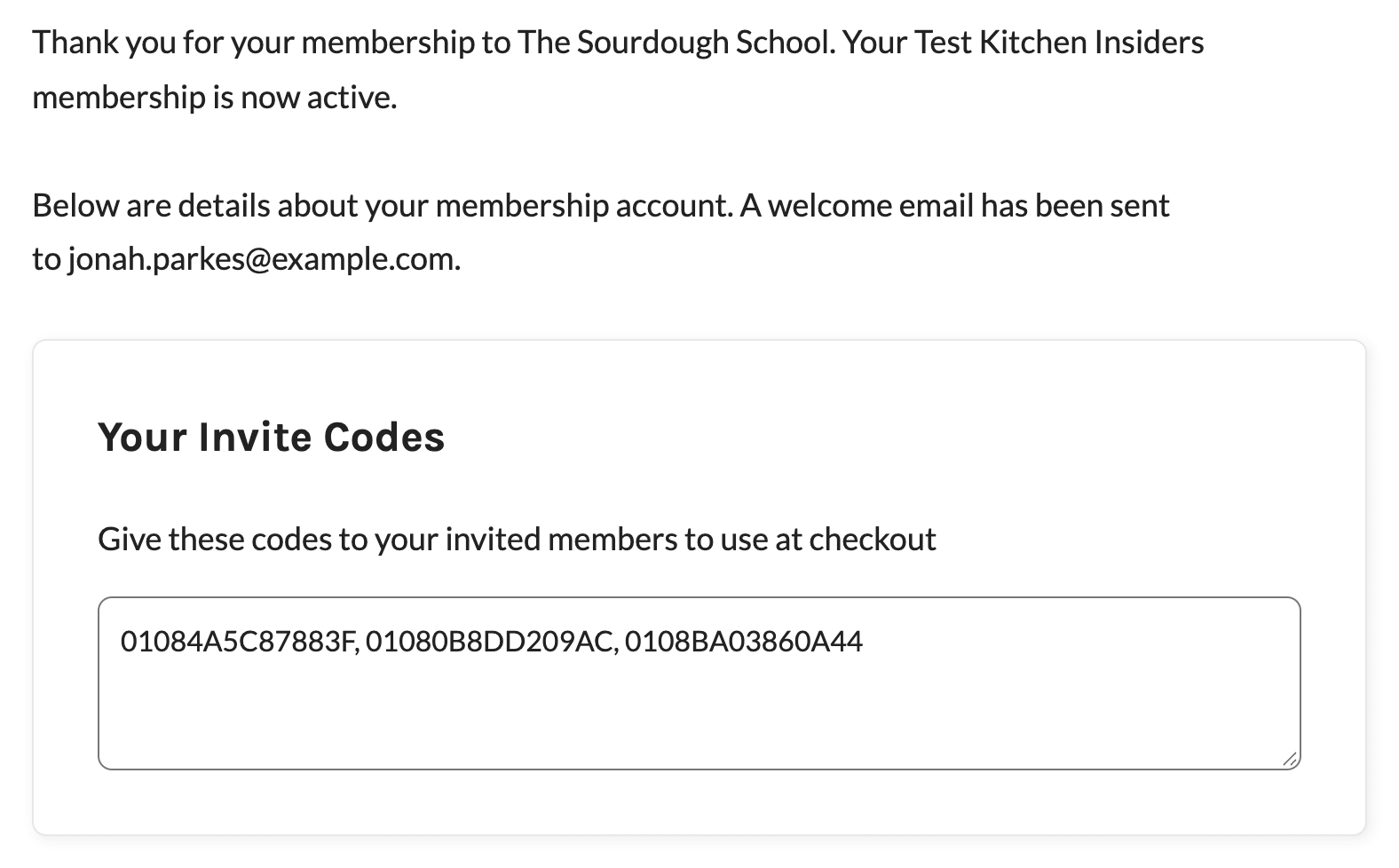
When a member checks out for a level that gives invite codes, the Membership Confirmation page shows their codes in a Your Invite Code or Your Invite Codes box, with the message “Give these codes to your invited members to use at checkout.” The box lists codes that still have uses left.
Invite Codes in the Checkout Email
The Add On adds the member’s codes to the checkout confirmation emails under the line “Give these invite codes to others to use at checkout:”. The codes are placed just before the line that starts with “Account:”. If you’ve edited your checkout email templates and removed that line, the codes aren’t added. The admin copy of the checkout email includes the codes too.
Invite Codes on the Membership Account Page
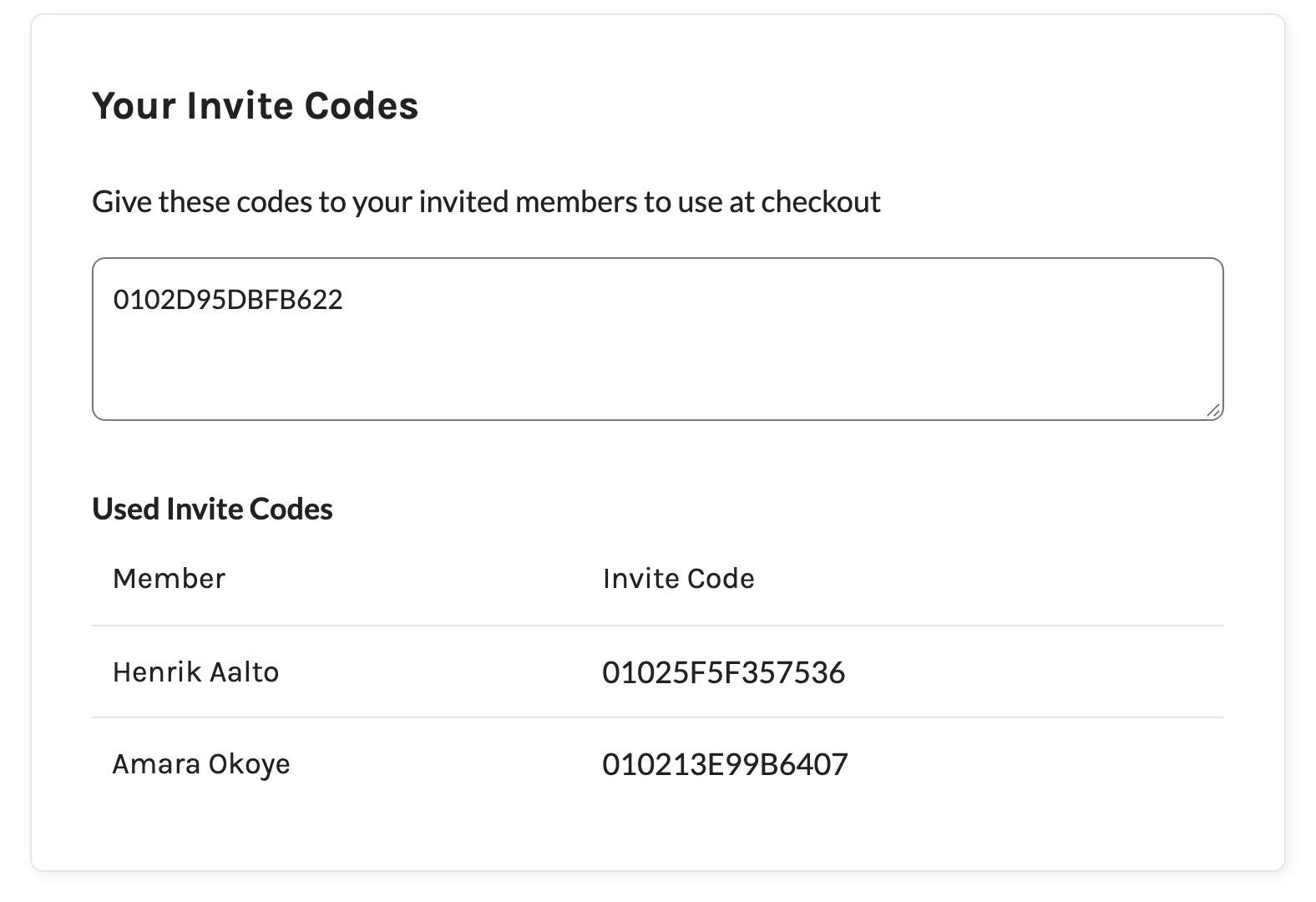
Members can come back to their codes anytime on the Membership Account page. The Your Invite Codes box appears below the account profile and shows:
- A box with the member’s codes that still have uses left, ready to copy.
- Used Invite Codes: A table of the people who checked out with the member’s codes and which code each one used. If no one has used a code yet, it says “None of your codes have been used.”
Members can’t add, edit, or delete codes themselves. Only administrators can add codes for a member.
Get Support From Our Team of Experts
Have a question about how to use this feature? Our Support Page outlines three ways to get support.
Our Max plans include hands-on help customizing your membership site and implementing new features. Upgrade to PMPro Max now »
Last updated on November 19, 2026