We’re excited to announce the release of Memberlite v6.1, an update focused on giving you more control over your theme settings with new tools for backup, migration, and reset.
This version introduces a dedicated Memberlite admin area, with tools that make managing your theme configuration more straightforward. These tools can be used whether you’re moving to a new host, setting up a staging site, or simply want peace of mind with a settings backup.
Read on for a full overview of what’s new in Memberlite v6.1, how to use the new tools, and the steps to upgrade your site today.
A New Home for Memberlite Settings
With v6.1, Memberlite now has its own dedicated section in the WordPress admin menu.
Instead of hunting through the Appearance menu for various theme-related settings, you’ll now find a Memberlite menu item that brings everything together in one place:
- Dashboard: Your starting point with quick links to documentation, recommended plugins, and an overview of integrated plugin support.
- Sidebars: Create and manage custom sidebars, plus assign sidebars to custom post types.
- Tools: The star of this release: export, import, and reset your entire theme configuration.
This reorganization sets the stage for future enhancements and allows you to manage all aspects of your Memberlite-powered site from a single, logical location.
Key Features in Memberlite v6.1
Export Theme Settings
Ever wished you could back up your carefully crafted theme settings? Now you can.
The Export tool creates a complete snapshot of your Memberlite configuration as a JSON file. This includes:
- All Customizer settings (colors, fonts, layouts, navigation options)
- Custom sidebar configurations
- Custom post type sidebar assignments
- Site icon
- Additional CSS (the custom CSS you’ve added via the Customizer)
How to use the Memberlite Export Tool
- Navigate to Memberlite > Tools in your WordPress admin.
- Click the Export Theme Settings button.
- A JSON file will download automatically, named with the current date for easy reference.
Import Theme Settings
The Import tool is the companion to Export. It restores your settings from a previously exported JSON file. Use the Export tool for common actions, like:
- Site Migration: Moving your site piece by piece? Export your settings from the old site and import them on the new one.
- Staging to Production: Perfect your design on a staging site, then push those settings to production with a single import.
- Team Collaboration: Share your theme configuration with team members or clients.
- Disaster Recovery: Accidentally broke something? Import your backup and you’re back in business.
How to use the Memberlite Import Tool
- Navigate to Memberlite > Tools.
- Click Choose File and select your exported JSON file.
- Click Import Settings.
- Your theme settings will be restored instantly.
Reset Theme Settings
Starting fresh? The Reset tool restores all Memberlite settings to their original defaults. Use the reset feature when:
- You want to start your design from scratch
- You’ve inherited a site and want to clear out the previous owner’s customizations
- You’re troubleshooting and need to rule out theme settings as the cause
Memberlite’s Reset tool restores the following settings to their original defaults:
- All Customizer theme modifications
- Custom sidebars
- CPT sidebar assignments
- Site icon
- Additional CSS
How to use the Memberlite Theme Reset Tool
- Navigate to Memberlite > Tools.
- Click Reset Theme Settings.
- Confirm your decision in the dialog that appears.
- Your theme returns to its default state.
This action cannot be undone. We strongly recommend exporting your current settings before performing a reset, just in case.
How to Download and Update Memberlite
You can now download the latest version directly from our downloads page here at the Paid Memberships Pro website.
Update Option 1: If You’re Using the PMPro Update Manager Plugin
If you have the PMPro Update Manager plugin active, Memberlite v6.1 can be updated automatically from the Appearance > Themes screen in the WordPress admin.
Update Option 2: Manual Update via .zip File
If you’re not using the PMPro Update Manager, you should install and active this free Add On so that Memberlite, PMPro, and any PMPro Add Ons can be updated without the need to handle updates via .zip files. Once you install and activate the Update Manager Add On, you can upgrade Memberlite following the steps in Option 1 above.
If you need assistance upgrading or have questions about how v6.1 affects your site, we’re here to help. Find out how to get support for Memberlite here.
Looking Ahead
The new admin area and tools in v6.1 are foundational work for what’s coming next. With a dedicated Memberlite menu in place, we have room to expand:
- More granular control over theme features
- Additional tools for site management
- Deeper integration with Paid Memberships Pro settings
We’re committed to making Memberlite the best theme for membership sites, and these tools are a significant step toward that goal. Your theme settings represent hours of design decisions, now you have the tools to protect and manage that work.
Memberlite v6.1 Full Changelog
- FEATURE: Export and import tools for Memberlite theme settings (Customizer options, custom sidebars, CPT sidebar assignments, custom CSS, site logo, and site icon).
- FEATURE: Theme Reset tool that restores all Memberlite settings to defaults, with confirmation prompt.
- ENHANCEMENT: Reorganized Memberlite admin area to main admin menu section ‘Memberlite’ with subpages.
- BUG FIX: Fix display of Signup Shortcode & Block borders when there is a nested
pmpro_card.
Update: Memberlite v6.1.1 Released
On January 27, 2026, we released Memberlite v6.1.1 with improvements to the Customizer experience, broader language support, and more layout flexibility.
What’s New in v6.1.1
Expanded Language Support
We’ve replaced all Google Fonts with their Latin Extended versions. This means better character support for languages that use accented characters, special symbols, and extended Latin alphabets. If your membership site serves an international audience (or if you simply use words with diacritics) your typography will now render correctly across all 22 included Google Fonts.
Separate Column Ratio for Posts and Blog
You asked, we delivered. The content-to-sidebar ratio can now be configured separately for blog pages and single posts.
Previously, if you wanted a wider content area on your blog but a different ratio on regular pages, you had to resort to custom CSS. Now it’s a simple Customizer setting.
Where to find it: Appearance > Customize > Posts & Archives > Columns Ratio
By default, this setting inherits from your Pages column ratio, so existing sites won’t see any unexpected changes. But if you want that 9×3 ratio on your blog while keeping 8×4 on pages, now you can.
Reorganized Customizer
We’ve restructured the Customizer for better usability:
- Clearer section organization: Settings that were previously grouped together in the Memberlite Options panel are now organized into focused sections. Each panel contains fewer settings, with related options grouped together for easier navigation.
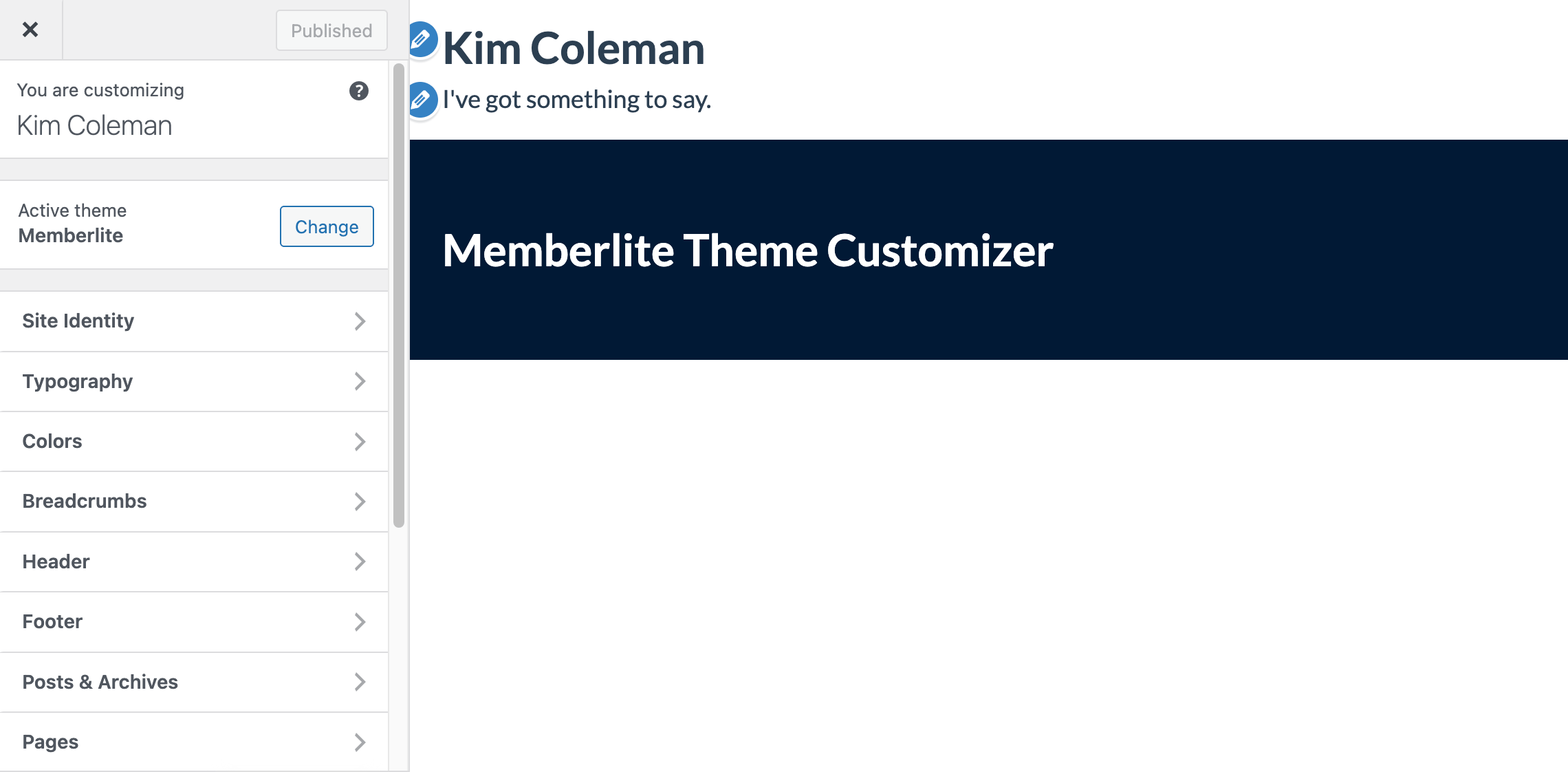
- New heading controls: Visual separators help you find what you’re looking for faster.
- Improved labels and descriptions: We’ve refined the wording throughout to make each setting’s purpose clearer.
These changes don’t affect your existing settings: everything will look exactly as you configured it. But the next time you visit the Customizer, you’ll find it easier to navigate.
Developer Improvements
For theme developers and those building child themes:
- New helper functions for adding Customizer settings and controls
- Separated settings into individual helper methods for cleaner code
- Dedicated stylesheet for Customizer preview styling
- Simplified the process of adding new settings (no longer requires wrapping in translation functions)
v6.1.1 Changelog
- ENHANCEMENT: Replacing webfonts with latin-extended versions for broader language support.
- ENHANCEMENT: Added a separate column ratio setting for posts and blog (inherits from pages setting by default).
- ENHANCEMENT: Reorganized Customizer with new sections, panels, and improved settings organization for better usability.
- ENHANCEMENT: Added new helper functions for Customizer settings and controls for better code management.
- ENHANCEMENT: Added dedicated stylesheet for Customizer preview.
- ENHANCEMENT: Simplified helper method to no longer require translate function when adding settings/controls.
- BUG FIX: Fixed a dead link in the readme that was returning a 404.
- REFACTOR: Separated Customizer settings and controls into individual helper functions.
- REFACTOR: Code cleanup and formatting improvements for WordPress coding standards.
How to Update
If you’re already running Memberlite v6.1, the update process is the same:
- PMPro Update Manager: Check for updates in Appearance > Themes
- Manual: Download the latest version from our downloads page
Questions or Feedback?
We’d love to hear how you’re using the new tools. If you run into any issues or have suggestions for future improvements, reach out through our support channels or join the conversation in the PMPro Slack Community.


